








Top 11 DVD to MP4 Converters for Windows & Mac [2026 Tested]
Summary: To convert a DVD to MP4 with the best balance of quality, speed, and file size, choose a DVD ripper with GPU acceleration and decryption support. We've tested 11 top-rated DVD to MP4 converters for Windows (11/10) and macOS to help you bypass 99-title protections and digitize your collection to MP4 using pro-level settings. Below, you'll find not just reviews, but clear steps showing how to convert a DVD to MP4 in real-world scenarios—from protected movie discs to home videos.
DVDs are still widely used for movie collections, home videos, and backups. However, physical discs are not convenient for modern devices. Converting DVD to MP4 allows you to digitize your DVD collection and help you protect your favorite movies from getting scratched or damaged. This also allows you to watch your movies on a wider range of devices, not just on computers or TVs. In the post, we'll review free & paid tools and show you how to convert DVD to MP4 with optimal quality and speed, along with common mistakes to avoid. If your goal is simply to convert a DVD to MP4 without trial-and-error, the process is straightforward once the correct tool and title are selected.
Quick Answer: How to Convert DVD to MP4
To convert DVD to MP4, you need a DVD ripper that can read DVD content and save it as an MP4 video file. The basic process is:
- Insert the DVD disc into your computer.
- Open the DVD with a DVD ripping program.
- Select MP4 as the output format.
- Start the DVD to MP4 conversion process.
If you don't want to read all 11 reviews, here's a quick comparison of the three tools that performed best in our benchmark tests.
Top 3 DVD to MP4 Converters at a Glance (2026 Field Test)We benchmarked these DVD to MP4 converters using the commercial Disney DVD Wreck-It Ralph (Title 1) under the same hardware and output settings. Test Rig: AMD Ryzen 5 5600, RX 6700, 48GB, Windows 10. | |||||
Tool |
Protected DVD |
Speed (Analysis + Conversion) |
Quality & Size |
Best for |
Test Result |
Yes. Full support CSS, 99-title, Disney, new, or regional encryption. |
10m 48s 177fps |
Excellent 967MB |
The best choice for encrypted store-bought discs. Convert tough 99-title or other protected DVD to MP4 with fast speed and high quality. |
Editor's Choice Techrard rating: 4.7 |
|
Limited. Basic CSS only (Requires libdvdcss). |
29m 58s 67fps |
Playback error 1.13GB |
Suitable for simple, non-protected DVD to MP4 tasks. Ideal if you already have it installed and don't mind the long wait. |
Slow & unreliable Techradar rating: 4.3 |
|
No. (Unsupported without libdvdcss) |
10m 56s 100fps |
Block artifacts 976MB |
Best for tech-savvy users converting homemade DVDs to MP4 with highly customizable settings. |
Home DVDs only Techradar rating: 4.0 |
|

Many programs claim to rip DVD to MP4, but our real-world benchmarks show distinct differences in disc reading and rendering speed, decryption capability, and CPU usage. See which DVD ripper topped our shootout list.
Why Most DVD to MP4 Rippers Fail at 99-Title & Protected DVDs?
Trying to rip a commercial DVD can be frustrating. You may end up with scrambled video, a 40GB file of "junk data," or a software crash. These issues often arise from three common challenges that basic DVD to MP4 converters cannot handle.
1. The "99-Title" Trap: Many modern DVDs, especially from major studios like Disney, Sony, and Paramount, are deliberately designed to confuse basic DVD rippers. Instead of a single, obvious movie title, the disc may contain dozens—or even 99—nearly identical titles, only one of which is the real film. If you pick the wrong one, the output will be out of order, loop indefinitely, or crash your player.
2. Handling Modern DVD Encryptions: Beyond CSS, modern discs use sophisticated schemes like Sony ArccOS and Disney X-project. These encryptions intentionally create "bad sectors" on the disc to confuse ripping software. As a result, standard ripping software gets stuck in an endless loop or crashes when it tries to read them.
3. Non-standard structures and stubborn DVDs: Scratched discs, overseas region codes (Region 1-6), or unusual file structures can make ripping fail even if the DVD seems normal. Without a specialized analysis engine, a converter cannot distinguish between physical disc damage and intentional structural protection.
The root cause is that many users confuse DVD conversion with DVD ripping. Understanding the difference makes it much easier to choose the right software.
DVD Ripping vs. Converting: What Do You Actually Need
Many users use these terms interchangeably, but knowing the difference is key to getting the right results:
- DVD Converting is simple. It's the process of converting unprotected DVDs or DVD files like Video_TS or VOB into MP4. This converting is common for home videos or already-backed-up discs. Almost any free tool can do this DVD to MP4 conversion process.
- DVD Ripping is the "heavy lifting." It involves bypassing encryption (like CSS or Region Codes) and extracting the main movie directly from a physical disc before converting to MP4.
In other words, if you're dealing with a store-bought movie disc, you don't just need a converter; you need a decryption-capable DVD ripper that can handle the latest protection schemes without crashing.
11 Free and Paid DVD to MP4 Converters Compared: Which One Should You Choose?
To avoid the traps mentioned above, we've benchmarked 10+ solutions based on their ability to handle these "stubborn" DVDs. To help you find the one that fits your specific disc type, we've categorized them into specialized, open-source, pro-level, and paid tools. Below is the breakdown based on our real-world testing.
Category 1: Specialized DVD to MP4 Ripper - The Industry Standard for Protected DVDs
While some tools focus mainly on decryption, a true DVD to MP4 converter must also handle DVD conversion, aspect ratio, audio sync, file compression, etc—otherwise even a successfully ripped disc can be result in poor playback quality.
#1. WinX DVD Ripper Platinum - Convert Protected DVDs to MP4 Quickly and Automatically
Best for backing up 99-title DVD or any other copy-protected DVDs with the best balance in quality, speed, and size. GPU accelerated.
OS: Windows 11/7/8/earlier, macOS Tahoe and earlier
WinX DVD Ripper Platinum has been a favorite for 20 years among users and tech giants like TechRadar and PCMag. While many tools struggle with the encryption traps we discussed above, WinX is specifically engineered to handle them automatically.
- Automatic 99-Title Detection: Leveraging its built-in "Unique Title Check Mechanism," WinX performs an entropy check on the disc's file system. It bypasses decoys and identifies the correct "Main Title" in seconds—saving you the hours of trial and error required by free tools.
- Advanced Sector Repair: Instead of crashing when encountering intentional "bad sectors," WinX uses sector-by-sector scanning technology. It recognizes these errors as copy protections, allowing it to reconstruct a perfect MP4 stream where others stop or crash.
- Unrivaled Speed: It can digitize a full DVD movie to MP4 (HEVC/H.264) in just 5-10 minutes by taking full advantage of Level-3 GPU acceleration.
Beyond speed and decryption, it offers 350+ profiles to convert your DVD collection for iPhones, Android, TVs, and more, ensuring your digital library is compatible with any modern device.
Download WinX DVD Ripper to convert DVDs to MP4 with high quality
How to Convert DVD to MP4 with Quality, Speed, and File Size Optimized (Detailed Guide)
 Free download and install WinX DVD Ripper Platinum on your PC.
Free download and launch WinX DVD Ripper Platinum for macOS.
What You Will Need to Convert DVD to MP4
Before converting DVD movies to MP4, prepare 4 things:
- Prepare a DVD movie or video you want to convert. Commercial DVDs and homemade DVDs require different ripping methods. WinX DVD Ripper can handle them well.
- Get an external disc reader for approximely $80 to improve compatibility and performance.
- Turn off audio devices to resolve any DVD decryption issues caused by software conflicts.
- Stay plugged into a power outlet during conversion to avoid interruptions from power outages.
Step 1. Add the Source DVD Disc/Folder.
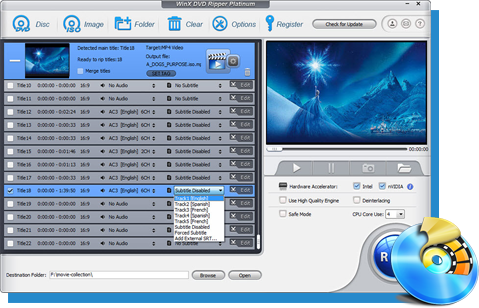
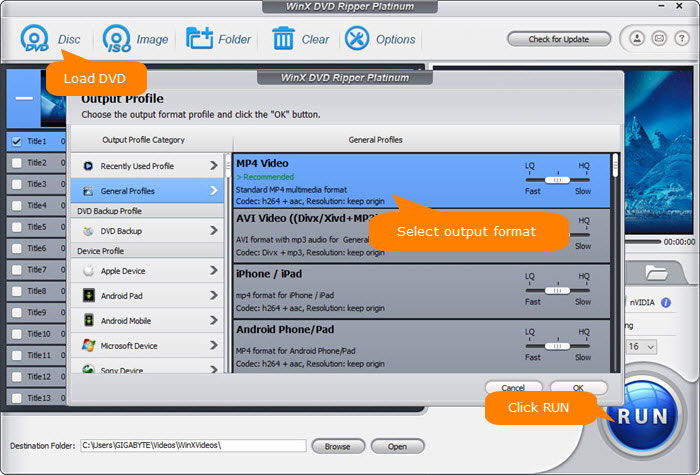
Open the DVD to MP4 ripper and click the "DVD Disc" icon. Locate and select the source disc. Then click OK. DVD Folder and ISO image are also well accepted. The DVD ripper supports advanced encryptions, like navigation algorithms used in multiple titles. It will easily detect the correct title hidden in DVDs from Disney, Sony, Paramount, etc.
Step 2. Choose MP4 as the Output Format.
Once the title is detected, it will pop up an Output Profile window. Find General Profiles and select "MP4 Video" (codec: h264+aac) from the right column. Click OK. You can also choose to convert a DVD for iPhone, Android device, YouTube, or other web services.
Step 3. [Pro Tips] Best Settings for Quality, Speed, and Size.
This DVD to MP4 converter is super fast! It uses a bunch of cool tech (e.g., level-3 hardware acceleration, Hyper-threading tech, multi-core CPU, high-quality engine) to rip your DVDs in record time. The converted MP4 files are small in size while still looking amazing. Plus, you can adjust the settings to fit what you need.
3.1. To Convert DVD to MP4 with 1:1 Visual Fidelity.
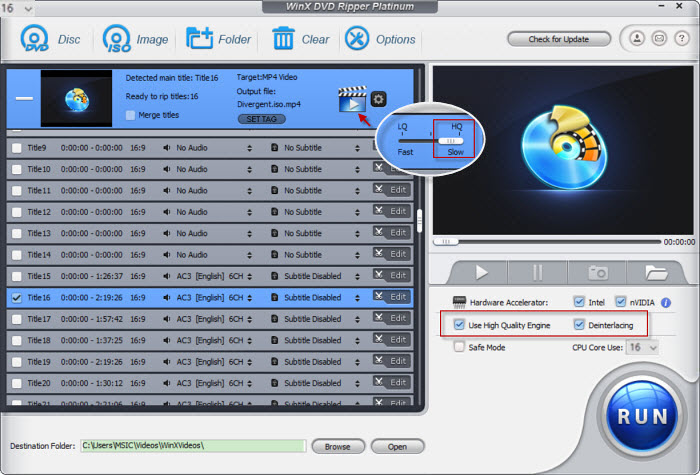
- Enable "High-Quality Engine" - it analyzes your DVD and finds the perfect balance between quality and bitrate.
- Always check "Deinterlacing" for older TV DVDs - this gets rid of those annoying jagged interlacing artifacts you might see sometimes.
- Choose "MP4 H.265" - it makes files half the size of "MP4 H.264" without losing quality.
- Slide the bar between "LQ" (Low Quality) and "HQ" (High Quality). HQ gives the best picture, but takes longer. The middle setting balances speed and quality.
3.2. To Convert a DVD to MP4 from GBs to MBs.
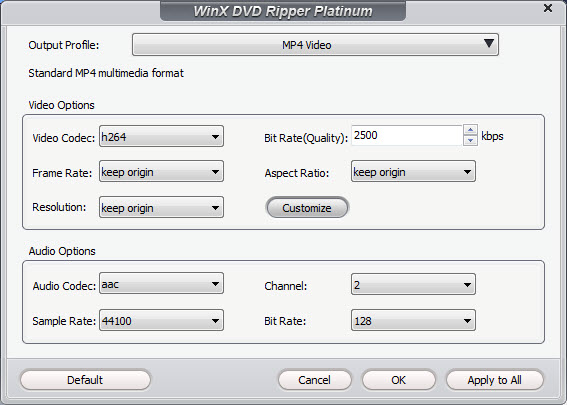
DVD movies are huge. They can take up 5-8GB each. Converting DVDs to MP4 format saves space and makes them easier to find. To get a smaller file size, first choose "MP4 H.265" as the output format. Next, click the gear button and adjust settings like video/audio codecs, bit rate, dimensions, frame rate, audio sample rate, etc. to convert an 7.7GB DVD into a smaller MP4 file. Here are the recommended settings:
- Don't adjust the frame rate and aspect ratio it they are unnecessary.
- For video quality, choose H.264 or H.265 codec. They keep the file size smaller without sacrificing much quality.
- Lower the "bitrate" from 2500 kbps to around 1800-2000 kbps for a standard 480p DVD. Our tests show this is the optimal spot where the MP4 file size drops significantly without noticable blur on a standard 1080p screen.
- Lower the resolution. The standard DVDs are 720×480 or 720×540. Dropping to 640x480 won't affect quality, but lower resolutions will make the file smaller.
 Please note: Tweaking these settings can shrink your file size, but be careful! Smaller files mean some quality loss. Want to keep DVD quality? Choose H264/AAC (mp4) - it keeps the file size around 900 MB-1.6GB. By converting the DVD to H.265 MP4, you can get half the size at the same quality.
I benchmarked WinX DVD Ripper by ripping a "Wreck It Ralph" DVD on our AMD Ryzen 5 5600X + Radeon RX 6700 XT test system. By leveraging Level-3 Hardware Acceleration, WinX reached an average speed of 177 fps, which is roughly 12x faster than traditional software-based encoders.
Preset |
Type |
Container |
Video Codec |
Audio Codec |
Quality |
Avg. Speed |
File size |
Normal |
Hardware |
MP4 |
H.264 |
AAC |
Excellent |
177.14fps |
967MB |
LQ |
Hardware |
MP4 |
H.264 |
AAC |
Excellent |
195.86fps |
314.1MB |
HQ |
Hardware |
MP4 |
H.264 |
AAC |
Excellent |
161.42fps |
1.01GB |
3.3. To Convert DVDs to MP4 with 47X real-time Faster Speed
This DVD to MP4 converter uses advanced level-3 hardware acceleration with Multi-core CPU optimization to get the job done quickly. Here's how to unlock the speed:
- Keep your GPU drivers up to date.
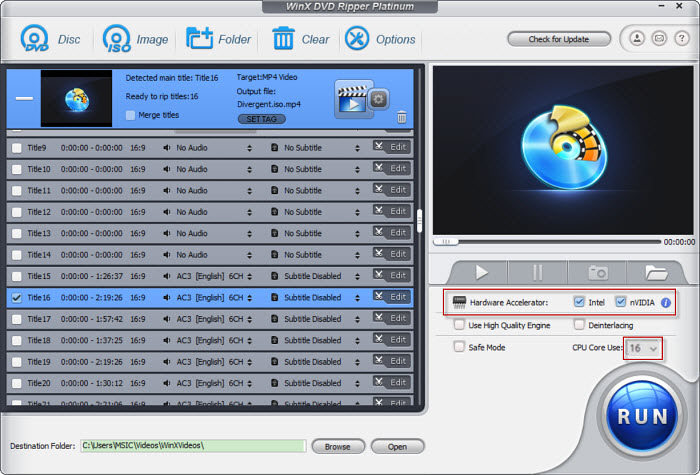
- On the right-hand panel, enable Hardware Acceleration: Check the boxes for Intel, Nvidia and AMD Hardware Accelerator. It will use Intel QSV, NVIDIA Cuda/Nevenc, or AMD if applicable to speed up DVD to MP4 conversion by 5x faster without hurting the quality.
- Max Out CPU Cores: Use as many cores as your computer has (in our test, it was 8).
Below, I tested 10 DVD to MP4 converters on the same computer (the same DVD and ripping settings):
Typical rippers: Take an average of 30-45 minutes to rip a 1.5-hour movie on an average computer while sweating yoru CPU at 100% load. Even on a powerful machine like our test rig, Handbrake and VLC still takes about 11-29 minutes with long disc loading time.
WinX DVD Ripper Platinum: By contrast, WinX finishes the same full DVD in roughly 5-10 minutes with Level-3 GPU acceleration enabled. On our AMD Ryzen 5 5600 + Radeon RX 6700 XT test rig, WinX reached 177.14 fps during DVD to MP4 H.264 conversion, showing a substantial performance advantage over traditional CPU-only rippers. Meanwhile, CPU usage remains optimized, allowing you to continue browsing, working, or performing other tasks while the DVD ripping process runs in the background.
Step 4. Start Converting DVD into MP4 Format.
Click the "Browse" button to select a destination folder in the dialog box that opens, and click OK. Then click the big blue "RUN" button to start converting. After the DVD is converted into MP4 (H.264/MPEG-4 AVC/HEVC) video, you can freely save the DVD video to a computer or transfer it to iPhone, iPad, Android, game consoles, tablets, and computers that don't have a hard drive.
Watch a video tutorial on how to convert DVDs to MP4 H.264 or HEVC with the best performance.
Category 2: Open Source & Free DVD to MP4 Converters- Best for Homemade Discs
Not everyone needs a paid "decryption engine." If your collection consists of homemade movies or discs you've already decrypted, open-source tools offer the most flexibility to convert a DVD to MP4 without costing a dime.
#2. Handbrake - Free & Highly Customizable to Rip CSS/Regional DVDs to MP4 (libdvdcss)
Best for advanced users in need of an open-source unprotected DVD to MP4 ripper.
Price: Free
OS: Windows, macOS, Linux
Handbrake is a free DVD to MP4 converter for Windows, Mac, and Linux. While it can't rip all DVDs anymore (since version 0.9.3), you can still use a free library called VLC libdvdcss to rip some protected discs to MP4, MKV, or WebM. By loading the libdvdcss library in the application folder, Handbrake will dynamically read CSS and region-locked DVDs.
In addition to converting DVDs to MP4/MKV/WebM, Handbrake also lets you convert a DVD into General, Web, Matroska, or Devices. There are presets of different resolutions, speeds, and quality, as well as various MP4 encoders, filters, and settings for greater flexibility in the final MP4 file. If you are a beginner, just pick MP4, and it will choose all parameters for conversion. If you want more control, it lets you fine-tune things like codec, bitrate, resolution, video quality, filter, and more for the perfect conversion.
Pros:
- It offers an extensive range of settings and options for precise video customization.
- The output MP4 file is optimized for low sizes without much loss in quality.
Cons:
- The process takes a long time. Some movies take hours to convert.
- Unfortunely, the software can't handle protections on DVDs or BluRay.
- The UI is a bit overwhelming with options and selections. Finding the right setting can be a long process of trial and error.
- Sometimes it converts a DVD to .m4v instead of .mp4.
[Tutorial] How to Do I Convert a DVD to MP4 with Handbrake?
Step 1. Download the latest Handbrake 1.10.2 for the best DVD to MP4 conversion performance. Note that to use the latest Handbrake on Windows 10/11, you need to have Microsoft .NET Desktop runtime 6 or later installed. Then install and open Handbrake on your PC or Mac.
Step 2. Insert the DVD you want to convert to MP4 into the optical drive.
Step 3. Click Open Source to load the DVD movie. Handbrake will take some time to scan the title.
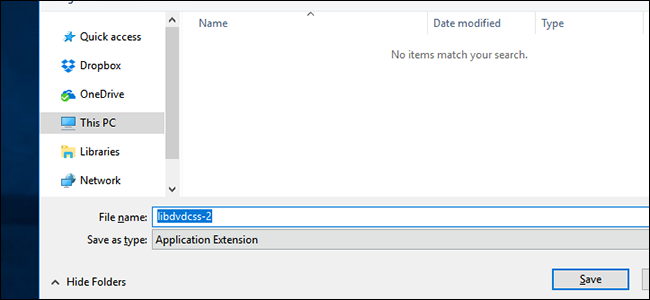
Handbrake can only rip DVDs that aren't protected. If your DVD, ISO image, or DVD folder is encrypted, you can try downloading a free library called " libdvdcss". This helps Handbrake access DVDs with CSS or region code, but make sure you find the version that works with your Windows version. Once you download libdvdcss, copy the .dll file and paste it into your Handbrake folder.
Or, if you try to rip a protected DVD to MP4 without libdvdcss, you might see error messages like "copy-protected sources are not supported" or "no valid source or titles found."
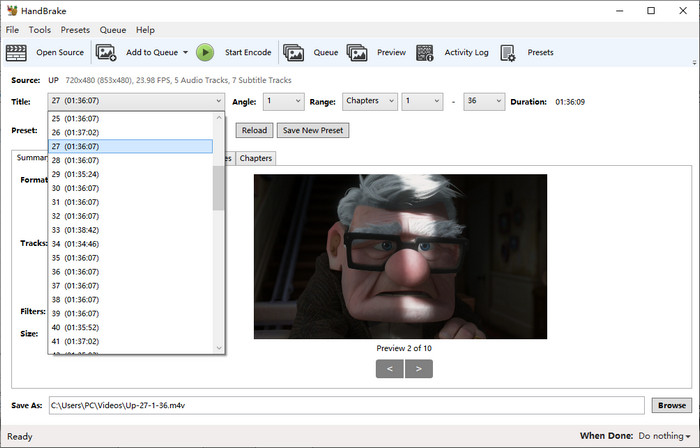
Step 4. The main title will be selected for homemade DVDs by default. For protected DVDs, the libdvdcss will work in the background to help Handbrake find the correct title (you can find the title via VLC and manually select the right title from the Title drop-down box.)
Step 5. Click the quality presets drop-down menu, ranging from General, Web, Matroska, Hardware, etc. You can preferably choose Fast480p30 for the US or Fast576p25 for Europe. You can also choose HQ and Super HQ for better image quality, which may also result in slow DVD encoding speeds.
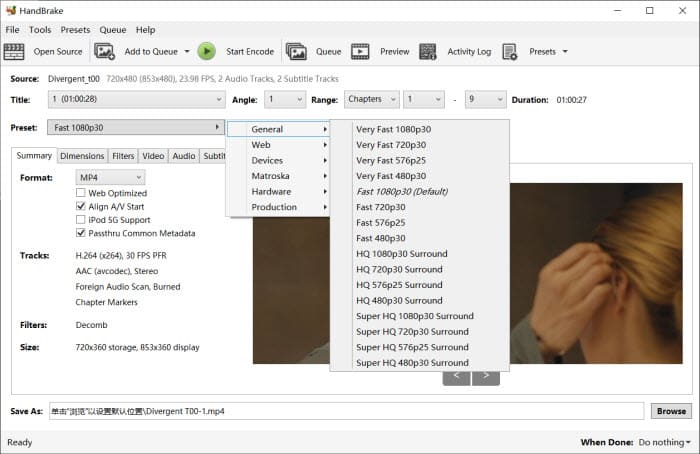
Step 6. Choose the format MP4 from the drop-down list in the Summary.
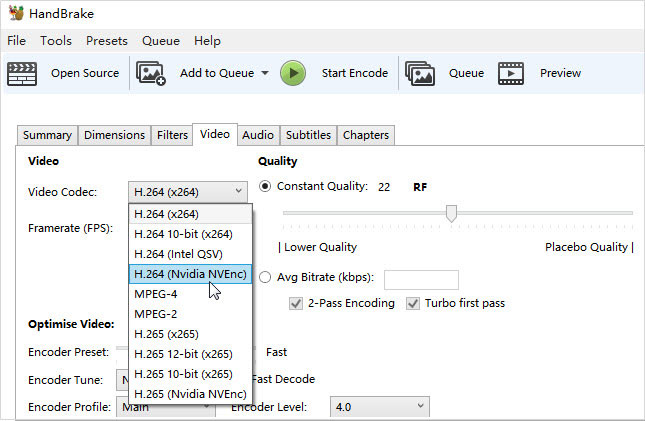
Step 7. Next, click on the Video tab and adjust the encoding settings. Preferably, you can choose a GPU encoder, such as H.264 (Nvidia NVEnc) or H.265 (Nvidia NVEnc), for faster ripping speed, set RF 18-22 for your DVD movies, enable 2-pass encoding for better image quality, and more. You can also use the Picture, Audio, Subtitles, and Chapters tabs to apply other filters as needed.
Step 8. Click the Browse button at the lower part and select a destination folder to save the resulting MP4 file. You can also use an external drive to store your DVD movie on your HDD or SDD, a USB drive, a NAS, or in the cloud.
Step 9. Then click Start Encode on the above toolbar to begin to free convert DVD to MP4 on Windows or Mac. You can watch the conversion process. After the ripping, you can add the MP4 movie to your library in a movie library program like Plex.
After the conversion is complete, you can find your MP4 file in the output folder. If you're planning to take your movies on the go, check our quick guide on how to transfer DVD to USB for playback on Smart TVs, Tesla, or laptops.
What to look out for: Handbrake may fail to encode some DVDs to MP4 properly and showed blocky artifacts in our Wreck It Ralph test. It is malfunctional if you upgrade to macOS 10.11 or newer. This is because Apple introduced new System Integrity Protection to prevent the execution of unauthorized code. You have to download libdvdcss additionally, which is more complex on a Mac computer. Check the detailed steps to install libdvdcss for Handbrake >>
#3. VLC - Convert a Couple of Homemade Family DVD to MP4
Best for homemade DVD conversion and playing. No need to download an external DVD ripper.
Price: Free
OS: Windows, macOS, Linux, Android, etc.
VLC is a great media player that also offers a basic DVDs to MP4 conversion option. It can convert DVDs to MP4, H.264, H.265, WMV, WebM, and more without needing extra codec packs. VLC is a great option if you just need to rip a couple of DVDs and don't want to download anything new. Ripping a DVD to MP4 with VLC is relatively straightforward.
The catch: VLC isn't perfect for ripping. It can only rip CSS-protected and regional DVDs, so it won't work for more complexly protected discs. Also, you don't have much control over the conversion process, such as adjusting resolution, bitrate, frame rate, deinterlacing, volume, and other settings. VLC doesn't offer as many conversion options as others, and some features are a bit hidden and not easy to find. In my test, it's also less reliable than dedicated DVD to MP4 converters, sometimes leading to errors or incomplete conversions.
Pros:
- Support an extensive range of codecs, such as HEVC, AV1, DivX, MPEG2, XviD, VP9, etc.
- Work with a lot of platforms, including Windows, Mac, Linux, iOS, Android, etc.
Cons:
- DVD/video editing features are limited.
- It is relatively hard to find the output formats.
- DVD encoding speed is relatively slow compared with other DVD to MP4 rippers.
[Tutorial] How to Convert DVD to MP4 with VLC?
Step 1. Download VLC v3.0.21 if you haven't got it. Install and run the VLC media player. And then feel free to enjoy the free DVD to MP4 conversion on your Windows or Mac.
Step 2. Insert the original DVD into the disc drive.
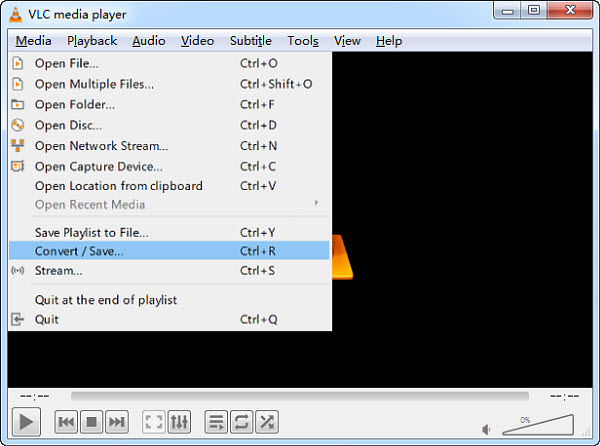
Step 3. Open VLC and select Convert/Save... under the Media menu in the top left corner of the main interface.
Step 4. Click the Disc button to load the DVD. VLC requires a special library called libdvdcss if you want to break the CSS encryption encoded on DVDs. The Windows and Mac builds have the library built-in, so it's no problem to rip CSS DVDs to MP4 on Windows and Mac. But if you have some other protected DVDs, make sure to decrypt the DVD beforehand or you can preview the titles and pick the one with the longest duration for a try.
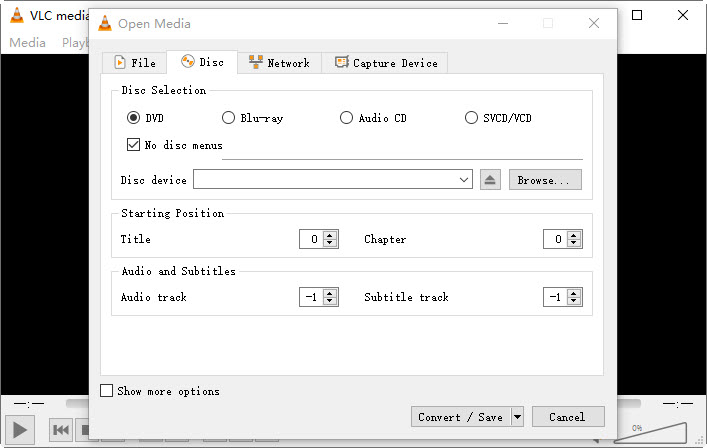
Step 5. Once the DVD movie in the Disc Device is loaded correctly, you can do some tweaking. Under Starting Position, you are able to choose which title or chapter you want to rip. Just leave this as the default if you want to rip the whole movie. Under Audio and Subtitles, you can also choose the specific audio or subtitle track as per your needs.
If it's a protected DVD, you can play the DVD in VLC and remember the correct movie title that plays. Then, back under the Starting Position option, manually select the title/chapter to convert.
Step 6. Click the Convert/Save button once you've finished the settings. Alternatively, you can also go to the Open Disc from the Media tab > browse and choose DVD location at Disc Drive > choose Convert from the drop-down menu next to the Play button.
Step 7. When the Convert window pops up, select Video - h.264 + MP3 from the Profile drop-down menu. VLC doesn't provide too many profiles for users compared with other free DVD to MP4 converters. You can click on the gear button next to the profile, and there are a few other formats to choose from.
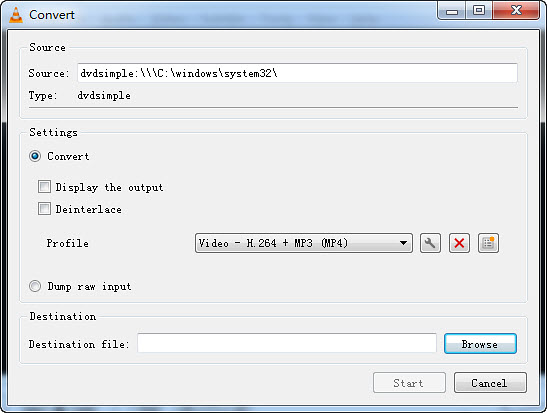
Step 8. Click the Browse button and pick a folder where you want to save the converted movie. Give the converted movie a new name with the file extension .mp4. Or VLC won't rip the DVD to MP4 properly. Then click the Start button and convert a DVD to a .mp4 file.
Click for a detailed VLC tutorial to rip a DVD...
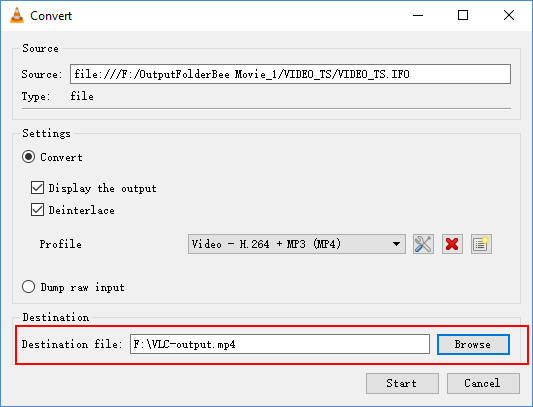
What to look out for: VLC is a popular media player with GPU-accelerated DVD/video decoding ability. But when it comes to DVD and video encoding, VLC has worse performance compared with professional DVD to MP4 converters. In our benchmark test, it generally took nearly 30 minutes to complete the whole DVD to MP4 conversion. If you need to convert DVD to MP4 faster, need more control over the conversion, or want to rip DVDs with extra protection, try another tool in our list, or find the reliable solution to rip copy-protected DVDs.
#4. MakeMKV - Convert Protected DVD to MP4 with the Help of FFmpeg
Best for converting protected DVD/Blu-ray discs to MKV with intact quality.
Price: Free
OS: Windows XP or later, Mac OS X 10.7 or later, Linux
MakeMKV is not a DVD to MP4 converter. It creates a 1:1 digital copy of a DVD into MKV video. It is often used as a first step before converting to MP4 elsewhere. With the help of an extra transcoder, such as FFmpeg, Handbrake, and VLC, it's easy to further convert the MKV video to MP4. MakeMKV is free and easy to use. More importantly, it's able to remove copy protections on both DVDs and Blu-ray discs. The output MKV video can keep the full data and quality of the source DVD. So decrypt and extract the content from DVD using MakeMKV, and then transcode it to MP4 with other tools.
Pros:
- Fast speed.
- Original output quality.
- Support protected DVDs and Blu-ray discs.
Cons:
- It can't convert a DVD to MP4 directly, you need another software to convert the MKV video.
[Tutorial] How to Convert DVD to MP4 with MakeMKV?
Step 1. Download and install MakeMKV from the official website. Open the MakeMKV software and insert the DVD you want to convert into your computer's DVD drive.
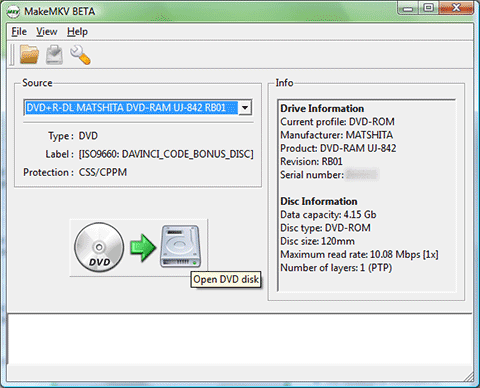
Step 2. MakeMKV should automatically detect the inserted DVD. You'll see information about the DVD content in the main window. By default, MakeMKV will select the entire DVD for ripping. You can deselect titles you don't want to convert by clicking the checkboxes next to them in the list.
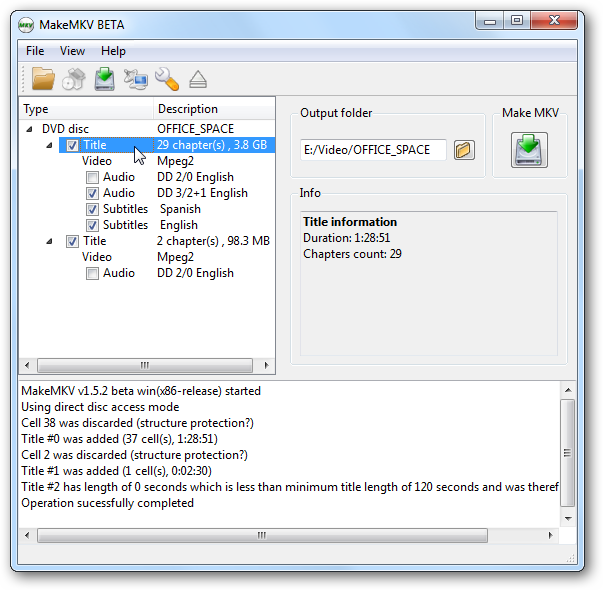
Step 3. Click the "Browse" button next to "Output folder" and select a location on your computer to save the ripped MKV file. Click the large blue "Make MKV" button to begin ripping the DVD. The progress will be displayed in the window.
Step 4. Next, you need to convert the MKV DVD video to MP4. You can use tools such as Handbrake and VLC. Here we use FFmpeg for it's more flexible and offers more control.
For example, we can convert the DVD video to MP4 without compressing the video data:
ffmpeg -i nameofyourmovie.mkv -codec copy nameofyourmovie.mp4
To convert the DVD video to MP4 using a more efficient codec:
ffmpeg -i nameofyourmovie.mkv --vcodec h264 -acodec aac -nameofyourmovie.mp4
What to look out for: During our test, MakeMKV encountered a complex DVD structure and displayed the message: "Complex multiplex encountered - 40 cells and 5381 VOBUs have to be scanned. This may take some time, please be patient - it cannot be avoided." The scanning process significantly increased the disc analysis time, taking over 40 minutes before the extraction could proceed. In addition, the ability to transcode Blu-ray in MakeMKV is a paid feature. In addition, make sure your hard drive on the computer have enough free space to store the extracted MKV videos.
#5. Freemake DVD Ripper - Convert Reginal DVD to MP4 Files
Best for beginners to free convert DVD to MP4.
Price: Free with limits ($0.95 for 1 week trial, $69.96/year, and $59.95 for lifetime license)
OS: Windows 11, 10, 8, 8.1, 7, Vista
Freemake DVD Ripper is voted the 5th best DVD to MP4 converter simply because it has been recognized as a trustworthy video converter for 10 years. The program features a large library of 50+ preprogrammed profiles, which means you can not only convert DVD to digital MP4, WMV, and AVI video files but also format your DVDs to play on phones, tablets, smart TVs, gaming systems, and more anywhere.
Compared to other free DVD converters, it has the benefit of removing some protections, like the DVD region codes. But for other protected DVDs, Freemake will be glitchy.
Besides converting both local video and DVD, Freemake also helps to convert online video all the easier and burn files to physical DVDs directly. Although advised for free, Freemake is not free. You have to pay for a license key to access the advanced features and enhancements, such as URL conversion, DVD burner, video conversion speed and watermark removal.
Pros:
- Burn videos to DVDs directly.
- Preconfigured to work with many devices.
Cons:
- The converted movie is watermarked if not upgraded to its paid version.
- Advanced features are only available in the Web Pack.
- The conversion isn't that speedy.
- Cannot convert ISO image.
[Tutorial] How to Convert a DVD to MP4 with Freemake DVD Ripper?
Step 1. Run Freemake DVD Ripper after you download it, and insert a DVD into the drive. Installation of Freemake DVD Ripper can be a little bit confusing since the actual program is Freemake Video Converter. But don't worry, it still works when it comes to converting DVD to MP4 format.
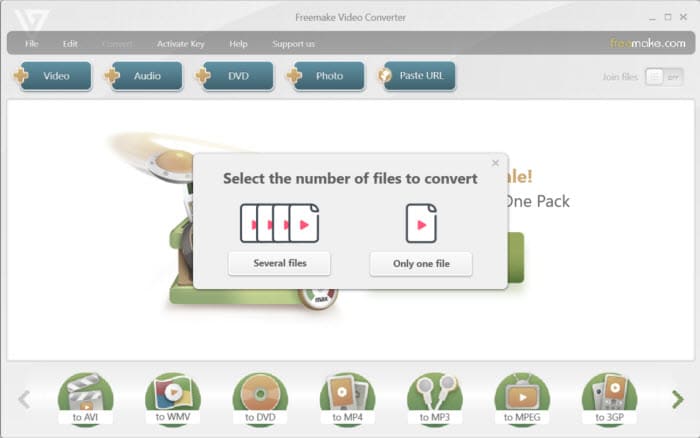
Step 2. Here, you are open to converting multiple files or one file according to your needs. To convert DVD to MP4, just choose Only one file, after which you can click the +DVD button at the top part, select your DVD drive with the physical movie, and choose a VIDEO_TS folder on the DVD. Choose the biggest VOB file from the list (click here to learn how to convert DVD VOB to MP4). The program will read the disc and show you multiple titles. Choose the one with the longest length.
You can also select the audio and subtitle tracks you like if the movie has multiple tracks. Freemake is unable to rip DVDs with multiple tracks pertained at a time.
Note: Freemake doesn't read copy-protected DVDs, and sometimes, even the longest title length doesn't guarantee 100% successful DVD to MP4 conversion, so it's better to resort to another DVD ripper.
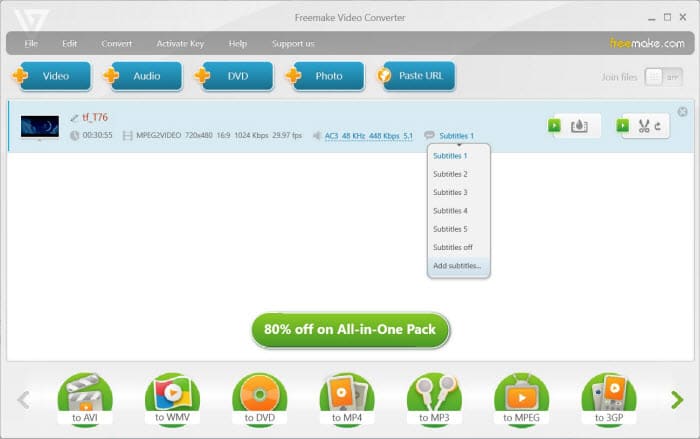
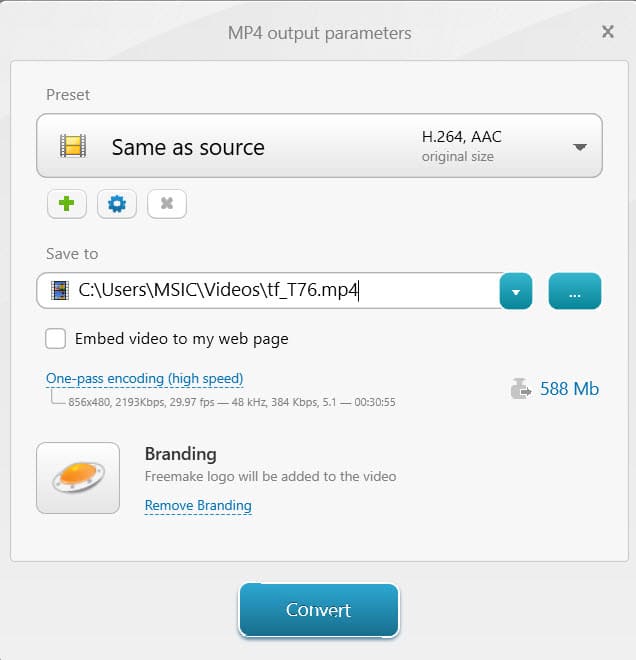
Step 3. Select MP4 from the profile list at the bottom of the interface and change the settings for the MP4 if needed. For example, you can stick with One-pass encoding for high quality or two-pass encoding for better MP4 quality, adjust the output file size from 210 to 7379 Mb, pick the quality you want from the drop-down lists, including sticking with standard DVD quality, or upconverting to 720p, though it won't add any detail.
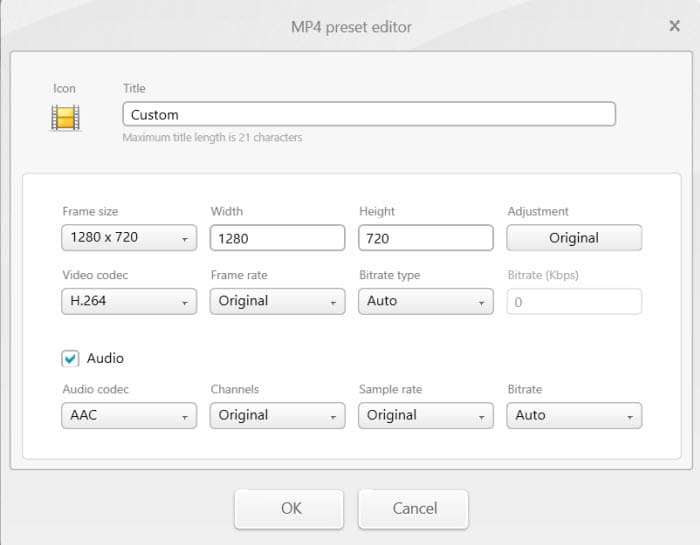
Step 4. Besides the ready-made MP4 profile for DVD conversion, you can also customize the MP4 preset according to your needs. Click the gear-shaped icon to change the frame size, video codec, frame rate, bitrate, audio parameters, etc.
Step 5. After all the changes, click the Convert button to begin the DVD conversion.
What to look out for: There are some upsell attempts when you are using the free DVD to MP4 converter version. The ripped movies are generally accompanied by the Freemake logo, making them almost unwatchable. You'd better upgrade to its paid version to remove the branding.
Category 3: Pro-level Transcoder - Best for Granual Control and AI Upscaling
Pro-level transcoders typically expose far more technical parameters—such as bitrate curves, GOP structure, advanced filters, and codec tuning—than most standard DVD rippers. This makes them attractive to experienced users who need precise control over output quality, compression efficiency, or compatibility with specific playback environments. Some can even upscale 480p DVD footage to 4K.
#6. MediaCoder- Convert DVD to MP4 with Full Control Over Ripping
Best for those who want highly versatile and customizable DVD to MP4 ripping and don't mind more complex interface.
Price: Free with limits ($95 for premium version)
OS: Windows 11, 10, 8.1, 8, 7, Vista
MediaCoder has been there since 2005. It cracked the top 9 for the first time in our list as a free media transcoder. It supports converting DVDs to the most popular video and audio formats, like H.264/AVC, H.265/HEVC, VP8/VP9, and more. It takes advantage of QuickSync, NVENC, and CUDA to deliver a quick DVD to H.264/H.265 conversion speed. Users are also allowed to adjust the output settings, like video bitrate, format, rate mode, and more. However, compared with other free DVD to MP4 converters, the program is quite complicated to get started.
Pros:
- All-in-one DVD video solution.
- Support batch conversion.
Cons:
- The relatively clumsy interface makes it intimidating.
[Tutorial] How to Convert DVD to MP4 Free with MediaCoder
Step 1. Free download MediaCoder from its official download page. Mediacoder has several servers for hosting the released files. In our test, installation was troublesome, and we had to turn to another one for successful downloading.
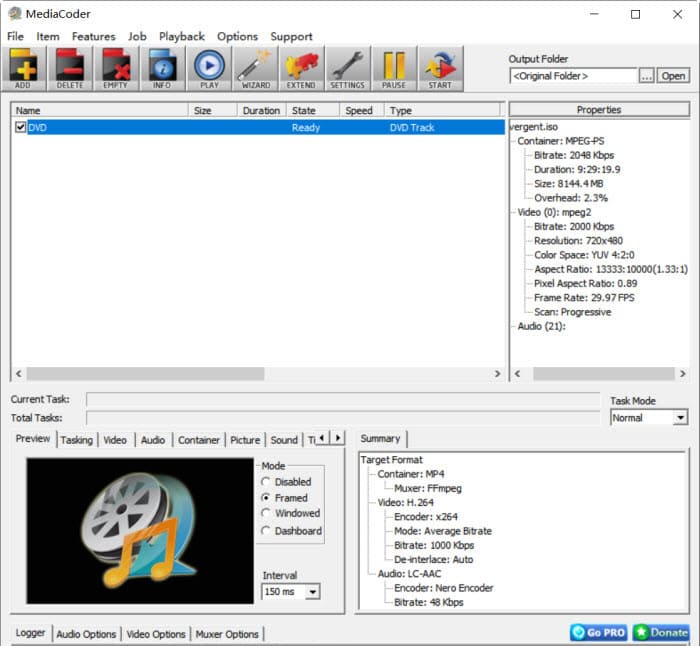
Step 2. Run the DVD to MP4 converter. Click Add Track from the File menu and select your DVD. Or you can load your ISO image from the Add file button.
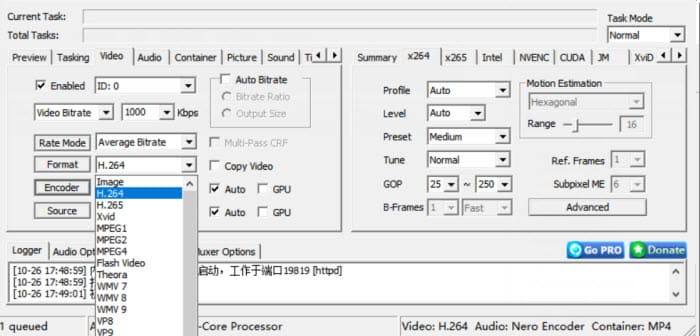
Step 3. Click on the Video tab and check the Enable Video function. Go to Format, and choose the video codec you want. It will show you a wide range of codecs, including H.264, HEVC, MPEG4, VP9, Xvid, etc. For the best compatibility, we recommend you convert DVD to MP4 H.264.
Step 4. On the right side, you can choose whether to use software encoding such as X264, X265, or hardware encoding before converting DVD to MP4. For hardware accelerated ripping, you can move to the Intel, NVENC, or CUDA tab, and choose the quality presets options, such as high performance, high quality, and lossless in NVENC settings, the GOP, B-Frames, etc. All the settings share almost similar meanings.
Higher quality means slower ripping speed. Faster speed comes at the cost of quality degradation. Just choose the setting according to your preference.
Step 5. Move to the top right corner of the main interface, and click the Output Folder to specify where the program should save the converted files. When all the formats and settings are done, click START and wait.
Note: Sometimes you will be informed of problematic loading because the decoder file could not be found and get an error code 0.13 asking you to try another video source. The truth is, MediaCoder cannot decode protected DVD or ISO image, making it a failure in our DVD to MP4 conversion. So make sure the DVD is unprotected.
What to look out for: MediaCoder's interface is a little bit intimidating, which may not be instant to go about everything, especially if you are a green hand. Besides, the DVD to MP4 converting speed is a bit slow when compared with other professional DVD rippers.
#7. VideoProc Converter - Convert DVD to MP4 with AI & Editing Features
Best for converting DVDs and videos to MP4 and other formats for easier playing and sharing.
Price: Start from $39.95
OS: Windows 11/10/8.1/8/7 and macOS X 10.6 or higher
VideoProc Converter is a great video processing software with DVD ripping capability. It can analyze DVD titles, chapters, video/audio/subtitle tracks, etc and convert DVDs to a slew of formats such as MP4, AVI, MOV, MKV, MP3, or other readymade profiles for playing on your mobiles, media players or sharing on social platforms.
You can further utilize its newly added AI features to upscale low-resolution DVD movies to 1080p or higher with crisp image quality. And this feature is available on both Windows and Mac.
Pros:
- More edit features like crop, merge, add subtitles, cut, rotate, etc.
- Advanced AI features like Super Resolution, Frame Interpolation, video stabilization, vocal remover, etc on Windows PC.
Cons:
- Cannot run on Linux and mobile.
[Tutorial] How to Convert DVD to MP4 with VideoProc Converter?
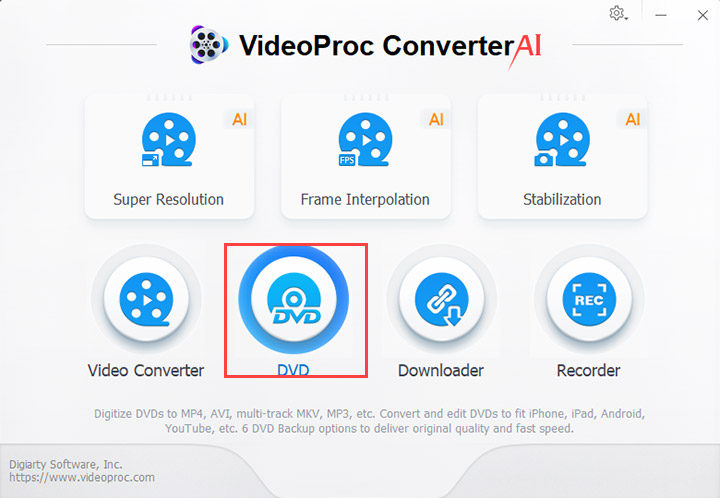
Step 1. Open the software after you download the program on your computer and click the DVD button on the main interface to kick off the DVD converter. Then click the DVD Disc button to load the disc. You can also convert DVD folder or ISO image with VideoProc Converter.
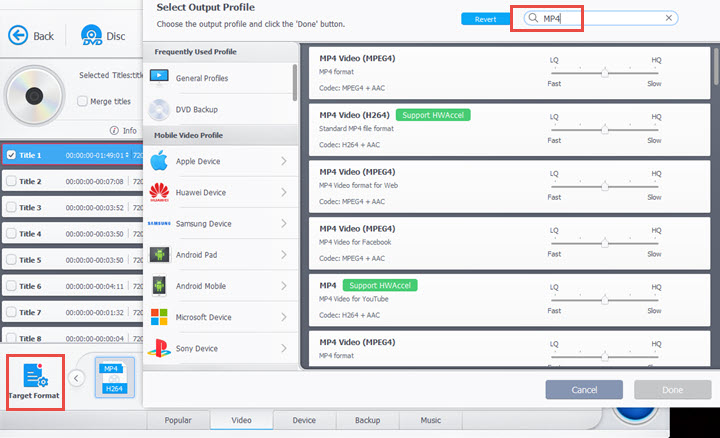
Step 2. Once the DVD title is analyzed and chosen, you can go the Target Format >Video > MP4 H.264 for general use. For specific device profile, you can also go to Device and find the preferred device profiles (such as iPhone, iPad, Xbox, YouTube, etc) for your specific needs.
Optionally, you can select the audio or subtitle track or do simple edits like cut, merge, crop, adjust speed and more before conversion.
Step 3. Click Browse to set an output folder. Then, hit the RUN button to start converting DVD to MP4 format.
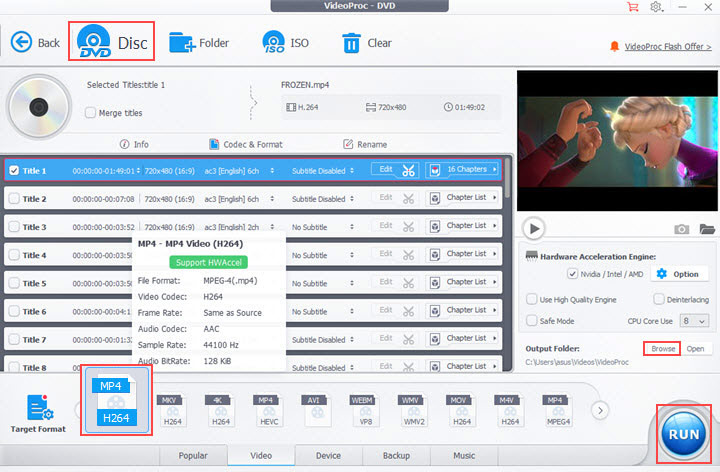
What to look out for: DVD upsclaing feature isn't directly accessible from the DVD converter. But you can go back to the main interface, and kick off the Super Resolution, where you can load the digitized DVD content, and choose the desired resolution or scale option. Be aware that upscaling a movie (especially a 2-hour one) can be resource-intensive, so patience is key.
Category 4: Paid DVD to MP4 Converters - All-in-One Media Suites
If your budget allows and you need a "media command center" that handles more than just DVD-to-MP4—such as Blu-ray ripping, disc burning, or extensive editing—these comprehensive suites are worth the investment. While they can be expensive and sometimes feel bloated for single-task users, they cover almost every disc-related scenario imaginable.
#8. DVDFab DVD Ripper - Rip DVD to MP4 with a Comprehensive Solution
Best for free ripping DVDs and Blu-ray discs within a single, feature-rich interface.
Price: $59.99/year; ~$146.99 for the full multimedia suite (Prices vary by regional promotions.)
OS: Windows 11/10/8.1/8/7, macOS 10.10 or later
DVDFab DVD Ripper is a comprehensive multimedia solution that offers a wide range of features, including DVD and Blu-ray ripping, copying, and conversion. It will rip DVDs to MP4, MKV, AVI, and 1000+ formats. It will also remove common copy protections on many commercial DVDs, such as CSS, APS, RC, and more. There are also options to select specific DVD tracks, subtitles, chapters, as well as additional features like video editing, compression. The best part of this DVD to MP4 converter is that it also supports Blu-ray discs.
While powerful, the software's interface can be overwhelming for beginners due to its sheer number of modules. To unlock the real speed (GPU acceleration) and the ability to decrypt the latest Hollywood releases, you must upgrade to the paid version. It is a premium choice for those who want one tool to rule them all, but it may be "overkill" if you only need a simple, fast DVD-to-MP4 conversion.
Pros:
- Convert protected DVDs to MP4.
- Fast DVD ripping speed with GPU acceleration.
- Rip DVD and Blu-ray discs.
Cons:
- Sometimes the interface and settings can be overwhelming for the first time user.
- The free version are too basic to use.
- Only convert up to 100 discs per week.
[Tutorial] How Do I Rip a DVD to MP4 for Free with DVDFab DVD Ripper?
Step 1. DVDFab DVD Ripper is built into the DVDFab 13 version, so you need to download DVDFab 13 from its official page to access the DVD to MP4 converter. As it's a comprehensive toolkit, the download and installation may take several minutes.
Once downloaded, open it and select Ripper from the left menu. Click Add Source and insert your DVD, it will then load the source DVD in your optical drive.
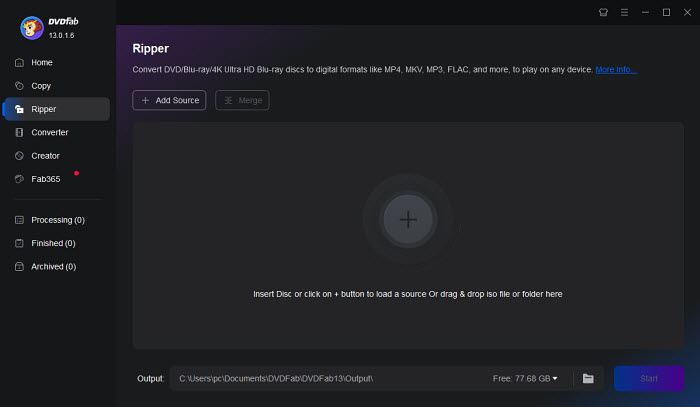
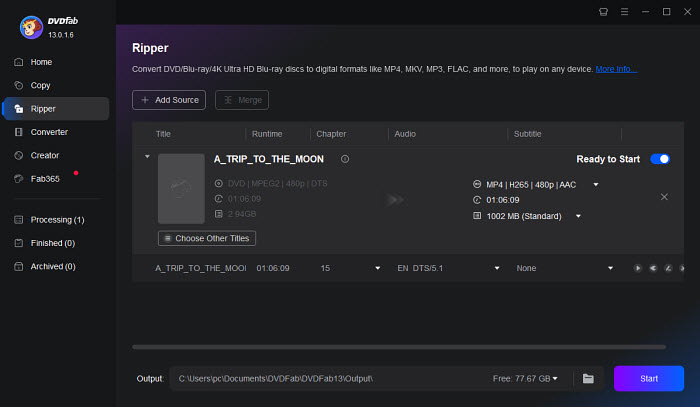
Step 2. On the right of the interface, DVDFab DVD Ripper will choose MP4 as the outputp format by default. You can click on the MP4 format to select another format. The best part is, it will list the output file size of the selected profile.
On the menu bar under the profile, you can also choose the DVD titles that you want to rip, select audio tracks and languages, extract DVD subtitles to SRT format, and add external subtitles.
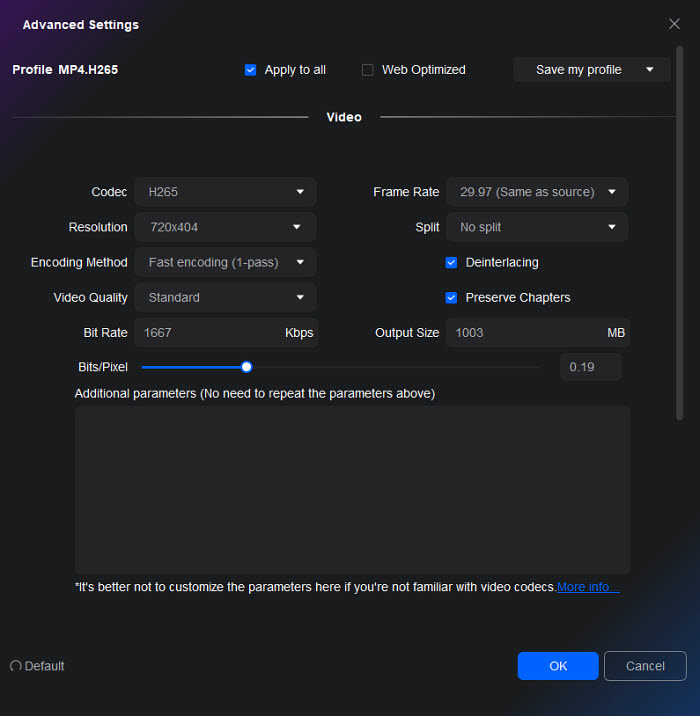
Step 3. Click the Edit button on the menu bar, then you can further customize the DVD to MP4 conversion. You can choose another codec for the output MP4 file, such as H.265 or H.264. Also adjust the resolution, bit rate, deinterlacing, output file size, etc. if needed.
Step 4. Choose an output folder on your computer to save the converted MP4 DVD video. Then click Start. It will start the conversion task immediately. If you're using the free version, the conversion will be conducted on the CPU and thus take longer time. It will be a lot faster with the pro version.
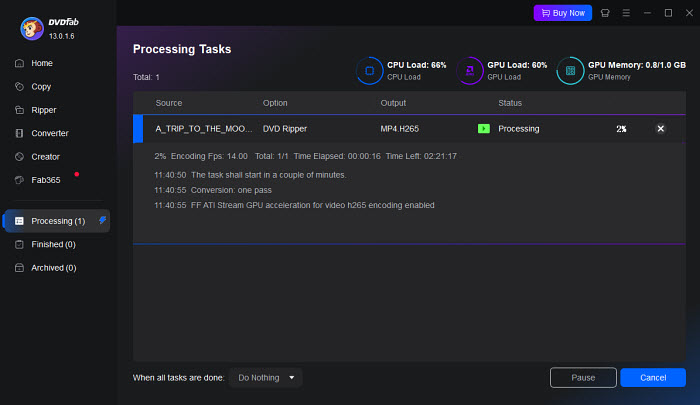
What to look out for: DVDFab DVD Ripper free version supports limited output formats like MP4 and MKV. It cannot work with all discs, especially those released after 2018. In the meantime, for users with large media libraries or archiving projects, DVDfab's 100-disc weekly quota creates a severe bottleneck. This artificial limit significantly impacts efficiency, forcing major delays for anyone trying to digitiz DVDs to MP4 at scale.
Curious how DVDFab really performs? Check out our in-depth DVDFab review and test results >>
#9. Movavi Video Converter - Fast Convert Non-protected DVD to MP4
Best for ripping non-copyrighted DVDs to MP4 with AI upscaling.
Price: $54.95 for one-year plan
OS: Windows 11 and earlier, Mac OS X® 11.0 or higher
Movavi Video Converter supports 180+ formats and 200+ devices, so you can easily convert DVDs to MP4 for playing on mobile devices, game consoles, PCs, TVs, etc. flawlessly. You can even search for subtitles online to add to your movie rips. Compared to other software, it offers a wide range of editing features.
Among various settings and features, I'm impressed by its AI upscaling. It can increase the resolution to 8 times. This is an amazing feature. In my test, it makes the ripped MP4 video look sharper, almost like a 720p video! While not the absolute fastest (ranking next to WinX DVD Ripper Platinum and Wondershare Uniconverter), Movavi converts DVDs to MP4 quickly with its "SuperSpeed" mode. It also has batch-processing options. This comes in handy for those who have accumulated a large library of DVDs and need to process them at a time.
The prices of Movavi Video Converter start at $54.95 for the annual subscription. You can also opt for the lifetime subscription, which costs $79.95.
Pros:
- AI-powered DVD upscaling.
- Speedy DVD to MP4 conversion.
- An intuitive user interface makes the entire process smooth and user-friendly.
Cons:
- Protected DVDs are not supported.
- Watermarks are added to the converted rips when using a free trial.
- Although it is affordable, it is expensive to upgrade every time there is an update.
How to Convert DVD to MP4 on Movavi Video Converter?
Step 1. Download the DVD to MP4 converter on your computer. It requires at least 2GB for the installation.
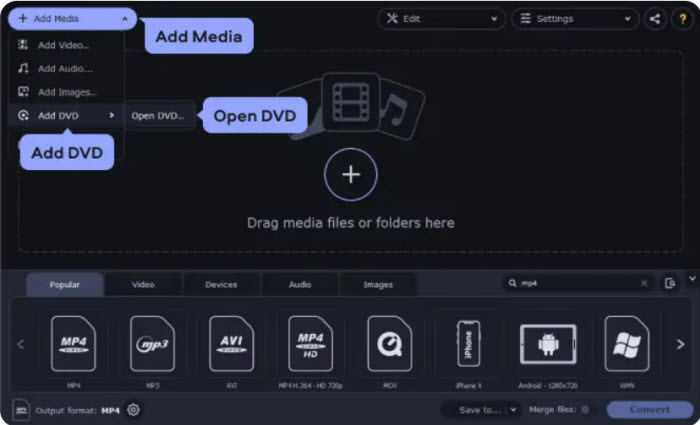
Open Movavi Video Converter and click the Add Medium button > Add DVD > Open DVD. Locate and select the VIDEO_TS folder of the DVD that you want to convert. Make sure your DVD source is unprotected. Movavi doesn't allow any ripping of copy-protected DVDs.
Step 2. To rip a DVD to MP4 format, you can go to the Video tab in the lower part of the window and click MP4. It will then open a group of MP4 profiles with different resolutions.
For best quality: select "MP4 H.264 Original Size" to keep the original DVD resolution. For smaller files: choose "MP4 H.264 480P" for a lower resolution and smaller file size. You're not advised to select a higher resolution, it will increase the file size and won't noticeably improve quality. Once you've already selected the MP4 profile, Movavi will automatically calculate the output file size.
In my test, converting the DVD to MP4 reduced the file size by nearly 58% (from 7.75GB to 3.24GB).
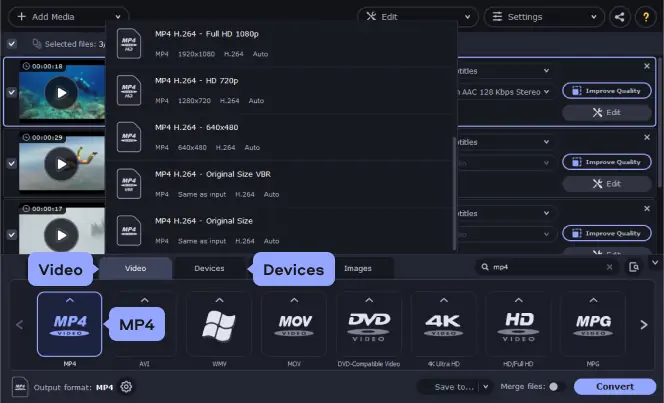
Step 3. Click the Save to button to specify the output folder where you want to save the converted DVD MP4 file, and click the Convert button. The conversion process will start immediately.
What to look out for: Movavi can only process discs that do not contain any copy protection or region restrictions. Commercial DVDs failed to convert in our test. Plus, this program is only for a 7-day free trial.
#10. Uniconverter - Convert Homemade DVD to MP4 with a Comprehensive Feature Set
Best for converting unprotected DVDs with advanced editing features.
Price: $49.99 for one-year plan, $79.99 for perpetual plan.
OS: Windows 11/10/8/7/Vista, macOS 10.11 or later
Uniconverter is a fully functional DVD video converter toolbox that can extract homemade movies from DVDs and encode them in an extensive range of formats. In addition to DVD to MP4 conversion, you can also compress, edit, record, merge, play, and burn video as per your needs. It features an intuitive interface that helps you jump straight to the task you need and, therefore, makes the whole video processing a hassle-free experience. The latest version 17 added features such as an AI-powered enhancement, summarizer, subtitle tools, and more.
Wondershare claims to have a dramatic speed boost as a result of its High-Speed Conversion tech, compared with Movavi and Freemake. We, therefore, made a few speed tests using these DVD to MP4 converters. Uniconverter was 7 minutes behind WinX DVD Ripper Platinum and just 3x faster than Freemake under the same test environment, which is quite exaggerated and far from the acclaimed 120x faster speed.
Besides, it is likely to cause a loss of audio sync during conversion. But if you value features, you can still give it a try.
Pros:
- A wide range of features, from convert, compress, record, to edit.
- Intuitive interface.
Cons:
- Cannot rip protected DVDs.
- Converting performance is not as fast as it boasted on the official page.
- Advanced features like DVD title merging are available in subscription plans.
How to Convert DVD to MP4 on Windows 10/11 with UniConverter?
Step 1. Launch Wondershare Uniconverter on your Windows or Mac platform, then click Converter on the main interface to activate the Video Converter feature.
Step 2. Click + disc to load a DVD movie, an IFO file, or an ISO image. In our test, Uniconverter took a few minutes to add a file. Don't worry, just leave it to analyze the disc information. If you have some commercial DVDs to rip, please resort to some other DVD rippers for help, Uniconverter doesn't rip protected DVDs at all.
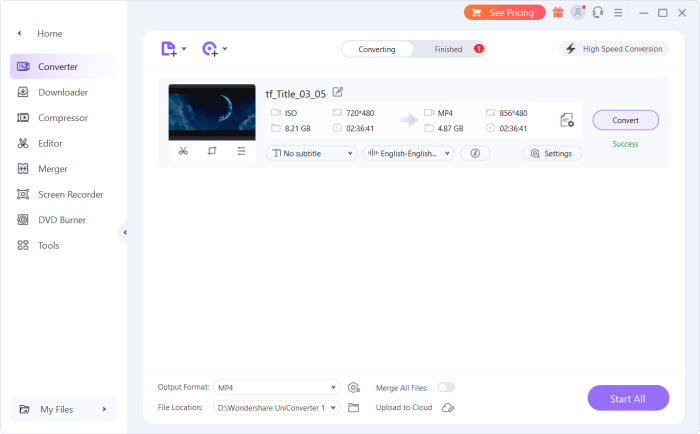
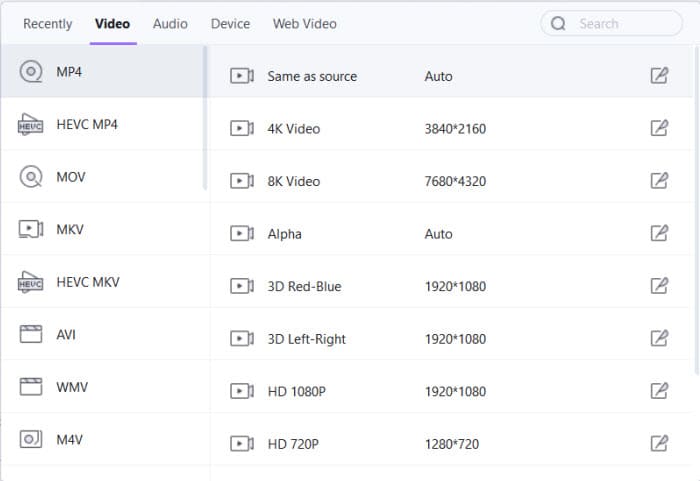
Step 3. Click and open the Output Format menu from the bottom, go to the Video tab, choose MP4 format, and select a preferred resolution from the right. In general, MP4 is selected by default. You can also choose HEVC MP4 from the Output Format window.
Step 4. Back to the main window, you are able to select the subtitle and audio track, or even add external subtitle files or audio tracks as per your needs. And adjust the settings like encoder, resolution, bitrate, and sample rate.
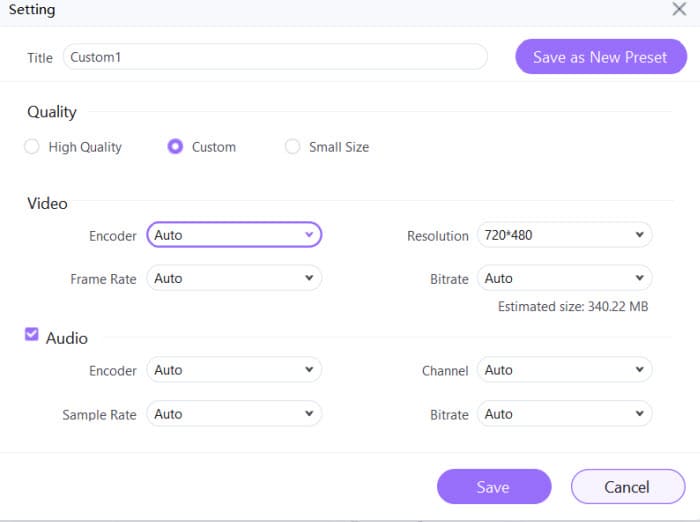
Step 5. Click Start All. The conversion task will begin.
What to look out for: Wondershare Uniconverter just converts 1/3 of the original movie duration with the trial version. You cannot merge files or enable the High Speed Conversion unless you upgrade to the registered version. It offers 3 individual plans, including an annual plan starting at $49.99/year, a 2-year plan starting at $69.99/2-year, and the most popular perpetual plan starting at $79.99 with lifetime usage of Uniconverter.
#11. Leawo DVD Ripper - Convert DVD to MP4 with High Customization
Best for ripping both protected and unprotected DVDs to MP4 with detailed output settings and 3D movie support.
Price: $29.95 for basic plan, $39.95 for lifetime plan
OS: Windows 11/10/8/7, macOS 10.13 or later
Leawo DVD Ripper is able to rip both unprotected and protected DVDs, such as the DVDs with region codes. It allows you to rip DVD to MP4 and a wide array of output formats. There are various options to let you adjust the video and audio parameters like video bitrate, frame rate, resolution, and codec, select specific chapters, add external subtitles, and edit the output MP4 videos. It's a good choice if you want a DVD to MP4 converter that is able to control over the output quality and format. Different to other converters, it can even convert 2D DVD movies to 3D videos, which is a fun extra if you're looking to enhance your movie experience.
In my test, the conversion speed was decent—though not the fastest compared to some other DVD to MP4 converters on the list, it handled protected discs reliably. The UI is a bit more feature-packed, so it might take a moment to get used to, but it offers a lot of control once you're familiar with it.
Pros:
- Convert both protected and unprotected DVDs to MP4, including region-coded discs.
- Extensive customization options for video and audio parameters.
- Also convert Blu-ray discs.
- 2D-to-3D DVD conversion available.
Cons:
- The conversion speed is average.
- Free trial adds a watermark to output files.
How to Convert DVD to MP4 on Windows 10/11/Mac with Leawo?
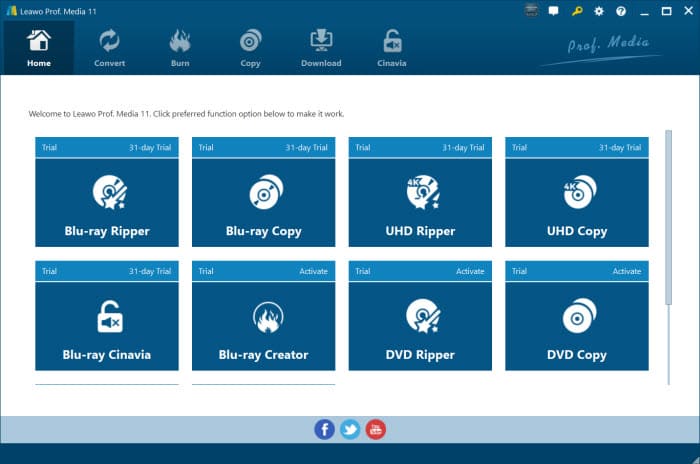
Step 1. Launch Leawo DVD to MP4 ripper on your Windows or Mac platform. From its main interface, choose DVD ripper.
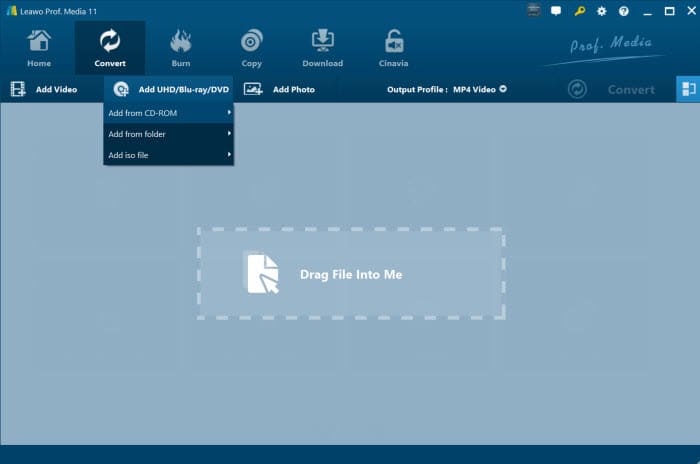
Step 2. Next, click Convert on the top menu and choose the "Add UHD/Blu-ray/DVD" button to load DVD movies that you want to convert into MP4 from your hard drive or DVD disc.
Step 3. Once the DVD information is imported to the converter, you can click on the movie information and choose from a specific movie title. If there are a few chapters in the loaded file, you can select subtitles and audio tracks.
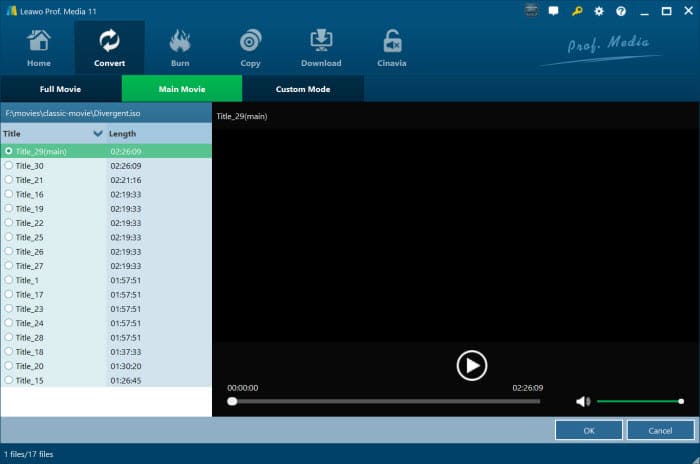
Step 4. Now move to the Output Profile. Its default output format is MP4. However, you can click on it to choose to convert DVD to MP4 H.264, H.265, or other formats.
There are also options on the conversion window to trim add watermarks, add effects, crop, and convert to 3D. Apply as you need.
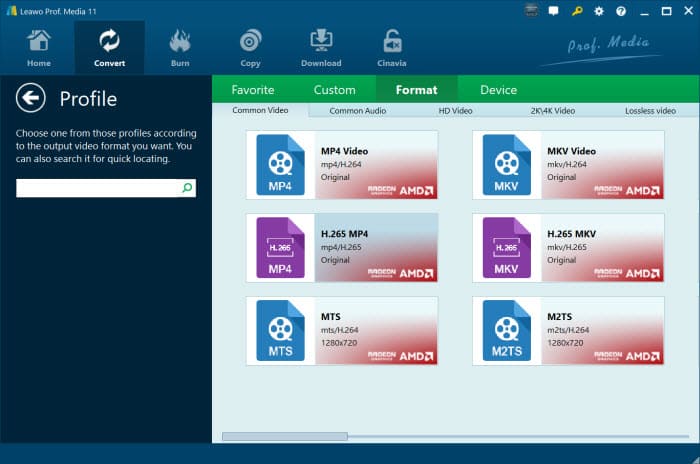
Step 5. Back on the main interface, click the big green Convert button and it will ask you to set an output folder for the converted DVD MP4 video. After you finish the setting, click Convert and it will start ripping the DVD.
What to look out for: From my own experience, I'd say Leawo DVD Ripper's speed is...well, it gets the job done, but don't expect lightning-fast results. To give you a concrete idea, I clocked it while converting a standard, single-layer Disney DVD, about two hours long, to an H.265 MP4 file. It took roughly 30 minutes. So, if you're looking to rip a massive DVD collection overnight, it's definitely manageable. But if you're in a hurry for a quick DVD to MP4 conversion, be prepared to wait a bit. It's not the slowest I've used, but it's also not winning any speed races.
Why Online Tools Are Not Recommended for Full DVDs
You may still see articles recommending "online DVD to MP4 converters" as a quick solution. While these tools can work for small video files, they are fundamentally unsuited for handling full-length DVDs.
File Size Limits vs. DVD Reality: Most online converters (like Zamzar or CloudConvert) impose strict upload limits—often around 500MB. A standard DVD movie, however, typically ranges from 4.7GB to 8.5GB. This makes uploading an entire DVD either impossible or forces such aggressive compression that the resulting MP4 is barely watchable.
The Bandwidth and Time Problem: Even on a fast home connection, uploading several gigabytes can take hours. After that, you still have to wait for the cloud server to process and re-encode the file. In practice, converting a DVD locally is almost always faster and far more predictable.
No Access to Physical Discs or Copy Protection: Online tools are file converters—not DVD rippers. They cannot read physical discs, access DVD menus, or handle common copy-protection structures. Uploading encrypted VOB files usually results in corrupted or incomplete MP4 output.
Privacy and Quality Concerns: Uploading personal videos or movie collections to third-party servers introduces unnecessary privacy risks. In addition, cloud-based conversions typically use fixed, low-bitrate presets that strip away much of the original DVD quality.
Online converters are designed for small documents and short video clips—not multi-gigabyte DVDs. For reliability, quality, and privacy, local desktop software remains the only practical approach for converting full DVDs to MP4.
How We Test the DVD to MP4 Converters?
In order to make our best DVD to MP4 converting software list, it needs to excel on several tests that we run on a total of 20 DVD rippers we researched, and we shortlisted 10 programs in this test. Here are our primary concerns during the testing workflow:
1. Overall features and interface. For the first part, we assessed their usability by checking their user interfaces and features, from the most essential MP4 (H.264/HEVC) profile to the general output formats and devices, customization settings, basic editing features, batch processing, DVD quality upscaling, to other value-added features.
2. Protected DVD ripping ability. One of the most important tests we run is the DVD decrypting test. We selected different genres of DVD discs, from relatively aging and slightly damaged DVDs, region-locked DVDs, workout DVDs, Disney animated DVDs, DVDs produced by Sony and Lionsgate, TV series DVDs, and even Japanese DVDs. Then we loaded these discs one by one into the programs we tested. Some showed a "no title found error", some crashed while converting, and some succeeded and finally got ahead in our list.
3. Performance test. We performed all these DVD to MP4 conversions under the same testing environment, both on a relatively aging computer and a modern computer, in order to show their respective DVD ripping performances in terms of speed, quality, and size.
We enabled the hardware acceleration and software only to test the DVD converting speed. And we also checked the CPU and memory usage when using each of the DVD ripper programs. When it comes to quality, we relied on SSIM to check the similarity between the original DVD and the processed MP4 file. We also measured the output MP4 file size using different quality and parameter settings.
4. Experts' and users' reviews. We read reviews written by experts from authoritative media and find out what users are saying about these DVD to MP4 converters in order to get into their minds, have a better understanding of the products' pros and cons, and then decide the order.
In short, we made a thorough evaluation to determine not only which DVD rippers offer the best picture quality, the fastest ripping speed, and the best overall user experience. After all, you will be living with the DVD to MP4 ripper for years to come, and using it should be a joy, not a pain.
Troubleshootings to Common DVD to MP4 Errors
Besides the programs mentioned above, the market is flooded with various DVD to MP4 converters. While they share similar workflows, users often encounter three recurring "bottlenecks." Here is how to diagnose and fix them:
1. It takes too long.
I was ripping some DVDs but the rip was averaging 11.8 FPS, getting closer to 25-30 minutes a DVD. I've restarted my computer, checked my CPU usage (under 20%), and everything I could think of but it still took a long time. It's annoying when you're ripping 5-10 DVDs a day.
DVD to MP4 ripping speed relies on both the DVD ripper software itself and computer hardware. The faster the processor the computer has, the faster the encoding will be. How long does it take to convert a full DVD to MP4? Generally, a DVD ripper with hardware acceleration invoked is widely considered as fast when it can convert a DVD movie to MP4 within 15 minutes, with an average speed of 25FPS+. It's unacceptable when it takes hours to finish a DVD copy, especially when you need to copy a large DVD collection.
2. The output quality is poor and pixelated.
I'm trying to rip some family DVDs (weddings, etc.). But the ripped MP4 (same resolution as the original) has some pixels on the screen.
The DVD ripping process will re-encode the video and lose quality for that reason. But different codecs like MPEG4, H.264, and HEVC have different qualities (generally, HEVC > H.264 > MPEG4). To keep the visual quality the same (including Dolby digital sound), DVD to MP4 x265 is the best choice.
Some DVDs are natively 480i (interlaced). Make sure your ripper has deinterlacing engine to remove the jagged lines while converting DVD to MP4. In the meantime please remember that most DVDs are only 480p. Even after a perfect rip, the original low resolution will result in visible pixels or slight blur. To achieve higher-quality output with less noise or fuzziness, you can deinterlace it, use an AI video upscaling software after ripping. These tools can increase the resolution, remove noise, and sharpen details, which make your old DVDs a much clearer and more polished look.
Besides, copy protections like fake titles, bad sectors, CSS, etc. can possibly result in bad quality if the software fails to remove them. That means you need to install a powerful DVD ripper to handle copy-protected DVDs.
3. The ripped MP4 is huge (4GB - 40GB).
I have Pavtube but when converting using the best settings in h.264 (mp4) the file gets huge. Tried using Handbrake, files are smaller (3.3gigs...). Need to convert some DVDs to an iPhone, so is it possible to SHRINK it somewhat to fit on a mobile device?
A complete DVD is anywhere from 4-7GB and the rip size depends on how nice you want the quality. Simply put, the smaller the size, the lower the quality. Generally, for a full-length movie (1.5-2 hrs) encoded in MP4 H.264 codec, 1.2-1.8 gigs will give good quality. But incapable DVD rippers sometimes produce a rip as large as 40GB, especially when they cope with newly-released DVD movies, 99-title DVDs, and Disney DVDs. So a good DVD ripper that has decrypting ability and strips away the GBs of junk data is deemed essential.
Summary: It's kind of a paradox to get a fast speed, optimal quality, and small size for the DVD to H.264/MPEG-4 AVC. However, a battle-tested DVD converter like WinX DVD Ripper Platinum can get the best possible results in a balanced way.
Frequently Asked Questions
1. What is a good DVD to MP4 converter?
Choosing a good DVD to MP4 ripper shall be based on the following criteria:
- A good DVD ripper shall feature an intuitive UI and guide you to complete the conversion within a few clicks, preferably in 2 or 3 steps.
- It will deliver a super-fast conversion speed. Hardware acceleration is the icing on the cake for fast encoding.
- Incompetent tools may have very fast rips, but at the expense of image quality. So high-quality DVD rippers are still of top concern. It must maintain a balance between file size and image quality. High-quality rippers use High-Efficiency Video Coding (HEVC/H.265) to provide crisp visuals at a fraction of the original size.
- It offers loads of profiles and fulfills your various ripping needs.
- It must handle 99-title DVDs, region codes, and modern copy protections automatically.
2. Is converting DVDs to MP4 legal?
While the DMCA in the U.S. prohibits circumventing copy protection, many countries allow for a 'fair use' policy for personal, non-commercial backup of legally purchased discs. Always check your local copyright laws before proceeding.
3. How do I convert a protected DVD to MP4?
You need to get a DVD ripper that supports copy protections. There are protected DVD rippers that support Disney DRM, CSS, region codes, RCE, 99 titles, etc. Download the program, insert your DVD, and it should be able to read and analyze the correct title of a protected DVD. (Please note, before you convert a protected DVD, make sure you legally own it.)
4. How do I convert a DVD to MP4 using Windows Media Player?
Windows Media Player can play media files and convert CDs but there is no option to convert DVDs to MP4 file format. The only option available is to use another third-party program to convert a file format into MP4.
5. Is it possible to rip DVD to MP4 on Windows or Mac with the built-in apps?
No, there's no default DVD ripping program. Why?
For one thing, DVD copy protections of various kinds sit nearly on all DVDs of movies, TV series, and fitness currently. So it's quite a complicated process to kick them to one side and digitize DVD to MP4 or other formats on the computer.
For another and also the most decisive thing, decrypting commercial DVDs by circumventing copy protections for profitable usage is prohibited officially by DMCA. As a result, no OS developer would get itself into the DVD ripping stuff.
6. How to Convert DVD into MP4 on Windows 10/11?
Microsoft ditches DVD support in Windows, including the latest Windows 11. So you cannot play DVD movies on Windows 10 or 11 directly unless you download third-party DVD software. Instead of putting a DVD into a disc tray each time you play it, it's better to rip a DVD to an MP4 on Windows 11 or 10 beforehand, so that you can play it on the go without a DVD player. How do I convert DVDs to mp4 for free on Windows 10/11?
WinX DVD Ripper can handle the task of converting DVD to MP4 video file on a computer running Windows 11/10/8/7. Just download and install the software on your desktop PC or laptop, click the +DVD button to load the DVD movie, then choose the output format MP4 H.264 for the best compatibility, and press the RUN button to start converting video from DVD to MP4 format on Windows 10/11.
7. Can I rip DVD to MP4 online for free?
Technically, you cannot create MP4 from DVD directly. First of all, online DVD converters normally read DVD VOB files instead of DVDs, they cannot rip a physical disc because a browser cannot access your DVD drive. Secondly, you cannot upload a DVD video file since common DVD video files range from 4.7GB to 8.5GB in size, while online free video converters generally accept media files less than 500MB or even smaller.
What's worse, it takes a long time to transfer DVD to MP4 since a network connection is heavily required. So we still recommend using desktop software such as WinX DVD Ripper or Handbrake to convert DVD files to MP4.
8. How do I convert DVD to mp4 on Mac?
Mac users can create a copy of unprotected DVDs with Mac's Disk Utility. However, there isn't any native way to digitize DVDs. To convert a DVD to MP4 on Mac, you need to resort to third-party software like MacX DVD Ripper Pro, and Handbrake for Mac to do the task. Here we take converting DVD to MP4 using MacX DVD Ripper Pro as an example.
Step 1. Download and launch the DVD ripper on your Mac computer. Then add your DVD, ISO image, or DVD folder and let the program scan the title automatically.
Step 2. Once the movie's main title is selected, you are prompted with a pop-up window leading you to choose an output format. Choose MP4 H.264 as the export format.
Step 3. Click the Browse button to locate the destination folder where you want to save the exported movie file.
Step 4. Tap the RUN button and it will begin converting DVDs to MP4. You can witness the converting processing and it will finish the conversion in a few minutes.
Detailed guide: how to rip DVD to MP4 on Mac for free
9. Can I improve the quality of an old 480p DVD when converting to MP4?
Technically, a standard DVD is limited to 480p resolution. Many users find that even after trying various HandBrake settings (like SuperHQ 1080p), the output remains darker, grainier, or pixelated on modern 4K screens. This is because standard converters simply "stretch" the existing pixels without adding detail.
To preserve or actually enhance your classic DVD library (like home-made videos from the '80s and '90s), you should follow these two strategies:
- Option 1: If your goal is to keep the original visual quality exactly as it is, avoid re-encoding to MP4. Instead, use WinX DVD Ripper Platinum to create an ISO image or MPEG-2 (VOB) file. This bypasses the quality loss inherent in the compression process and keeps every bit of the original data.
- Option 2: If you prefer the MP4 format for playback on modern devices, you need an AI-driven approach. Tools like Winxvideo AI can intelligently "fill in" the missing pixels. Unlike standard upscaling, AI Super Resolution analyzes the 480p footage, removes digital noise/grain, and sharpens details, making your old DVDs look polished and clear on high-definition displays.
Summary: For the best results, use a specialized ripper to extract the data first, then apply AI enhancement to bridge the gap between legacy 480p and modern 4K resolution.
Conclusion
Nowadays, ripping your DVDs to MP4 offers make it possible to digitize your collection and enjoy your favorite movies and shows on modern devices. As mentioned above, tools like WinX DVD Ripper, VLC Media Player, and HandBrake each bring unique strengths to the table. No matter you care about speed, simplicity, or customization, there's a solution tailored to your needs.
With so many other DVD to MP4 converters available, the key is to consider your specific requirements, from protected discs to the DVD to MP4 conversion speed you may want. So, take the time to explore these tools, and you'll be well on your way to building a digital library you can enjoy for years to come.
Plus, if you have older DVDs with low resolution or frame rates and wish to enhance their quality, using AI tools like Winxvideo AI to upscale video resolution from 480P to 1080P or even 4K and increase frame rates from 24fps to 60fps.
Disclaimer: Digiarty Software does not advocate ripping copy-protected DVDs for any commercial purpose and suggests referring to the DVD copyright laws in your country before doing so. DVD copy protections (DVD region code not included) only have an effect on illegal DVD copying, but not on DVD playback.
External Sources:
1. DVD [wiki]: DVD offers high storage capacity (up to 8.5GB/4 hours at typical bit rates) to store any kind of digital data. Most DVDs store video in MPEG-2 format at 720x480 pixels for NTSC and 720x576 pixels for PAL in either 4:3 or 16:9 aspect ratio. To play a DVD, you need a DVD drive and a MPEG-2 decoder (e. g., a DVD player or a computer DVD drive with a software DVD player).
2. MP4 [wiki]: MP4 (MPEG-4 Part 14) is a digital multimedia container format most commonly used to store video, audio as well as data like subtitles and still images. It works with a variety of compression schemes like H.264, HEVC, MPEG-4, MPEG-2, AAC, and MP3 audio tracks. Relievedly, problems with disc storage or playback can be circumvented by ripping DVD to MP4 files, not only because MP4 is playable on almost all devices, but is easily categorized, managed, and saved on computer hard drive, USB, NAS, etc.