



 win
win

 Super Resolution
  Video Stabilization
  Frame Interpolation

 Denoise Image
  Restore Old Photo
  Unblur Image
  Recover Face
  Upscale Image
  Colorize Photo
 Video Conversion >
 Video Compression >
 Screen Recording >


-
Table of Content
- Why Converting VOB Files to MP4 Matters
- Method 1. Free Convert VOB to MP4 with Handbrake
- Method 2. Convert VOB Files to MP4 with WinX DVD Ripper (1-Click, 100% Success)
- Method 3. Free Convert VOB Files to MP4 (for Small VOB Files)
- Method 4. Convert VOB to MP4 with VLC
- Method 5. Free Convert VOB Files to MP4 with FFmpeg (Steep Learning Curve)
- VOB to MP4 Converters: Real-World Performance Comparison
- Why VOB to MP4 Conversion is Tricky: 3 Things You Must Know
- FAQs
How to Convert VOB to MP4 in 2026: 5 Tested Methods
"My parents had a huge library of home movies on DVD... When I put the DVD into a computer, there is a VIDEO_TS folder... My goal is to convert these to share with siblings." – This Reddit post mirrors the struggle of many who find themselves stuck with legacy .vob files.
I still remember the first time I opened a “VIDEO_TS” folder and had no idea what I was looking at. It was just a bunch of oddly named VOB files which my computer could not actually play them. They used to work perfectly fine back in the DVD era, but now they just sit there like something forgotten on a shelf—too large for cloud storage, incompatible with iPhones, and often unplayable on modern laptops.
Converting VOB to MP4 is one of the most practical ways to make old DVD videos playable, editable, and easy to share again. But in reality, a lot of people get stuck the moment they try it—some don't know where to start, while others run into issues like missing audio, unsupported files, or conversion errors that make no sense. To save you hours of trial and error, I tested 15+ converters on Windows 11 and macOS Sonoma. Below are the 5 methods that actually work in 2026, ranked by speed, quality, and ease of use.
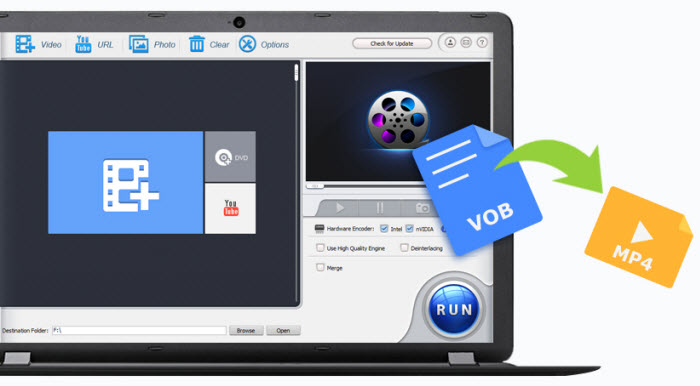
Strap of Time? Check the Quick Comparison of 5 Best VOB to MP4 Solutions
To help you make the best decision for your specific hardware, refer to the comparison table below:
Solution |
Best For |
Max File Size |
Encrypted DVDs |
Speed |
Price |
Large libraries & encrypted discs |
Unlimited |
Yes (Full support) |
⚡ ⚡ ⚡ Ultra fast |
Paid / Free trial |
|
Tech-savvy users / quality control |
Unlimited |
No (requires extra libraries) |
⚡ ⚡ Fast |
Free / Open source |
|
One-off small clips (<500MB) |
1GB (limited) |
No |
⚡ Slow (upload-based) |
Free / Subscription |
|
Quick playback + basic conversion |
Unlimited |
Partial (non-DRM) |
⚡ Slow |
Free |
|
Developers / lossless processing |
Unlimited |
No |
⚡ ⚡ ⚡ Instant* |
Free |
4 Reasons: Why Converting VOB Files to MP4 Matters in 2026
If you've ever tried to copy an old DVD to your hard drive, you know the frustration: a single movie is buried inside a mess of cryptic files that most modern devices simply aren't built to handle. Turning these legacy files into a modern MP4 container is the most balanced solution to make your media useful again. Here is how you benefit:
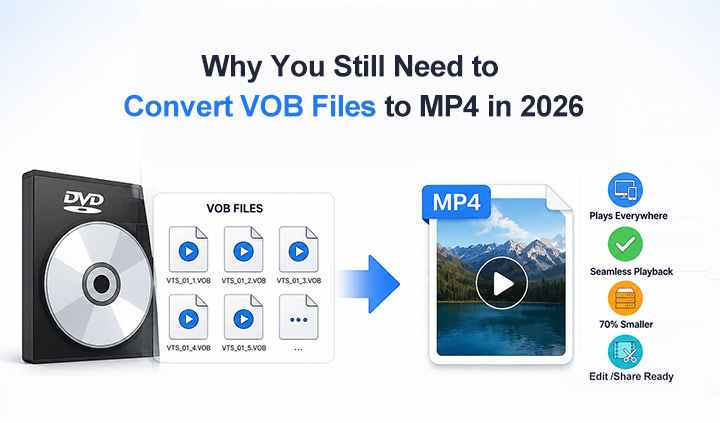
1. Universal Playback Across All Modern Devices
By converting to MP4, you move your footage from a "hardware-dependent" DVD format to a universal standard. While VOBs often trigger "Format Not Supported" errors on iPads, Android tablets, or Samsung TVs, a standard H.264 MP4 works natively everywhere.
2. Single-File Movie Experience
One of the biggest perks of MP4 is consolidation. On a DVD, a 90-minute movie is fragmented into several 1GB chunks. Converting these to a single MP4 merges those fragments into one continuous stream. This eliminates playback "hiccups" and navigation issues in apps like Plex, Infuse, or Apple Photos, ensuring your movie plays from start to finish with a single click.
3. Reclaiming 70% of Your Storage Space
VOB files use the ancient MPEG-2 codec, which is a massive data hog. By modern standards, it’s incredibly inefficient. When you convert a 4.7GB DVD to a high-quality H.264 or HEVC MP4, you can often shrink the file size by 60-80% without any noticeable loss in quality. If you have a shelf full of hundreds of DVDs, this conversion can save you terabytes of hard drive space.
4. Ready for the Modern Workflow
Converting to MP4 makes your old footage "edit-ready" and "share-ready." MP4s can be directly imported into CapCut, Premiere Pro, Final Cut Pro, and all popular video editor. Whether you want to trim a highlight from a 20-year-old wedding video or archive family memories in a digital photo album, the MP4 format allows for instant indexing and seamless sharing.
Method 1. Convert VOB to MP4 for Free with Handbrake
- Input format: Unprotected DVD and video.
- Limit: Software download is required.
- Conversion speed: Medium.
- Output quality: Medium
- Ads: No
If you're working with unencrypted files (like those home movies your dad digitized years ago), Handbrake is usually the first tool I recommend. It's free, open-source, and doesn't constantly push you toward a paid plan. However, it isn't ideal for protected DVDs. HandBrake can't bypass copy-protection schemes on its own, so if your VOB files come from encrypted discs, you may run into errors or missing titles. HandBrake is more suitable for people who already have a basic understanding of video encoding.
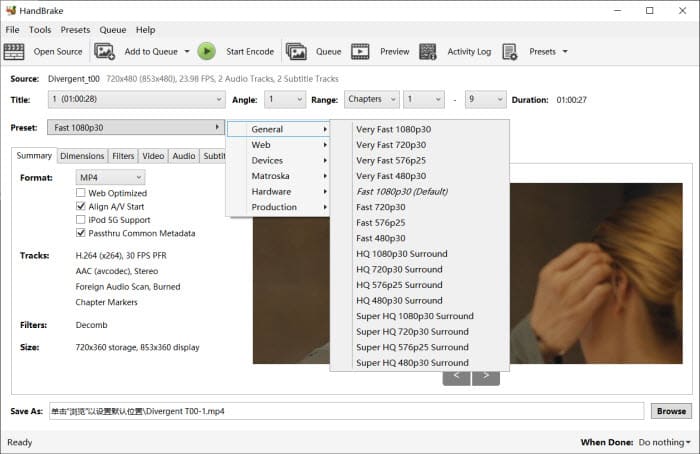
Why? You often need to tweak settings to get a good output. For example, interlaced DVD sources may show horizontal "combing" artifacts if deinterlacing isn't enabled, since HandBrake doesn't always handle them automatically depending on the preset. Resolution is another thing to keep in mind. DVD VOB files are typically 720x480 (NTSC) or 720x576 (PAL), but some presets may scale the output to higher resolutions like 1080p. This kind of standard scaling (not AI-based upscaling) can sometimes make the image look slightly softer and worse in quality.
Pros:
- Multi-platform and open-source video transcoder.
- New updates offer a ton of preset profiles.
- Include video editing filters.
Cons:
- Not that user-friendly for the first-time users to transcode video.
- It supports only 3 container formats MP4, MKV and WebM.
- Conversion speed is relatively slower than other VOB to MP4 converters.
How to Convert VOB to MP4 on Windows 10 or Mac with Handbrake?
Step 1. Download and install Handbrake on your computer. Note: Windows 10 is the minimum version supported in Hanbdrake 1.4.0 or above. And Microsoft.Net 5 Desktop Runtime is required for successful installation.
Step 2. Click File to open a single VOB video from the computer. You can also click Folder to open more files located within the folder.
Step 3. By default, the output format is set to MP4 under the Summary tab, and you can keep it unchanged. For DVD sources, a 480p preset is usually the most reasonable choice since it stays close to the original resolution. You can also choose other presets like Fast 1080p30, Roku 720p30 Surround, or Apple 1080p60 Surround depending on your needs.
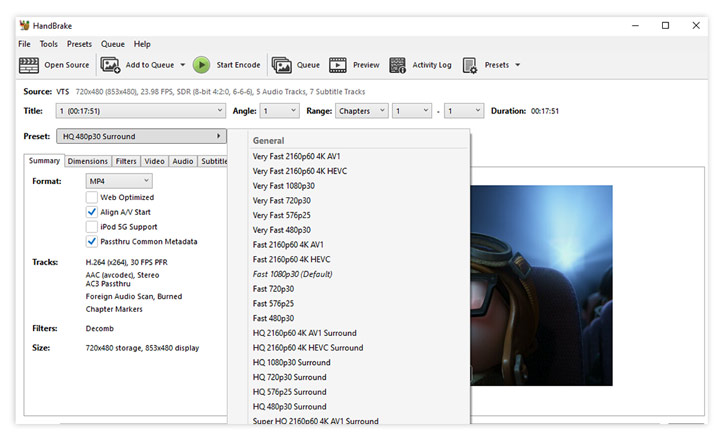
Step 4. Tweak the dimensions, filters, video, audio, subtitles, chapters as per your needs. It is a little bit complicated for beginners. You can check Handbrake tutorial page for detailed suggestion.
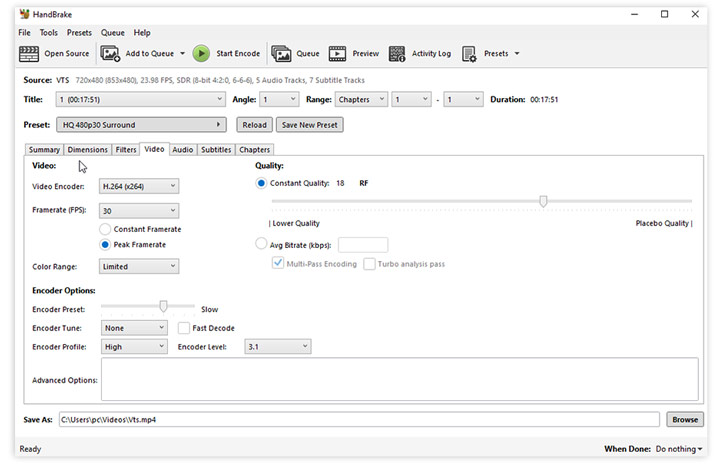
Step 5. Click Browse button in the bottom right of the window and select where your encoded VOB file will be saved in .mp4 on your computer.
Step 6. When preparation works are all done, tap "Start Encode" to change VOBs to MP4 immediately. It will take some time, depending on your source video, output setting, and your computer hardware.
 Editor's Note:
Here we have to remind you that Handbrake may fail to open VOB if it is from commercial DVD, it will fail to load but show an error "No valid source or titles found". This is because Handbrake can only rip CSS-protected DVD VOB file when you install Libdvdcss additionally.
Method 2. Convert VOB File(s) to MP4 with WinX DVD Ripper in a Click
- Input format: Homemade or protected DVD VOB, Video_TS Folder, ISO Image
- Video size limit: no size limit at all
- Output quality: High
- Conversion speed: Super Fast (GPU accelerated decoding, encoding, and processin).
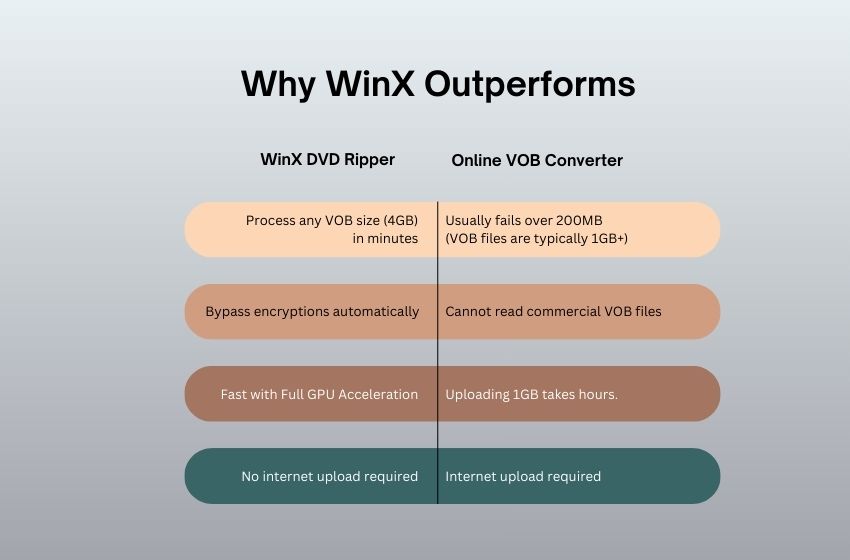
Method 1 is suitable for advanced users who are comfortable converting unprotected home VOB files to MP4 without paying a dime. However, for beginners, or when working with VOB files from copy-protected DVDs, the situation can be more complicated. In most cases, HandBrake may show a "No valid source" error or produce a glitchy or scrambled output. That's where WinX DVD Ripper Platinum comes in. After testing it with different types of DVD folders and standalone VOB files, I found a few things stood out in real use.
- Automatically detect the main title among files like VTS_01_1.VOB and VTS_01_2.VOB.
- For a single VOB file, such as an old home video or short project clip, you can just convert it directly to MP4, MOV, H.264, HEVC, or other 420+ formats without going through any extra setup.
- Support commercial DVDs that other tools struggle with, incl. workout DVDs, Japanese DVDs, damaged discs, and some multi-title DVDs.
- GPU acceleration helps speed up the conversion process noticeably. In my test, converting multiple GBs of VOB files from a full DVD to H.264 MP4 took around 10 minutes.
- Beginner-friendly. You can simply choose an MP4 preset and start the conversion without adjusting complicated codec or bitrate settings.
Pros:
- Support any copy-protected DVD, VOB, ISO image file.
- Superfast speed via Level-3 Hardware Acceleration.
- Uncompromising output quality.
Cons:
- It doesn't support convert blu-ray disc.
How to Convert Any DVD VOB File to MP4 with WinX DVD Ripper Platinum?
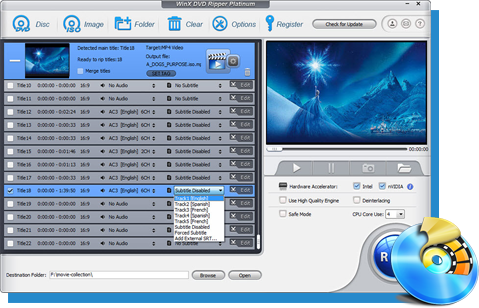
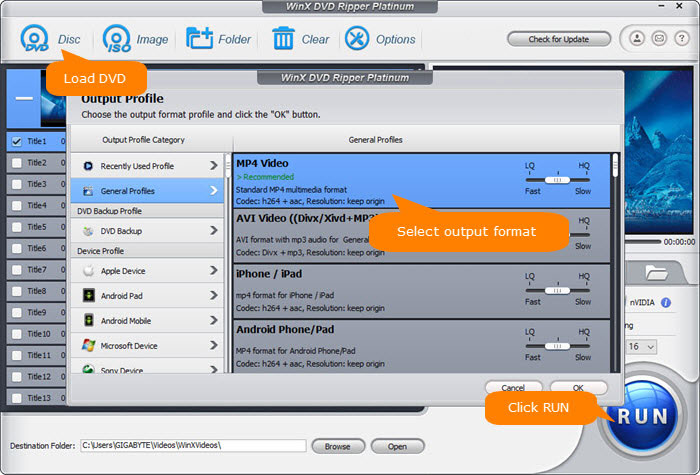
Step 1. Click "DVD Disc" or "DVD Folder" to browse and select DVD into program.
Step 2. Choose "MP4 Video (H.264/MPEG4+AAC)" as target video format.
Step 3. DRM tech and the right main title information of DVD will present in a small dialog box. Jump over it and do some video editing if necessary. You can cut VOB video, merge VOB files together, add external subtitles, and more.
Step 4. Press "RUN" to start the DVD VOB to MP4 ripping process.
Editor's Note:
I prefer using WinX DVD Ripper Platinum over HandBrake (Method 1) in most cases. The real-world test data below explains why: WinX DVD Ripper Platinum can handle DRM independently, delivers a more stable and significantly faster conversion experience, and requires virtually no learning curve, making it much easier to use overall.
Metric |
HandBrake |
WinX DVD Ripper Platinum |
4.7GB VOB Speed |
38 minutes |
7.5 minutes |
Handling DRM |
Requires libdvdcss (unstable) |
Native support / high success rate |
Ease of Use |
Moderate (complex UI) |
Easy (3-step workflow) |
Method 3. Convert VOB Files to MP4 Online for Free
I only recommend this method if you're working with a single small VOB clip, such as a short 1–2 minute snippet, and you don't want to install any software. If you're dealing with a full DVD folder or large VOB files (around 4.7GB), online tools are usually not practical. Uploading can take a long time, fail midway, or hit file size limits depending on the platform. Here are a few things I'd keep in mind from my tests:
- None of the online VOB to MP4 converters can handle VOB files from commercial DVDs.
- If your file is on the larger side, CloudConvert (up to 2GB) and Restream.io (up to 1GB) are the most generous options I found. Most others are useless for VOBs; for example, Zamzar caps you at a tiny 50MB.
- Online VOB to MP4 converters are more suited for small, simple clips rather than full DVD folders or archived material.
- And personally, I wouldn't use them for anything sensitive, since everything is processed online.
How Do I Convert VOB File to MP4 Online for Free?
Here, I use CloudConvert as an example since, as mentioned earlier, it is one of the most generous options and supports large VOB files up to 2GB. It is completely free, offering up to 10 conversions per day without requiring sign-up. If you do create an account, the limit increases to 25 conversion credits per day. Paid plans start at around $9, offering support for larger files and up to 500 conversion credits.
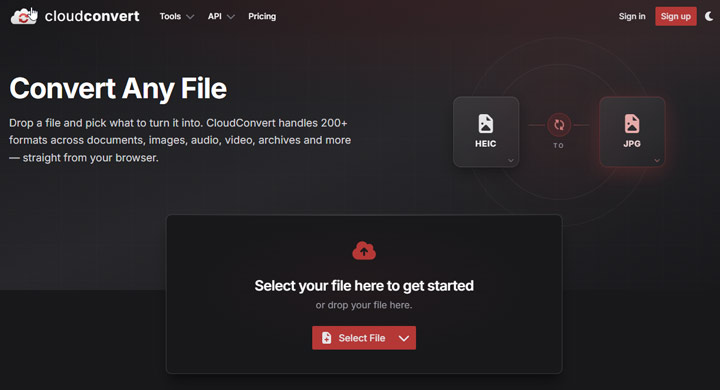
Step 1. Open Cloudconvert on your browser. Click Select Files and choose the source VOB files for uploading.
Step 2. Choose a preferred format. If you need to change VOB format into MP4, just choose MP4.
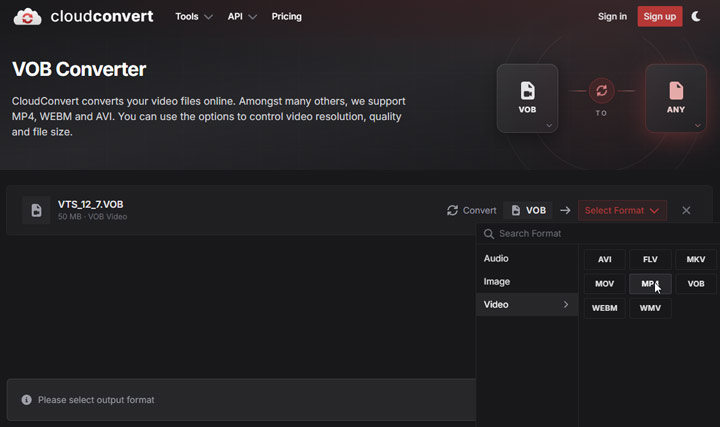
Step 3. You can customize multiple parameters such as frame rate, aspect ratio, codec, screen size, as you like.
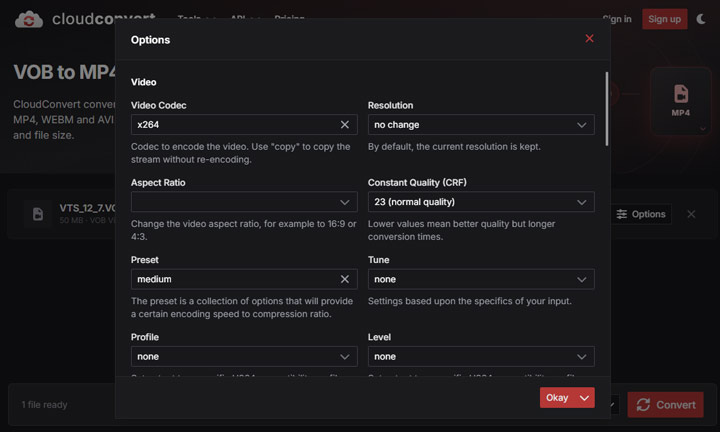
Step 4. Click Convert button to start conversion. When the VOB finishes conversion, you can click Download to save the converted MP4 video.
Editor's Note: A single VOB segment is often close to 1GB, so uploading it can easily take longer than the conversion itself.
Method 4. Convert VOB to MP4 with VLC Media Player
- Input format: MPEG, AVI, WMV, MP4, MOV, 3GP, OGG, Matroska (MKV), DTS, AAC, MXF, etc.
- Limit: Software download is required. Libdvdcss is needed for converting CSS-protected VOB to MP4.
- Conversion speed: Low.
- Output quality: Medium.
- Ads: No
VLC is one of the most widely used media players, and in addition to playing VOB and many other formats smoothly, it also includes a built-in feature for converting DVD VIDEO_TS folders and VOB files into MP4. While it may feel less streamlined compared to dedicated VOB to MP4 converters, especially when it comes to speed and workflow complexity, it can still be a practical option if you only need to do a simple conversion from time to time.
One common issue users run into is the "no sound" problem when converting VOB to MP4. This is often related to audio codec compatibility. For example, VOB files may use PCM or AC3 audio formats, which are not always properly supported inside an MP4 container. In such cases, switching the audio codec to AAC usually resolves the issue. It's also important to ensure that the audio bitrate settings are compatible with the source file, otherwise the output video may play without sound.
How Can VLC Convert VOB to MP4?
Step 1. Open VLC and click Media > Convert/Save. Alternatively, you can directly enter "Ctrl + R" shortcut key.
Step 2. Click to "Disc" panel, browse and select VIDEO_TS folder. (You may notice the first File panel allows you to select local media file/files by clicking "Add...". But unfortunately, only until GUI in VLC 3.0.0 would it support batch converting.)
Step 3. Click "Convert & Save" button at the bottom to enter into "Convert" window.
Step 4. Choose an MP4 format under the profile lists, like "Video - H.264 + MP3 (MP4)".
Step 5. Define destination location and file name for MP4.
Step 6. Hit "Start" to wait for the VOB to MP4 finished. VLC just supports hardware accelerated decoding. Hardware encoding is not supported. So the transcoding process can be a little bit slower than other professional VOB to MP4 converters.
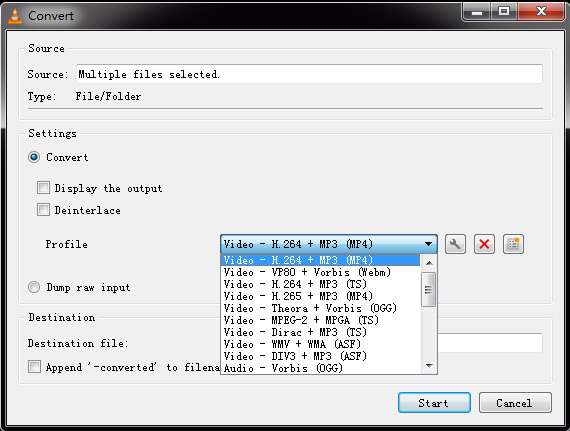
Method 5. Convert VOB Files to MP4 for Free with FFmpeg
- Input format: MPEG, AVI, WMV, MP4, MOV, 3GP, OGG, and more.
- Limit: No regular GPU; cannot handle protecetd VOB files.
- Conversion speed: It depends.
- Output quality: It depends.
- Ads: No
This one is for tech-savvy users or "remuxing" purists: FFmpeg is a command-line tool without a regular interface, but it's incredibly powerful and flexible. It can process virtually any video or audio codec, extract or burn subtitles, convert between containers, adjust bitrates, frame rates, resolutions, and even manage CPU/GPU usage, all while supporting batch processing and scripting for large-scale automation. You can remux VOBs to MP4 without losing quality or re-encode to almost any other format, giving unmatched flexibility. The downsides? It only works with unprotected DVDs, and won't preserve menus. That power comes with a steep learning curve: beginners can easily mistype commands or misconfigure settings, and waiting through long conversions only to find an error at the end can be extremely frustrating.
How to Convert VOB Files to MP4 for Free with FFmpeg?
Step 1. Install FFmpeg on your computer. Depending on the operating system being used:
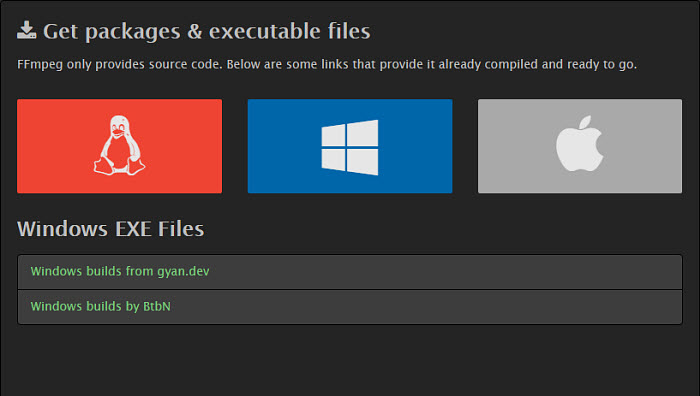
- For Windows, visit ffmpeg.org/download.html and download the “static” build. After extracting it for example, to C:\ffmpeg, add the C:\ffmpeg\bin folder to your system PATH so you can run FFmpeg from the command prompt anywhere.
- For Mac, open the Terminal and run brew install ffmpeg.
- For Linux (Ubuntu or Debian), update your package lists with sudo apt update and then install FFmpeg with sudo apt install ffmpeg
Step 2. Once installed, you can check that everything is working by typing ffmpeg -version in your terminal or command prompt, which should display the installed FFmpeg version.
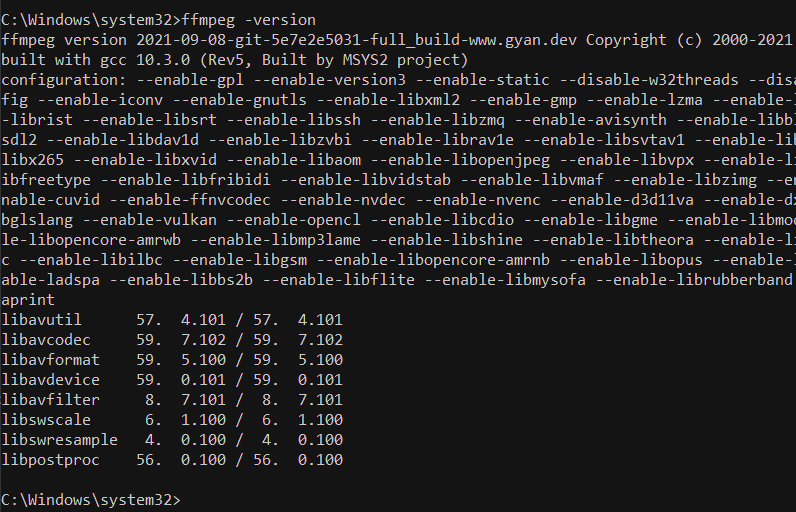
Step 3. Locate the VOB files which are usually inside the VIDEO_TS folder on a DVD. Make sure the DVD is not copy-protected; FFmpeg cannot read encrypted DVDs directly. If its from a protected commercial DVD, you'll need to siwtch to method 2.
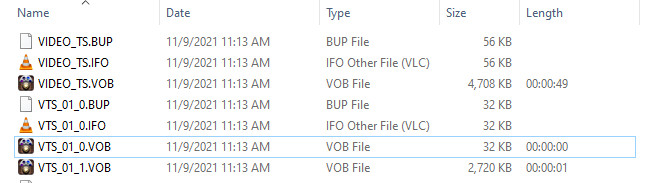
Step 4. Let's start converting VOB to MP4. Most VOB files come with the video as MPEG-2 and audio as AC3 or DTS. MP4 supports MPEG-2 video, but some players may not handle AC3 or DTS in MP4.
If you're ensring your player supports AC3 or DTS in MP4, you can simply "remux" the VOB into an MP4 container without re-encoding the video: ffmpeg -i input.vob -c:v copy -c:a copy output.mp4
If you're converting VOB to MP4 for best compatiability or smaller size, re-encode the audio and/or video: ffmpeg -i input.vob -c:v libx264 -crf 23 -preset fast -c:a aac -b:a 192k output.mp4
Test Result: VOB to MP4 Converter Performance Comparison (2026)
To get a realistic picture, I put together a test set of 10 DVD sources totaling over 40GB, covering a mix of protection schemes and disc structures. The set included:
- 12 individual VOB files
- 2 home-recorded DVDs (unprotected VOBs)
- 2 commercial movie discs with CSS and region locks
- 2 complex cases: a Disney multi-title disc and a Sony ARccOS-protected fitness DVD
Test Setup: The test was conducted on a Windows 11 Pro system with an Intel i7-13700K CPU and an Nvidia RTX 3060 GPU. All VOB to MP4 converters were configured with the similar output settings using H.264 MP4 to ensure a fair comparison.
Here're what I found:
| Method | Avg Speed (per 4.7GB) | Success Rate | DRM Handling | Output Quality |
| WinX DVD Ripper | ~8m 15s | 10/10 | Handles all protections | 9.5/10 |
| HandBrake | ~32m 40s | 3/10 | Works only on unprotected discs | 9/10 |
| VLC Media Player | ~45m 10s | 3/10 | Basic CSS support | 7/10 |
| CloudConvert | Timeout | 0/10 | No DRM support | N/A |
| FFmpeg | <10s (remux) | 3/10 | Unprotected sources only | 9/10 |
Key Takeaways
- DRM is the main constraint: My 30% success rate with Handbrake, VLC, and FFmpeg isn't because they are "bad" tools. It's because they aren't designed to be decrypters. They worked perfectly for my 3 home movies but threw "No valid source found" or produced scrambled video for the 7 commercial discs. If your VOBs are from retail DVDs, you simply need a tool with a dedicated decryption engine.
- Speed doesn't equal usability: Winxd DVD Rippers and FFmpeg both supports remuxing VOB MPEG-2 into MP4 MPEG2-2 in seconds without losing any quality. But here is the catch: those files often may not play on your iPhone or tablet. If you want your video to work everywhere, I suggest using the H.264 MP4 setting in these tools instead. Even though it's slightly "slower" than a direct copy, it's still incredibly fast (about 10 minutes for a full movie, if you're using Winx DVD Ripper) thanks to GPU acceleration, and you can be 100% sure the file will actually play on your phone.
- Interlacing needs explicit handling: DVD footage (VOB) is almost always interlaced. In my side-by-side comparison, Handbrake's default settings produced ugly horizontal "comb lines" during high-motion scenes. To fix this, I had to manually go into the Filters tab and enable "Decomb."
- Complex discs require correct title detection: On the 2 complex discs (Disney/Sony), the DVD folder contained over 60 different VOB titles, but only one was the real movie. VLC and Handbrake got confused and tried to convert the wrong titles (trailers or fake loops). Dedicated software was the only method that correctly identified the 92-minute feature film title 100% of the time.
Why VOB to MP4 Conversion is Tricky: 3 Things You Must Know
Many free and open-source VOB to MP4 converters struggle or fail completely when you throw VOB files at them for conversion. If your converted video ends up silent, scrambled, or cut short, the culprit is usually a legacy DVD structure that basic converters just weren't designed to navigate.
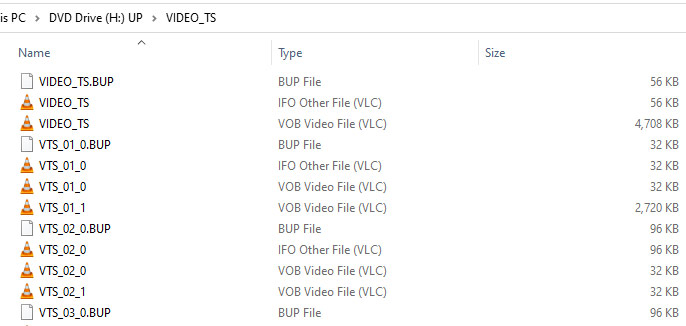
1.The VIDEO_TS Structure vs. Standalone VOBs
Have you noticed that on a DVD, a single two-hour movie is often split into several 1GB files, such as VTS_01_1.VOB and VTS_01_2.VOB? This isn't a glitch. It's actually a limitation of the old DVD file system (UDF), which couldn't handle files larger than about 1GB. Because of this structure, converting the VOB files one by one often causes problems. The resulting video can feel chopped up or even play out of order. To avoid this, it's suggested to use a VOB to MP4 converter that understands DVD structure. These tools can read the IFO file, which acts like a “map” of the DVD and tells the software how all the VOB segments are meant to be stitched together into one continuous movie.
2. The Hidden Encryption (CSS & DRM)
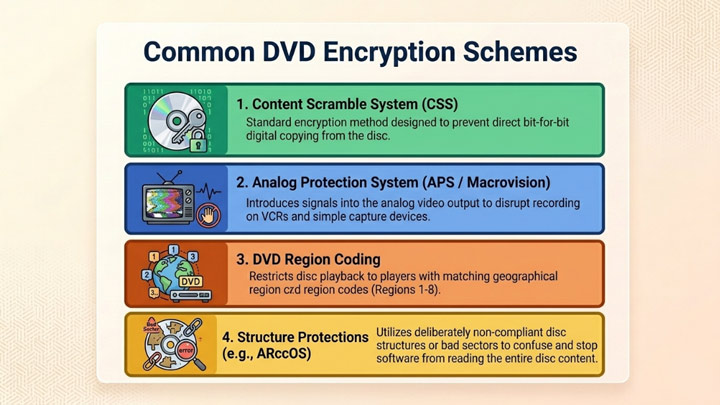
This is the primary reason tools like Handbrake often crash or produce scrambled video. Commercial DVDs hide their decryption keys in a physical area of the disc called the Lead-in. When you copy a VOB file to your hard drive, you're leaving the "key" behind. Without it, the video remains a "locked safe" that standard converters can't open. To fix this, you need a tool that can handle DVD decryption and interpret the full disc structure during conversion, rather than processing VOB files in isolation.
3. Audio Incompatibility
VOB files usually carry audio in PCM (uncompressed) or AC3 (Dolby Digital) formats. While these sounded great on home theaters in 2005, modern MP4 containers and mobile devices prefer AAC audio. If your converter just "copies" the audio stream without transcoding it to AAC, your iPhone or browser might play the video perfectly but stay completely silent because it doesn't have the "codecs" to read the old DVD audio data.
FAQs about VOB to MP4 Conversion
1. What is VOB?
VOB, namely Video Object File, is the container format in DVD-Video media. VOB contains DVD digital video, audio, subtitles, DVD menus & navigation contents mixed together into a stream form. It is under the VIDEO_TS Folder of a DVD and each VOB file is usually less than 1 GB. VOB format files may be encrypted. Players with built-in MPEG-2 files can usually play unencrypted VOB files. How to Play VOB Files?
2. Why You Need to Convert VOB Files to MP4?
There are a lot of reasons to transform VOB to MP4. VOB cannot be edited. It can't be accepted by some popular players and popular devices, such as iPhone iPad. VOB is almost 1GB in size, which is not size-friendly and may occupy too much hard disk space of computer. VOB file is part of DVD video. It may be copy-protected with Content Scramble System (CSS) as DVD disc, restricting the playback.
By converting VOB into MP4, the videos can be highly compressed and convenient for storing, without taking up too much storage space on your device. Additionally, it will be fully compatible with all iPhone, iPad, Android, PC, Mac, etc, and allows streaming over the Internet easily.
3. How Do I Convert VOB to MP4 on Windows 10 or 11?
If you are working with a computer or laptop running Windows 10 or 11, you can try Winxvideo AI and complete VOB to MP4 conversion task. Here is the step-by-step guide for a flawless video conversion with the best free VOB to MP4 converter for Windows 10.
- Download, install and run the VOB video converter on Windows 10 or Winodows 11.
- Click +Video button to load VOB file.
- When an output format window pops up, you can choose the desired MP4 format from the list. Generally H.264 MP4 will maintain the best balance in quality and size.
- Specify a folder where you want to save the converted VOB file.
- Press RUN to begin saving VOB in MP4.
4. How Do I Convert VOB to MP4 on Mac?
There are some Mac-specific VOB converters available on the market, tools like MacX Video Converter Pro, Cisdem Video Converter, MPEG Streamclip, and so on. All feature the ability to transcode VOB file to MP4 on Mac easily and share similar workflow. Just drag and drop the VOB file to be converted. Choose the output format MP4. Choose an output folder where you can save the converted file, and start the conversion process.
5. How Do I Convert VOB File to MP4 without Watermark?
Most free video converters do offer VOB to MP4 conversion but come with watermark unless you upgrade to its paid version. For example, Freemake adds its brand logo in the video. Movavi Video Converter, Wondershare Uniconverter and other free video converters add a watermark when you use its trial versions. If you want to convert a VOB file to MP4 with no watermark, you can try Winxvideo AI, VLC, or Handbrake. It is completely clean and trustworthy.
6. Can I Convert a Large VOB Video to MP4 Online Free?
As is mentioned above, online VOB to MP4 converter tools put a size limit on file uploads, ranging from 100mb to 500MB. It will be trickier to convert VOB files to MP4, since most VOB contents are around 1GB. Even though some online tools like CloudConvert supports maximally 1GB file size, the uploading and converting processes can be slow, depending highly on the network connection. Besides, these web-based converters are full of ads and unsecure. So it's better to resort to desktop video converter instead.
7. Can I Play VOB Files on Windows Media Player?
It depends. If you have the VOB files that are from the DVD VIDEO_TS folder, playback of these files on Windows 10 or 11 using Windows Media Player will be failed since an additional DVD player is required. But if you have individual VOB file saved on your computer, you can play it with WMP as long as it is equipped with the MPEG2 decoder. Or else, you need to convert VOB to MP4 or WMV format to enable the playback of VOB file on WMP.
8. Why Do Online VOB Converters Fail When I Upload My File?
Online tools are primarily limited by file size (typically under 500MB) and lack the decryption technology needed to read VOB files that originate from commercial, copy-protected DVDs.
References
1. What is VOB. Wikipedia. Last edited on 16 December 2025
2. WinX DVD Ripper Platinum. Trustpilot. Retrieved March 21, 2026.
3. VLC. G2. Retrieved May 28, 2026.