Welcome to WinX DVD Ripper Platinum Tech FAQ Center

Find answers to common questions about DVD ripping, software features, supported formats, DVD compatibility, errors, and other technical issues. Browse the FAQs below for quick solutions and helpful troubleshooting tips. We regularly update this page with new questions and answers to help you get the most out of WinX DVD Ripper Platinum.

Basic Ripping

1. How to rip DVDs to MP4, AVI, MOV, iPhone, iPad and other formats? WinX DVD Ripper Platinum is able to rip all DVDs to popular video formats like MP4, AVI, MPEG, WMV as well as iPhone, iPad, PSP, Xbox and Mobile phone. It allows users to rip DVD with only three mouse clicks.
1. Launch the program and import the DVD.
2. Select the target video format/device and output folder.
3. Click "RUN" and go.
You may also follow the detailed user guide.

2. Does WinX DVD Ripper Platinum support ripping the latest copy protected DVD? Yes, WinX DVD Ripper Platinum fully supports the latest DVD copy protections. And it will be continuously updated to support the latest protected DVDs (CSS encryption, region protection, Sony ARccOS, APS, UOPs and Disney new copy protection). Please refer to "New Copy Protection DVD Solution."

3. How do I find the correct title to rip from an encrypted DVD? Actually, WinX DVD Ripper Platinum can automatically choose the right title due to its unique title check mechanism. Please check following YouTube video to learn how to rip protected DVD with right title.

4. How can I rip the entire DVD with WinX DVD Ripper Platinum? Do I select Merge or check all 99 titles? Generally, the main title contains the whole movie and it is not recommended to merge. And, you are not sugguested to merge titles if the aspect ratio is different or there is no audio/time.

5. Why does WinX DVD Ripper only rip part of my DVD? Please check your DVD is scratched or not or whether the DVD plays properly. Then follow the tips below and have a try:
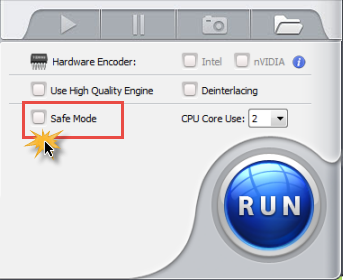
1. Choose "Safe Mode" option in the "Advanced Setting" area of main interface.
2. It seems there might be bad sections in the movie. Please adjust the "Start time" to be seconds after the point where the ripping ends to have a try.
If it still not works, the situation might be your DVD's information is not intact, or our product can't read the full information of it. Please use "Copy" feature to have a try? (Copy enables you to backup your DVD with original video, audio and subtitles.) Or, you may use other DVDs to have a try.

6. Can WinX DVD Ripper Platinum extract audio from DVDs? Yes. WinX DVD Ripper Platinum allows you to rip both homemade and commercial DVDs to various audio formats, such as MP3, AAC, FLAC, etc. You can also rip and backup DVD to popular video formats like WMV, MP4, MOV, FLV, MPEG, AVI, 3GP and devices such as iPhone, iPod, iPad, PSP, Zune, Zen, Mobile phone.

7. How Can I speed up DVD Ripping? There are quite a few factors that influence the duration of conversion:
1. The length and size of the original file.
2. Output file's properties such as resolution, video quality.
3. Computer hardware level.
And there are some tips that may be useful for speeding up the conversion:
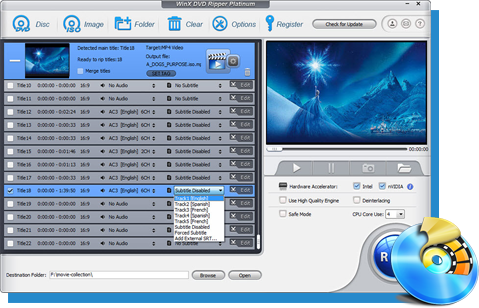
1. First and formost, ensure to enable the Hardware accelerator option at the right part of the main interface for faster ripping. WinX DVD Ripper takes full advantages of level-3 hardware acceleration, which makes the whole ripping up to 47x faster real-time speed.
2. The higher parameter the source video has, resolution, frame rate, etc, the longer it takes to convert the video.
3. Take full advantage of CPU Core use. WinX DVD Ripper Platinum supports up to 8 CPU Core which dramatically improves the video converting speed. Please set the "CPU Core Use" in "Advanced Setting" area.

DVD Detection & Errors

8. Why I cannot add DVD disc & show damage DVD? As WinX DVD Ripper Platinum only supports standard/normal DVD disc at present, please check your DVD disc is a standard/normal one. A standard DVD folder/disc includes "Video_TS" and "Audio_TS". What's more, "Video_TS" includes "VIDEO_TS.BUP", "VIDEO_TS.IFO" and "VIDEO_TS.VOB".VOB file could be accepted by DVD, but .VOB file is only part of the DVD folder. So please try other DVD discs.

9. Why does nothing happen when I try to add a DVD from DVD Path? The folder may be the reason. Below is the difference between DVD Disc and DVD Path.
DVD Disc:Through this button you can load the information of the disc you put into the DVD driver.
DVD Path: Through this button you can load the information from a standard DVD folder including AUDIO_TS and VIDEO_TS stored on your hard drive.
If you want to load DVD from a folder, the DVD's information should be intact, including the files like *.IFO, *.BUP and *.VOB.

10. What should I do if WinX DVD Ripper crashes while ripping a DVDs? Please make sure you have the latest version of WinX DVD Ripper Platinum:
https://www.winxdvd.com/download/winx-dvd-ripper-pt.exe
The below suggestions may help:
1) Choose "Safe Mode" option in the main interface to have a try.
2) Close other programs when running the product.

11. What should I do when I came across the 'Error Code -1'?lease use the solutions below and have a try:
Please choose "Safe Mode" option in the "Advanced Setting" area of main interface.

Or close other programs when running the product.
Or try to clean your DVD disc.
Or use other DVD disc to check if the program work.

12. How do I fix the "EAccess Violation" error? Please uninstall the old version first and then install the latest version to have a try. And non-system partitions, like D: / E: /etc., are recommended to install.
Please download from here.

13. How do I fix the "The Output Folder is not writable....please select another one" error? It means that you cannot write data to the folder you choose. Please select another folder as the output folder.

Video, Audio & Subtitle

14. What are the "output image setting", and how can I keep the correct aspect ratio? As you know, general, the DVD image size is 720x480 (NTSC DVD) or 720x576 (Pal DVD), they are all not the standard DVD image aspect ratio. When you watch the DVD on TV or Mac, it will be resized to 16:9 (720x404) or 4:3 (720x540) to keep the aspect ratio.
So, maybe you find the problem, the original DVD image size is not what you are watch on TV and PC. When you rip the movie out you need to resize the image and keep image aspect ratio, our WinX DVD Ripper Platinum will do it for you automatically, many other company's dvd ripper will lost the image aspect ratio.

15. Can I adjust the video resolution and the output image size? You can adjust the video resolution to set the output image size. There are 3 choices for your needs:
1.Original Size and Keep Aspect Ratio. It will output the Original DVD Image Size (automatic keep aspect ratio, and you can't adjust the width and height).
2. Custom Size and Keep Aspect Ratio (default setting). This option will let you adjust the image width, and the software will calculate the height to keep the DVD image aspect ratio.
3. Custom Size with Custom Aspect Ratio. This option will NOT calculate the width and height, so you can adjust the width and height number, but maybe you will lose the image aspect ratio in the output file.

16. Can WinX DVD Ripper Platinum preserve 5.1 channel surround audio? Yes. The unique "DVD backup" feature in the output profile of WinX DVD Ripper Platinum lets you choose the copy method to backup the whole content of DVD to hard drive in a few minutes. It will keep original Video and original 5.1 Channel Dolby AC3/DTS Audio. This method is the best way to backup your DVD without Audio Video quality loss. It will produce a single 3 GB size MPEG2 file. You did not need burn it to disc, just keep it on your computer and you can play it anywhere on your computer with Windows media player, VLC player, etc.

17. What to do when there is no sound in my ripped video? 1. It seems that your media player doesn't have the right codec for the file. Please download one here: http://www.free-codecs.com/
2. It seems that WinX DVD Ripper Platinum can't read the DVD's audio track, or this DVD doesn't have a right audio track.Please try the following methods:
A. Choose other output formats for this DVD.
B. Use other DVDs to have a try. If it still doesn't work, please use "Copy" feature to have a try.

18. The audio is out of sync with video. How to make WinX DVD Ripper Platinum sound get sync? It seems that you didn't select the right title. Please do as follows to have a try.
1. Please use "Safe Mode" in the interface to have a try. It is also useful even if your original DVD's audio failed to sync with movie.
2. If your DVD is NTSC, please change the "Video Frame Rate"; to 29.97 and if PAL, 25. Ps, the software can auto-analyze whether the DVD is NTSC or PAL, please take a look at the File List Window.
3. "Copy" feature can also resolve this problem. It lets you copy the whole content of DVD with original video, audio and subtitles.

19. Why are my selected DVD subtitles not showing in the preview? If the selected audio or subtitle track does not appear in the preview window, don't worry. The audio and subtitle settings are not applied to the preview. Simply proceed with the ripping process, and the selected subtitle track will be included in the final ripped video.

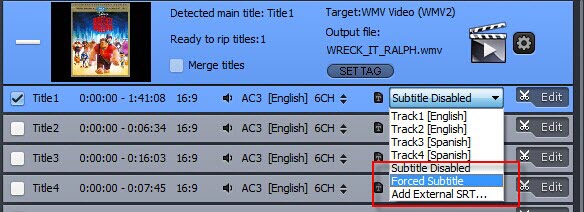
20. How can I keep forced subtitles when ripping a DVD? Forced subtitles are disabled by default in WinX DVD Ripper Platinum. To include forced subtitles in the ripped video, select the Forced Subtitle option in the subtitle settings before starting the ripping process.

Devices & Playback

21. How can I remove black bars and make the ripped video fit the full screen?Please click the drop-down menu from the Crop & Expand option and choose your preferred aspect ratio. Then choose "Auto expand" so that you can play the converted video on iPhone/iPad/iPod without black line.

22. Can I edit video file name for proper display on my iPhone/iPad/iPod/Apple TV? WinX DVD Ripper Platinum has a unique feature to make target video display with proper file name on iPhone/iPad/iPod/Apple TV. To do this, please edit "Target Name" and "Artist" in the "SET TAG" area.

23. How do I transfer the ripped videos to iPhone/iPad/iPod/Apple TV? Please launch iTunes; go to menu File - Add File to Library to import the converted videos into iTunes. Or just drag and drop the video into iTunes. Press the Sync button to load the target video to your Apple devices. Or you can try WinX Mediatrans to transfer the converted file to your iDevice.

24. Does WinX DVD Ripper support converting Interlaced DVD movies to iPhone iPad? Yes, sure. WinX DVD Ripper Platinum built-in the "Yadif Double Frames" Deinterlacing Engine. You just need to check the Deinterlacing option button on the main window to select this method.