







 win
win
 Super Resolution
  Video Stabilization
  Frame Interpolation

 Denoise Image
  Restore Old Photo
  Unblur Image
  Recover Face
  Upscale Image
  Colorize Photo
 Video Conversion >
 Video Compression >
 Screen Recording >
DVDFab vs MakeMKV: Our Hands-On Comparison After Real DVD & Blu-ray Tests
 Donna Peng
Updated on
DVDFab and MakeMKV are two of the best DVD ripper software for converting DVDs and Blu-rays, but they serve different needs. One focuses on lossless backups, while the other offers a complete ripping and conversion workflow. To find out which delivers better value, we tested both using protected discs, comparing ripping speed, copy protection support, output quality, hardware usage, pricing, and overall usability. Here's what we found.
DVDFab vs MakeMKV: Quick Verdict
After testing both tools with the same DVD sources, the results show a clear difference in their priorities. MakeMKV performed better as a lossless backup solution, reaching 145.94 FPS in our DVD backup test because it avoids video re-encoding. It also keeps the original video, audio, and subtitle streams, which explains why many Plex users and collectors continue to rely on it for long-term archiving.
DVDFab, however, delivered a more complete ripping workflow in our tests. It recognized the NCIS DVD structure more automatically, identifying 14 main titles, while MakeMKV displayed several similar title options that required additional checking. DVDFab also completed DVD parsing faster at around 12 seconds compared with MakeMKV’s 27 seconds, and its built-in GPU acceleration, compression controls, and MP4/H.265 output make it more convenient for users who want playback-ready files without additional encoding software.
The performance difference mainly comes from their design goals. MakeMKV focuses on preserving the original disc content, while DVDFab focuses on turning physical discs into smaller, more compatible video files through an integrated workflow. Based on our benchmark results, neither tool completely replaces the other: MakeMKV is better for lossless preservation, while DVDFab is more suitable for users who value speed, automation, and flexible output options.
Our Recommendation
- MakeMKV: Best suited for users who want untouched MKV backups, maximum original quality, and a simple archival workflow. It is especially appealing for collectors who already use HandBrake or another encoder for compression afterward.
- DVDFab: Better fit for users who want an all-in-one DVD ripping solution. Its faster disc recognition, automatic title handling, GPU acceleration, compression options, and direct MP4/H.265 conversion make it more practical for Plex libraries, NAS storage, and everyday playback.
DVDFab vs MakeMKV at a Glance
DVDFab and MakeMKV share the same goal, backing up DVDs and Blu-rays, but they differ significantly in workflow, output options, and overall capabilities. Before diving into detailed benchmarks and real-world tests, the table below highlights the key differences in pricing, supported formats, hardware acceleration, copy protection, Plex compatibility, and ease of use. It provides a quick overview to help you identify which software better matches your needs.
| Feature | DVDFab | MakeMKV |
|---|---|---|
| Price |
Paid Starts around $279.99 Lifetime options available |
Free for DVD Blu-ray/UHD requires registration Lifetime license available |
| Operating System | Windows & macOS | Windows, macOS & Linux |
| DVD Ripping | YES | YES |
| Blu-ray Ripping | YES | YES |
| 4K UHD Blu-ray | YES | YES* |
| MP4 Output | YES | NO |
| MKV Output | YES | YES (Lossless) |
| GPU Hardware Acceleration | YES Intel QSV / NVIDIA / AMD |
NO No video encoding |
| Video Compression | YES | NO |
| Video Editing | YES | NO |
| Copy Protection Removal | Good Regular updates |
Good Regular updates |
| Plex Compatibility | Good Direct MP4/H.264/H.265 output |
Good Best for lossless MKV libraries |
| Beginner Friendly | ★★★★☆ | ★★★★★ |
* UHD Blu-ray support in MakeMKV depends on a compatible UHD-friendly drive and supported firmware.
How we compared DVDFab and MakeMKV:
To keep the comparison fair, both applications were tested on the same Windows 10 Pro 64-bit PC powered by an AMD Ryzen 5 5600X processor, an AMD Radeon RX 6700 XT graphics card, and 48GB of DDR4 memory. Identical optical drives and source discs were used throughout the tests. Our evaluation covered commercially protected DVDs, Blu-rays, and several newer releases with modern copy protection. Besides measuring overall ripping speed, we also recorded disc loading time, hardware resource usage, output quality, file size, and the success rate when processing encrypted media.
Because the two programs follow different workflows, the results were assessed according to their intended purpose rather than raw speed alone. MakeMKV was evaluated as a lossless backup tool, while DVDFab was assessed as a complete ripping and conversion solution capable of producing device-friendly MP4 and HEVC files. Hardware acceleration, video compression, editing capabilities, output flexibility, and decryption performance were also taken into account.
The benchmark results below are based on our hands-on testing and supplemented by common questions and real-world feedback from DVD collectors, Plex users, and home media enthusiasts, providing a practical comparison that goes beyond feature lists alone.
DVDFab vs MakeMKV Benchmark Results
Benchmark results provide a clearer picture than feature lists alone. During testing, we focused on the factors that directly affect daily ripping workflows, including disc recognition, analysis time, conversion speed, output quality, protection handling, and stability. These measurements help show where DVDFab gains an advantage as an all-in-one converter and where MakeMKV remains strong as a lossless disc backup tool.
| Test Category | DVDFab DVD Ripper | MakeMKV |
|---|---|---|
| Disc Parsing Speed |
Faster recognition DVD read: 12 sec |
Slower analysis DVD read: 27 sec |
| Disc Analysis & Title Recognition |
Detected NCIS main titles: 14 More automatic workflow |
Detected multiple possible titles: 7, 10, 11, 13, 14 Requires manual selection |
| Ripping Speed |
DVD conversion speed: 109.92 FPS |
Lossless backup speed: 145.94 FPS |
| GPU Acceleration |
YES Supports Intel QSV, NVIDIA NVENC, AMD acceleration |
NO No video encoding process |
| CPU / RAM Usage |
Higher workload during encoding Stable during testing |
Lower CPU usage Stable during backup process |
| Output Size |
Compressed output Smaller MP4/H.265 files |
Original-quality MKV Larger file size |
| Video Quality |
Excellent Adjustable bitrate, codec, resolution |
Excellent Lossless original quality |
| Failed Disc Handling | Better handling of protected discs | May require longer scanning time |
| Copy Protection Support |
★★★★☆ Regular updates and broader compatibility |
★★★★☆ Strong support but depends on disc structure |
| Playlist Obfuscation | Better automatic title detection | May show multiple similar titles |
| Stability |
★★★★☆ Stable but occasional long analysis delay |
★★★★☆ Stable but slower on complex discs |
Benchmark Summary:
The benchmark results show that DVDFab and MakeMKV excel in different areas rather than having one universal winner. MakeMKV achieved higher ripping speed in our test because it performs a direct lossless backup without re-encoding, reaching 145.94 FPS. This makes it an excellent choice for collectors who want untouched MKV backups and maximum video quality.
DVDFab, however, delivered a more complete workflow. Although its conversion speed was lower at 109.92 FPS, it provides features that MakeMKV does not offer, including GPU acceleration, MP4/HEVC output, video compression, subtitle customization, editing tools, and broader device compatibility. It also handled title recognition more conveniently during our tests.
DVDFab vs MakeMKV: Feature Comparison
DVDFab and MakeMKV may both handle DVD and Blu-ray ripping, but their feature sets are built around different goals. MakeMKV focuses on extracting original disc content into lossless MKV files, while DVDFab provides a complete workflow that includes ripping, converting, compressing, and customizing videos for different devices. The following comparison highlights the practical differences users will notice during everyday use.
Output Formats: MakeMKV is mainly designed for MKV output, preserving the original video, audio, and subtitle streams without re-encoding. DVDFab supports a much wider range of output formats, including MP4, MKV, H.264, H.265, HEVC, device-specific profiles, and web-friendly formats, making it easier to prepare videos for different playback environments.
Compression: MakeMKV does not compress video because it focuses on lossless backup. The resulting files are usually close to the original disc size. DVDFab includes built-in compression controls, allowing users to adjust resolution, bitrate, codec, and output size to create smaller files for storage or streaming.
Video Editing: MakeMKV keeps the workflow simple and does not include editing tools. DVDFab offers additional editing options such as trimming, cropping, merging, subtitle selection, audio track adjustment, watermarking, and basic video customization before conversion.
Metadata: MakeMKV preserves essential disc information during MKV creation but does not focus on advanced metadata management. DVDFab provides more customization options for output files, including device profiles and additional settings designed for organized media libraries.
Batch Processing: DVDFab supports batch conversion and can process multiple videos with different output settings, which is useful for users managing large DVD or Blu-ray collections. MakeMKV can queue multiple discs but is primarily designed for individual lossless extraction rather than conversion workflows.
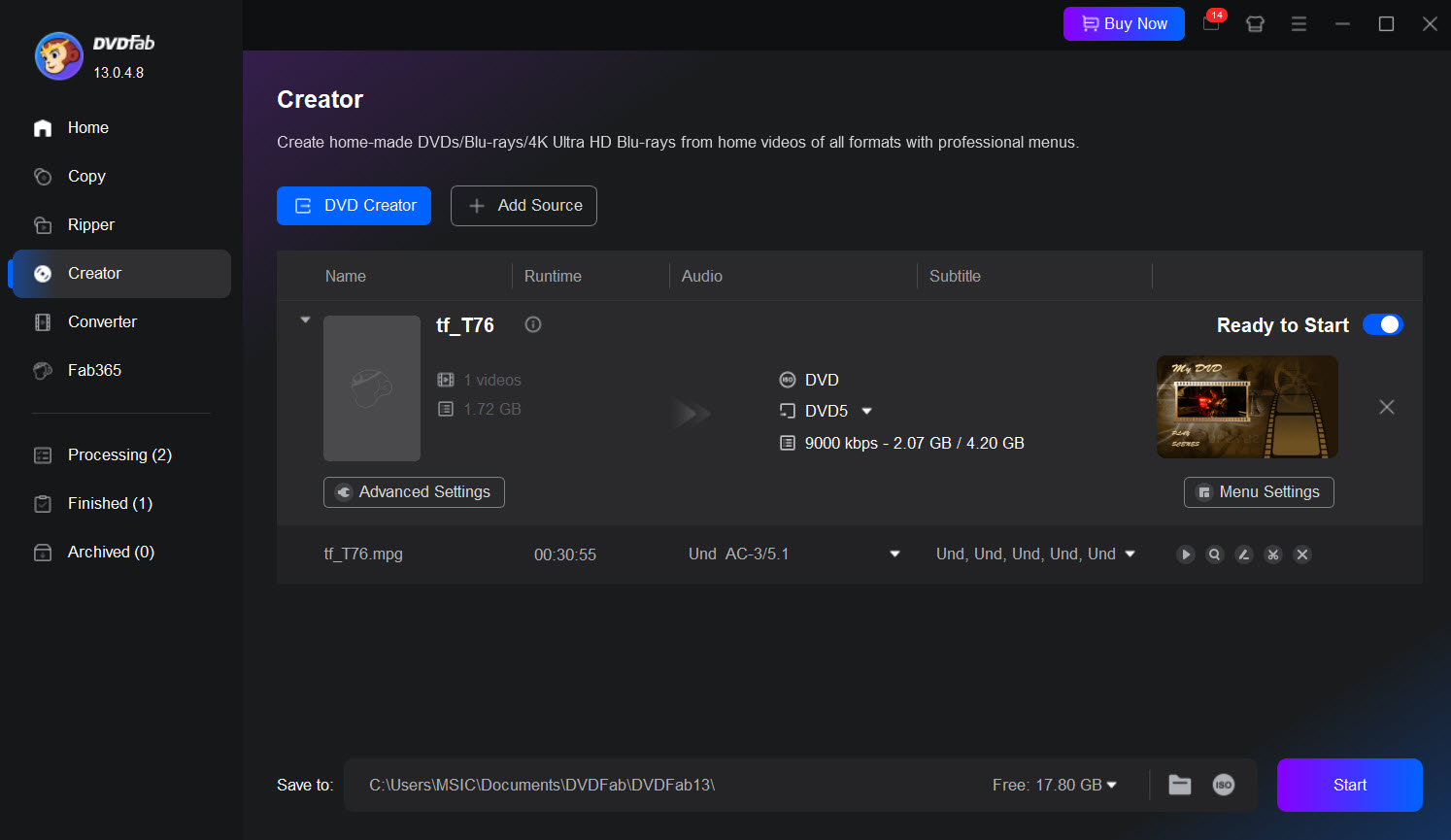
Hardware Acceleration: DVDFab supports GPU acceleration technologies including NVIDIA NVENC, Intel Quick Sync, and AMD hardware acceleration to improve conversion efficiency. MakeMKV does not use GPU encoding because it does not perform video transcoding.
Subtitle Support: Both applications can handle subtitles from DVDs and Blu-rays. MakeMKV preserves original subtitle streams inside MKV files, while DVDFab provides additional control, including subtitle selection, forced subtitles, and options to keep or burn subtitles into output videos.
Audio Support: MakeMKV keeps original audio tracks, including surround formats supported by the disc. DVDFab also preserves multiple audio tracks while allowing users to select, convert, or optimize audio settings depending on the target device.
ISO and Folder Backup: MakeMKV focuses on extracting disc content into MKV files and does not provide full ISO backup functionality. DVDFab supports DVD/Blu-ray backup workflows, including ISO and folder output options for users who want a complete disc copy.
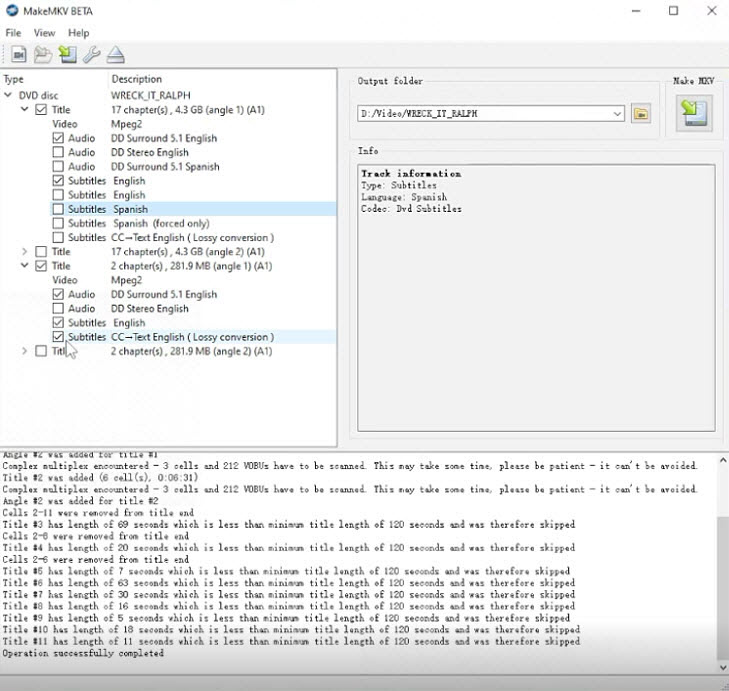
 Feature Comparison Summary
MakeMKV is the better choice for users who want a simple, lossless disc extraction tool with original-quality MKV output. DVDFab offers a much broader feature set, making it more suitable for users who need compression, format conversion, editing options, hardware acceleration, and flexible playback compatibility.
Ease of Use: Installation, Interface & Learning Curve
DVDFab and MakeMKV take very different approaches to usability. DVDFab provides a more polished and modern interface designed around an all-in-one workflow. After installation, users can select the Ripper module, load a disc, choose an output profile, and start processing with only a few steps. The guided workflow makes it easier for beginners who want to convert DVDs or Blu-rays into playback-ready formats without learning additional tools.
However, DVDFab’s larger feature set also adds more settings to explore. Options for codec, resolution, bitrate, subtitles, audio tracks, compression, and editing give advanced users more control, but beginners may need some time to understand the differences between profiles and output options.
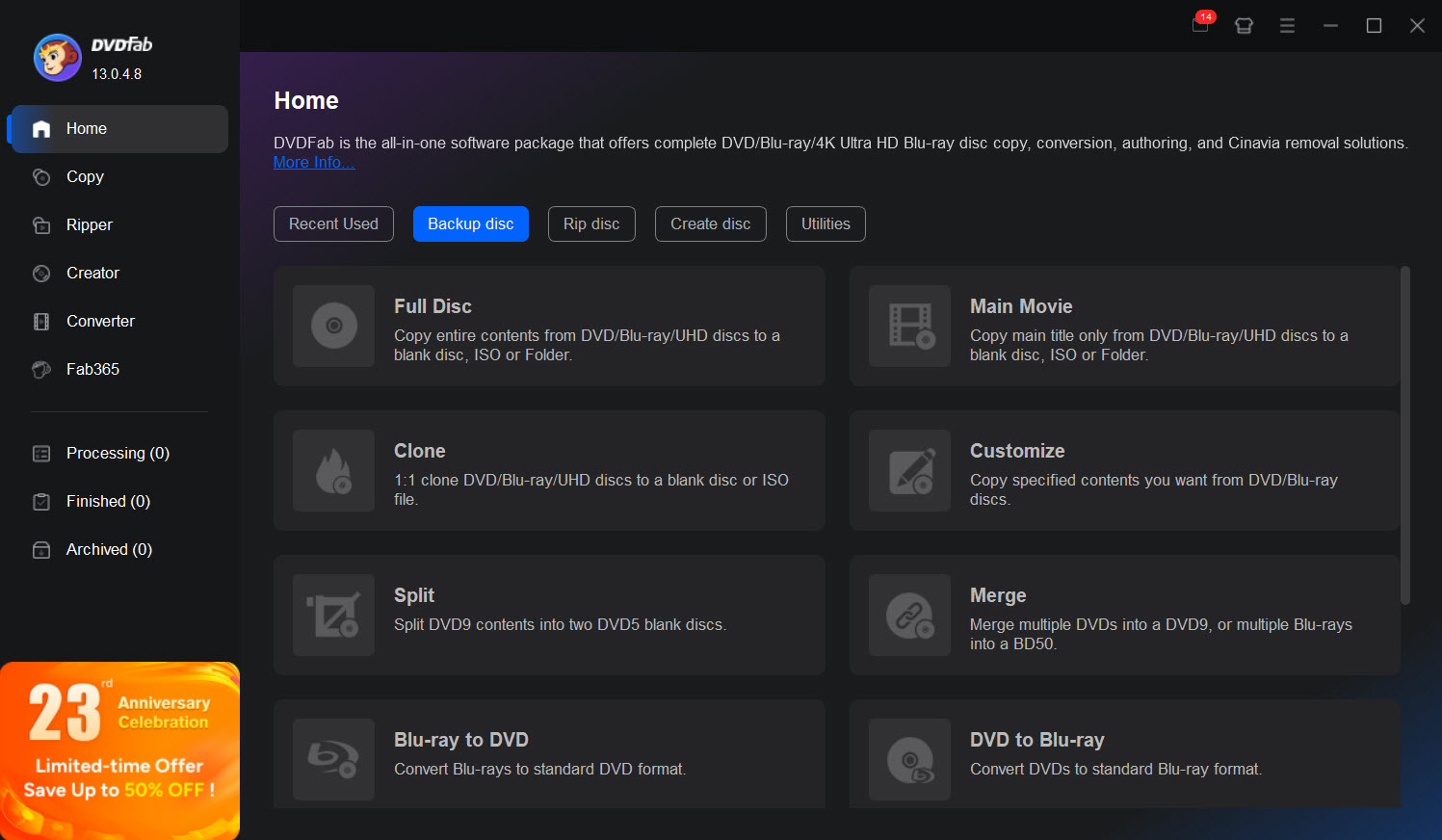
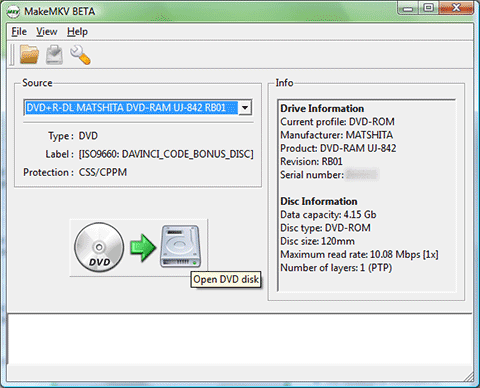
MakeMKV offers a much simpler installation process and a lightweight interface focused on one main task: extracting disc content into MKV files. The clean layout reduces distractions, and most users can begin ripping within minutes. However, the simplicity also means more manual decisions in certain situations. When a disc contains multiple titles, playlists, or complex structures, beginners may need additional knowledge to select the correct source.
In terms of setup complexity, DVDFab requires slightly more learning because of its broader functionality, while MakeMKV is easier to understand at first glance but may require more experience when dealing with complicated discs. For users who want a straightforward backup tool, MakeMKV feels more minimal. For users who prefer a complete ripping workflow with more automation, DVDFab provides a smoother overall experience.
>> Check How to Use MakeMKV & Fix Not Ripping Issue
My personal opinion:
MakeMKV wins in simplicity because it avoids unnecessary options and focuses on lossless extraction. However, its minimal design can become less beginner-friendly when dealing with complicated discs. DVDFab feels more approachable for everyday users because it handles more steps automatically, although the additional features require a short learning period. For first-time DVD ripping users, DVDFab is easier to follow; for experienced collectors who value a lightweight workflow, MakeMKV remains hard to beat.
Price Comparison: Lifetime, Subscription & License Options
Pricing is one of the biggest differences between DVDFab and MakeMKV. MakeMKV follows a simple licensing model focused on disc extraction, while DVDFab uses a more traditional commercial software model with subscription and lifetime options. The better value depends largely on whether you need a basic backup tool or a complete ripping and conversion suite.
MakeMKV: MakeMKV is free during its public beta period, which has lasted for years and allows users to access most features without payment. However, the MakeMKV beta license key needs to be updated periodically. Users who want long-term access to the full version can purchase a permanent license, which removes the beta limitation and supports continued use of the software.
DVDFab: DVDFab follows a paid licensing model with both subscription and lifetime purchase options. Its All-In-One package includes 28 products from DVDFab 13, covering DVD, Blu-ray, 4K Ultra HD Blu-ray, and recorded (4K) BDAV Blu-ray solutions in a single bundle. The standard price is $399.99, while the discounted price is typically around $279.99. Subscription plans provide access for a fixed period and usually include updates during that time. Its price is significantly higher than MakeMKV.
Upgrade Policy: MakeMKV’s upgrade process is relatively straightforward, with users mainly concerned about obtaining new beta keys or purchasing a license. DVDFab updates are more closely tied to its commercial license system, and major upgrades or extended update access may depend on the purchased plan.
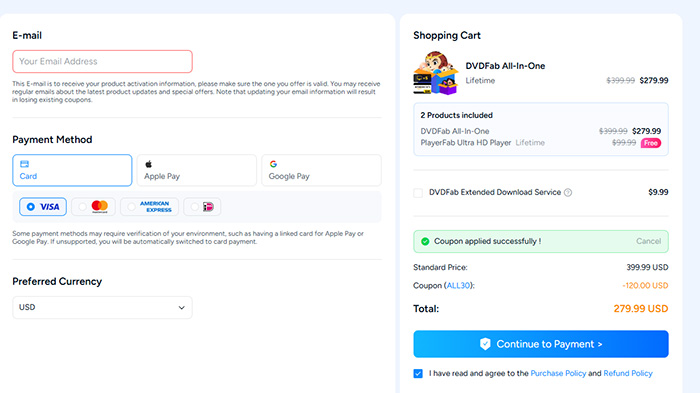
My personal opinion:
MakeMKV is difficult to beat from a pure cost perspective, especially for collectors who only need reliable lossless backups. DVDFab requires a larger investment, but the price reflects its wider feature set and more automated workflow. If ripping is an occasional task, MakeMKV offers excellent value; if DVD and Blu-ray conversion is part of a regular media workflow, DVDFab provides more convenience over time.
Which One Fits Your DVD Ripping Workflow Better?
After comparing performance, features, pricing, and real-world feedback, the better choice depends largely on how you manage your disc collection. DVDFab and MakeMKV solve different problems: one focuses on a complete conversion workflow, while the other prioritizes simple and lossless extraction.
When DVDFab Makes More Sense
During testing, DVDFab stood out as the more practical option for users who want a complete ripping workflow rather than a simple disc extraction tool. Its biggest advantage is reducing the number of steps between inserting a disc and getting a ready-to-play video file.
Choose DVDFab if you want MP4 or H.265 files directly: MakeMKV requires an additional conversion step because it focuses on MKV output. DVDFab can rip and convert discs directly into widely supported formats, making it easier to prepare videos for smart TVs, mobile devices, Plex servers, and other playback platforms.
Choose DVDFab if storage space matters: Built-in compression gives DVDFab an advantage for users managing large collections. Instead of keeping full-size disc backups, you can adjust resolution, bitrate, codec, and output size to create smaller files while maintaining good visual quality.
Choose DVDFab if you prefer an all-in-one workflow: In our experience, having ripping, conversion, subtitle handling, audio selection, editing, and hardware acceleration inside one application makes the overall process more convenient, especially for users processing many discs.
Choose DVDFab if you frequently convert videos after ripping: Users who regularly prepare files for Plex, NAS devices, or different playback environments can save time because DVDFab eliminates the need to move files between multiple programs.
When MakeMKV Makes More Sense
MakeMKV takes a different approach. Instead of trying to handle every step of the media workflow, it focuses on doing one task well: extracting the original contents of DVDs and Blu-rays into lossless MKV files.
Choose MakeMKV if your priority is disc archiving: For collectors who want to preserve physical media in its original quality, MakeMKV remains one of the simplest and most reliable options. It keeps the original video, audio, and subtitle streams without additional compression.
Choose MakeMKV if you want lossless MKV backups: During testing, MakeMKV achieved faster backup performance because it does not re-encode video. The output files are larger, but they maintain the original disc quality, making them suitable for long-term storage and Plex libraries.
Choose MakeMKV if you prefer a lightweight interface: Compared with DVDFab’s large feature set, MakeMKV feels much simpler. There are fewer settings to adjust, which can be appealing for users who only need reliable extraction without extra editing or conversion options.
Choose MakeMKV if you already use HandBrake or another encoder: Many experienced users combine MakeMKV with HandBrake or similar tools. MakeMKV handles the lossless extraction stage, while the second program takes care of compression, codec selection, and final playback optimization.
What Real Users Say About DVDFab vs MakeMKV
Looking through discussions on Reddit and the MakeMKV Forum, one thing becomes clear: most users do not treat DVDFab and MakeMKV as direct competitors. The common recommendation is based on workflow. People building personal media libraries often lean toward MakeMKV because it keeps the original disc structure intact, while users who want ready-to-watch files usually prefer DVDFab because it handles conversion and compression in the same place.
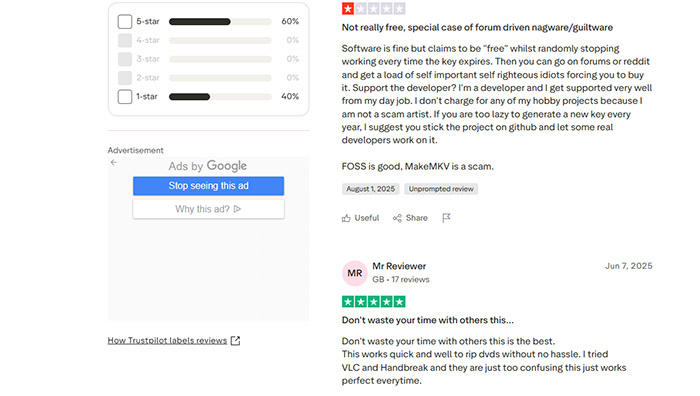
- MakeMKV is often recommended as the first step for collectors. In home media and Plex discussions, many long-time users describe MakeMKV as a reliable "dump the disc and keep everything" tool. The attraction is not a long feature list, but the fact that it keeps the original video, audio tracks, and subtitles with very little configuration.
- The biggest MakeMKV frustration is usually not ripping speed, but disc analysis. New users frequently ask why the software takes so long to scan certain DVDs or why several titles with similar runtimes appear. Forum replies often explain that complicated playlists, TV episodes, and protection structures can require extra scanning before choosing the correct title.
- Many experienced users combine MakeMKV with another encoder. A common workflow mentioned in media server communities is using MakeMKV for lossless extraction and HandBrake or another encoder for compression. This approach gives users more control but also adds an extra step to the process.
- DVDFab is usually chosen by users who want fewer steps. Discussions around DVDFab often focus on convenience: insert a disc, choose an output profile, and create a file ready for playback. Features such as MP4/H.265 output, compression, subtitle handling, and hardware acceleration are frequently mentioned as reasons to choose it over a basic backup tool.
- The main DVDFab complaints are related to price and complexity. Compared with free or lower-cost DVDFab alternatives, DVDFab requires a larger investment. Some users also feel that the wide range of modules and settings is unnecessary when their only goal is making a simple backup.
Sum up
Community discussions do not point to a single winner between DVDFab and MakeMKV. MakeMKV remains popular among users who value simple, lossless extraction, while DVDFab attracts people who want a faster path from physical discs to playback-ready files. The choice usually comes down to whether the priority is preserving the original source or simplifying the entire ripping workflow.
 FAQs About DVDFab vs MakeMKV
MakeMKV is currently available as a free beta version, but users need to enter an updated beta key periodically. Those who want permanent access can purchase a license. Many forum users continue using the beta version, while others choose the paid license to support development and avoid beta limitations.
The value depends on your workflow. MakeMKV is cheaper and focuses on lossless MKV extraction, while DVDFab costs more because it combines ripping, conversion, compression, editing tools, hardware acceleration, and device profiles in one package. Users who only archive discs may find MakeMKV sufficient, while frequent converters often prefer DVDFab’s broader feature set.
Many experienced users keep both tools because they serve different purposes. MakeMKV is commonly used for creating lossless backups, while DVDFab is preferred for converting, compressing, and preparing videos for playback on devices, Plex servers, or NAS systems.
MakeMKV displays multiple titles because some DVDs contain several playlists, episodes, bonus features, or intentionally confusing title structures. Users often need to check runtime, file size, and chapter information manually to select the correct main title, especially with TV series and protected discs.
It depends on how you organize your Plex library. MakeMKV is popular among Plex users who want original-quality MKV files with untouched video and audio streams. DVDFab is more convenient for users who prefer smaller MP4 or H.265 files that require less storage space and broader device compatibility.
Both programs are widely used for handling protected discs, but they approach decryption differently. DVDFab focuses on a complete automated ripping workflow with frequent compatibility updates, while MakeMKV is highly regarded for extracting DVD and Blu-ray content into lossless formats. Success can vary depending on disc type, protection method, and software version.
Slow analysis usually happens with discs that contain complex structures, multiple playlists, or heavy protection. MakeMKV may scan additional cells and VOBUs to identify available titles, which improves accuracy but can significantly increase preparation time on complicated DVDs.
Neither is universally better because they use different workflows. MakeMKV preserves the original video stream without quality loss, while DVDFab allows users to compress and convert videos with adjustable settings. MakeMKV is better for untouched backups, whereas DVDFab offers more control over file size and playback compatibility.


