









MakeMKV Tutorial: How to Use MakeMKV & Fix Not Ripping Issue
 Donna Peng
Updated on
Figuring out how to use MakeMKV can feel a bit frustrating at first, especially when a disc won’t rip, titles look identical, or the output doesn’t behave well in Plex. This MakeMKV tutorial focuses on what actually matters: how to use MakeMKV to rip DVD and Blu-ray correctly, what to do when MakeMKV not ripping happens. It also covers how to use MakeMKV for Plex and how to use MakeMKV for free without running into limits.
How to Use MakeMKV (Main Guide)
Most people searching for a solid MakeMKV tutorial aren’t starting from zero—they’ve already tried it and hit something confusing. Maybe the disc loads but shows 20+ similar titles, or the rip finishes but doesn’t play nicely in Plex. This guide focuses on the parts that usually trip users up, including how to use MakeMKV to rip DVD, how to use MakeMKV to rip Blu-ray, and how to avoid common mistakes that lead to failed or messy outputs.
At its core, MakeMKV doesn’t convert video, it extracts the original streams into an MKV container. That’s why the quality is untouched, but also why file sizes can be surprisingly large. Understanding this early helps set the right expectations before you even start.
>> MakeMKV Down? Check Status & Fix Access Issues
Step 1. Install and Prepare MakeMKV
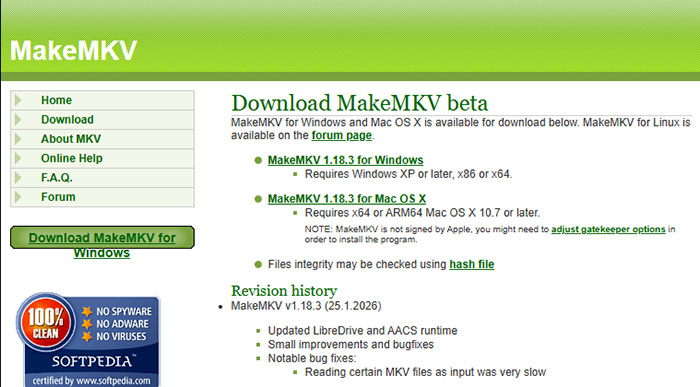
Download the latest version and install it. If you’re using it during the beta period, you’ll need a temporary key from the official forum to keep it active. This is essentially how to use MakeMKV for free without restrictions. Once installed, insert your DVD or Blu-ray and launch the program.
Step 2. Scan the Disc Properly
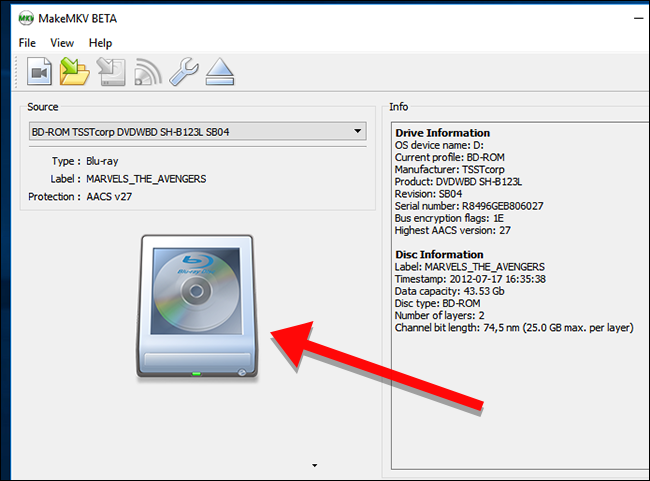
Click the large drive icon to let MakeMKV read the disc. This step can take longer than expected, especially with Blu-rays. If nothing shows up or it freezes, it’s often a drive compatibility issue or a problematic disc, not the software itself, which is a common misunderstanding behind MakeMKV not ripping complaints.
Step 3. Identify the Correct Title (Critical Step)
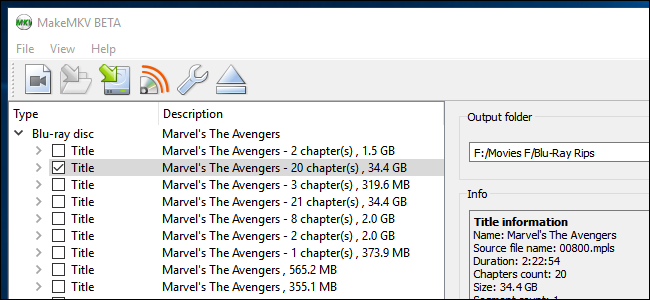
You’ll see a list of titles with different lengths. The main movie is usually:
- The largest file size
- The longest duration
- Contains multiple chapters (not just 1–2)
On some Blu-rays, studios add fake playlists to confuse ripping tools. If multiple titles look identical, checking chapter counts or playback order becomes necessary. This is where most beginners go wrong.
Step 4. Choose Audio and Subtitle Tracks
Expand the selected title and remove anything you don’t need. Keeping every audio track (especially lossless ones) can double file size. For cleaner results—especially if you plan how to use MakeMKV for Plex—keep one main audio track and only the subtitles you actually use.
Step 5. Set Output Folder and Start Ripping
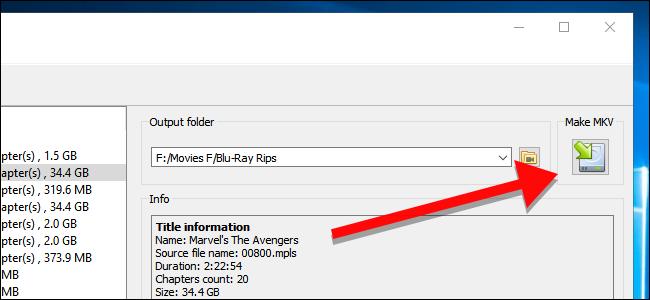
Select a destination folder with enough space, then click the "Make MKV" button. For reference:
- DVD: typically 4–8GB
- Blu-ray: often 20–50GB+
The process is mostly limited by your drive speed, not your CPU.
Step 6. Optional: Prepare and Add to Plex
MakeMKV files are raw copies, which isn’t always ideal for streaming. For smoother playback in Plex, many users re-encode the file to reduce size and ensure compatibility. This is the practical side of how to use MakeMKV for Plex—MakeMKV handles extraction, while another tool handles optimization. For more detailes, view the video tutorial below or refer to how to add DVDs to Plex media server.
Real-World Tips (Based on User Feedback)
- If a disc fails midway, try cleaning it or switching drives—hardware issues are more common than software bugs
- External drives sometimes struggle with Blu-rays due to power or firmware limits
- MKV files from MakeMKV are not compressed—this is expected, not an error
- For TV series DVDs, episodes are often split across multiple similar-length titles
Once you understand these patterns, MakeMKV becomes far more predictable. The process itself is simple—the tricky part is knowing what to select and what to ignore.
Video Tutorial: How to Use MakeMKV to Rip DVD or Blu-ray
Common Issues When Using MakeMKV & How to Fix
Most problems users report with MakeMKV don’t come from the software itself, but from disc condition, drive limitations, or copy protection behavior. Based on typical forum discussions and user feedback, these are the most common failure patterns you’ll run into when working with DVDs or Blu-rays.
MakeMKV Not Ripping DVD Errors, Causes, and Fixes
"No disc/Drive not visible"
This is one of the most common MakeMKV not ripping DVD error reports on MakeMKV forums. The drive simply shows up empty or the disc never loads. In practice, it usually comes down to:
- DVD is physically unreadable (scratches, aging, dye degradation)
- Drive firmware doesn’t support certain older DVD formats
- External USB drive not receiving stable power
If the disc isn’t recognized in system-level tools (not just MakeMKV), the issue is almost always hardware-related rather than software-related.
"Failed to open disc/Initialization error"
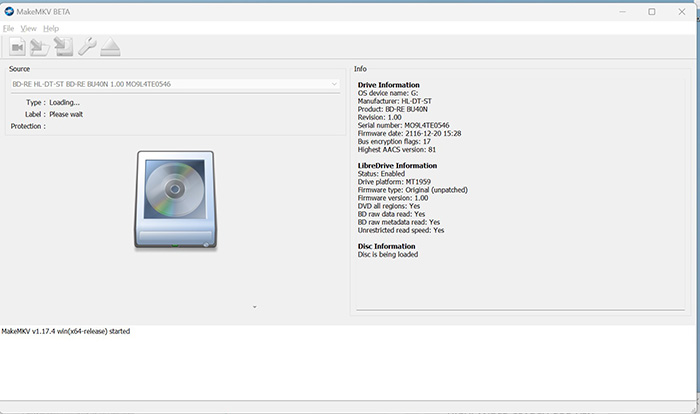
Another frequently mentioned issue is when MakeMKV detects the drive but cannot initialize the disc. Users often see this right after clicking the drive icon. Common causes include:
- Corrupted or partially damaged disc structure
- Region-locked DVD causing read conflicts on some drives
- Outdated MakeMKV version not fully compatible with newer protection schemes
Updating MakeMKV and retrying with a different drive are the two most common fixes suggested by experienced users.
"Hash check / CRC error during reading"
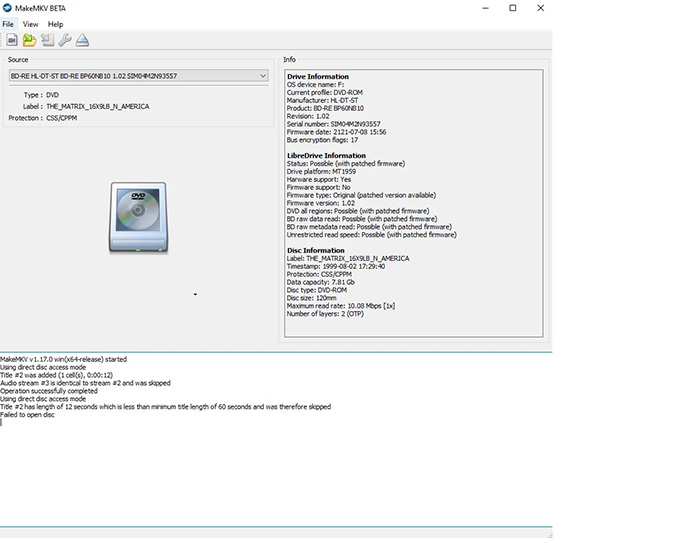
This appears when MakeMKV can read the disc but encounters corrupted sectors mid-process. The rip may continue but becomes unstable or incomplete.
- Deep scratches or manufacturing defects on the DVD surface
- Drive repeatedly retrying bad sectors (very slow progress)
- USB disconnects or power fluctuations during reading
In forum discussions, users often note that letting the process run longer sometimes helps recover partial data, but in severe cases the rip never fully completes.
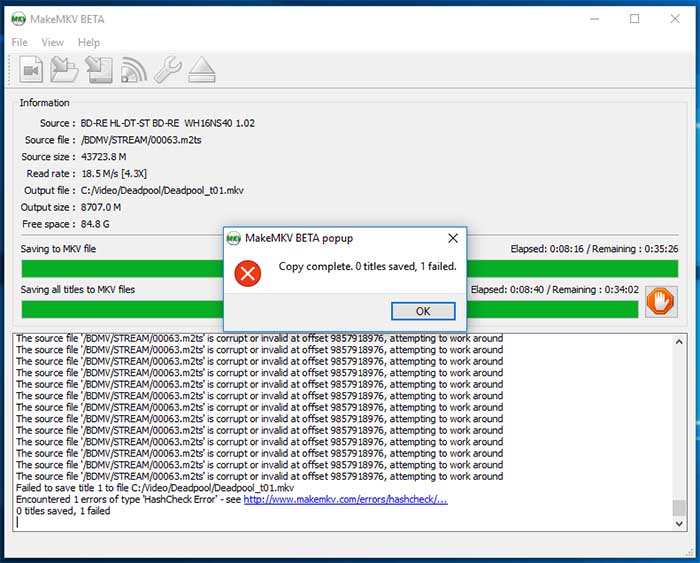
"AACS / CSS authentication failed" (Blu-ray & protected DVDs)
Although more common with Blu-rays, some DVDs still trigger authentication errors. This typically means MakeMKV cannot properly handle the disc’s protection layer at that moment.
- Outdated keys or temporary beta key not applied correctly
- Unsupported or uncommon encryption variants
- Drive firmware not passing required decryption data correctly
Most users resolve this by updating MakeMKV or ensuring the beta key is correctly installed.
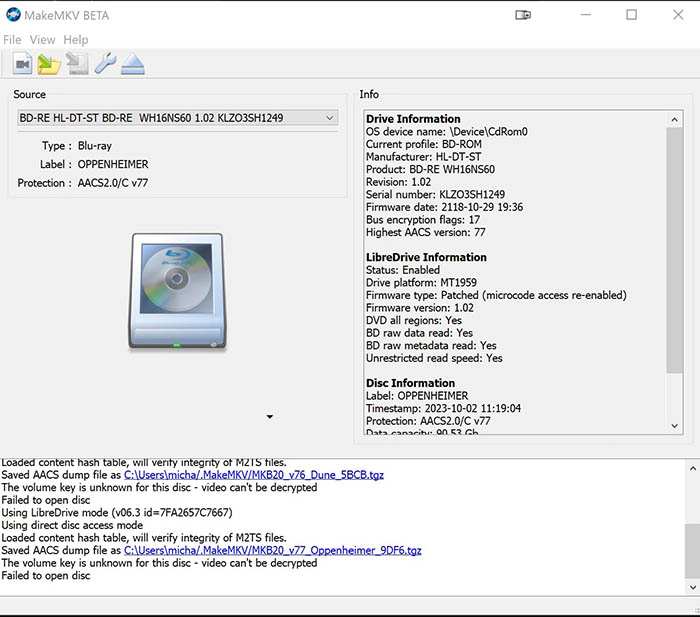
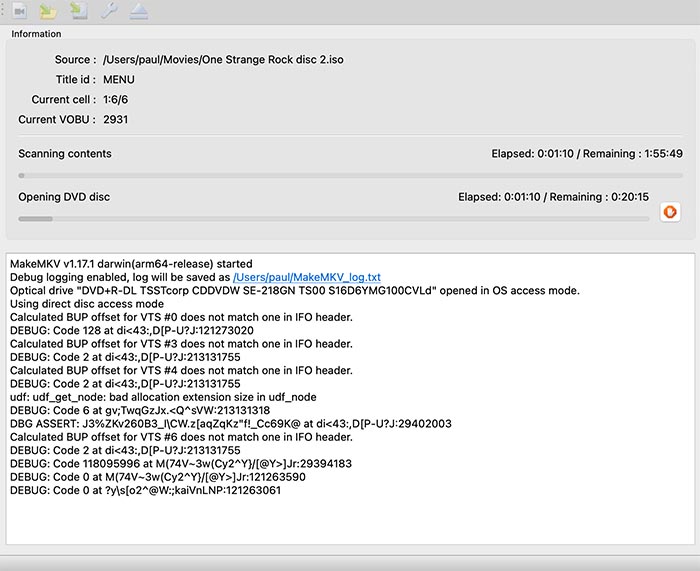
"Scanning freezes / stuck at loading disc structure"
This is often described as MakeMKV appearing frozen while scanning titles. It is especially common with scratched DVDs or complex Blu-ray menus.
- Bad sectors forcing repeated read attempts
- Fake or duplicated playlist structures (common on commercial Blu-rays)
- Slow response from older optical drives
From user reports, this is usually not a real crash—MakeMKV is stuck retrying unreadable sections. If it doesn’t progress after a long time, switching drives or skipping problematic titles is often the only practical solution.
Across most forum discussions, the same pattern appears: MakeMKV is generally stable, but physical disc quality and drive behavior are the real limiting factors.
More Powerful Alternative When MakeMKV Keeps Failing
When MakeMKV repeatedly runs into issues like scan freezing, CRC errors, or "failed to open disc" across multiple DVDs, it usually signals a deeper limitation: the drive is struggling with disc readability or the ripping process is too strict for damaged media. In these situations, switching to a more flexible MakeMKV alternative can save a lot of time.
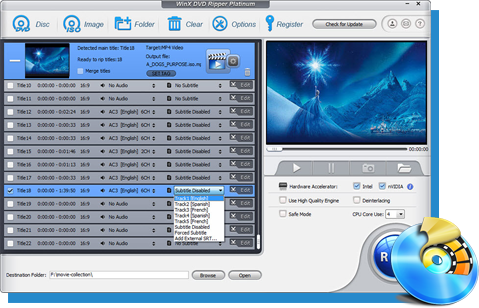
WinX DVD Ripper Platinum is often used as a practical fallback in these cases. Unlike MakeMKV, which tries to extract a near-perfect 1:1 copy of the disc, WinX focuses on converting the content while it is being read. This difference matters when dealing with imperfect or aging DVDs.
 Free Download
 Free Download
Why users switch when MakeMKV fails:
- Better tolerance for scratched or partially unreadable discs
- Can skip over damaged sectors instead of stopping the process
- More stable handling of discs that freeze during scanning in MakeMKV
- Built-in presets for devices, including Plex-compatible formats
Typical scenarios where WinX performs better:
- DVD stuck at title loading or endless scanning in MakeMKV
- Repeated CRC / hash errors that prevent a full rip
- Discs that play in a player but fail midway during extraction
- Older DVD collections with visible wear or manufacturing defects
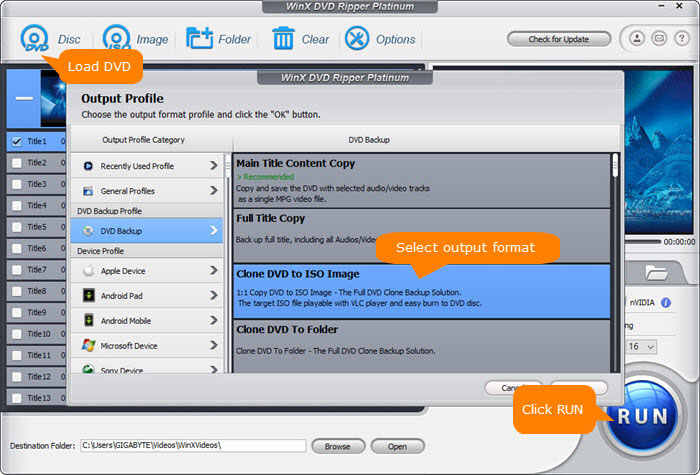
Instead of waiting for a full disc structure scan like MakeMKV, WinX DVD Ripper reads and converts content in a more adaptive way. This means you may lose the “perfect raw copy” advantage, but in return you get a usable video file even when the disc is not in ideal condition. For users building a Plex library or trying to salvage older DVD collections, many end up using both tools together: MakeMKV for Blu-ray, and WinX DVD Ripper when MakeMKV can’t complete the DVD ripping job.
 FAQs About MakeMKV Tutorial
This is one of the most common questions in MakeMKV forums. Discs often contain main movies, bonus content, fake playlists, and duplicate titles. The correct title is usually the one with the longest duration and most chapters, but some Blu-rays intentionally add misleading entries to confuse ripping tools.
Users often report this as “frozen at 0%” or “infinite scanning.” In most cases, the drive is repeatedly retrying unreadable sectors due to scratched discs or weak optical drives. Blu-rays with complex menu structures can also slow down the scanning stage significantly.
This is usually linked to physical read errors rather than software failure. Forum users note that CRC errors appear when the disc has damaged sectors or when the drive cannot consistently read data. In some cases, the rip continues but results in missing or corrupted segments.
This error appears when MakeMKV cannot properly handle disc protection. Common causes include outdated beta key, unsupported encryption variants, or drive firmware limitations. Updating MakeMKV and reloading the latest key usually resolves most cases reported by users.
This typically happens when users unintentionally deselect tracks during the title expansion stage. Forum discussions show that many DVDs include multiple audio streams and subtitle tracks, and only selected ones are included in the final MKV file.
MakeMKV creates a lossless 1:1 copy of the disc content, which means no compression is applied. Reddit and forum users often point out that a single Blu-ray rip can exceed 30–50GB because it preserves original video and audio streams without reduction.
It supports most modern discs, but users report occasional failures with badly damaged DVDs, rare encryption schemes, or unstable drives. In those cases, many users switch to alternative tools when MakeMKV cannot complete the scan or rip process.


