WinX DVD Ripper Platinum
Rip a full DVD to MP4 (H.264/HEVC) in 5 mins. Backup DVD collection to hard drive, USB, etc with original quality. GPU Accelerated.
- DVD to MP4
- Support old/new/99-title DVD
- 1:1 copy DVD
- Full GPU acceleration
Learn More


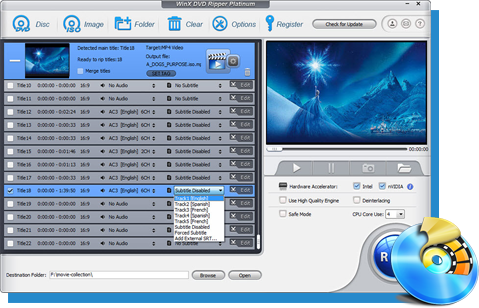
Rip a full DVD to MP4 (H.264/HEVC) in 5 mins. Backup DVD collection to hard drive, USB, etc with original quality. GPU Accelerated.
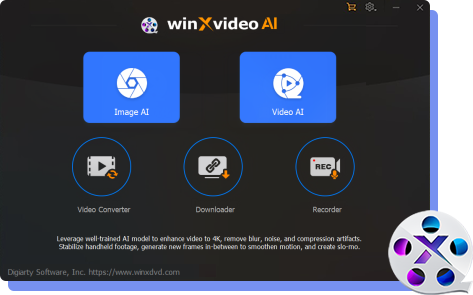
AI-powered video/image enhancer. Complete toolkit to upscale, stabilize, convert, compress, record, & edit 4K/8K/HDR videos. Cinema-grade quality. Full GPU accelerated.
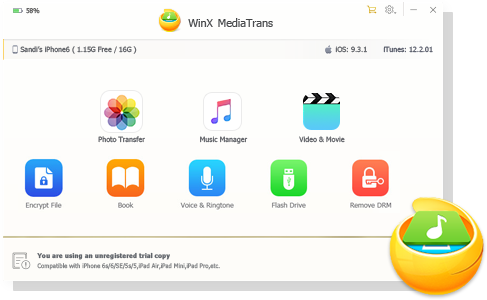
Manage, backup & transfer videos, music, photos between iPhone iPad and computer in an easier way. Free up space and fast two-way sync.

Find the answers to purchase benefits, license code, refund, etc.

Get help yourself if you have any questions with Digiarty Software.

Tutorials and step-by-step guides to learn how to use our products.

We've been focused on multimedia software solutions, since 2006.

Contact Support TeamHave any questions on purchase or need technical support, please contact us >>
[ Drag & Drop Area ]
Max file size 100MB. Switch to desktop Winxvideo AI for unlimited size, batch mode & more AI features >>

Switch to Desktop Winxvideo AI to process larger videos with Level-3 Hardware
Acceleration (faster & no size limits)
The media file is not supported. Get Desktop Winxvideo AI to convert between 370+
formats and batch process video/audio files faster and easily.

Switch to desktop version for unlimited and batch
conversion, and 47x faster GPU acceleration.
GIF exports are currently available up to 480p for stability.
Please upgrade to desktop Winxvideo AI for 720p, 1080p, or 4K GIF conversion and enjoy AI-powered quality enhancement.
Tired of waiting? Skip the queue.
Experience full GPU acceleration and enjoy 47x real-time faster speed with Winxvideo AI >>
Switch to desktop Winxvideo AI to unlock more features.





 Convert Any Video to MP4
 Turn your video clip into the most compatible MP4. This online tool supports a wide range of source formats, incl. MOV (HEVC/H.264) and MKV (AV1). Whether it's a short 4K clip from iPhone or a video from your camera, you can convert it to MP4 for seamless playback on any device or social platform.
 Convert MP4 to Other Formats
 Certainly MP4 owns better compatibility, while it's not a panacea. In order to achieve a variety of video use in different media players, video editing software, legacy devices, and platforms, our online converter is also available to convert MP4 to GIF, AVI, MOV, MKV, FLV, M4V, M4A, etc with high quality.

Need the soundtrack from a music video? Instantly extract M4A audio from any supported video to build your offline playlist. It’s the fastest way to save high-quality background music or podcast clips directly in your browser.
Turn your favorite moments into shareable content. Convert video to GIF (up to 480p) optimized for quick loading on Reddit, Discord, or social media. Whether it's a meme or a highlight, your clips are ready for the community in seconds.
Trust is built on security. Unlike typical online video converters that upload your data to remote servers, our technology ensures your files are 100% processed locally on your computer. Converting your 4K videos and private clips is processed locally within your browser, which provides absolute data privacy and a significantly faster workflow for your files.
In the meantime, you don’t have to pay anything. All the features are accessible free of charge. Unlike other online tools, this tool has no limit on the number of files you can convert. Convert as many as you want.
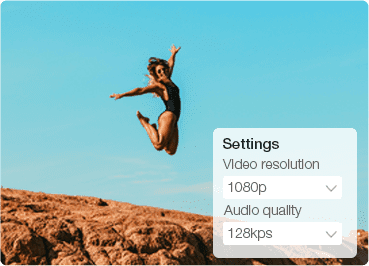
Take control of your output. You can easily adjust the video resolution, audio quality, and file format right in the browser to ensure the final result fits your specific sharing or storage needs.

We constantly update our tool to support the latest codecs. You can convert between containers like MKV, MP4, or more without re-encoding the original AV1 or HEVC streams, ensuring lossless quality.

Our online MP4 converter is 100% free & requires no registration. There are no intrusive ads, malware, or software plugins to install. Just upload file (up to 100MB), convert, and download video instantly.

Click on the Choose File button to load your video. Or simply drag and drop the video file you want to convert.
Choose MP4 as the output format. This will convert any video to MP4, for example, MOV to MP4. You can also convert video to GIF, MOV, MKV, M4A, etc.
Click Convert. Once the conversion finishes, click the Download button to save the file.
For users dealing with large files, batch processing, or higher output quality, desktop converters like Winxvideo AI offer significantly better performance than online tools. What you can do with Winxvideo AI:


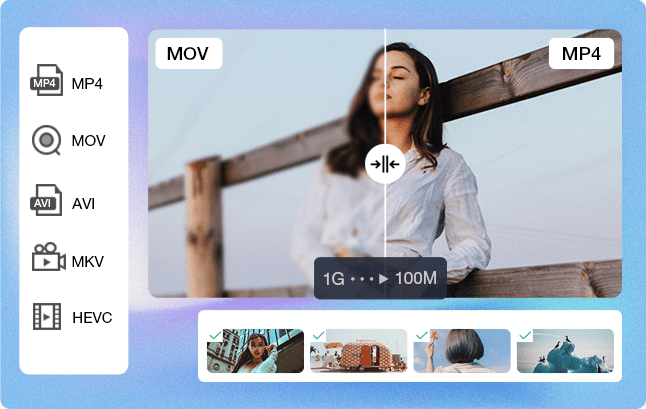
Online MP4 converters are convenient for small files and quick tasks, but they often come with file size limits and slower processing speeds. Desktop converters provide significantly faster performance, better output quality, and support for batch processing. Tools like Winxvideo AI are designed to handle large files and high-efficiency workflows.
| Feature | Online MP4 Converter | Desktop MP4 Converter |
|---|---|---|
| File size | Limited | Unlimited |
| Speed | Slower | Faster |
| Batch Conversion | ❌ | ✅ |
| Output Quality | Medium | High |
| Hardware power | Web-based, CPU only | Full GPU Acceleration |
| Privacy & Security | Browser-level / Safe | 100% Local & Private |
So, which option should you choose? It depends on your specific needs.
For small files and quick one-time conversion tasks: An online MP4 converter is usually sufficient.
For large 4K/HD videos: A desktop MP4 video converter is recommended due to no file size limit.
For batch conversion: Desktop tools provide better efficiency.
For best output quality and speed: Desktop MP4 converters with GPU acceleration perform better than online tools.
In general, desktop MP4 converters are a better choice for users who need higher performance, better quality, and more flexibility, while online tools are ideal for quick and simple tasks.

Practical, intuitive interface, easy to use, very cool. You can create incredible videos with the program, like convert video to MP4, fine-tune video resolution, frame rate and aspect ratio. Recommend to those who want to make or edit videos in a professional and with the best quality.


I like that this video converter can handle many formats and can convert from format to format in a short amount of time. It's easy to use and has detailed instructions on how to use it using layman's terms. Another feature is that it also joins videos of the same format and quickly.

I love the MP4 converter original quality and performance.I use it a lot to compress and reduce volume of large size videos to portable size on my device. It efficiently converts video to many range of formats without visible loss of quality, consequently freeing up device storage for that same file.

I happened to see this program while browsing the internet. I downloaded the software and it works beautifully! I have add srt English subtitles to Taiwanese videos. I also tried to change formats, etc... It is a good attribution to my company as I may need to make YouTube videos and change formats.
Choosing the right MP4 converter depends on your specific needs—whether you prioritize web-based convenience, batch processing speed, or AI-driven quality enhancement. To help you make an informed decision, our technical team has evaluated the leading tools in the industry based on codec support (AV1/HEVC), hardware acceleration efficiency, and data privacy.
Below is a curated list of the best MP4 converters available this year. We’ve analyzed their pros and cons to ensure you find the most reliable solution for your video workflow, from lightweight online utilities to professional-grade desktop workstations.
| Best MP4 Converters | Best for | File Limit | Batch Support | Speed | Output Quality | Expert Rating |
|---|---|---|---|---|---|---|
| 1. Winxvideo AI | Large 4K/HD video conversion to/from MP4 with fast speed, high quality, and no limits. | No limit | ✅ | Very Fast (47x real-time faster speed) | ⭐⭐⭐⭐⭐ | |
| 2. CloudConvert | Online conversion for multiple formats with strong cloud support. | Limited | ❌ | Medium | ⭐⭐⭐ | |
| 3. HandBrake | Free open-source video conversion to MP4 with strong customization options. | No limit | ❌ | Medium | ⭐⭐⭐⭐ | |
| 4. Uniconverter | Advanced video conversion with editing, compression, and high-speed processing. | No limit | ✅ | Fast | ⭐⭐⭐⭐ | |
| 5. VideoProc | Converting MP4 videos among different formats with advanced format control and professional enditing workflow. | No limit | ✅ | Fast | ⭐⭐⭐⭐ |
Before I dive into the results, I want to be upfront about how I did these tests. To find the best MP4 converter for Windows 11/10 and macOS, I didn't just look at feature lists. I spent over 3 days running rigorous benchmarks on a mid-range workstation (AMD Ryzen 5 5600X, Radeon RX 6700 XT, 64GB RAM) to see how well these tools can stand up to real-world pressure.
My Testing Scenarios Included:
- The 4K Crunch: Converting a 233MB 4K HEVC video to 1080p H.264 to test how to convert 4K MP4 without crashing the system.
- The Batch Marathon: I attempted to convert MP4 videos in batch using a mix of AV1, HEVC, and MKV files to see which software's workflow stayed stable.
- The WebM Challenge: Since many users want to convert YouTube to MP4, I tested 2GB VP9/WebM files to see how encoders handle Google’s specific formats.
- The Lossless Remux: A direct MKV vs MP4 head-to-head, testing if a tool could convert MKV to MP4 in seconds without re-encoding the stream.
- Online vs Desktop: I compared a high-quality MP4 converter (desktop) against the best online mp4 converter options to answer a common user question: Is it safe to convert video online, and is it worth the speed trade-off?
Best for: Users handling large or multiple video files who need speed and quality, along with AI enhancement.
Price: Free trial & pro version (currently $34.95 for 1 Year, $54.95 for Lifetime).
Compatibility: Windows 11/10/8.1/7 and macOS Tahoe or earlier.
Ease-of-use: ★★★★★
Conversion speed: 47x real-time faster.
Conversion quality: Max. original video quality.
Support: professional tech support within 24 hours response.
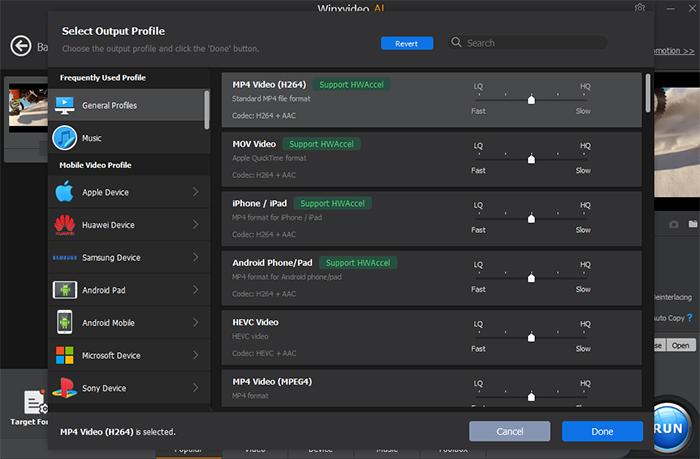
Winxvideo AI is the best MP4 converter for windows 11/10 and Mac with a wide range of video formats and codecs support, including MP4, MKV, AVI, WMV, MOV, HEVC, H.264, AV1, and FLV, as well as audio formats such as MP3 and AAC. It adopts all kinds of videos, be it 4K, HD, or SD videos recorded by GoPro/DJI/mobile/camcorder cameras, saved from the web, or whatever. Besides converting videos to MP4, this 4K MP4 converter also features as a video compressor to resize MP4 video files to be 90% smaller, a screen recorder, as well as a video editor to merge, crop and cut MP4 videos. Additionally, it includes options to adjust video settings, such as bitrate, frame rate, codec, GOP, etc or you can adjust the encoding quality level and enbale two-pass encoding for better output quality. Batch conversion is also available.
Winxvideo AI has long been an industry leader in speed, support for new video formats and quality. This fast MP4 video converter adopts the unique Level-3 hardware acceleration technology, enabling users to invoke GPU to process 4K/HD image-intensive processes, so as to reduce the burden of CPU and maximize the speed of video conversion. Moreover, this best MP4 converter has a clear insight into new formats and coding trends, and is always responsive and updated to support the latest ones like HEVC, ProRes, AV1, etc. It is also the best MP4 converter for YouTube, iPhone and more as it offers pre-configured profiles for YouTube, iPhone, and other platforms. With the support of High-Quality engine and De-interlacing, all the output video quality will be preserved to the maximum extent. Even, the original video quality can be retained at 1:1 under Auto Copy mode.
Beside the video processing features, Winxvideo AI stands out with its dedicated AI video/image enhancer feature. If you have some MP4 videos that are noisy, blurry, shaky, or low in quality, you can take advantages of its Video AI to enhance the video file and upscale to 4K quality with faithful detail.
Pros:
Supports over 370+ video/audio formats and codecs, including 4K/8K, MP4, MOV, MKV, FLV, WebM, HEVC, H.264, VP9, AV1, and more.
47x real-time fast conversion speeds due to the utilization of hardware acceleration technology, such as Intel QSV and NVIDIA CUDA/NVENC.
Produces high-quality output video files, with the options to auto copy, adjustable video settings such as bitrate and frame rate, and advanced AI models to denoise, stabilize, and upscale video.
Built-in Auto Copy Mode lets you convert formats instantly with zero re-encoding and no quality loss.
Cons:
Limited video editing tools compared to other editing software.
Desktop installation required.
My Real Test Experience with Winxvideo AI:
In my testing, Winxvideo AI proved to be a remarkably fast MP4 converter for daily tasks. What surprised me was the speed consistency. While some tools fluctuated, Winx maintained a steady 213 FPS when I was converting MP4 for YouTube. I noticed the hardware acceleration was highly efficient—it didn't max out my hardware, which allowed me to browse the internet freely while processing a batch of 5 files.
When I tried to convert MKV to MP4, the "Auto Copy" feature was a lifesaver; it took exactly one second to convert a 33-second clip. It's possibly the best MP4 converter for Windows 11/10 users who want a beginner-friendly workflow. While it was less ideal for certain VP9 files (I noticed higher CPU usage there), its stability in batch conversion for H.264 and HEVC is where it really shines. I didn't experience a single "failed completely" moment during the entire 4K test suite.
Best for: Quick online MP4 conversion with no installation required.
Price: Free (up to 25 conversions/day) and paid (Starting from $10 for 500 conversion credits)
Compatibility: All platforms based on web browsers.
Ease-of-use: ★★★★☆
Conversion speed: Slow for large video files, and it relys greatly on the network connection.
Conversion quality: High-quality conversions .
Support: Email support.
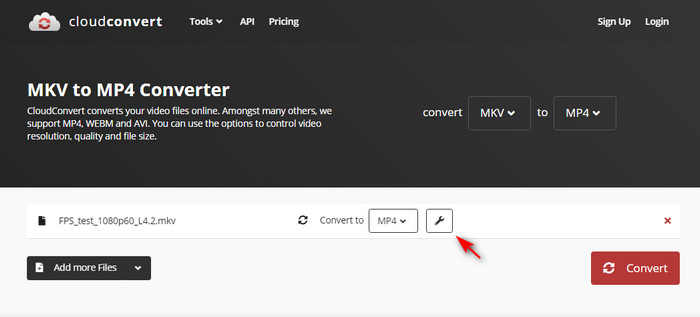
CloudConvert is an online video converter to MP4 that allows users to convert video to MP4 and many other formats. It supports more than 200 file formats, not limited to audio and video formats, but also document, CAD, spreadsheet, presentation, image, and eBook formats. The online video to MP4 platform also offers features like cloud storage integration, batch processing, and API access for developers. One of the biggest lure of using CloudConvert is that it's a cloud-based platform, which means users don't need to download or install any software on their computer.
You can simply upload their files to the platform, choose the desired output format, and convert the files online. This free online video converter to MP4 also supports batch processing, allowing users to convert multiple files at once, which can save time and effort. CloudConvert is highly acclaimed for its ease of use, fast conversion speeds for small-s-zied files, and wide range of supported file formats. However, some users have reported occasional glitches or errors during the conversion process, and the platform's pricing model may not be suitable for all users.
Why is my online MP4 converter not working?
If your online conversion fails, it’s often due to the file size exceeds limit or unsupported codec streams such as AV1 and HEVC, browser limitations, or network interruption. Switching to a desktop tools for better stability and performance instantly.
Pros:
Easy to use and no installation, accessible anywhere.
Wide range of supported file formats, including audio, video, documents, images, and eBooks.
Offer automatic file syncing with various cloud storage services like Google Drive, Dropbox, and OneDrive.
Provide API integration, allowing developers to integrate file conversion into their own applications.
Cons:
CloudConvert has limitations of 25 conversions per day and the 1GB limit file size of the converted files.
Larger files can take a long time to convert on CloudConvert, and it has heavy dependence on internet connectivity.
Users may have concerns about the privacy and security of their files, particularly when converting sensitive information.
My Real Test Experience with Cloudconvert:
I tested CloudConvert for small MP4 clips, and it was surprisingly convenient. However, when I moved to a 2GB 4K MP4, I hit a wall. I encountered an online mp4 converter not working error because the processing time exceeded the free tier limit. This answers the question for many: Is it safe to convert video online for big projects? Probably not, both for privacy and reliability.
The online mp4 converter vs desktop mp4 converter debate was settled for me here: CloudConvert is fine if you need to convert MP4 to MP3 for a single song, but for 4K video, the upload and download times took ten times longer than the actual conversion. It’s the best online mp4 converter for a quick fix, but it can’t replace a desktop app for any serious workload.
What you may concern: Is CloudConvert safe?
Best for: Free and advanced users who want advanced control over the video parameters like codec, bitrate, resolution, filter, etc.
Price: Free
Compatibility: Windows 11/10 and macOS 10.14.3 Mojave or later
Ease-of-use: ★★★☆☆
Conversion speed: vary depending on the settings used, but it generally performs well and efficiently.
Conversion quality: high-quality output video files.
Support: no official customer support.
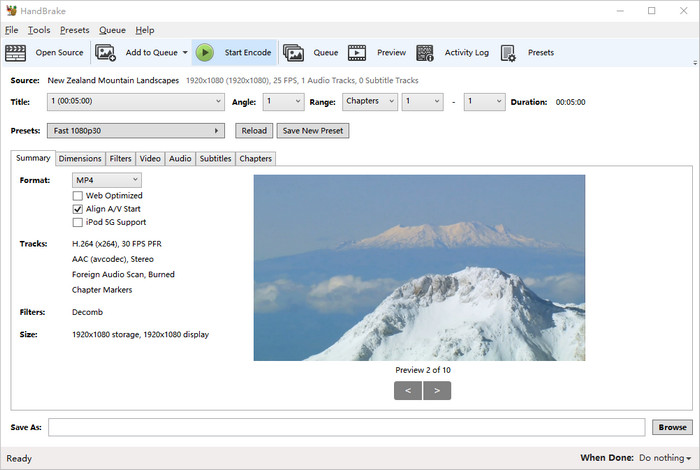
Handbrake is a cross-platform MP4 video converter for Mac, Windows and Linux that supports a variety of input and output formats, including MP4, MKV, WebM, and more. You can get quick MP4 conversions with Handbrake by simply loading up a video and then using one of the many MP4 presets in the side panel with diverse settings in place. This MP4 converter with customizable settings is preferable to work through the various tabs in the Output Setting area, where you can adjust the encoding parameters precisely, add effects, clip excessively huge videos, adjust frame rates, switch codecs, and much more. This is where Handbrake distinguishes between amateurs and professionals. If you're unfamiliar with the jargon, you're going to have to experience a learning curve.
This open-source and free MP4 converter can use third-party libraries like x265, FFmpeg, and libvpx to convert MP4 videos. And the hardware acceleration support also provides a guarantee for fast video conversion. Furthermore, it's encouraging to note that there is a queuing feature and batch video conversion function, which offers a great convenience to encode a folder full of videos in one fell swoop. The free video converter to MP4 is also built with video editing tools that allow users to crop, trim, and add subtitles to their videos.
Pros:
Supports a wide range of input and output formats, and attaches with advanced video encoding options.
Video editing tools included, trim, split, crop, join, and add subtitles, etc.
Free and open-source, and regularly updated and maintained.
Cons:
Lack of support for some video formats.
No support for copy-protected DVDs.
Complex UI, and requires some technical knowledge to use advanced options.
No batch-friendly workflow.
What you may be interested in: How to use Handbrake to convert MKV to MP4 for free >>
My Real Test Experience with Handbrake:
After converting several 4K MP4 files with HandBrake, I can see why it’s a favorite for "geeks." It gave me a lot of granular control over Encoder, quality, and bitrate settings. However, I compared it against others in a batch conversion race, and the experience was a bit tedious. I had to manually add every single file to the queue—it’s not a true "one-click" batch tool.
I also tested it to convert MKV to MP4, but what disappointed me was that HandBrake always re-encodes. Even if you just want to change the container, you have to wait for a full encode, which takes time and theoretically risks a tiny bit of quality. If you are looking for a high-quality MP4 converter and don't mind a steep learning curve, it’s great, but for a quick MP4 vs MKV swap, it’s slower than the Winxvideo AI's "Auto Copy" logic.
Best for: Users who want not only video converter but also feature-rich set and all-in-one toolkit.
Price: Trial and Paid version ($45.99 for Annual Plan, $69.99 for 2-year plan, $79.99 for Perpetual plan)
Compatibility: Windows, macOS
Ease-of-use: ★★★☆☆
Conversion speed: 130X faster with two high-speed conversion types.
Conversion quality: No quality loss, even with 4K videos.
Support: Live chat, phone and email support with a respond within 1 business day.
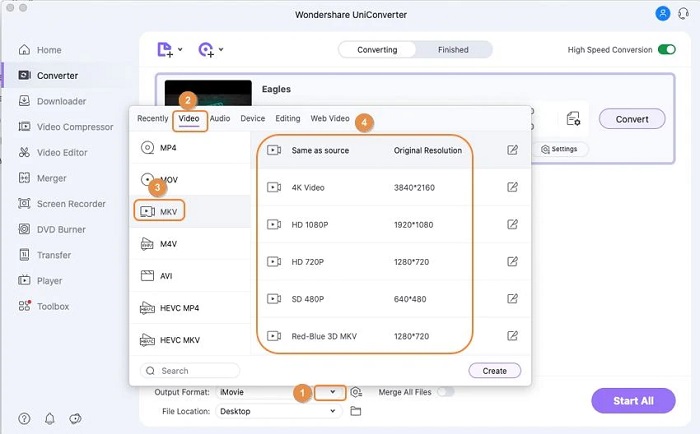
Wondershare UniConverter is a comprehensive MP4 video converter that offers a wide range of features and capabilities for desktop users. This MP4 converter for Windows and Mac supports an extensive list of video formats, including converting videos to and from popular formats like MP4, AVI, MOV, MKV, and more, making it highly versatile. It utilizes advanced algorithms and hardware acceleration technologies to ensure fast and efficient conversion processes. This means that you can convert videos quickly without compromising the quality of the output. Speaking of quality, Wondershare UniConverter strives to maintain the original quality of your videos during conversion. It supports lossless conversion for certain formats and offers adjustable settings for video and audio parameters, such as resolution, bitrate, frame rate, and codec. This enables you to customize the output according to your specific requirements and desired quality level.
Wondershare UniConverter also includes a comprehensive set of video editing features. It allows you to trim, crop, merge, and apply various effects to your videos. You can enhance the visual appearance, add watermarks or subtitles, adjust brightness and contrast, and perform other editing tasks to achieve the desired result. The software provides a user-friendly interface for easy navigation and efficient editing workflows. Besides, this top MP4 converter also includes video download, DVD/blu-disc buring, batch procssing capabilities.
Pros:
It supports a vast range of input and output formats, up to 1000+ formats supported, including MP4 (Alpha).
130X faster speed under the support of advanced algorithms and hardware acceleration.
It offers a wide array of video editing tools, allowing users to trim, crop, merge, add effects, and more.
Intuitive interface, making it accessible for users of all levels of expertise.
Cons:
The free version of UniConverter has some limitations like 1/3 length video conversion, only 1 file (no more than 5 mins) for compression, slow speed, 1 file download and 1 minute recording etc.
The full version of Wondershare UniConverter can be relatively expensive compared to other video converters.
Heavier UI compared with other desktop M
My Real Test Experience with Uniconverter:
Wondershare is a "heavyweight" in every sense. In my convert 4K MP4 tests, it was the only one that truly "maxed out" my GPU resources. While this made it the best MP4 converter for YouTube power users dealing with heavy VP9/WebM files (it hit over 100 FPS where others struggled), the software itself felt a bit bloated.
I noticed a slight stability issue when I tried to convert MP4 videos in batch—the app hung for a few seconds while analyzing metadata. It is an aggressive high-quality MP4 converter, often shrinking files more than I expected, which is great for storage but requires you to keep an eye on the bitrate if you're a quality purist. It’s a powerful desktop mp4 converter, but the sheer number of bundled "extra" tools can feel overwhelming.
Best for: users needing fast 4K/DVD conversion and AI-powered enhancement.
Price: $34.95 for 1-year license and $54.95 for lifetime license.
Compatibility: Windows, macOS
Ease-of-use: ★★★★☆
Conversion speed: Intel QSV, Nivida Cuda, AMD GPU decoding, encoding and processing.
Conversion quality: high-quality output with high fidelity retention.
Support: professional tech support within 24 hours response guarantee.
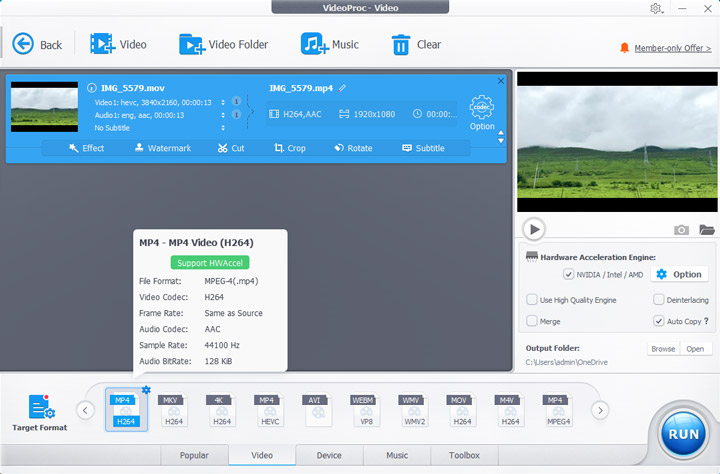
VideoProc Converter AI is a great way to process media on Windows and macOS. It can handle over 370 input formats and 420 output profiles. It can do complicated things with just one click, like converting MKV to MP4, getting WAV audio from YouTube, or digitizing old DVDs. Level-3 GPU Acceleration is its best feature. It uses Intel, NVIDIA, and AMD hardware to make things go up to 47 times faster than real time. This level of efficiency makes transcoding very fast while keeping CPU usage low, so you can do more than one thing at a time without your system lagging.
The software does a great job of finding the right balance between file size and visual quality. It can compress videos by 90% while keeping 99% of the original quality thanks to next-gen encoding and smart compression. The "Auto Copy" remuxing feature changes formats without re-encoding, so there is no loss of quality for those who want everything to be perfect. Beyond conversion, the integrated AI Creative Suite breathes new life into media; you can upscale footage to 4K via Super Resolution, smooth out motion with Frame Interpolation up to 480FPS, and even restore or colorize vintage photos and videos.
VideoProc Converter AI is a full-featured tool that can also download, compress, and edit videos quickly. It makes work easier by having specific presets for iPhone, YouTube, and gaming consoles, and it gives you fine-grained control over DVD chapters and subtitles. It is a paid program made for desktop users, but it has professional-level tools like 2-pass encoding and stabilization—make it a must-have tool for anyone who wants to update old media or make high-resolution 4K/8K content look better on any device.
Pros:
Effortlessly upscale, stabilize, and boost frame rates.
Batch convert almost any format with presets for all major devices.
Build-in editing and compression features, and change containers instantly via Auto Copy without re-encoding.
Cons:
No mobile or web-based version available.
Focused on video/audio; does not support standalone image format conversion.
My Real Test Experience with VideoProc Converter AI:
What I appreciated most about VideoProc was its "bulletproof" feel. During my batch conversion of four different formats (AV1, HEVC, MKV, MP4), it didn't stutter or show a single error message. The GPU acceleration was very apparent; I saw my RX 6700 XT jump to life immediately, handling a 4K MP4 to 1080p downscale with 1.5x real-time speed.
For anyone looking for a straightforward way of converting video to mp4 on Mac or Windows without a headache, VideoProc Converter AI comes highly recommended for its simple interface and stable conversion. It successfully handled MKV to MP4 swaps with zero "failed" tasks. While it doesn't have the hundreds of specialized presets HandBrake has, the ease of use of this software in real-world scenarios is superior because most users just need their videos to work on their phones or YouTube.
Based on the six real-world conversion tasks above, desktop MP4 converters still provide a significantly more complete workflow than online tools, especially for large files, batch conversion, remuxing, and GPU-accelerated transcoding. While online converters are more convenient for lightweight tasks and quick format changes, but they tend to struggle with large 4K footage, lengthy video contents, AV1/VP9 decoding, or multi-file workflows.
Among all tested products, Winxvideo AI delivered the most balanced overall performance across different workloads. While they were not always the fastest in every single benchmark, they consistently provided stable GPU/CPU resource usage, fast batch processin, reliable mixed-codec compatibility, extremely fast lossless remuxing, and user-friendly workflow automation.
UniConverter showed stronger peak GPU utilization in several high-load scenarios, especially in VP9 tasks, but its resource usage and stability varied more noticeably during large mixed-format batch jobs. HandBrake remains a powerful engineering-oriented encoder with extensive manual controls, but its workflow efficiency, remux capability, and GPU decoding optimization were less competitive in modern batch-processing scenarios. Overall, if your priority is balanced real-world productivity rather than single-task benchmark peaks, Winxvideo AI is the most practical all-around MP4 converter in this test.
Let's download Winxvideo AI and start converting videos to MP4 now!
When choosing a MP4 converter, some aspects needs to be considered, including video conversion ability, output video quality, converting speed, ease-of-use, stability and more. Though there is no best MP4 converting program in a real sense, you can find the infinite close to the best one for you according to analyzing these aspects. The followings are the top-rated MP4 video converters with full features:
MP4, also known as MPEG-4 Part 14, is a digital multimedia container format used to store video and audio streams, subtitles, still images and metadata. The format was first released in 2001 by the Moving Picture Experts Group (MPEG) and is now one of the most commonly used video file formats on the internet. The MP4 format is known for its high quality and compatibility with a wide range of devices and platforms, making it a popular choice for streaming, sharing, and storing video content. See more details on what is MP4 >>
To convert your video to MP4, you can use a free desktop MP4 converter like Winxvideo AI.
Usually, MP4 not playing issue happens owing to the incompatible codec with your media player. For example, MP4 videos encoded in HEVC codec cannot be played on Movies & TV app. To resolve this problem, you can install HEVC codec on Windows or turn to another MP4 player that is compatible with the HEVC codec by default. Alternatively, you can also convert MP4 HEVC to H.264 or any other acceptable formats.
Most streaming platforms recommend the use of MP4 files instead of MOV, since MP4 files work with more streaming protocols. The main difference between MOV and MP4 is that MOV is a proprietary Apple file format for QuickTime, while MP4 is an international standard. MOV files frequently have higher quality and are larger in size, while MP4 files are typically more compressed and less in size. Since MOV files are created expressly for QuickTime, they are superior for video editing on a Mac.
You can easily convert iPhone video to MP4 using a variety of methods, like Photos app, iTunes, online MP4 converter and MP4 converter freeware. Take Photos app as an example to transfer video to MP4 on Windows PC:
According to United States copyright law, it is illegal to make a copy of content if you do not have the permission of the copyright owner. That applies to both copies for personal use and to copies that you either distribute or financially benefit from. Of course, there are some exceptions, including public domain works, creative commons, and videos of copyleft. For such contents, it won’t constitute a criminal act to download YouTube video to MP4.
Using a desktop video converter with GPU acceleration is the quickest way to convert MP4 files, since it relies on GPU instead of CPU to dramastically improve the processing speed compared to online tools. Tools like Winxvideo AI can speed up conversion by using hardware decoding and batch processing. This makes it much faster for videos that are large or have high resolution. In general, desktop converters are usually faster than online tools, especially when it comes to converting 4K or large files.
The most suitable MP4 converter for large-sized files is a desktop-based converter that allows users to convert without any restriction on the size of the file. Online converters are restricted in terms of uploading speed and file size, whereas desktop-based applications can process HD/4K videos easily. Winxvideo AI is one such application which is often used for converting large files since it allows users to use GPU acceleration.
For one thing, local browser/desktop conversion allows for higher levels of privacy and faster speeds compared to cloud processing. This is because all files will be converted right there on your computer. As such, there is no need to upload files to a server. Your privacy is protected, and there will be no unnecessary waiting for files to load/upload. Nonetheless, cloud converters could still come in handy for fast tasks and low-resolution files.
In my testing, the secret is a feature called "Auto Copy" (available in Winxvideo AI and VideoProc). If your source and target share the same codec (like H.264), the software simply swaps the container from MKV to MP4 without re-encoding the actual video pixels. This ensures 1:1 original quality and is 10x faster than traditional encoding.
One question I get asked constantly is: "Is it safe to convert video online?" After using CloudConvertfor several tasks, here is my honest take. For small, non-sensitive clips (like a funny cat video), online tools are incredibly convenient. However, when I tested a private family video, I felt hesitant.
Unlike a desktop mp4 converter like Winxvideo AI or HandBrake, where all processing happens locally on your hard drive, online tools require you to upload your data to a remote server. If you are dealing with sensitive work files or high-res 4K memories, stick to a high-quality mp4 converter installed on your Windows or Mac. Not only is it safer, but it also avoids the common "online mp4 converter not working" errors caused by server timeouts or file size limits.
Yes, VLC convert MP4 is a great hidden feature. I tried it by going to Media > Convert/Save. It works in a pinch, but in my real-world test, it felt clunky for batch conversion and occasionally produced audio-sync issues with larger 4K files.


Mike Rule is a technology writer with over 12 years of experience. For the past three years, he has been a key voice in the field of generative AI, covering everything from in-depth AI tutorials and hands-on reviews of AI tools for image and video enhancement, encoding, editing, and production. His passion for emerging technology keeps him at the cutting edge of AI innovations, ensuring readers always have the most up-to-date knowledge at their fingertips.

 win
win

 Download Desktop Version

