







Best Way to Rip Blu-ray for Plex: Keep Quality High and Transcoding Low
 Donna Peng
Updated on
Ripping a Blu-ray for Plex can get tricky once you move beyond simply saving the movie to a hard drive. A file that looks great on your PC may force Plex to transcode on a TV, streaming box, or phone, using extra CPU power on your server. Oversized files can also eat through NAS storage quickly, while unsupported audio, subtitles, or video formats may cause playback issues. A good Plex rip keeps the Blu-ray’s quality and useful extras while staying friendly to Direct Play and your available storage.
Quick Answer: What Is the Best Way to Rip Blu-ray for Plex?
The easiest way to build a Plex Blu-ray library is to rip the disc into a high-quality file first, then decide whether it needs compression. This avoids unnecessarily re-encoding a Blu-ray while giving you control over file size, audio, subtitles, and the formats your Plex devices can play.
For most Plex libraries, the simplest route is:
Blu-ray → MakeMKV → optional HandBrake compression → Plex
MakeMKV: Rip the Blu-ray to a high-quality MKV without re-encoding the video, while keeping the audio, subtitles, and chapters you select.
HandBrake: Use it only when the original MKV is too large for your storage setup or you want a smaller file that is easier for your Plex devices to handle.
Plex: Add the finished MKV or compressed video to your library, then let Plex organize and stream it to your TV, computer, phone, or streaming device.
For most home Plex libraries, keeping the original MakeMKV rip or compressing it with HandBrake provides a practical balance between picture quality, storage space, and playback compatibility.
The Best Blu-ray to Plex Workflow
A Plex library does not need every Blu-ray to go through the same conversion process. The more useful approach is to treat the first rip as your clean source, then decide how much compression you actually need based on storage space and playback requirements.
Start with a Clean Blu-ray Rip
MakeMKV is a sensible starting point because it can create an MKV without re-encoding the video. That gives you a high-quality source with the audio tracks, subtitles, and chapters you choose to keep. More importantly, you are not locked into a compression setting before you know how the file will fit into your Plex library.
Once the original rip is available, there are two straightforward paths:
File size is acceptable: MakeMKV → Plex
The MKV is too large: MakeMKV → HandBrake → Plex
Compress Only When You Actually Need To
A full Blu-ray rip can take up a significant amount of storage, especially across a large Plex collection. HandBrake becomes useful when reducing that footprint matters more than keeping the original video stream untouched. You can re-encode the MKV to a smaller file and choose the video, audio, subtitle, and quality settings that fit your setup.
This also keeps the two jobs separate: MakeMKV creates the source, while HandBrake decides how that source should be compressed. You do not have to compress every Blu-ray just because you are using Plex.
MakeMKV vs. HandBrake: What Each Tool Is For Blu-ray to Plex
MakeMKV and HandBrake are often mentioned together, but they are not interchangeable. One is primarily used to get the content off the Blu-ray, while the other is designed to re-encode video into a different file size and format.
They are not really competing tools. They solve two different parts of the same Plex workflow: MakeMKV gets you a usable source from the disc, while HandBrake gives you control over how much that source is compressed.
| MakeMKV | HandBrake | |
|---|---|---|
| Main Job | Rip Blu-ray content into MKV | Compress or convert the ripped video |
| Re-encodes Video | No | Yes |
| Video Quality | Preserves the source video stream | Depends on the codec and encoding settings |
| File Size | Usually much larger | Can significantly reduce file size |
| Audio & Subtitles | Keeps the tracks you select from the disc | Can keep, convert, or remove supported tracks |
| Home Theater | Keep the original-quality rip when storage allows | Useful when a smaller version is preferred |
| Large Plex Library | Create the high-quality source file | Compress movies to save storage space |
| Limited NAS Storage | Requires more storage space | H.265/HEVC can reduce storage requirements |
| Older or Mixed Devices | Provides a flexible source for later conversion | Choose widely supported codecs and settings for compatibility |
| Remote Plex Streaming | Large files may require more bandwidth | Smaller compatible files can be easier to stream remotely |
How to Rip a Blu-ray for Plex without Transcoding
Once the Blu-ray-to-Plex workflow is clear, the actual process is fairly straightforward. The key is to make the right choices during the rip so you do not end up with unnecessary audio tracks, subtitles, duplicate titles, or a file that is much larger than your Plex setup needs. Here is how to use MakeMKV to rip Blu-ray to Plex.
Step 1. Insert the Blu-ray
Insert the Blu-ray into your computer's optical drive and make sure Windows recognizes the disc. Close any Blu-ray playback software that may be trying to open the disc automatically, then launch MakeMKV.
For a commercial Blu-ray, MakeMKV may take some time to read and analyze the disc structure. Avoid starting the rip before the scan has finished, especially when the disc contains multiple playlists or additional video material.
Step 2. Open MakeMKV and Scan the Disc
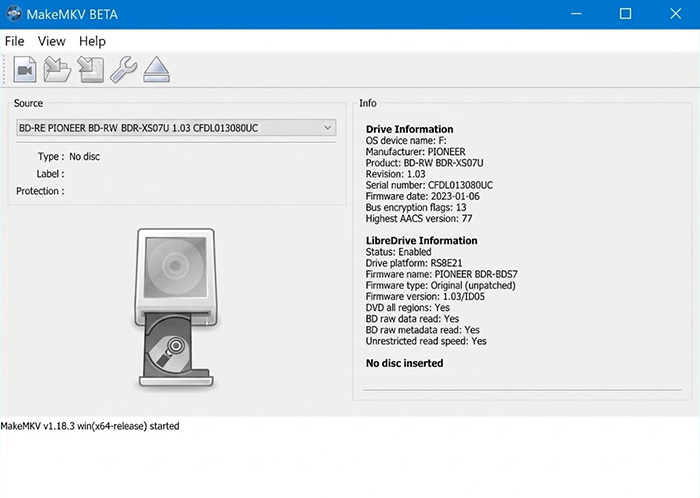
Open MakeMKV and select the Blu-ray drive. Click the disc icon to begin scanning. MakeMKV reads the disc structure and lists the available titles, along with their runtimes, chapters, video streams, audio tracks, subtitles, and other information.
A Blu-ray can contain several titles because the disc may include the main feature, trailers, bonus videos, deleted scenes, behind-the-scenes material, alternate versions, and other playlists. Some discs can also contain multiple playlists that appear very similar, including duplicate or deliberately reordered versions of the same movie.
That is why title selection should not be based on file size alone. Runtime, chapter count, stream information, and the actual audio and subtitle tracks provide much better clues about which title belongs in your Plex library.
Step 3. Select the Main Movie
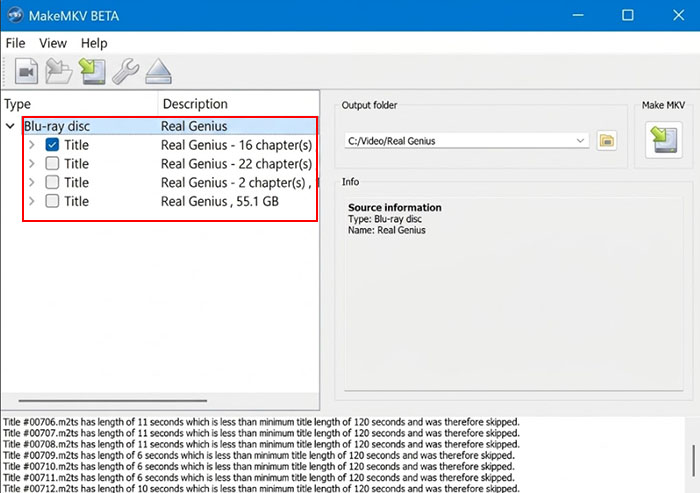
In the title list, look for the entry that matches the feature you want to add to Plex. Instead of automatically choosing the largest title, check several details together:
- Runtime: The main movie usually has a runtime that matches the expected length of the feature. A very short title is more likely to be a trailer or bonus clip.
- Chapters: A feature-length movie normally has a substantial chapter list. A title with only one or a few chapters is less likely to be the main feature.
- Video track: Check the resolution and video information to make sure the title matches the Blu-ray version you intend to keep.
- Audio tracks: Look for the expected languages and formats, such as English, the original-language track, Dolby TrueHD, DTS-HD MA, or other tracks included on the disc.
- Subtitles: Check which subtitle tracks belong to the title. This is particularly useful when the disc contains multiple language options or forced subtitles.
When two titles have nearly identical runtimes, compare their chapter structure and available streams rather than guessing from title size. Some Blu-rays use multiple playlists for the same feature, so a little checking here can prevent you from ripping the wrong version.
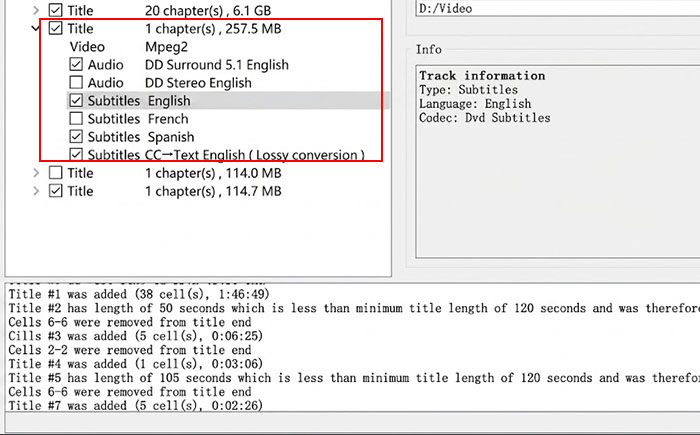
Step 4. Choose the Audio and Subtitle Tracks
After selecting the movie, expand its audio and subtitle sections and keep only the tracks you actually expect to use in Plex. There is little benefit in carrying every language, commentary track, and subtitle stream into a large MKV when you will never use them.
A practical selection might include:
- English audio: Keep it when English is your primary playback language.
- Original-language audio: Useful for foreign-language films or releases where the original track is important.
- Commentary: Keep director, cast, or other commentary tracks when you want the extra material available in Plex.
- Forced subtitles: Keep these when they are used for translated dialogue or other scenes that require subtitles.
- Full subtitles: Keep the language tracks you actually use rather than every subtitle option on the disc.
There is no universal audio and subtitle combination for every Plex library. A movie you watch in its original language may need one audio track and one subtitle track, while a family library may need several language options. The important point is to make the selection intentionally before creating the MKV.
Step 5. Create the MKV
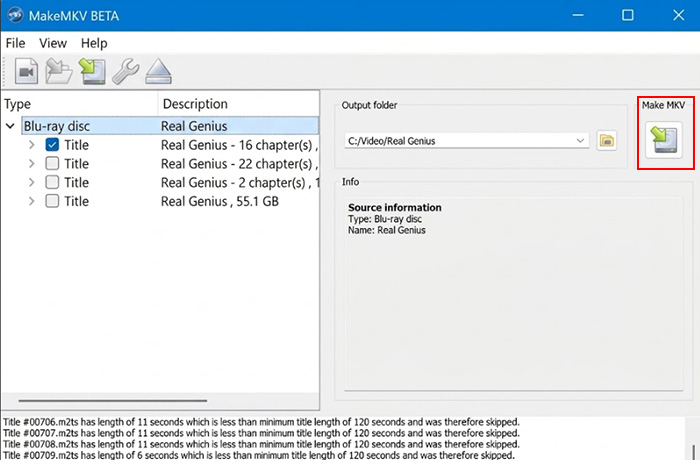
Choose the output folder and start the MakeMKV conversion. For a Plex library, it is useful to save the initial MKV to a temporary working folder rather than directly into the final Plex library.
MakeMKV does not re-encode the Blu-ray video. It creates an MKV containing the selected video, audio, subtitle, and chapter streams, so the video stream retains the source quality. The resulting file can therefore serve as a high-quality source for Plex or as the input for a later HandBrake encode.
Once the MKV is finished, check the file before moving it into Plex. Confirm that the movie plays correctly, the expected audio tracks are present, subtitles appear as intended, and the runtime matches the Blu-ray feature you selected.
Step 6. Decide Whether to Compress It with HandBrake
Now comes the storage decision. A MakeMKV Blu-ray rip can be much larger than the version you ultimately want to keep on your Plex server. That does not automatically mean you should compress every movie.
Use the finished MKV as-is when the file size is acceptable and you want to retain the source video quality. Move it to your Plex library after checking playback.
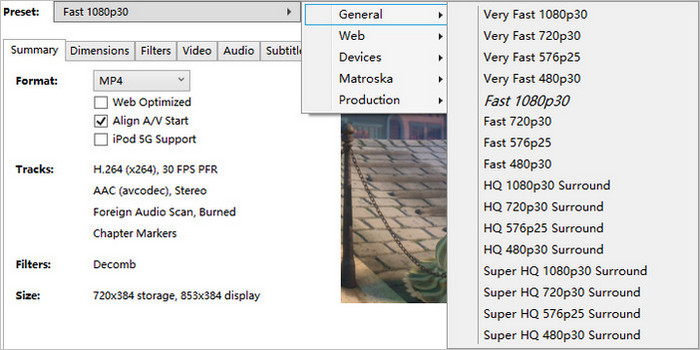
Use HandBrake to compress when the MKV is too large for your storage budget or you want a smaller file for your particular Plex setup. HandBrake re-encodes the video, so the output size and quality are controlled by the codec, encoder settings, resolution, and quality or bitrate settings you choose.
Step 7. Add the Blu-ray File to Plex
Once the final MKV is ready, place it in a dedicated movie folder or an existing folder that Plex already uses for your movie library. Keeping each movie in its own folder also makes Plex's matching and library management easier.
For example:
Movies > Movie Name (Year) > Movie Name (Year).mkv
Then open Plex Media Server and add the folder to your movie library:
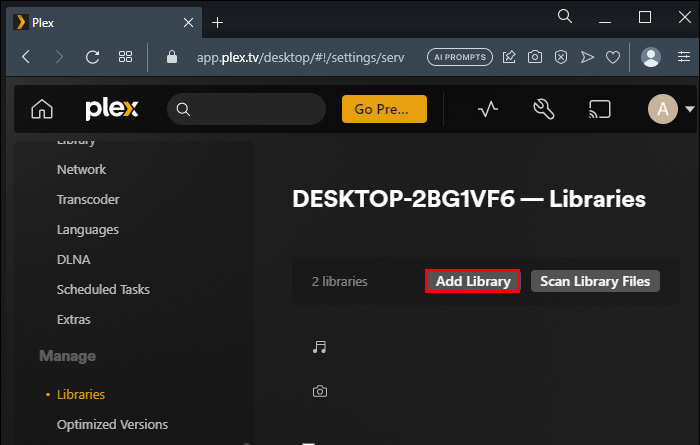
- Open Manage > Libraries in Plex.
- Click Add Library if you are creating a new library, or open an existing movie library.
- Choose Movies as the library type.
- Browse to the folder containing your finished Blu-ray MKV files.
- Click Add and let Plex scan the folder.
Plex will then identify the movie and add it to your library. Open the title and check the runtime, poster, audio tracks, subtitles, and other available information to make sure Plex matched the correct movie.
Finally, start playback on the TV, streaming box, computer, or phone you normally use with Plex. Check the playback information to see whether Plex is using Direct Play or Transcoding. If the file plays correctly without unnecessary transcoding, you can keep the MKV as it is. If the file causes compatibility or transcoding issues, you can revisit the HandBrake step and create a more suitable version.
How to Avoid Unnecessary Plex Transcoding
A Blu-ray rip can look great on your computer but still trigger transcoding in Plex. The problem is usually not the quality of the rip itself, but a mismatch between the media file and the device playing it. Video codec, audio format, subtitles, resolution, bitrate, and client support can all affect how Plex handles playback.
Before changing your Blu-ray files, it helps to understand what Plex is actually doing during playback.
Direct Play means Plex sends the original media to the playback device without converting the video or audio. This requires the client to support the relevant video, audio, container, and other media properties. When Direct Play works, the Plex server has very little processing to do.
Direct Stream means Plex does not re-encode the video, but it may repackage the media into a container the client can handle. The video stream remains unchanged, so Direct Stream generally requires much less processing than video transcoding.
Plex transcode means Plex has to convert the video or audio into a format the playback device can use. Video transcoding can put significantly more load on the Plex server, especially when dealing with high-resolution Blu-ray content.
The most common reasons a Blu-ray file triggers transcoding include:
- Unsupported video codec: The device cannot decode the video directly.
- Unsupported audio: The device cannot play the selected audio format.
- Incompatible subtitles: Certain subtitle formats can trigger video processing.
- Resolution or bitrate too high: The device or network cannot handle the original stream.
- Client limitations: Different Plex devices support different media formats.
The practical solution is to match your Blu-ray files to the devices you actually use. There is no need to re-encode an entire Plex library just because one client has limited format support.
- Check your Plex devices: Different clients support different media formats.
- Keep useful audio tracks: Remove unnecessary tracks but retain those your devices need.
- Choose subtitles carefully: Keep the tracks you need and test them on your main client.
- Use HandBrake when needed: Compress the rip when storage, bandwidth, or compatibility is an issue.
- Do not compress by default: Smaller files are not always more compatible.
The goal is not to force every Plex file into one universal format. Keep the original MakeMKV rip when your devices can Direct Play it. Use HandBrake when file size, remote streaming, or client compatibility gives you a specific reason to create a smaller or more compatible version.
 FAQs About Ripping Blu-ray for Plex
Plex may transcode when your playback device cannot directly handle the video's codec, audio format, subtitles, resolution, or bitrate. Check the Plex Dashboard during playback to see what is being transcoded. Start by checking the video codec, audio codec, and subtitle format. Unsupported audio or image-based subtitles such as PGS can also trigger additional processing on some clients.
The selected audio codec may not be supported by the Plex client, TV, or connected audio system. Check the MKV's audio codec, channel layout, and playback device support. Blu-ray rips commonly contain formats such as DTS-HD MA, TrueHD, or other lossless tracks that some clients cannot decode or pass through. Try another audio track in the file or use a compatible audio track when creating the rip.
Yes. Subtitle support varies between Plex clients, and image-based formats such as PGS can cause Direct Play problems on some TVs and streaming devices. If enabling subtitles suddenly triggers video transcoding, test the file without subtitles or use a subtitle format that your playback device supports directly.
Not necessarily. MakeMKV creates a high-quality MKV without re-encoding the video, but the resulting file can be large. Keep the original rip when storage and playback support are sufficient. Use HandBrake afterward when you need to reduce file size, save NAS storage, or create a file better suited to your Plex devices.
Blu-ray files can use different video codecs, audio codecs, subtitle formats, resolutions, and bitrates. Two MKV files may therefore behave differently on the same Plex client. Compare the media information for the two files and check which stream Plex is transcoding during playback.
Check the formats supported by your main Plex playback device before creating the final file. Keep compatible audio and subtitle tracks, remove tracks you do not need, and test the finished MKV with Direct Play. When the original Blu-ray rip is too large or uses a format your devices handle poorly, use HandBrake to create a more suitable version.


