







How to Convert Blu-ray to Digital: Keep the Quality, Audio and Subtitles
 Donna Peng
Updated on
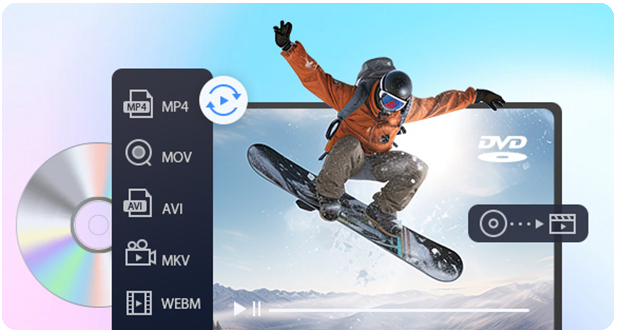
Converting Blu-ray to digital lets you watch your movie collection on a computer, TV, media server, or mobile device without repeatedly handling physical discs. The best method depends on what you want to preserve: original video and audio streams, smaller file sizes, subtitle options, or compatibility with your playback devices.
To convert Blu-ray to digital, you need a compatible Blu-ray drive and software that can read your disc. You can extract the movie to MKV without re-encoding the video, or use a video converter to create a more compact MP4 file. The important distinction is that extracting a video stream and compressing it are not the same process.
Before starting, decide whether storage space or source preservation matters more. This choice determines which format, settings, and verification steps make sense for your digital movie library.
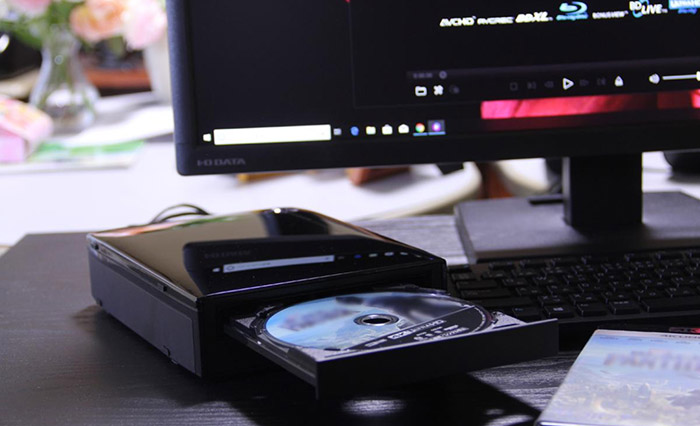
Quick Answer: Choose the Right Way to Digitize Blu-ray
There is no single best output format for every Blu-ray collection. Start with your intended use rather than choosing a file extension first.
| Your Goal | Recommended Approach | What to Consider |
|---|---|---|
| Preserve original video and audio streams | Rip to MKV without video re-encoding | Files can be large |
| Reduce storage requirements | Re-encode to MP4 using H.264 or HEVC | Quality depends on encoding settings |
| Keep multiple audio tracks and subtitles | Select the required tracks during extraction | Check player compatibility |
| Build a Plex or NAS movie library | Preserve a high-quality copy, then transcode if needed | Some clients require transcoding |
| Convert 4K UHD Blu-ray | Verify drive and software compatibility first | HDR and audio support require attention |
For most people who prioritize preserving source quality, extracting to MKV is a sensible starting point. If you mainly want smaller files that play on a range of devices, converting the video to MP4 may be more suitable.
One important distinction: MKV and MP4 are container formats, not video codecs. Neither container automatically guarantees better image quality. The video codec, encoding settings, and whether the video is re-encoded have a greater impact on the final result.
What You Need Before Converting a Blu-ray Disc
Check Your Blu-ray Drive
You need an optical drive capable of reading Blu-ray discs. A DVD-only drive cannot read Blu-ray media, and a standard Blu-ray drive should not automatically be assumed to support every 4K Ultra HD Blu-ray disc.
If you use an external USB drive, check that your computer recognizes it and that the connection provides sufficient power. If a disc is not detected, verify the drive's compatibility and condition before changing conversion settings.
Choose Software for the Right Task
Blu-ray software generally falls into three categories:
- Ripping tools: Extract supported video, audio, and subtitle streams from a disc into a digital container.
- Video encoders: Compress or convert an existing video file into a different format or codec.
- All-in-one converters: Combine disc reading and video conversion in a single interface.
MakeMKV is one example of a tool designed to extract disc content into MKV while preserving supported media streams. HandBrake is commonly used to encode readable video sources into formats such as MP4 or MKV.
These tools are not interchangeable. HandBrake is not a universal decryption solution for commercial Blu-ray discs, so the source must be accessible to the software before encoding can begin.
Check Disc Compatibility
Commercial Blu-ray discs may use protection systems or structures that affect whether a particular program can read them. Software compatibility also varies by disc type and version.
Before attempting to copy a protected disc, check the applicable laws in your location. Owning a physical disc does not automatically make every form of copying or circumvention lawful.
How to Convert Blu-ray to Digital Step by Step
There are two main approaches: extract the movie without video re-encoding, or encode it into a more compact format. Choose the one that matches your storage and playback needs.
Method 1: Rip Blu-ray to MKV Without Video Re-encoding
This approach is useful when you want to retain the original encoded video and supported audio streams. You can convert Blu-ray to digital with MakeMKV (MKV format) first.
Step 1. Insert the Blu-ray Disc
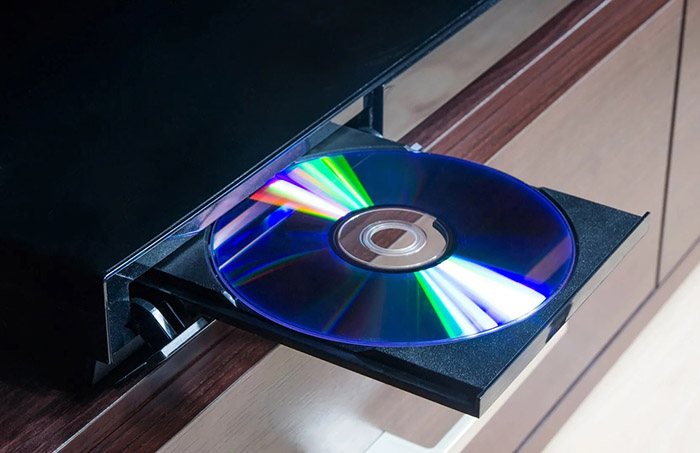
Place the disc in a compatible Blu-ray drive and connect the drive to your computer. Confirm that the operating system recognizes the device.
Step 2. Open a Compatible Ripping Tool
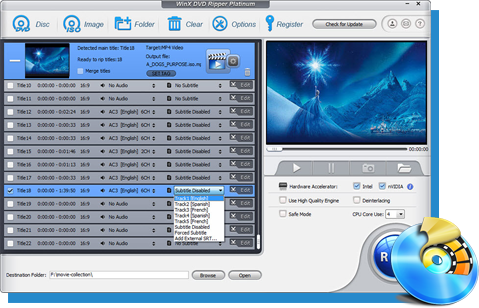
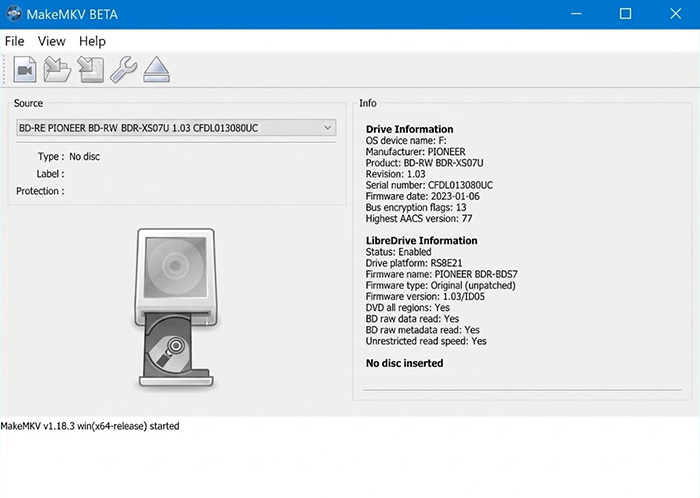
Launch a tool such as MakeMKV and allow it to scan the disc. The available titles and tracks will depend on the disc structure and software support.
Step 3. Identify the Movie
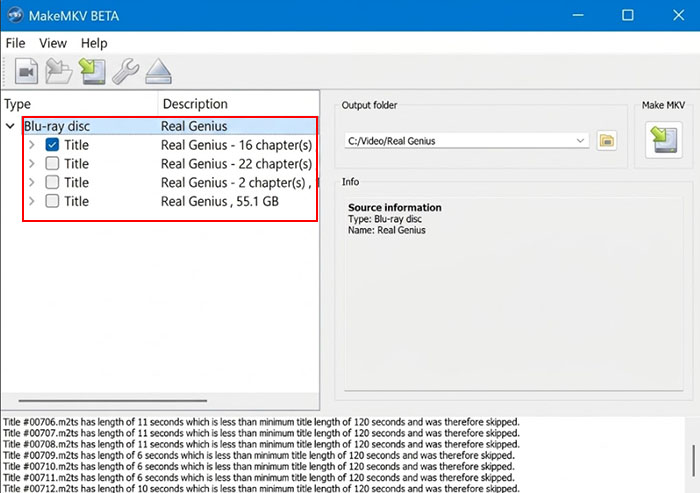
Do not select a title based only on its number. Check the running time and chapter information to identify the main feature. Some discs contain several versions, bonus features, or multiple titles with similar durations.
- Runtime: Compare the title's duration with the expected length of the movie.
- Chapters: Check whether the chapter list is consistent with a feature-length movie.
- Video information: Confirm that the resolution and video stream match the version you want.
- Audio and subtitles: Check which languages and tracks are available for the selected title.
When two titles have nearly identical runtimes, compare their chapter structure and available streams rather than guessing from title size. Some Blu-rays use multiple playlists for the same feature.
Step 4. Select the Audio and Subtitle Tracks
After selecting the movie, expand its audio and subtitle sections and keep the tracks you expect to use. There is little benefit in carrying every language, commentary track, and subtitle stream into a large MKV if you will never use them.
- Primary audio: Keep the language you normally use for playback.
- Original-language audio: Useful for foreign-language films or releases where the original track matters.
- Commentary: Keep director or cast commentary when you want those extras available.
- Forced subtitles: Retain them when they are needed for translated dialogue or specific scenes.
- Full subtitles: Select the language tracks you actually need.
There is no universal audio and subtitle combination for every collection. A movie watched in its original language may need one audio track and one subtitle track, while a family library may benefit from several language options.
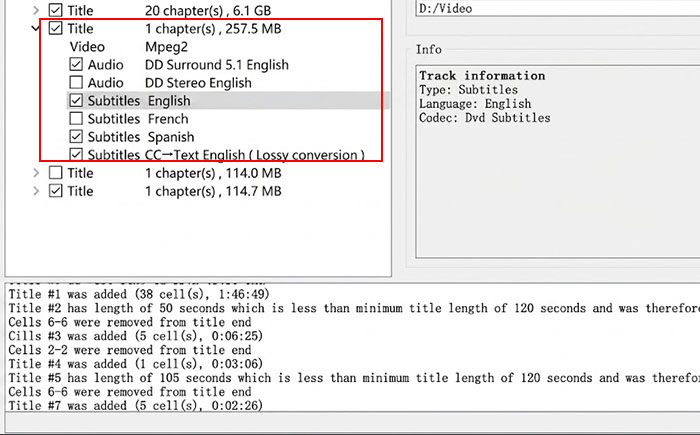
Step 5. Create the MKV File
Choose the output folder and start the extraction. For a movie library, it is useful to save the initial MKV to a temporary working folder rather than directly into the final library.
MakeMKV does not re-encode the Blu-ray video. It creates an MKV containing the selected video, audio, subtitle, and chapter streams, so the video stream retains the source quality when copied unchanged. The resulting file can serve as a high-quality source for later encoding.
Once the MKV is finished, check the file before moving it into your library. Confirm that the movie plays correctly, the expected audio tracks are present, subtitles appear as intended, and the runtime matches the selected feature.
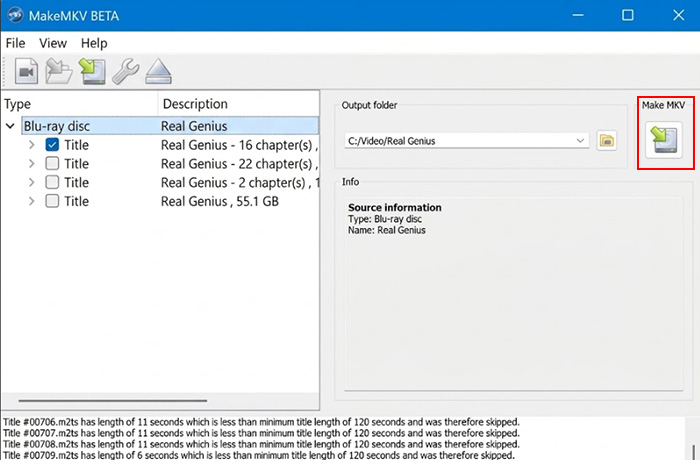
Method 2: Convert Blu-ray Video to MP4
Choose this approach when smaller files or compatibility with a particular device matters more than retaining the original encoded video stream.
Step 1. Obtain a Readable Video Source
If your disc cannot be read directly by your encoding application, use a compatible, lawful extraction method first. The exact process depends on the disc and software.
Step 2. Open the Video in HandBrake
Import the readable video source and wait for the application to scan it. Confirm that the correct movie and duration have been loaded.
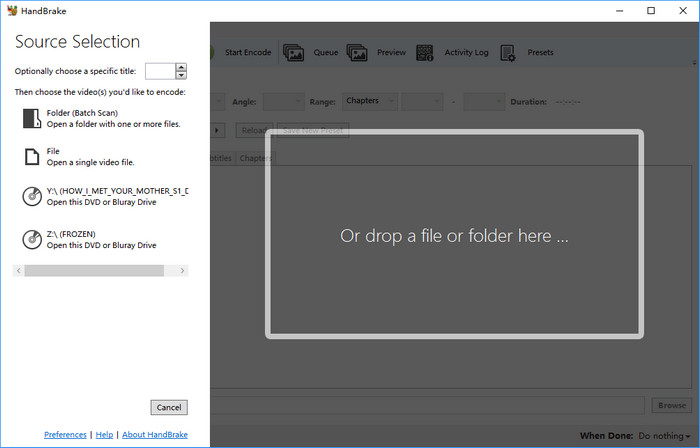
Step 3. Select MP4 as the Output Container
Choose a video encoder supported by your playback device. H.264 is a common compatibility-oriented option, while HEVC can be useful when storage efficiency is a priority.
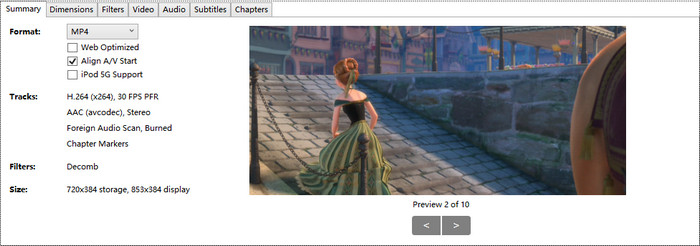
Step 4. Adjust Quality Settings
Use a quality-based encoding setting if available rather than choosing an arbitrary bitrate without considering the source. Higher-quality settings generally produce larger files, while stronger compression can reduce detail or introduce artifacts.
Keep the original resolution and frame rate unless you have a reason to change them. Reducing resolution may save storage, but it also removes source detail.
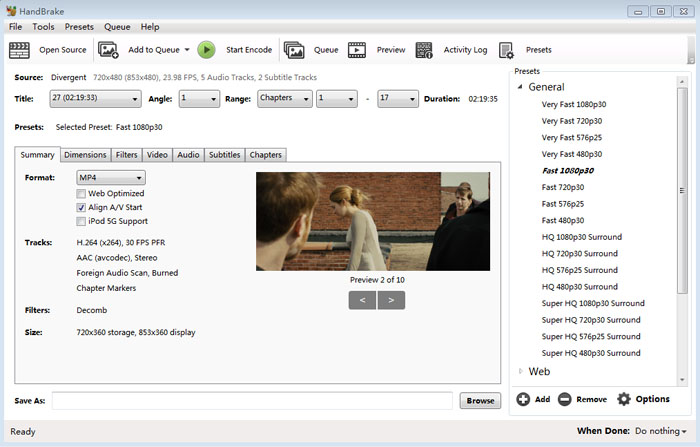
Step 5. Configure Audio and Subtitles
Select the required audio tracks and determine how subtitles will be handled. Some subtitle formats may need to be converted, extracted separately, or burned into the picture for compatibility with a particular device.
Step 6. Encode and Verify the MP4
Start encoding and wait for the process to finish. Then check the output on the device where you intend to watch it. Confirm that video, audio, subtitles, and synchronization work as expected.
Remember that common H.264 and HEVC encoding settings are lossy. A high-quality encode can look very close to the source, but that is not the same as preserving the original encoded video stream unchanged.
Store and Play Your Digital Blu-ray Files
Converting a Blu-ray disc is only part of the process. File organization, storage space, and playback compatibility also affect how easily you can access your digital movie collection. A few simple checks can help you preserve a high-quality copy while making movies easier to watch across different devices.
Organize Files for a Movie Library
Once your movies are converted, organize them so that you can find the right version and avoid accidentally deleting your best-quality copy.
For example, you could keep an original-quality MKV in one folder and a smaller MP4 viewing copy in another. Use consistent movie names and keep backup copies on a separate drive or storage device.
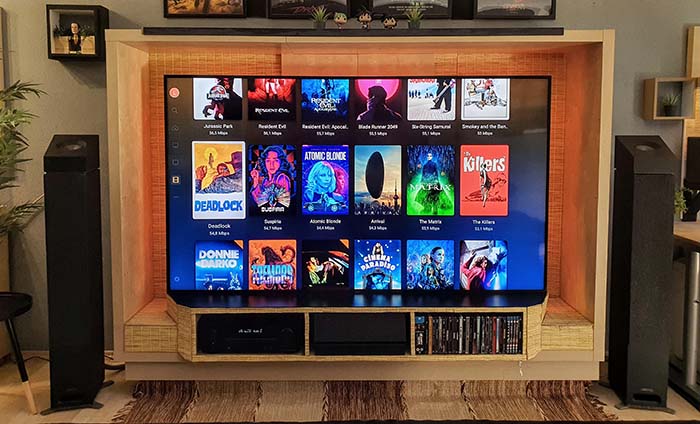
Play Your Files on Plex, NAS, and TVs
If you want to rip Blu-ray to Plex or a NAS, remember that Direct Play, Direct Stream, and transcoding are different operations. Direct Play sends a compatible file to the client without converting its media streams. Direct Stream changes the container when necessary, while transcoding converts one or more media streams to formats the client can use.
This distinction matters for subtitles and audio. A movie that plays directly on a computer may trigger transcoding on a TV because the client cannot handle its video, audio, or subtitle format. Test your actual playback device before processing an entire collection.
Keep a Backup Copy
Before archiving the finished file, verify its playback, track selection, and duration. Keep the physical disc until you are satisfied with the result and have a reliable backup.
FAQs About Converting Blu-ray to Digital
Yes. Tools such as MakeMKV and HandBrake can be used for different parts of the process, subject to their licensing terms and source compatibility. You still need a compatible Blu-ray drive and sufficient storage. Commercial disc protection may impose additional technical and legal limitations.
A container-only remux may preserve the original encoded video if the streams are compatible with MP4. However, typical H.264 or HEVC re-encoding changes the video data. A high-quality encode may look similar to the source, but it is not equivalent to retaining the original stream unchanged.
Processing time depends on disc length, optical drive speed, disc condition, software, and whether you re-encode the video. Direct extraction is generally limited by reading and processing speed, while encoding can take considerably longer depending on the hardware and settings.
There is no universal file size. Directly extracted movies can occupy tens of gigabytes, while re-encoded versions may be much smaller. Actual size depends on the source, duration, video bitrate, audio tracks, and encoding settings. Check the output of a representative movie before estimating storage for a whole collection.
Yes, when the drive, software, and source are compatible. Confirm support for the specific UHD disc and check whether the output retains the video resolution, HDR information, audio tracks, and subtitles you need. A standard Blu-ray drive should not be assumed to support UHD discs.
The answer depends on the copyright laws and applicable exceptions in your jurisdiction, including rules governing copy protection. Buying a disc does not automatically authorize every form of copying or circumvention. Check the laws that apply to your situation before proceeding.


