



 win
win

 Super Resolution
  Video Stabilization
  Frame Interpolation

 Denoise Image
  Restore Old Photo
  Unblur Image
  Recover Face
  Upscale Image
  Colorize Photo
 Video Conversion >
 Video Compression >
 Screen Recording >

HandBrake Review 2026: Features, Test & User Verdict
 Jack Watt
Updated on
Summary: This HandBrake review goes beyond specifications and examines real-world transcoding performance through hands-on testing. We evaluated encoding speed, output quality, hardware acceleration, CPU/GPU usage, video filters, batch processing, subtitle support, and DVD compatibility.
HandBrake has remained one of the most popular free video transcoders for years, earning a loyal following among video enthusiasts, Plex users, and anyone looking to compress or convert media files without paying for commercial software. Its open-source license and cross-platform availability continue to make it an attractive option.
That said, a free price tag doesn't automatically make it the right choice for every workflow. In this review, we tested HandBrake's encoding performance, hardware acceleration, output quality, and overall usability. We also examined real user feedback from online communities to see where the software performs well, where it struggles, and whether it still deserves a place on your PC in 2026.
How We Tested HandBrake
This review is based on practical testing using the same hardware, source files, and export settings to ensure fair and consistent results across every benchmark.
- OS: Windows 10 Pro 64-bit (latest updates)
- CPU: AMD Ryzen 5 5600X (6C/12T)
- GPU: AMD Radeon RX 6700 XT with hardware acceleration tested where available.
- RAM: 64GB DDR4
- Test Files: H.264, H.265/HEVC, MP4, MKV, MOV, AVI, and 4K videos with varying bitrates and durations.
- Evaluation: We assessed installation, ease of use, encoding speed, output quality, CPU/GPU usage, resource consumption, and overall stability through repeated tests.
- Community Insights: Results were compared with recent user experiences from Reddit, VideoHelp, G2, and Trustpilot to validate common strengths and limitations.
What Is HandBrake?
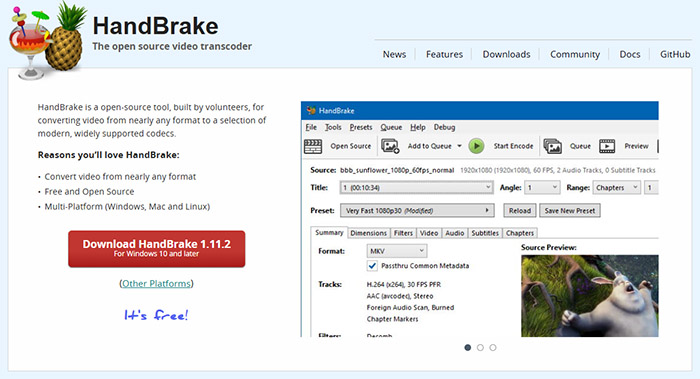
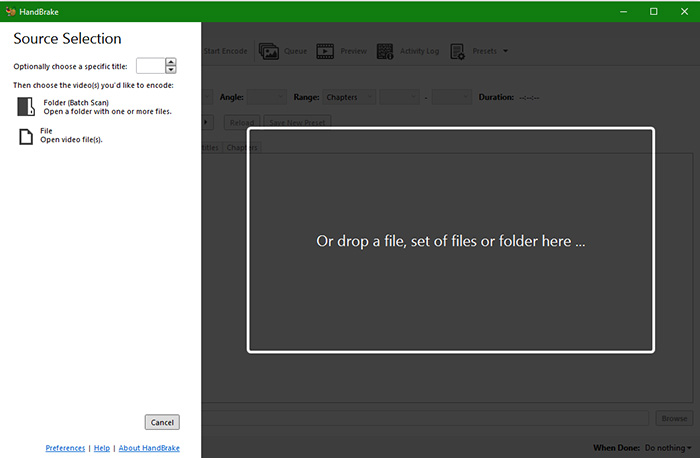
HandBrake is a free, open-source video transcoder designed to convert and compress digital videos into more compatible and storage-friendly formats. It supports a wide range of common input formats, including MP4, MKV, AVI, MOV, MPEG, WMV, and many DVD or Blu-ray sources that are not copy-protected. Output formats are limited to MP4, MKV, and WebM, with support for modern codecs such as H.264 (AVC), H.265 (HEVC), AV1, VP8, VP9, and MPEG-4.
HandBrake is available for Windows, macOS, and Linux, making it one of the most widely used cross-platform video converters. It also includes advanced controls for video encoding, audio tracks, subtitles, filters, cropping, and batch processing.
HandBrake is best suited for users who need a reliable tool to reduce video file sizes, convert videos for playback on different devices, archive personal media, or prepare videos for streaming. While beginners can rely on built-in presets, its extensive encoding options make it especially popular among experienced users who want precise control over output quality and compression.
HandBrake Review: Quick Verdict
HandBrake remains one of the strongest free video transcoders available today. During our testing, it consistently delivered excellent output quality, efficient H.264, H.265, and AV1 encoding, and dependable stability across long encoding sessions. Although its interface presents a learning curve and it cannot decrypt commercial DVDs on its own, HandBrake continues to be a top choice for users who prioritize encoding quality, compression efficiency, and complete control over video settings without paying for a license.
| Category | Verdict |
|---|---|
| Suitable For | Video compression, format conversion, 4K encoding, batch processing, Plex libraries, and users who want detailed control over encoding settings. |
| Not Suitable For | Beginners seeking one-click conversion, commercial DVD ripping without additional tools, or projects requiring built-in editing and AI enhancement. |
| Overall Rating | 8.8 / 10 |
| Ease of Use | ★★★★☆ (4.0/5) |
| Speed | ★★★★☆ (4.4/5) |
| Output Quality | ★★★★★ (4.8/5) |
| Hardware Acceleration | ★★★★☆ (4.3/5) |
| DVD Support | ★★★☆☆ (3.4/5) — Supports unprotected DVDs and some CSS-encrypted discs with libdvdcss. |
 Editor's Verdict
HandBrake excels where encoding performance matters most. It produces high-quality output, offers extensive codec and compression controls, and supports modern hardware acceleration on compatible Intel, NVIDIA, AMD, and Apple hardware. Throughout our tests, it handled everything from standard HD videos to high-bitrate 4K footage with consistent reliability.
Its biggest limitation is DVD handling. HandBrake does not bypass commercial copy protection, meaning encrypted discs require additional software before they can be processed. The interface is also geared toward users who are comfortable adjusting encoding parameters rather than relying entirely on automatic presets.
Our benchmark results show that HandBrake delivers excellent compression efficiency and high-quality H.264, H.265, and AV1 encoding, while its GPU acceleration and DVD handling have some limitations. We also analyzed community feedback from Reddit, VideoHelp, and other user discussions to provide a practical view of where HandBrake excels and where dedicated commercial tools may be a better fit.
Handbrake Review: Video Transcoding Performance
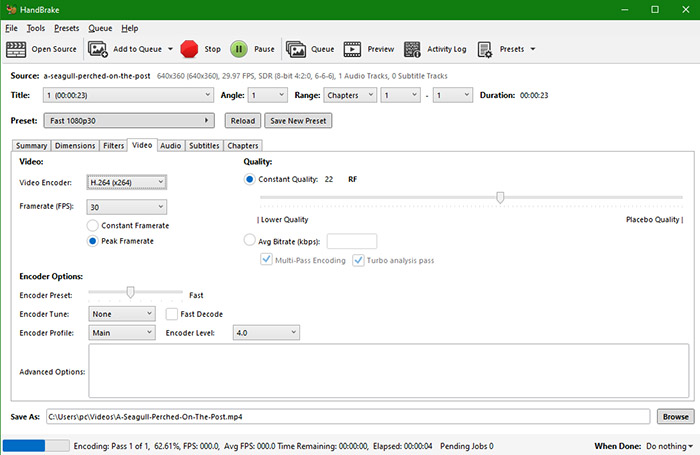
To evaluate HandBrake's real-world transcoding efficiency, we encoded the same source video under identical hardware conditions used throughout our benchmark suite. The test used the built-in Fast 1080p30 preset with H.265 (AMD VCE) hardware encoding and Constant Framerate enabled to ensure a consistent output frame rate. We measured encoding speed, compression efficiency, hardware utilization, and output quality during repeated runs.
| Category | Evaluation |
|---|---|
| Encoding Speed | Finished the transcoding task in 10.4 seconds, averaging 372.8 FPS and reaching approximately 24.7× real-time processing. |
| Hardware Acceleration | AMD VCE hardware encoding remained active throughout the test. GPU utilization averaged 29.34% with a peak of 67%, indicating efficient hardware offloading without saturating the GPU. |
| CPU Utilization | Average CPU usage stayed at 16%, peaking at 31%, leaving ample processing resources available for multitasking. |
| Resource Consumption | VRAM usage peaked at only 574 MB, while GPU temperature remained stable at 48°C during the encoding session. |
| Compression Efficiency | The output file was reduced from 3.34 GB to 574 MB, achieving an 82.8% size reduction while maintaining excellent visual quality under the selected preset. |
| Output Quality | The generated H.265 video preserved fine details with no noticeable artifacts during playback, making the preset well suited for high-quality compression. |
Editor's Analysis: HandBrake continues to excel as a dedicated video transcoder. In our benchmark, it combined high encoding throughput with efficient hardware utilization and excellent compression performance. Compared with many consumer-oriented converters, it offers substantially more control over codec parameters and encoding behavior, making it particularly attractive to users who prioritize file size optimization and output quality over one-click simplicity.
One usability detail worth noting is that the frame rate setting only takes effect when Constant Framerate is selected. If Peak Framerate remains enabled, the exported video generally retains the source frame rate even after selecting a different target FPS.
Handbrake Review: DVD Ripping Performance
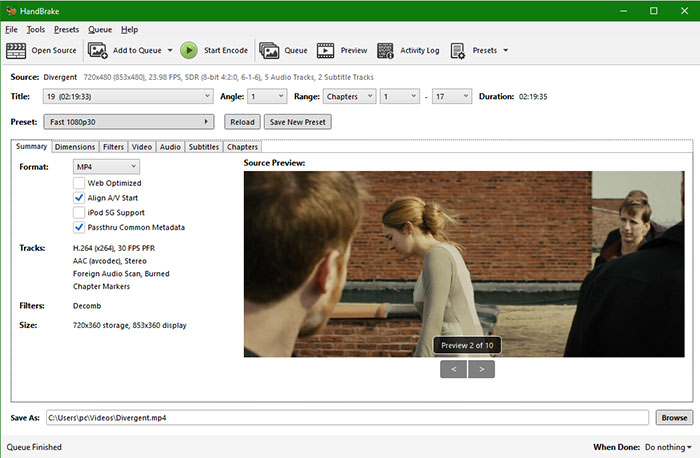
Unlike dedicated DVD ripping software, HandBrake is primarily a video transcoder. While it can import DVDs, its ability to process commercial discs depends heavily on whether the source is encrypted.
DVD Handling Performance
We evaluated HandBrake using a protected DVD under its default installation without third-party decryption libraries to measure real-world compatibility, disc analysis, and conversion behavior.
| Category | Evaluation |
|---|---|
| DVD Detection | Successfully detected the inserted DVD, but encrypted content could not be processed correctly under the default installation. |
| Decryption | Not supported natively. CSS-encrypted DVDs require the separate installation of libdvdcss, and newer commercial protections remain unsupported. |
| Disc Analysis | Disc scanning completed, although title recognition and preview functionality were unreliable when decryption was unavailable. |
| Conversion | The encoding engine remained stable, but protected DVD content produced severe visual corruption during our test, resulting in an unwatchable output file. |
| DVD Backup | Not supported. HandBrake cannot create ISO images or VIDEO_TS folder backups. |
| Best Use Case | Converting unprotected DVDs or previously decrypted VIDEO_TS folders into MP4, MKV, or WebM. |
DVD Ripping Performance
We also evaluated HandBrake's DVD workflow using the same benchmark disc and hardware environment applied throughout this review. The default installation was tested without libdvdcss to reflect the experience most first-time users will encounter. In addition to read speed and encoding performance, we assessed title detection, decryption capability, output quality, and backup support.
| Category | Test Result |
|---|---|
| Title Recognition | Detected the disc successfully, but encrypted titles could not be decoded correctly. |
| DVD Read Speed | 31 seconds to scan and analyze the test DVD. |
| DVD Conversion Speed | The encoding process completed in 575 seconds, averaging 100.3 FPS. |
| DVD Decryption | Not available in the default installation. CSS-encrypted DVDs require the separate installation of libdvdcss. |
| Output Quality | The exported video contained severe block artifacts during our protected DVD test and was not suitable for normal playback. |
| DVD Backup | Not supported. HandBrake cannot create ISO images or VIDEO_TS backups. |
Editor's Analysis: From a pure encoding perspective, HandBrake remains highly efficient, averaging 100.3 FPS once transcoding begins. However, DVD ripping performance is limited by the lack of built-in decryption. During our evaluation, the software completed disc analysis in 31 seconds and finished encoding in 575 seconds, yet the resulting video exhibited extensive macroblocking because the protected DVD could not be decoded correctly.
Installing libdvdcss improves compatibility with many CSS-encrypted discs, but HandBrake still lacks support for full-disc backups and newer commercial copy protections. For unprotected DVDs or previously decrypted VIDEO_TS folders, it remains an excellent free transcoder; for commercial DVD collections, dedicated DVD ripping software provides a far more reliable workflow.
HandBrake Review: A Closer Look at Its Core Features
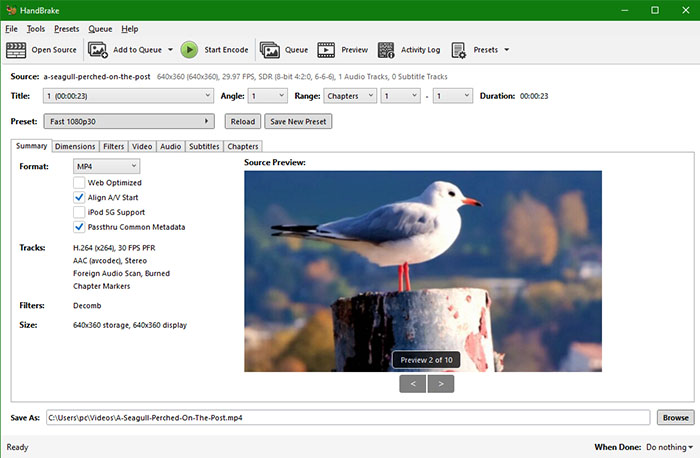
HandBrake has evolved into one of the most capable free video transcoders available today. Instead of overwhelming users with editing tools or AI features, it focuses on efficient encoding, advanced compression controls, and consistent output quality. During our testing, the software proved particularly strong in codec flexibility and fine-grained encoding options, although several features still require more manual configuration than commercial alternatives.
Video Encoding: Exceptional Codec Support with Extensive Control
Encoding is where HandBrake stands out. It supports today's most widely used video codecs, including H.264 (AVC), H.265 (HEVC), AV1, VP8, VP9, and MPEG-4, while allowing users to fine-tune bitrate, Constant Quality (RF), encoder presets, profiles, levels, frame rate, and two-pass encoding.
Across our benchmarks, HandBrake consistently produced excellent image quality, especially when using Constant Quality mode. H.265 delivered impressive compression efficiency with minimal visual degradation. AV1 encoding also generated high-quality output, although software-based AV1 remained noticeably slower than H.264 and H.265 on systems without dedicated hardware support.
Hardware Acceleration: Faster Encoding, Limited GPU Usage
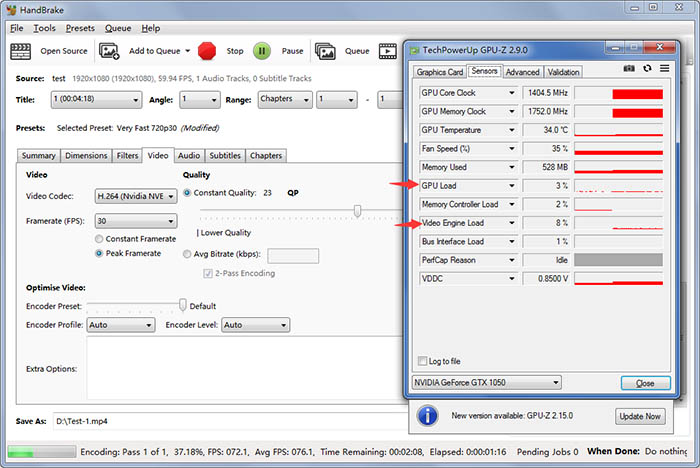
HandBrake supports hardware video encoding through Intel Quick Sync Video (QSV), NVIDIA NVENC, AMD Video Coding Engine (VCE/VCN), and Apple's VideoToolbox on macOS.
Our testing confirmed that hardware encoding significantly reduces export times for supported codecs. However, GPU acceleration applies primarily to encoding and decoding tasks. Many video filters—including denoise, deinterlacing, and certain preprocessing operations—continue to rely on CPU processing, meaning overall performance still depends heavily on processor capability.
This limitation is frequently discussed in the HandBrake community and explains why GPU utilization often remains lower than users expect during complex encoding jobs.
Video Filters: Tools Without the Complexity of a Video Editor
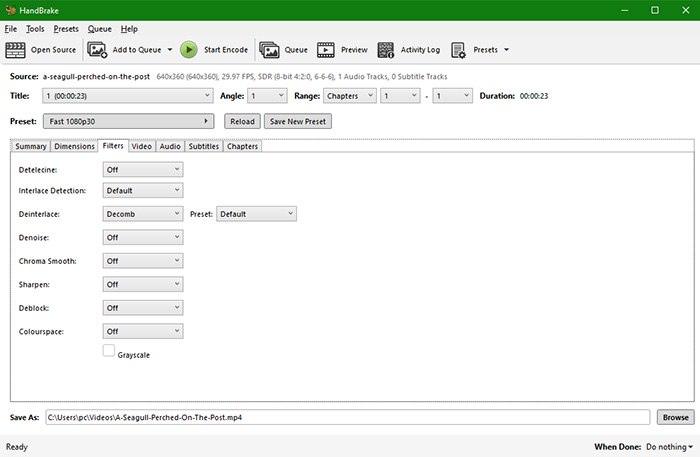
HandBrake includes a comprehensive collection of preprocessing filters designed to improve source quality before encoding. Available tools include Deinterlace, Decomb, Denoise, Deblock, Chroma Smooth, Sharpen, Crop, Resize, and subtitle burn-in.
The filtering engine provides enough flexibility for advanced transcoding workflows, particularly when restoring DVDs or older interlaced footage. The trade-off is usability. Several options expose technical parameters without much visual guidance, making experimentation necessary for new users.
Built-in Presets: A Faster Starting Point for Most Devices
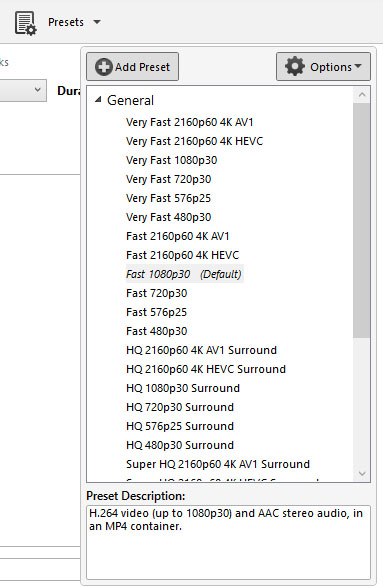
Although HandBrake offers extensive manual controls, its preset library simplifies routine conversions. Profiles are available for Apple devices, Android phones and tablets, Roku, PlayStation, Chromecast, YouTube, Vimeo, Discord, and general web playback.
In practice, the presets provide a reliable starting point and usually require only minor adjustments. Advanced users can also duplicate and customize presets to match specific encoding workflows.
Batch Encoding: Stable Queue, Limited Workflow
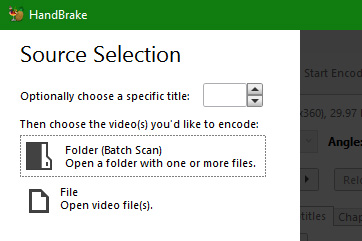
HandBrake supports batch encoding through its built-in queue system, allowing multiple files or complete folders to be processed sequentially.
The queue remained stable throughout our testing, even during long encoding sessions. However, job management is relatively basic. Features such as conditional tasks, advanced scheduling, workflow templates, and automated file organization are still well behind many commercial media converters.
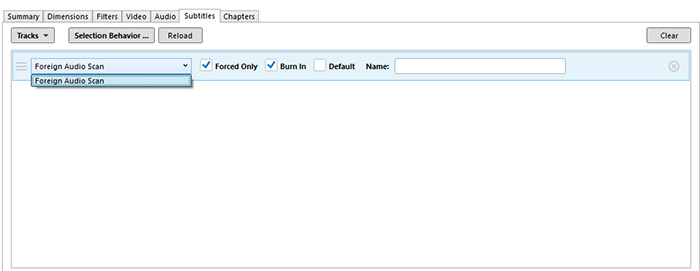
Subtitle Support: Flexible Import and Burn-In Options
HandBrake supports both embedded and external subtitles, including SRT, SSA, and ASS formats. Users can preserve subtitle tracks, select default languages, or permanently burn subtitles into the video.
While subtitle compatibility is solid, editing capabilities remain minimal. Timing adjustments, styling, and subtitle creation still require dedicated subtitle editing software.
Open Source: Still One of HandBrake's Biggest Strengths
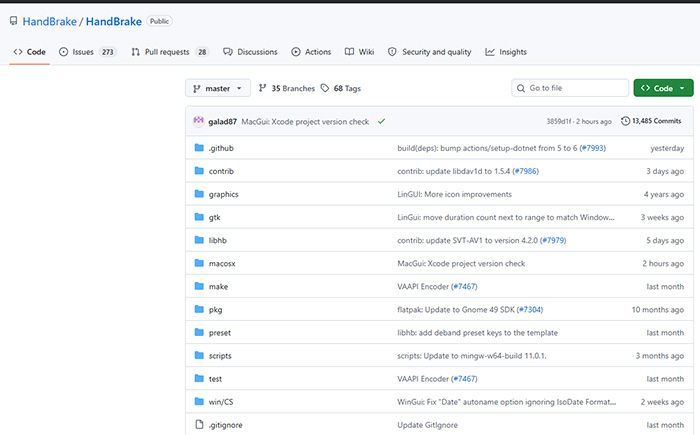
Unlike many commercial converters, HandBrake remains completely free and open source. There are no advertisements, feature restrictions, subscriptions, or watermarks, and the software continues to receive regular maintenance from an active developer community.
For users who value transparency, long-term availability, and unrestricted encoding capabilities, this open-source model remains one of HandBrake's strongest competitive advantages in 2026.
HandBrake Review: Pros & Cons
After testing HandBrake across video transcoding, hardware acceleration, DVD handling, and advanced encoding workflows, the overall experience is clear: HandBrake remains one of the most capable free video transcoders available. Its strongest advantages are excellent compression efficiency, deep codec control, and a reliable open-source foundation. However, users looking for an all-in-one media solution may find its limited editing features, DVD restrictions, and technical learning curve frustrating.
Pros
- Completely free with no ads, subscriptions, or feature restrictions.
- Delivers excellent output quality with highly efficient H.264 and H.265 encoding.
- Works across Windows, macOS, and Linux with consistent performance.
- Receives regular updates from an active open-source developer community.
- Provides powerful filters for deinterlacing, denoise, cropping, resizing, and cleanup.
- Supports a wide range of modern codecs, including H.264, H.265, and AV1.
Cons
- Cannot decrypt commercial DVDs without additional tools such as libdvdcss.
- Lacks advanced editing features found in dedicated video editing software.
- Advanced encoding options create a noticeable learning curve for beginners.
- GPU acceleration improves encoding speed but does not accelerate every task.
- Large encoding jobs can still require significant processing time.
- The interface feels functional but less modern than newer commercial converters.
Our final verdict: HandBrake remains an excellent choice for users who need a powerful, transparent, and free video transcoder. It is especially attractive for enthusiasts, media collectors, and anyone who wants precise control over compression and encoding quality. However, users expecting built-in DVD ripping, AI enhancement, or a complete video editing workflow may need a more specialized alternative.
 FAQ about HandBrake
Yes. HandBrake is completely free and open source with no subscription, watermark, advertisements, or feature restrictions. All supported encoding tools, presets, filters, and codecs are available without upgrading to a paid version.
HandBrake can convert unprotected DVDs and previously decrypted DVD folders, but it is not a full DVD ripping tool. Commercial DVDs usually require additional software such as libdvdcss for CSS protection, and HandBrake cannot create ISO images or complete disc backups.
HandBrake supports Intel QSV, NVIDIA NVENC, AMD VCE/VCN, and Apple VideoToolbox hardware encoding, but GPU acceleration mainly improves encoding and decoding. Many filters, including denoise and deinterlacing, still rely on CPU processing, so overall speed depends on both hardware and encoding settings.
HandBrake does not automatically reduce quality. With the right codec settings and Constant Quality mode, it can produce excellent results while significantly reducing file size. Quality depends mainly on the selected encoder, RF value, preset speed, and source video quality.
H.264 offers the widest compatibility, while H.265 provides better compression for 4K and high-bitrate videos. AV1 can achieve excellent compression efficiency, but encoding is usually slower unless supported by dedicated hardware acceleration. The best choice depends on playback devices and performance requirements.
High CPU usage is normal during software encoding because HandBrake is designed to maximize available processing power. CPU load depends on the selected codec, encoder preset, filters, and whether hardware acceleration is enabled.
Yes. HandBrake is widely used for Plex libraries because it can efficiently convert videos into compatible MP4 or MKV files with H.264 or H.265 encoding. It is especially useful for reducing storage requirements while maintaining good playback quality.
Yes. HandBrake supports batch processing through its Queue feature. It works well for processing multiple files, although its job management options are more basic compared with commercial converters that offer advanced automation workflows.
Constant Framerate forces the output video to maintain the selected frame rate, making it the better choice for editing, compatibility, and controlled playback. Peak Framerate allows the output frame rate to adapt to the source, meaning the exported video may keep the original frame rate even after selecting a different value.


