



 win
win

 Super Resolution
  Video Stabilization
  Frame Interpolation

 Denoise Image
  Restore Old Photo
  Unblur Image
  Recover Face
  Upscale Image
  Colorize Photo
 Video Conversion >
 Video Compression >
 Screen Recording >
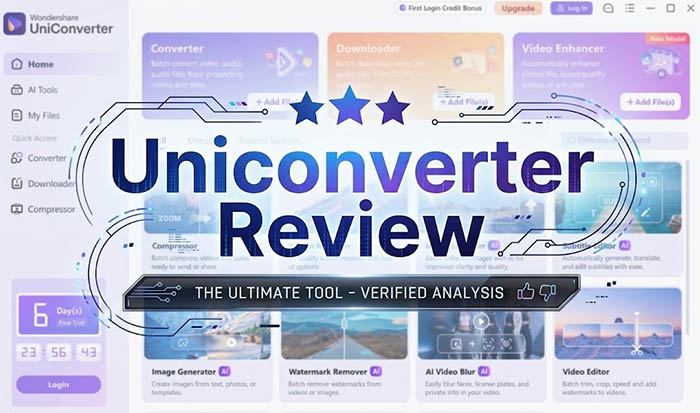
Wondershare UniConverter Review 2026: How Well Does It Perform?
 Jack Watt
Updated on
Summary: This Wondershare UniConverter review focuses on what matters in daily use: conversion speed, output quality, GPU acceleration, DVD processing, large 4K files, batch conversion, usability, and pricing. Our hands-on tests show that UniConverter can deliver very high conversion speed on supported workloads, but output quality and interface usability are not equally strong in every scenario.
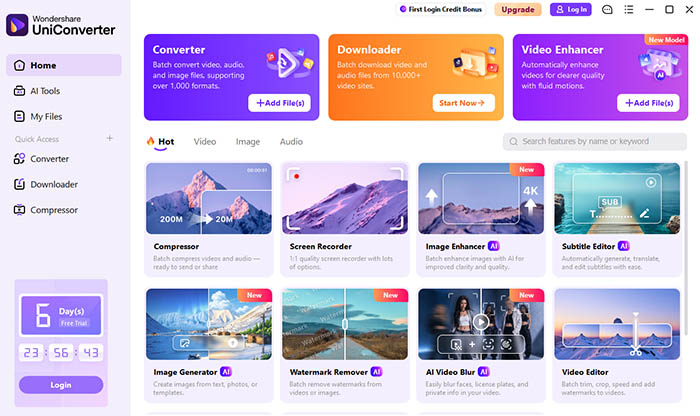
Wondershare UniConverter has grown into a broad video utility suite rather than a simple format converter. It handles video conversion, compression, downloading, recording, basic editing, DVD-related tasks, and several AI-assisted functions from one desktop interface.
For this review, we tested UniConverter alongside WinX DVD Ripper, VideoProc Converter AI, DVDFab DVD Ripper, HandBrake, and other tools under the same hardware environment. We also tested both a commercial DVD and a large 4K HDR10 WebM file to see how UniConverter behaves with very different workloads.
Our Test Environment & Evaluation Method
Performance results in this review come from hands-on testing rather than Wondershare's advertised specifications. The same hardware and comparable output settings were used across the desktop conversion tests wherever possible.
- Operating System: Windows 10 64-bit
- Processor: AMD Ryzen 5 5600
- Graphics Card: AMD Radeon RX 6700 XT
- Memory: 48GB DDR4 RAM
- DVD Test: Wreck-It Ralph DVD, approximately 1 hour 41 minutes
- 4K Test: 1.976GB, 749-second 4K HDR10 WebM file using VP9 at 30fps
- DVD Output: MP4/H.264 at 720p under the tested profile
- 4K Output: MP4/HEVC at 1080p30 with hardware acceleration enabled where supported
- Benchmark Metrics: Parsing time, preparation time, conversion time, total processing time, FPS, CPU usage, GPU usage, VRAM, output size, bitrate, and visual quality
Wondershare UniConverter Review: Quick Verdict
UniConverter is a feature-rich desktop video suite with particularly strong conversion performance in our 4K VP9 test. It also processed the test DVD faster than the other three desktop DVD tools in our comparison. The trade-off is that its output quality was not especially impressive at the tested DVD settings, and some parts of the interface were less intuitive than expected.
| Category | Our Finding |
|---|---|
| Best For | Users who want conversion, compression, downloading, recording, editing, and other video tools in one desktop application. |
| Conversion Speed | Very strong in our 4K VP9 test, reaching 107 FPS and about 3.6x real-time. |
| DVD Performance | Fast in our Wreck-It Ralph DVD test, with 522 seconds total processing time. |
| Output Quality | Acceptable but visibly soft in the tested DVD profile. |
| GPU Utilization | Strong GPU involvement in the 4K VP9 test, with 53.16% average GPU usage. |
| Interface | Feature-rich, although some conversion results and guided windows are not as straightforward as expected. |
| Overall Position | A broad video utility with strong conversion performance, but not every feature delivers the same level of refinement. |
 Editor's Verdict
UniConverter's biggest advantage is breadth combined with strong conversion performance on the right hardware and source formats. In our 4K VP9 test, it completed a nearly 2GB source file in about 210 seconds, while the same workload took much longer in the other desktop converters tested.
The DVD test tells a more mixed story. UniConverter completed the conversion quickly, but the resulting image looked blurry at the tested settings. The application also showed some usability friction when accessing the converted file through its guided interface.
That makes UniConverter more interesting as a general-purpose video toolbox than as a specialist DVD ripper or a pure quality-first encoder.
What Is Wondershare UniConverter?
Wondershare UniConverter is a Windows and Mac desktop application built around video conversion, compression, downloading, recording, editing, and media management. Instead of requiring separate programs for each task, UniConverter places these functions inside one interface.
Its conversion engine supports a wide range of video and audio formats, while the software also includes device-oriented presets and controls for resolution, codec, frame rate, bitrate, audio settings, and other output parameters.
UniConverter has also added AI-assisted functions, including image and video enhancement-related tools. These features are useful additions, but they are not the main reason to choose the software. Conversion performance, format support, DVD handling, and the overall desktop experience matter more in everyday use.
UniConverter 17 Performance Test
We tested UniConverter with two very different workloads: a commercial DVD and a large 4K HDR10 WebM file. This makes it easier to see where its performance advantage appears and where other factors, such as source format and output settings, affect the result.
DVD Conversion Speed
For the DVD benchmark, we used Wreck-It Ralph and compared UniConverter with WinX DVD Ripper, VideoProc Converter AI, and DVDFab DVD Ripper. Each application processed the same test source under comparable MP4/H.264 settings.
| Software | Parse | Operation | Conversion | Total | FPS |
|---|---|---|---|---|---|
| UniConverter 17.3.5 | 13 sec | 89 sec | 433 sec | 522 sec | 252.01 |
| WinX DVD Ripper 8.22.4 | 5 sec | 32 sec | 616 sec | 648 sec | 177.14 |
| VideoProc Converter AI 8.10 | 5 sec | 75 sec | 678 sec | 753 sec | 160.59 |
| DVDFab DVD Ripper | 12 sec | 124 sec | 794 sec | 918 sec | 109.92 |
Editor's Analysis: UniConverter finished this DVD test in 522 seconds, compared with 648 seconds for WinX DVD Ripper, 753 seconds for VideoProc Converter AI, and 918 seconds for DVDFab. Its measured 252.01 FPS was also the highest among the four tested applications.
The difference was not limited to the final conversion stage. UniConverter completed the main conversion in 433 seconds, while the other three applications required 616, 678, and 794 seconds respectively. These results show a clear speed advantage under this particular DVD workload, although they should not be treated as a universal result for every disc or output profile.
DVD Output Quality
Speed was not the only metric. We also checked the resulting file size, bitrate, resolution, and objective quality measurements. UniConverter produced a larger output than the other tested applications, but the visual result still appeared soft.
| Software | Output Size | Bitrate | Resolution | PSNR | SSIM |
|---|---|---|---|---|---|
| UniConverter | 1.85GB | 2500 kbps | 720×480 | 13.1579 | 0.5821 |
| WinX DVD Ripper | 967MB | 1201 kbps | 720×404 | 13.7858 | 0.5952 |
| VideoProc Converter AI | 1.18GB | 1666 kbps | 720×480 | 13.1994 | 0.5947 |
| DVDFab DVD Ripper | 1.44GB | 1574 kbps | 720×304 | 11.7910 | 0.5031 |
Output Quality Summary: UniConverter generated the largest file in this best DVD ripper comparison at 1.85GB and used a 2500 kbps bitrate. However, the extra bitrate did not translate into a visibly sharper result in our test. The converted video still appeared blurry, so users who prioritize DVD image quality should pay close attention to the selected resolution, bitrate, and encoding settings rather than assuming a larger output file will look better.
4K VP9 Conversion Speed
The larger-file test produced a more noticeable performance difference. We used a 1.976GB 4K HDR10 WebM file encoded with VP9 and converted it to 1080p30 HEVC. Hardware acceleration was enabled for the desktop applications where available.
| Software | Processing Time | FPS | Real-Time Speed | Avg. GPU | Avg. CPU | Output Size |
|---|---|---|---|---|---|---|
| UniConverter 17.3.5 | 210 sec | 107 | 3.6x | 53.16% | 9.60% | 598MB |
| WinX DVD Ripper | 1560 sec | 14.4 | 0.5x | 8.99% | 89.53% | 178MB |
| VideoProc Converter AI | 1573 sec | 14.3 | 0.48x | 8.98% | 88.98% | 178MB |
| HandBrake 1.11.1 | Recorded result was anomalous | 48.3 | 1.6x | 11.34% | 85.24% | 577MB |
Editor's Analysis: UniConverter completed the 4K VP9 conversion in about 210 seconds, reaching 107 FPS and approximately 3.6x real-time speed. Its average GPU utilization was 53.16%, while average CPU utilization was only 9.60%.
By comparison, WinX and VideoProc spent roughly 26 minutes on the same source and showed much heavier CPU utilization. In this particular test, UniConverter made substantially greater use of the RX 6700 XT rather than leaving most of the workload on the CPU.
The result also came with a larger output file: 598MB versus 178MB from WinX and VideoProc. That difference matters because conversion speed and compression efficiency are separate considerations. UniConverter was considerably faster here, but it did not produce the smallest file.
Important: These results are specific to the tested VP9 source, AMD RX 6700 XT hardware, and output configuration. Hardware acceleration behavior can change significantly with the source codec, GPU driver, encoder, and output format.
UniConverter Features That Matter
UniConverter's feature list is extensive, but not every function has the same practical value. The core video converter, compressor, downloader, recorder, subtitle tools, and basic editing functions are the parts most likely to be used regularly.
Video Converter & Compressor
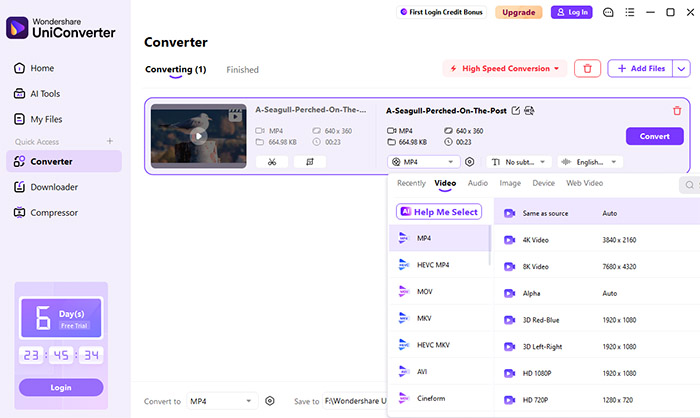
Video conversion remains the strongest reason to use UniConverter. It supports a broad range of video and audio formats and allows users to change resolution, codec, frame rate, bitrate, and audio parameters rather than relying entirely on fixed presets.
Batch conversion is also useful for larger media collections. Files can be added together and processed under the same output configuration, reducing repetitive setup for routine conversions.
The compression tool adds another practical option for users dealing with large files. However, compression should be judged by both the final file size and visible quality. Our 4K test shows that a much smaller file is not automatically better if the output settings are too aggressive.
Video Downloader & Recorder
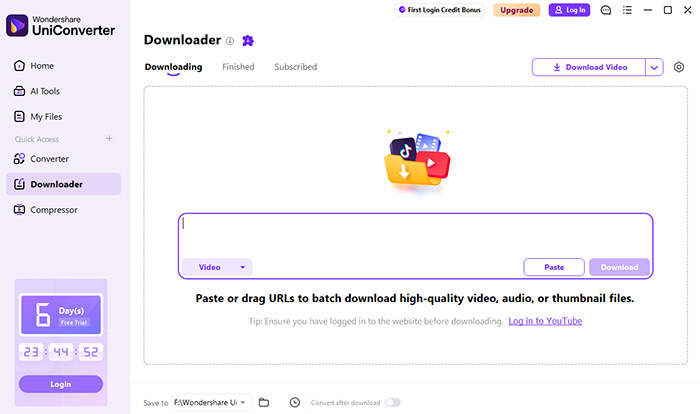
UniConverter also combines online video downloading and screen recording with its conversion tools. This is useful for users who regularly move downloaded media into a different format or resolution.
The main advantage is convenience: downloading, converting, compressing, and recording do not require separate desktop applications. However, availability and supported websites can change as online platforms update their systems, so downloader compatibility should not be treated as permanent.
Subtitle & Basic Editing Tools
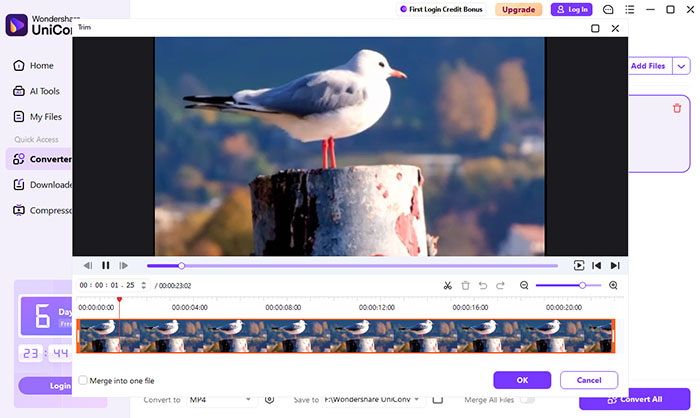
UniConverter includes basic editing functions such as trimming, cropping, merging, effects, watermarking, and playback-speed adjustments. Subtitle-related functions are also available for common media tasks.
These tools are suitable for quick changes rather than detailed timeline editing. Users who need multi-track editing, advanced color correction, professional audio mixing, or complex effects will still need a dedicated video editor.
AI Features: Useful Additions, Not the Main Draw
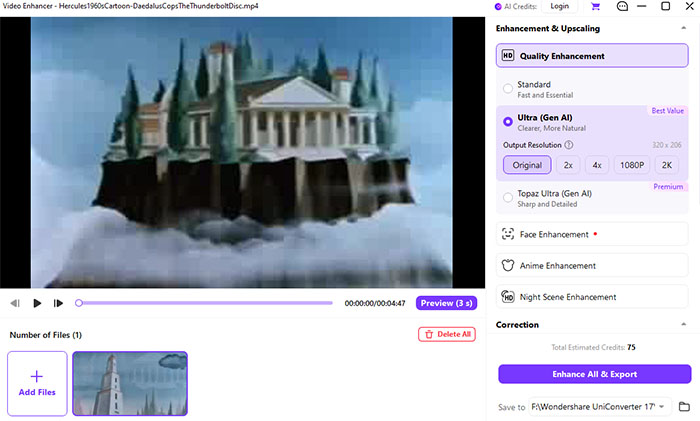
UniConverter includes several AI-assisted functions for tasks such as enhancement and image or video processing. They add convenience, but the core value of the software remains its broader media toolkit and conversion engine.
For that reason, AI video upscaler should be viewed as an additional feature rather than the deciding factor. Users choosing UniConverter primarily for conversion should compare speed, output control, supported formats, and hardware acceleration first.
UniConverter Free vs Paid: Pricing, Limits & AI Credits
UniConverter offers a limited free experience, but the exact restrictions vary by feature and plan. Some functions are available for testing before purchase, while full access requires a paid license. AI-related functions may also use separate credit or usage limits depending on the current plan.
Because Wondershare periodically changes plan structures, prices, and included benefits, the purchase page should be checked immediately before buying rather than relying on an old price quoted in a review.
| Item | What to Expect |
|---|---|
| Free Version | Allows users to test selected conversion and media functions but does not provide unrestricted access to the full feature set. |
| Paid Version | Unlocks additional conversion, editing, downloading, compression, and other premium functions. |
| AI Features | Some AI-assisted functions may have separate usage or credit restrictions depending on the current plan. |
| Pricing | Plan prices and included benefits can change, so the current Wondershare pricing page should be checked before purchase. |
Pricing Summary: UniConverter makes the most financial sense for users who will regularly use several of its functions. Paying for a large suite only to perform occasional format conversions is harder to justify, especially when free tools such as HandBrake cover basic conversion without a subscription.

Wondershare UniConverter Review: Pros & Cons
After testing UniConverter with both DVD and 4K media, the strengths and weaknesses are fairly clear. Its strongest results came from conversion speed and hardware utilization, while output quality and some interface details were less consistent.
User reviews on Trustpilot also show a mixed experience, with some users praising its performance and support while others report issues with crashes, refunds, or licensing. This broadly matches our hands-on findings, suggesting that the software's overall experience can vary depending on the task and setup.
Pros
- Very fast conversion in our 4K VP9 test.
- Strong GPU utilization on the tested AMD RX 6700 XT system.
- Fast DVD conversion in our benchmark.
- Supports a broad range of video and audio formats.
- Combines conversion, compression, downloading, recording, and basic editing.
- Provides detailed output controls for codec, resolution, FPS, bitrate, and audio settings.
- Batch conversion is useful for processing multiple files.
Cons
- DVD output looked blurry in our tested profile.
- A larger output file did not automatically translate into better visual quality.
- The converted file was not particularly easy to open through the guided interface in our test.
- The large feature set can make the interface feel busy.
- Free-version restrictions limit unrestricted use.
- AI-related features may involve separate usage or credit limits.
- Some advanced editing tasks still require dedicated software.
Overall: UniConverter packs a large number of media functions into one application, and the performance tests show that its conversion engine can make very effective use of supported GPU hardware. The main caveat is that speed does not automatically guarantee the best output quality or the smoothest user experience in every task.

UniConverter vs HandBrake: What's the Difference?
UniConverter and HandBrake both convert video, but they target different types of users. HandBrake is an open-source encoder centered on video conversion, while UniConverter combines conversion with downloading, recording, compression, editing, and other media utilities.
| Feature | UniConverter | HandBrake |
|---|---|---|
| Video Conversion | Yes | Yes |
| Batch Conversion | Yes | Yes |
| Hardware Encoding | Supported on compatible hardware | Supported on compatible hardware |
| Video Downloader | Yes | No |
| Screen Recorder | Yes | No |
| Basic Video Editing | Yes | Limited |
| AI-Assisted Tools | Yes | No |
| Cost | Paid software with limited free access | Free and open source |
Comparison Summary: HandBrake is more focused on encoding and gives users a free, open-source option with extensive control over output settings. UniConverter is broader and more convenient for users who want several media utilities inside one application. The choice therefore comes down less to the number of supported formats and more to how many functions are actually needed.
Is Wondershare UniConverter Worth It?
UniConverter is a capable option for users who regularly convert, compress, download, record, and edit video and prefer having those functions in one desktop application. Our benchmark results show particularly strong performance with the tested 4K VP9 workload and fast processing on the test DVD.
At the same time, the DVD output was visibly soft, and some interface behavior was less polished than expected. That means raw conversion speed should not be the only factor considered before purchasing.
For occasional video conversion, a free encoder such as HandBrake may cover the basic requirement. For users who need a broader collection of media utilities and can make use of those extra functions regularly, UniConverter offers a more comprehensive desktop package.
The most useful way to judge the software is therefore to compare the features actually needed against the current license cost, free-version limits, and the hardware-specific performance shown in testing.
 FAQ about Wondershare UniConverter
UniConverter is useful for users who need more than basic video conversion and want downloading, compression, recording, editing, and other media tools in one application. Its value is lower for users who only need occasional format conversion.
UniConverter offers a limited free experience, but unrestricted access to premium functions requires a paid plan. Some AI-assisted functions may also have separate usage or credit limits.
In our 4K VP9 test, UniConverter converted a 1.976GB 4K HDR10 WebM file to 1080p HEVC in about 210 seconds, reaching 107 FPS and approximately 3.6x real-time speed.
Yes. Hardware acceleration is supported on compatible systems. In our 4K VP9 test with an AMD Radeon RX 6700 XT, UniConverter reached 53.16% average GPU utilization while average CPU usage was 9.60%.
UniConverter supports DVD-related conversion and backup tasks. In our Wreck-It Ralph DVD test, it completed the conversion in 522 seconds. The resulting video, however, appeared blurry at the tested output settings.
The two applications serve different purposes. HandBrake is a free, open-source video encoder, while UniConverter combines conversion with downloading, recording, compression, editing, and other media functions.
Yes. UniConverter includes AI-assisted functions for tasks such as image and video enhancement. These tools are additional features rather than the core of the application's conversion workflow.
Output quality depends on the source, codec, resolution, bitrate, frame rate, and other encoding settings. In our DVD test, the output looked blurry despite using a 2500 kbps bitrate, so users should check the actual output rather than judging quality from bitrate alone.


