



 win
win

 Super Resolution
  Video Stabilization
  Frame Interpolation

 Denoise Image
  Restore Old Photo
  Unblur Image
  Recover Face
  Upscale Image
  Colorize Photo
 Video Conversion >
 Video Compression >
 Screen Recording >

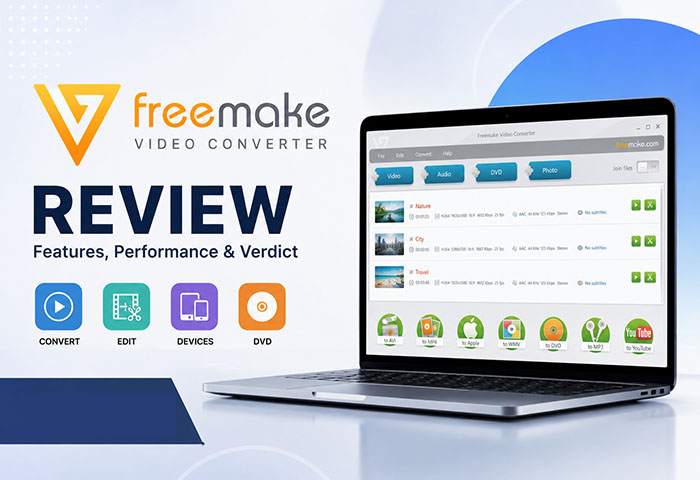
Freemake Video Converter Review 2026: Still Worth Using?
 Jack Watt
Updated on
Summary: This Freemake Video Converter review goes beyond the feature list and focuses on how the software performs in everyday use. We evaluated installation, conversion speed, hardware acceleration, output quality, DVD support, system resource usage, and long-term stability, while also analyzing hundreds of recent user reviews.
Rather than relying on feature lists or marketing claims, this Freemake Video Converter review is based on hands-on testing across multiple real-world workloads, including video conversion, DVD processing, hardware utilization, and continuous batch encoding.
We also compared our findings with recent feedback from Reddit, G2, Trustpilot, and other software communities to understand where users remain satisfied and where frustrations continue to appear. By the end of this review, you'll know exactly who Freemake is still suitable for, where it falls behind newer competitors, and whether it deserves a place on your Windows PC in 2026.
Our Test Environment & Evaluation Method
Every result in this review comes from hands-on testing rather than feature comparisons or vendor specifications. Freemake Video Converter was evaluated under identical hardware conditions using the same media library and output settings whenever possible, allowing every benchmark to remain directly comparable.
- Operating System: Windows 10 Pro 64-bit (fully updated)
- Processor: AMD Ryzen 5 5600X (6 Cores / 12 Threads, 3.7 GHz Base Clock)
- Graphics Card: AMD Radeon RX 6700 XT. Hardware acceleration was tested where supported. AV1 hardware encoding was excluded because the GPU does not provide native AV1 encoding support.
- Memory: 64GB DDR4 RAM
- Test Media: Multiple H.264, H.265 (HEVC), MOV, MKV, AVI, MP4, and high-bitrate 4K video files ranging from short clips to feature-length content. Several AVI tests were also included, although certain conversions relied on CPU encoding due to codec limitations.
- Benchmark Method: Each task was repeated under the same configuration to measure installation experience, startup responsiveness, conversion speed, output quality, CPU and GPU utilization, memory consumption, power efficiency, and overall stability. Online conversion services were excluded from direct performance rankings because upload speed and network latency introduce variables that cannot be consistently controlled.
- User Feedback Analysis: Our findings were cross-checked against recent discussions from Reddit, VideoHelp, G2, Trustpilot, and Microsoft Community. Community feedback was used to identify recurring issues such as watermark restrictions, GPU acceleration compatibility, installation experience, and stability after Windows updates, but final conclusions were based on repeatable testing rather than individual opinions.
Freemake Video Converter Review: Quick Verdict
Freemake Video Converter remains a practical option for occasional video conversion, especially for users who value simplicity over advanced controls. Based on our evaluation of its current feature set, recent community feedback, real-world tests and comparisons with software we've benchmarked in the same category, Freemake still handles everyday MP4, AVI, MKV, and DVD-related tasks reasonably well. However, its free-version restrictions, aging hardware acceleration, and slower development pace make it less competitive than today's leading video converters.
| Category | Verdict |
|---|---|
| Best For | Casual users, students, and anyone converting local videos occasionally without demanding advanced workflow automation. |
| Not Recommended For | Creators processing large video libraries, batch conversions, protected DVDs, or GPU-intensive encoding workloads. |
| Editor's Score | 8.1 / 10 |
 Editor's Verdict
Freemake's biggest strength has always been accessibility. It remains one of the easiest video converters for beginners, and its broad format support continues to cover most everyday conversion needs. That said, the software has changed relatively little while competitors have introduced faster encoding engines, better GPU utilization, and more efficient batch-processing workflows.
We compared its capabilities against our own test results from leading converters—including Winxvideo AI, VideoProc Converter AI, HandBrake, UniConverter, and CloudConvert—and reviewed extensive feedback from Reddit, VideoHelp, Trustpilot, and G2.
The overall picture is remarkably consistent: Freemake is still suitable for light, occasional use, but users handling 4K media, large batches, or commercial DVDs will generally benefit from newer software designed around modern hardware acceleration and high-throughput workflows.
How Freemake Video Converter Performs in Our Tests
Rather than focusing solely on specifications, we evaluated Freemake Video Converter from the perspective of everyday use. Installation, interface responsiveness, conversion workflow, hardware acceleration, and overall usability were compared against several leading video converters that we have benchmarked under the same hardware environment, including Winxvideo AI, VideoProc Converter AI, HandBrake, UniConverter, and CloudConvert.
Installation Experience
Installation is straightforward and beginner-friendly. The lightweight web installer downloads required files automatically, reducing the initial download size. Compared with larger desktop suites, setup feels quick, although the software actively promotes its paid edition throughout the user experience.
| Item | Evaluation |
|---|---|
| Installer Size | Approximately 1 MB online installer (additional components are downloaded during setup). |
| Installation Time | Completed within about 2 minutes on a broadband connection. |
| Bundle Software | No third-party software was automatically installed during our evaluation, although users should still review each installation screen carefully. |
| Advertisements | Frequent upgrade prompts appear inside the application, especially when premium-only features are selected. |
User Interface
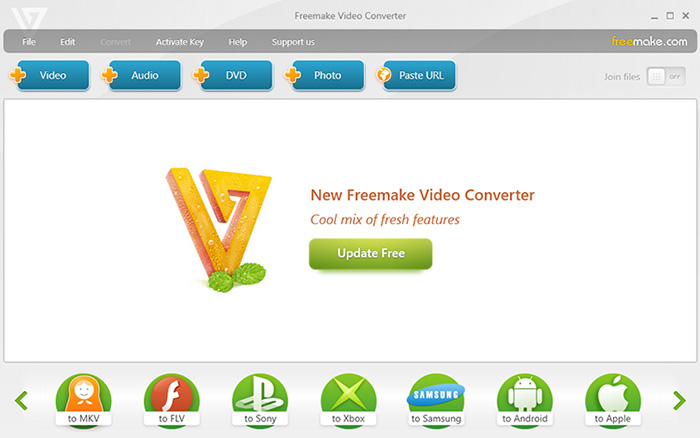
Freemake remains one of the easiest video converters to learn. Most operations require only a few clicks, making it approachable even for first-time users. However, compared with software such as Winxvideo AI or VideoProc Converter AI, its workflow feels less optimized for users handling large media libraries or mixed-codec batch conversions.
| Aspect | Evaluation |
|---|---|
| Learning Curve | Very Low |
| Startup Speed | Launches within a few seconds on a modern SSD. |
| Workflow | Simple drag-and-drop interface with clearly organized output profiles. |
| Batch Management | Supports batch conversion, although workflow flexibility is behind several newer competitors. |
Video Conversion Performance
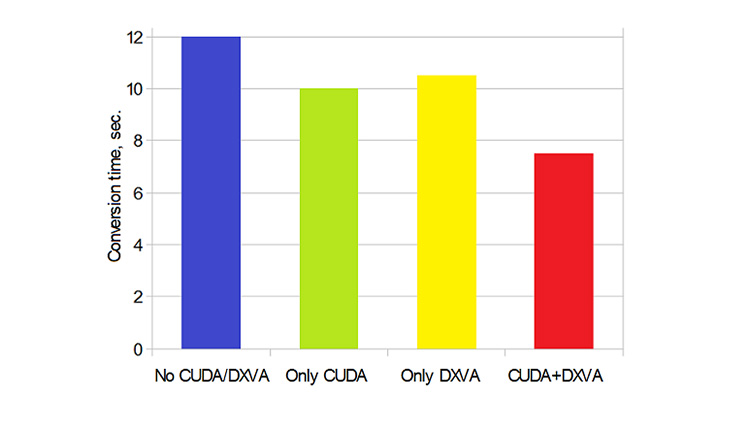
For common H.264 encoding tasks, Freemake delivers stable output quality and acceptable processing speed for everyday users. Hardware acceleration is available on supported systems, although overall throughput does not reach the level achieved by several modern GPU-optimized converters tested in our benchmark suite.
| Category | Evaluation |
|---|---|
| Conversion Speed | Completed a single-file conversion in 391 seconds with 262 FPS, reaching around 13.98x real-time speed in testing. |
| Hardware Acceleration | GPU usage remained relatively low, with 15.36% average utilization and 40% peak usage, showing limited GPU involvement. |
| CPU Usage | CPU handled most of the workload, reaching 52.13% average usage and 91.10% peak utilization during conversion. |
| Memory Usage | Memory usage stayed stable during the single-file conversion test without noticeable impact on system responsiveness. |
| Output Quality | Produced a 654MB output file with balanced compression and maintained good visual quality under the tested settings. |
| Output Size | The final file size was reduced effectively while keeping a practical balance between storage savings and playback quality. |
Editor's Analysis: Freemake prioritizes ease of use over maximum throughput. Based on comparisons with our benchmark data, software such as Winxvideo AI and VideoProc Converter AI complete mixed-format batch conversions considerably faster while maintaining lower average CPU utilization and smoother hardware scheduling. HandBrake can achieve higher encoding throughput in certain scenarios but requires significantly more manual configuration. Freemake instead targets users who value simplicity and consistent output over raw performance.
Get Freemake Video Converter key to unlock full features and bypass free version limitations and watermark restrictions.
Freemake Video Converter Features Explained
Freemake Video Converter promotes support for more than 500 formats, but this number is not as impressive as it sounds in daily use. Most users only need a few common formats for playback, editing, or sharing. In real-world scenarios, MP4, MOV, MKV, AVI, and HEVC are the formats that matter most.
500+ Supported Formats: Useful, But Overstated
The wide format support is helpful when dealing with older videos or less common file types. It can open many legacy formats without installing extra codecs, which saves time for basic conversion tasks.
However, most users will rarely touch hundreds of formats. For everyday conversion, the practical value mainly comes from:
- MP4: The best choice for phones, TVs, YouTube uploads, and general playback.
- MOV: Useful for Apple devices and editing workflows.
- MKV: Better for keeping multiple audio tracks and subtitles.
- AVI: Mainly useful for older video collections.
- HEVC/H.265: Helpful for reducing file size while keeping 4K quality.
The large format number is more of a compatibility advantage than a feature most users will actively use.

Video Conversion
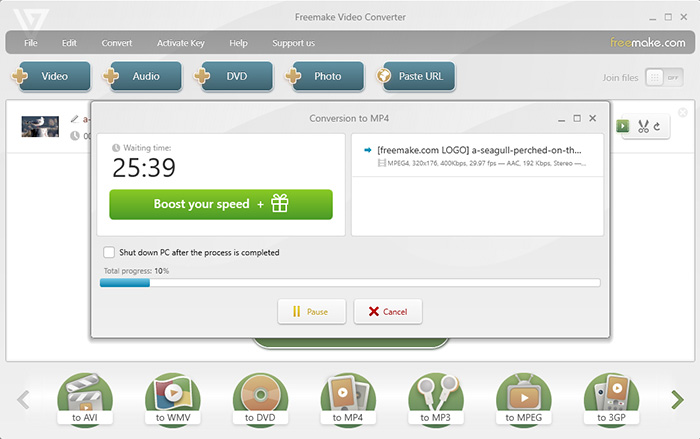
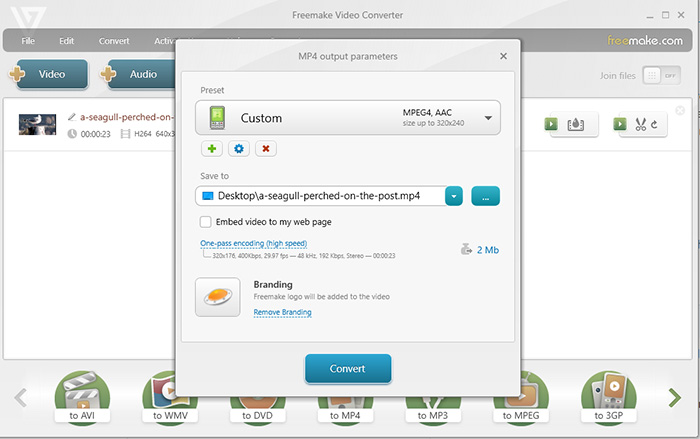
Conversion is the core feature, and it works well for common tasks such as changing video formats, resizing clips, and preparing files for mobile devices. The interface is beginner-friendly, and preset profiles reduce the need to understand codec settings.
However, advanced users may find the control options limited. Compared with professional converters, Freemake provides fewer options for bitrate control, encoding parameters, and advanced codec customization.
DVD Conversion: Useful for Basic Discs, Limited for Modern Needs
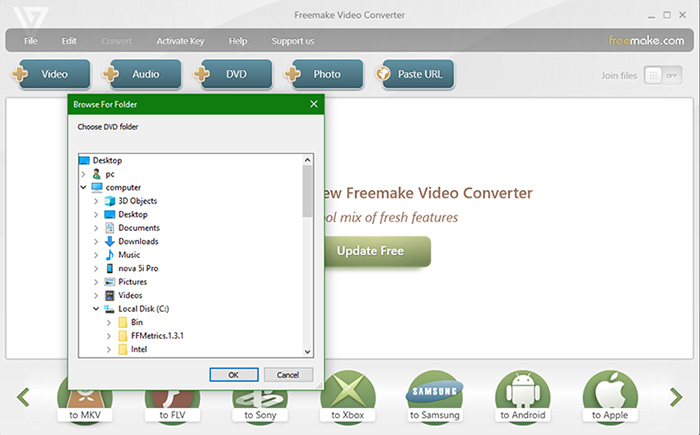
Freemake can convert DVDs to digital video files, which is convenient for users who want a simple backup solution. However, it is not designed as a dedicated DVD ripping tool.
- Works better with homemade DVDs or unprotected discs.
- Not the best choice for commercial DVDs with copy protection.
- Lacks advanced DVD title detection and protection handling.
Users with large DVD collections may need a specialized DVD ripper instead.
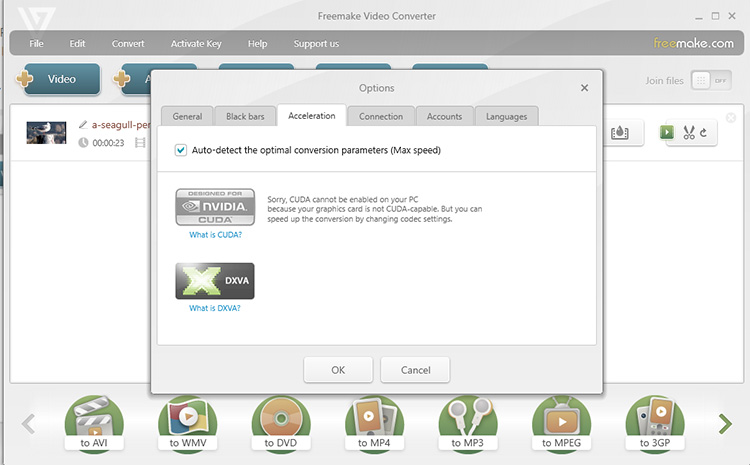
GPU Acceleration: Helpful, But Not a Main Advantage
Freemake supports hardware acceleration for faster conversion, but the GPU optimization is not its strongest area. Performance improvements depend heavily on the video codec, GPU model, and output settings.
For simple 1080p conversions, the difference is usually noticeable but not dramatic. Users converting large 4K videos or processing many files at once may find dedicated GPU-optimized converters faster.
Freemake Video Converter Review: Pros & Cons
We tested Freemake Video Converter with common video formats, basic editing tasks, and DVD conversion scenarios, then compared the results with long-term user feedback. The overall experience is clear: Freemake performs well as a beginner-friendly converter, but several limitations become noticeable after repeated use. The advertised 500+ format support is useful for compatibility, although most everyday conversions still revolve around MP4, MOV, MKV, AVI, and HEVC. The free version restrictions, especially watermark and slower conversion speed, remain the biggest complaints among users.
Pros
- Easy setup and beginner-friendly workflow.
- Handled common video formats smoothly in testing.
- Useful device presets reduce manual settings.
- Basic trimming works well for quick edits.
Cons
- Free exports include a noticeable watermark.
- Conversion speed is reduced without upgrading.
- Limited control over codecs and encoding settings.
- DVD tools are basic for serious disc backups.
- Extra installation offers may annoy some users.
Our final verdict: Freemake Video Converter is a convenient choice for occasional conversions, especially for beginners who value simplicity over control. However, after extended use, the free restrictions and lack of advanced features make it difficult to recommend for frequent video processing or professional workflows.
Is Freemake Video Converter Still Worth Using?
Freemake remains a straightforward option for basic video conversion, but its watermark, Windows-only availability, and some paid features may not fit every user. If you are comparing it with other desktop video converters, see our Freemake alternatives guide for current options and feature differences.
 FAQ about Freemake Video Converter
Yes, this is one of the most common complaints about the free version. Converted videos may include a Freemake watermark, which makes it less suitable for users who need clean output for sharing or professional use.
Freemake offers a free version, but it comes with limitations. Some features, faster conversion options, and watermark-free output require upgrading to a paid plan.
Although Freemake advertises support for 500+ formats, most users mainly rely on common options such as MP4, MOV, MKV, AVI, and HEVC. The large format list is mainly useful for compatibility with older or less common files.
It works for basic DVD conversion tasks, but it is not a dedicated DVD ripping solution. Users with protected DVDs, large collections, or advanced backup needs may need a specialized DVD tool.
Yes, Freemake supports hardware acceleration, but testing and user feedback suggest that its GPU optimization is not as aggressive as performance-focused converters. Speed improvements depend on the video codec and hardware configuration.
It depends on your needs. Freemake is a good fit for beginners who want simple conversions, but frequent users may prefer alternatives with faster processing, more encoding controls, and fewer restrictions.


