








How to Rip Blu-ray with MakeMKV: Complete Guide
 Donna Peng
Updated on
MakeMKV can rip a Blu-ray by copying its original video, audio, subtitles, and chapter information into an MKV file without re-encoding, so the output keeps the source quality. For regular Blu-ray discs, a compatible Blu-ray drive is generally all you need, while 4K UHD Blu-ray ripping involves additional drive compatibility and LibreDrive considerations.
In practice, clicking the Make MKV button is rarely the difficult part. Users are more likely to run into dozens of similar titles, trouble identifying the correct movie playlist, disc-reading or key errors, or huge MKV file after ripping.
This guide shows you how to rip Blu-ray with MakeMKV step by step, from selecting the right title and tracks to checking the finished file. You'll also find practical fixes for common MakeMKV ripping problems, guidance for regular and 4K UHD Blu-rays, and options for reducing the size of large MKV files afterward.
Quick Answer: How to Rip Blu-ray with MakeMKV
MakeMKV can rip Blu-ray into an MKV file without re-encoding. The basic process takes only a few steps:
Step 1. Insert your Blu-ray disc and open MakeMKV.
Step 2. Let MakeMKV scan the disc and display the available titles.
Step 3. Select the main movie and the audio or subtitle tracks you want to keep.
Step 4. Choose an output folder and click Make MKV to start ripping.
If MakeMKV cannot read your Blu-ray, don't keep restarting the same rip. Jump to the troubleshooting section to narrow down whether the disc, drive, protection, or software is causing the problem.
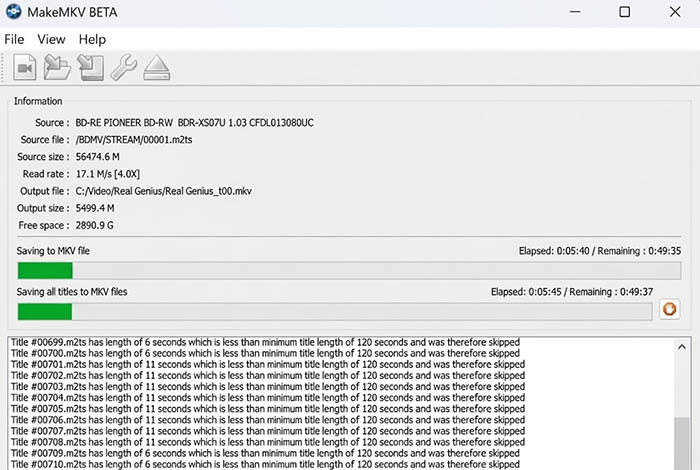
What You Need to Rip a Blu-ray with MakeMKV
Before you start, check a few basics first. The drive you use, available storage, and your MakeMKV version can all affect whether the Blu-ray rips smoothly and what you can do with the resulting MKV.
A Blu-ray Drive, Not Just a DVD Drive
A DVD drive cannot read Blu-ray discs. For regular Blu-ray movies, you only need a compatible Blu-ray drive. 4K UHD Blu-rays are different: drive compatibility and firmware become more important, and LibreDrive may be required for supported drives. You don't need to set up a UHD-capable drive or LibreDrive just to rip a standard 1080p Blu-ray.
Enough Free Storage
MakeMKV does not compress the video during ripping, so the resulting MKV can take up tens of gigabytes. Keeping more audio tracks, subtitles, and other streams also increases the file size. For a Plex or Jellyfin library, you may want to preserve multiple tracks; for simple playback, keeping only the tracks you need can save considerable space.
A Current MakeMKV Version and Beta Key
MakeMKV uses a beta-key system, so check the official source for the current software version and valid MakeMKV Beta key rather than relying on an old key copied from another site. Avoid cracked or patched builds, which can introduce security and stability problems.
How to Rip Blu-ray with MakeMKV
Once your Blu-ray drive, storage space, and MakeMKV setup are ready, it is straightforward to convert Blu-ray to digital MKV format. The part that deserves more attention is choosing the right movie title and tracks, especially when a disc contains many similar playlists.
Step 1. Open MakeMKV and Insert Your Blu-ray
Insert the Blu-ray into your drive and launch MakeMKV. When the disc is recognized, its drive icon should appear in the main window. Select the Blu-ray drive to begin reading the disc. If MakeMKV does not detect the disc at all, check the drive and disc first instead of moving on to title selection.
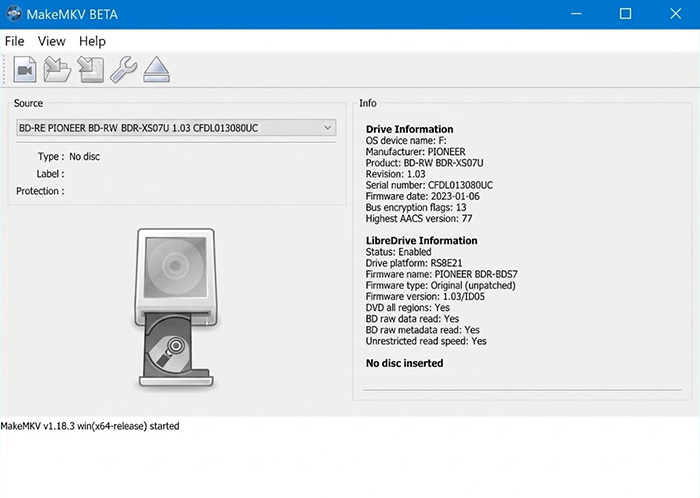
Step 2. Let MakeMKV Scan the Blu-ray
MakeMKV needs to analyze the disc before showing its contents. Depending on the disc, you may see multiple titles, playlists, M2TS files, and different runtimes. Blu-ray structures can be more complicated than a simple DVD title list, so a longer scan does not necessarily mean the program has frozen.
Tip: Don't start selecting titles while the disc is still being analyzed. Wait for the scan to finish and let MakeMKV populate the full title list. A disc with many playlists can take longer to process than a simple movie disc.
Step 3. Find the Correct Movie Title
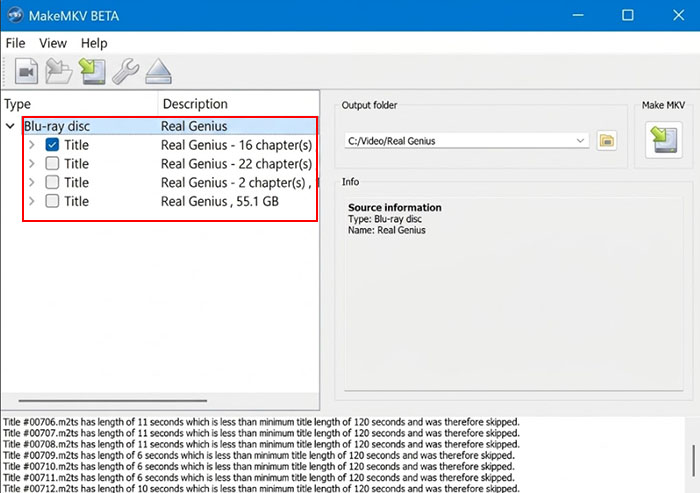
Don't automatically choose the largest title. Check the runtime, file size, chapter count, and playlist together. Some Blu-rays contain several nearly identical playlists, and playlist obfuscation can make the correct movie harder to identify. Choosing the wrong playlist can result in scenes appearing in the wrong order even when the runtime and file size look normal.
Tip: If you see dozens of titles with nearly identical runtimes and sizes, search the movie title together with MakeMKV or check the MakeMKV forum for the correct playlist. Installing Java can also help MakeMKV identify the intended playlist on discs that use BD-Java. Don't rely on runtime alone when playlist obfuscation is involved.
For a TV series or a disc containing several episodes, compare the runtime and track information for each title rather than assuming the first or largest one is the episode you need. When several titles are genuinely difficult to distinguish, ripping the relevant candidates and checking them afterward can be less frustrating than guessing.
Step 4. Select the Video, Audio, and Subtitle Tracks
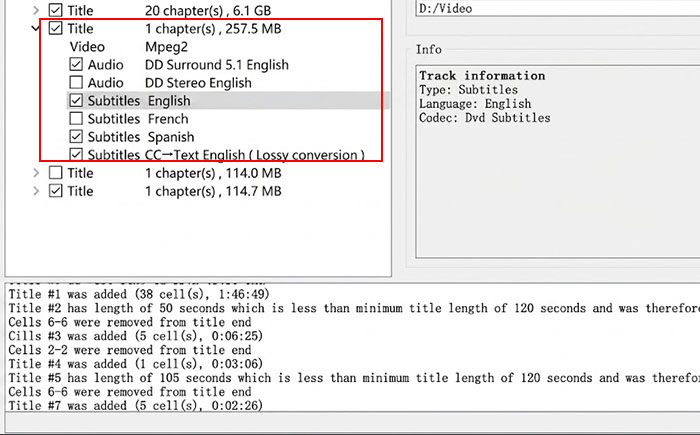
Expand the main title and choose the video, audio, subtitles, and chapters you want to keep. You may find multiple languages, commentary tracks, forced subtitles, and full subtitle tracks. Selecting more streams does not improve video quality, but it does increase the final MKV size, so keep only what you actually need.
Tip: Check the audio language and codec before removing tracks. A Blu-ray may include both a lossless soundtrack and a smaller compatibility track, while commentary and alternate-language tracks can look similar at first glance. If you plan to use the MKV with Plex or another media server, keeping the tracks you actually use is usually better than stripping everything down and discovering later that an important track is missing.
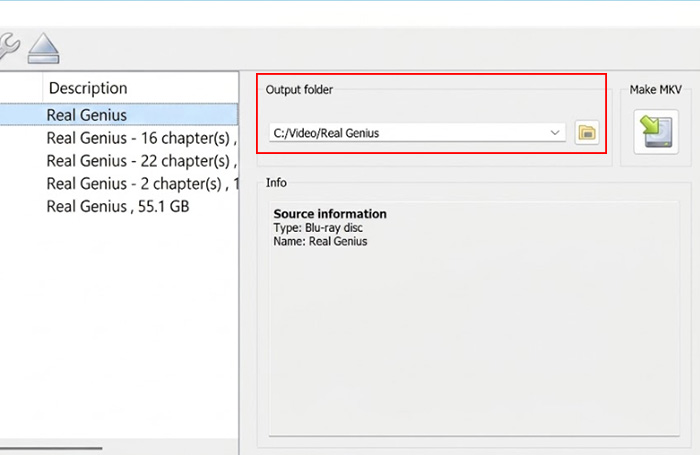
Step 5. Choose an Output Folder
Pick a drive with plenty of free space rather than automatically using the system drive. Because MakeMKV does not compress the video, a Blu-ray rip can easily occupy tens of gigabytes. Saving directly to a NAS or network location can also take longer, while an unstable external USB connection may interrupt a long rip.
Tip: For a first rip, saving to a local internal or directly connected drive is often easier to troubleshoot. You can move the finished MKV to a NAS or media server afterward. This also gives you a chance to verify the file before transferring a large file over the network.
Step 6. Click Make MKV
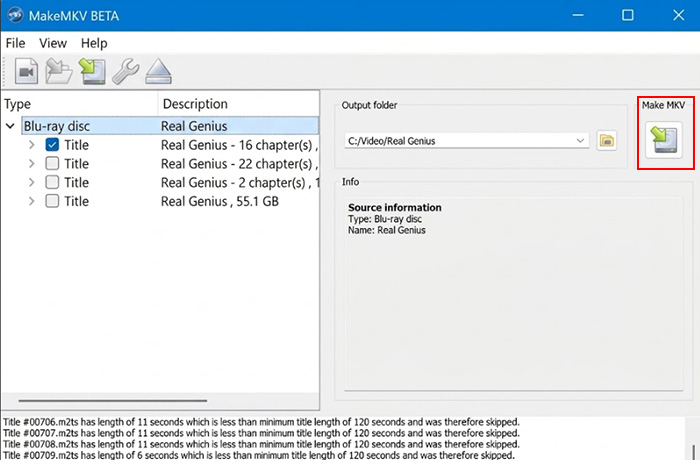
Choose Make MKV to start the process to rip Blu-ray for Plex, NAS, hard drive, etc. MakeMKV remuxes the selected Blu-ray streams instead of re-encoding them, so you do not need to set an H.264/H.265 bitrate or choose a lower resolution. The resulting MKV generally keeps the source video's original resolution and quality.
Tip: Don't judge the rip by its file size alone. A large MKV is normal when the source video is kept without re-encoding, and keeping several audio or subtitle tracks makes it larger still. If you need a smaller file later, compress the completed MKV with a separate encoder such as HandBrake rather than changing settings in MakeMKV.
Step 7. Check the MKV Before Deleting Your Source
Don't delete the disc backup or other source files immediately after MakeMKV reports that the job is complete. Open the MKV and check the movie runtime, scene order, video, audio, subtitles, chapters, and synchronization. A quick check can catch a wrong playlist or playback problem before you remove your original source.
Tip: Watch more than the opening few seconds when checking a difficult disc. Jump to several chapters or different points in the movie to make sure the scenes are in the correct order and the audio stays synchronized. This is particularly useful for discs with multiple similar playlists, where the wrong selection can still produce a perfectly playable MKV.
MakeMKV Won't Rip Blu-ray? Common Problems and Fixes
Most MakeMKV Blu-ray ripping problems come down to the disc, drive, connection, protection, or title selection rather than MakeMKV itself. Check the exact symptom first, then try the fix that matches it.
| MakeMKV Blu-ray Problem | Likely Cause | What to Try |
|---|---|---|
| Doesn't Detect Blu-ray | Disc, drive, USB, or power issue | Test another disc and USB port/cable. |
| "No Disc" / No Titles | Disc reading or structure issue | Reinsert the disc and check the log for read or AACS errors. |
| "0 Titles Saved" | Usually a read or decryption failure | Check the errors above it. MEDIUM ERROR suggests a read issue; AACS errors suggest decryption. |
| Hash Check Error | Data verification failure | Retry the disc, test another drive, and check the MakeMKV version. |
| "Uncorrectable Read Error" | Disc or drive cannot read the data | Clean the disc and test another disc or drive. |
| Stops Mid-Rip | Bad disc area, drive, USB, or power issue | Check read speed, then test another disc, USB port, or drive. |
| Cannot Find Decryption Key | Newer AACS or unavailable key | Update MakeMKV and check its forum for the disc or AACS version. |
| Movie Plays in Wrong Order | Playlist obfuscation | Compare runtime, chapters, and playlist details. Don't always pick the largest title. |
| Audio/Subtitles Missing | Track selection or player compatibility | Recheck tracks, including "Undetermined," and test another player. |
 FAQs About Ripping Blu-ray with MakeMKV
MakeMKV can process many protected Blu-rays and extract their video, audio, subtitles, and chapters into MKV. However, support can vary with the disc's AACS version, available keys, and drive configuration.
Not usually for standard 1080p Blu-rays. Most can be ripped with a regular Blu-ray-compatible drive. UHD Blu-rays have stricter drive requirements, and LibreDrive support is typically needed. LibreDrive is not simply a Blu-ray decryption feature.
Yes, but UHD Blu-ray ripping requires a compatible drive, appropriate firmware, and usually LibreDrive support. A drive that reads ordinary Blu-rays does not automatically mean it can rip 4K UHD discs.
A Blu-ray can contain multiple playlists for the main movie, extras, alternate versions, or playlist obfuscation. Some discs may show dozens or even hundreds of similar titles, so the largest title is not always the correct one.
Compare the runtime, playlist, chapter count, file size, audio tracks, and subtitles instead of relying on one value. For discs with playlist obfuscation, searching the movie title on the MakeMKV forum can help identify the correct playlist.
MakeMKV normally does not re-encode the video. It puts the selected Blu-ray streams into an MKV container, so the output can remain close to the source size. For a smaller file, use an encoder such as HandBrake after the rip.
A difficult disc area, read error, optical drive, USB connection, or power issue can cause a rip to slow or stop. Check the read speed, then test another Blu-ray. If different discs repeatedly stop on the same drive, the drive or connection may need attention.


