



 win
win

 Super Resolution
  Video Stabilization
  Frame Interpolation

 Denoise Image
  Restore Old Photo
  Unblur Image
  Recover Face
  Upscale Image
  Colorize Photo
 Video Conversion >
 Video Compression >
 Screen Recording >



How to Convert Netflix Downloads/Links to MP4
 Jack Watt
Updated on
Summary: This guide focuses on how to convert Netflix movies and episodes into MP4 files, so you can keep, transfer, and watch offline on any device without worrying about time limits or compatibility issues.
Most people searching for "convert Netflix to MP4" aren’t trying to pirate movies, they just want control over what they’ve already paid for. Netflix’s downloads are locked inside the app, expire over time, and can’t be moved or edited. You can’t play them on Plex, a projector, or even another device without re-authentication. That’s why users are hunting for a real way to convert Netflix downloads into MP4 files they can store, organize, and play anywhere. In this guide, we’ll break down what’s possible, which tools actually work for Netflix to MP4 conversion.
Convert Netflix Downloads to MP4 for Offline Viewing
Winxvideo AI can convert Netflix videos to MP4 so they work on any device, without the awkward format restrictions Netflix downloads come with.
- Convert Netflix streams into MP4, H.264, HEVC, MOV, MKV, AVI, and 400+ other formats.
- Ready-made profiles for iPhone, iPad, Android, smart TVs, game consoles, and portable players.
- Edit Netflix videos the way you want: trim highlights, crop black bars, add subtitles, adjust resolution, etc..
- Record Netflix or other protected web videos directly from your screen in up to 4K, with audio and subtitles.
- Free download shows, movies, playlist from 1000+ sites for trips, offline study, or personal archiving.
 Free Download
 Free Download
Winxvideo AI runs on Windows. For macOS users, the corresponding version is Macxvideo AI from our MacXDVD brand.
How to Convert Netflix Videos to MP4 Without Losing Quality
Before jumping in to convert Netflix to MP4, here’s the main issue: Netflix downloads come with DRM restrictions and formats that don’t play well on most devices. Converting them to MP4 gives you a universal file you can watch offline anywhere, on your phone, TV, tablet, or media server. The key is doing it without ruining the quality. Below are the steps on how to convert Netflix to MP4.
Step 1. Install and open the Netflix video converter
Download and launch the tool on Windows or macOS. It detects your hardware and enables GPU acceleration automatically, reducing conversion time.
Step 2. Add your Netflix videos
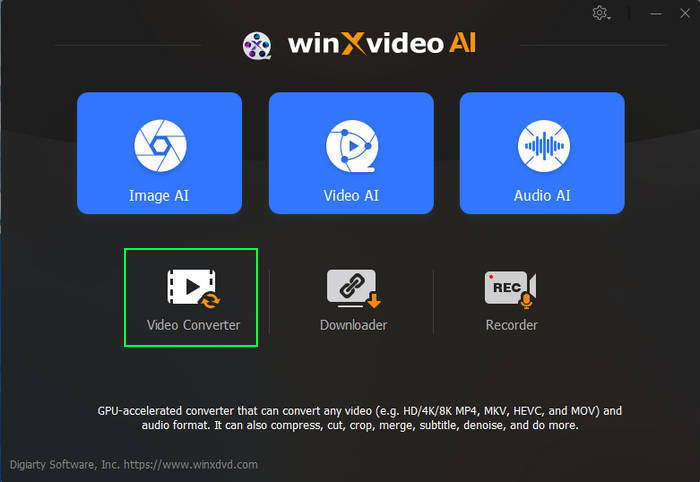
Click the Video Converter > + Video button and import the Netflix titles you’ve downloaded. The software supports multiple files, so you can convert a whole season in one go.
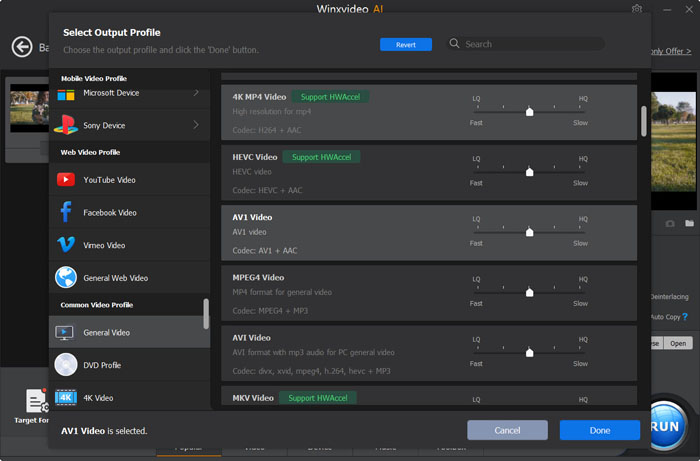
Step 3. Choose MP4 (H.264) as the output format
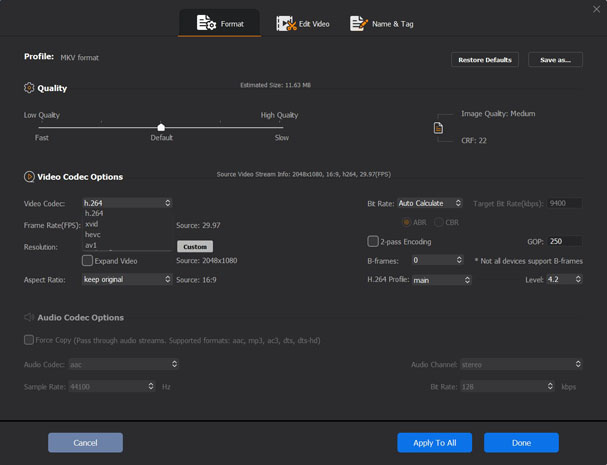
Select MP4 H.264 from the format list. This ensures maximum compatibility across devices and platforms. If needed, choose 4K MP4 for higher resolution playback.
Adjust quality settings wisely
Quality depends on the codec of your Netflix source:
- If it’s already H.264, enable Auto Copy to avoid re-encoding — this keeps the original quality untouched.
- If converting from HEVC/H.265 or VP9, the tool re-encodes to H.264. Expect a slight, often unnoticeable quality drop.
- Editing actions like cutting, cropping, and trimming don’t reduce quality if the codec stays the same.
- Lowering bitrate, resolution, or frame rate will reduce image clarity. Increasing settings preserves detail but increases file size.
Step 4. Start the conversion
Hit RUN and let the tool process your video. Hardware acceleration uses multiple CPU cores and your GPU to finish conversions faster. A movie usually completes in minutes.
Once finished, your MP4 file is ready for offline playback — no expiration, no format errors, and no Netflix app required. You can store it on your NAS, phone, USB stick, or media player and enjoy it anytime.
How to Record Netflix to MP4 in 4K without Losing Quality
Netflix downloads are locked inside the app, expire after a period of time, and can’t be moved to other devices. Recording Netflix movies and shows in MP4 as you play the video is the only practical way to save Netflix titles as MP4 for personal offline viewing. Winxvideo AI includes a hardware-accelerated screen recorder that captures exactly what’s on your display up to 4K and 60fps.
Step 1. Launch the recorder
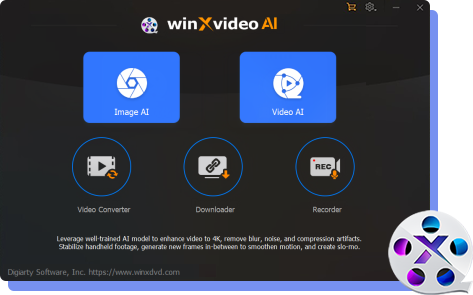
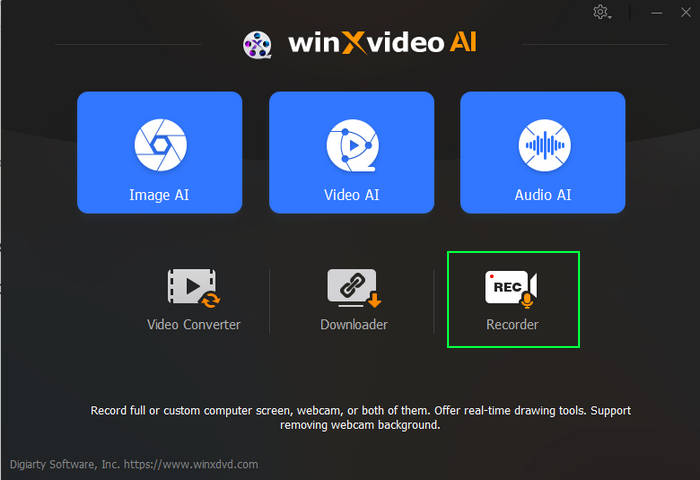
Open Winxvideo AI and choose Recorder from the main interface. It loads a dedicated workspace where you can manage capture settings before hitting record.
Step 2. Tweak your recording preferences
Tap the gear icon to open Settings. Here you can decide the output format (MP4), codec, frame rate (up to 60fps), shortcuts, and whether you want extras like mouse cursor display. Pick MP4 so the video plays smoothly on TVs, phones, and media servers.
Step 3. Select the area to capture
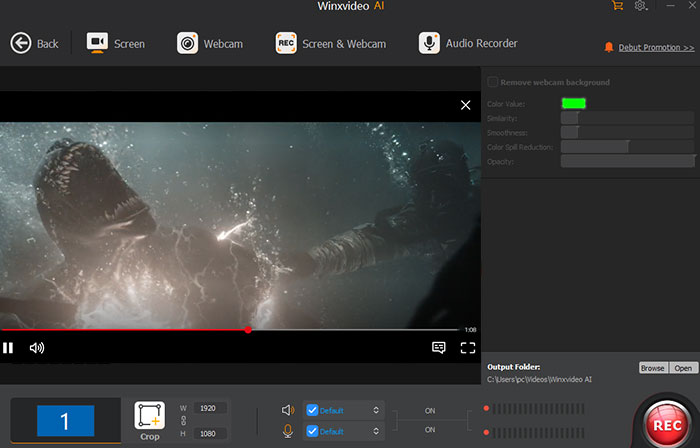
Click Screen to load your display. If you only want the Netflix player, use the Crop option to box that section. If you prefer a full-screen recording, leave the crop untouched.
Step 4. Start recording Netflix
Press REC. You get a short countdown, then everything on that area of the screen is captured in real time. If you need annotations, press the assigned hotkeys to bring up drawing tools without stopping the recording. Use the hotkey or click STOP when the video ends. The recorder immediately saves Netflix as an MP4 file, no extra conversion required. You now have a standalone video you can keep, back up, or play with VLC, Plex, or any other player.
Tip: Winxvideo AI can also record multiple monitors, which is handy if you want to keep Netflix on one display and your notes or browser on another.
How to Download Netflix Movies and Shows to MP4
If a title isn’t downloadable inside the Netflix app or you want a universal MP4 file you can keep, Winxvideo AI’s downloader lets you convert Netflix to MP4 and download Netflix videos in MP4 from supported sites and convert Netflix videos into MP4 without expiration limits.
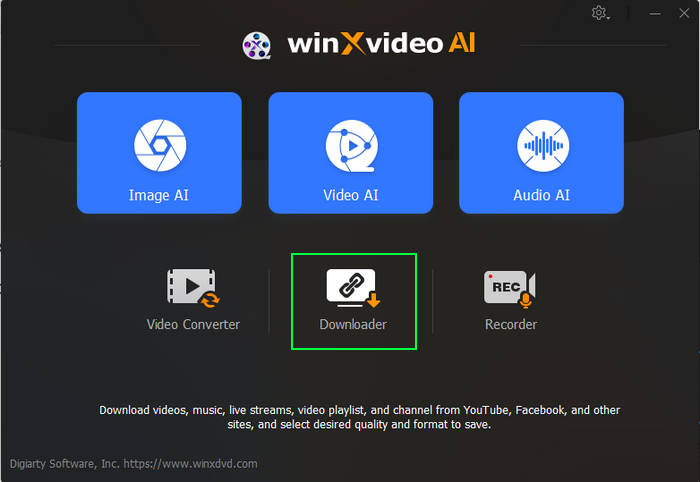
Step 1. Open the downloader
Launch Winxvideo AI and switch to the Downloader section. This is where you add links and manage downloads.
Step 2. Copy the Netflix video link
Find the movie page in your browser and copy its URL. You can queue multiple links if you’re grabbing more than one title.
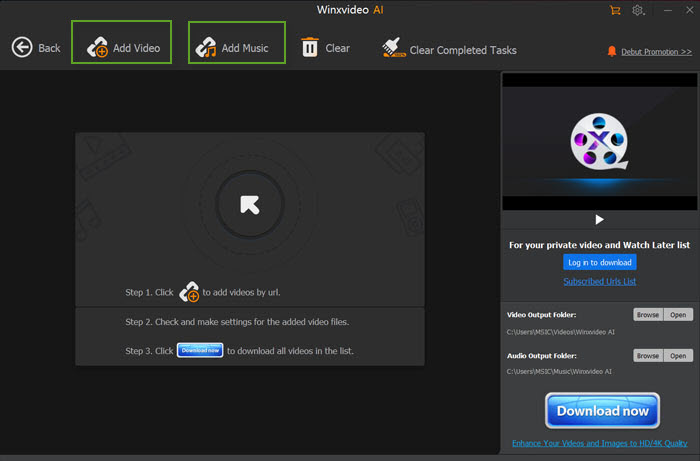
Step 3. Paste and analyze
Click Add Video and press Paste URL & Analyze. The tool reads the link and fetches available qualities and formats automatically.
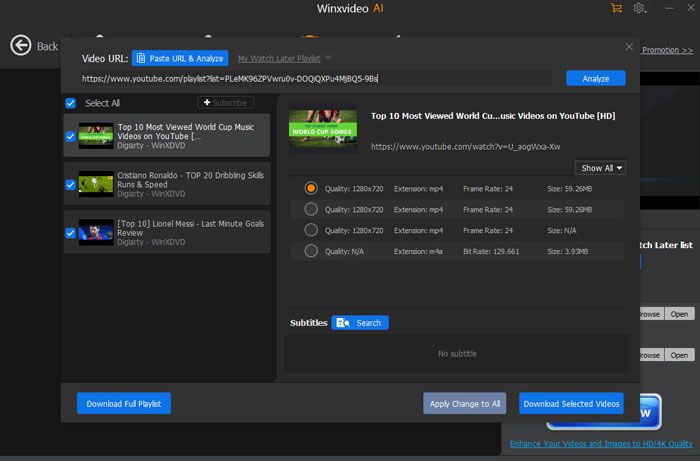
Step 4. Choose MP4 and quality
Select MP4 as the output and pick the resolution you prefer, HD, Full HD, or 4K if available. Pick a folder and hit Download Now. The selected titles will be saved as MP4 files on your drive, ready for offline playback on phones, tablets, TVs, and media servers without any Netflix restrictions.
 FAQs about How to Convert Netflix to MP4
No. Netflix downloads are protected with DRM, which prevents them from being converted or played outside the Netflix app. To get an MP4 file, you must record the stream or use a legal tool that captures the video while it plays on your screen. You cannot bypass Netflix’s encryption directly.
Recording a Netflix title for personal offline viewing exists in a legal gray zone. You cannot share, upload, or redistribute Netflix content, and stripping DRM protections is not permitted. However, screen-recording for personal use — without distribution — is typically treated differently depending on local laws. Always follow Netflix’s terms and your regional copyright rules.
You can’t directly move official Netflix app downloads to a USB drive — the files are encrypted and tied to your device. The only way to have a playable file on USB is to convert or record the movie into MP4 first, then save that MP4 to your USB. The MP4 format works on Smart TVs, laptops, media players, and most mobile devices.
No. Netflix downloads stay inside the Netflix app and are locked to the account and device used to download them. They cannot be copied or moved like regular video files. Converting them to MP4 is the only way to watch them on different devices without re-downloading.
Expiration is part of Netflix’s streaming rights. Some movies auto-delete after a fixed period or after you start watching them. Converting to MP4 avoids this limitation because the MP4 file is stored locally and does not depend on Netflix’s licensing schedule.
It depends on the method used. Recording tools that capture the original stream at its native resolution (1080p or 4K) with H.264 or H.265 encoding can preserve most of the quality. Poor settings, lower bitrates, or weak hardware will lead to blur, artifacts, or frame drops.


