



 win
win

 Super Resolution
  Video Stabilization
  Frame Interpolation

 Denoise Image
  Restore Old Photo
  Unblur Image
  Recover Face
  Upscale Image
  Colorize Photo
 Video Conversion >
 Video Compression >
 Screen Recording >



How to Convert TiVo Files to MP4 for PC, Phone, Plex, NAS
 Jack Watt
Updated on
Summary: This guide explains practical ways to convert TiVo recordings to MP4 so they can play on PCs, phones, Plex, and NAS systems, focusing on what actually works, what doesn’t, and which tools make the process simpler.
TiVo makes recording shows effortless, but once you try to watch them anywhere else, the frustration hits, .tivo files won’t play on your phone, computer, Plex, or smart TV. Tools like KMTTG or pyTiVo exist, but they’re confusing, and DRM adds another headache. If you want to watch your recordings on a phone, Plex, NAS, or smart TV, there’s a way to do it without losing video quality or breaking audio sync. Here, we break down what works on Windows and Mac, how to handle DRM, and the simplest methods that actually get the job done.
Convert TiVo Recordings to MP4 on Windows & Mac
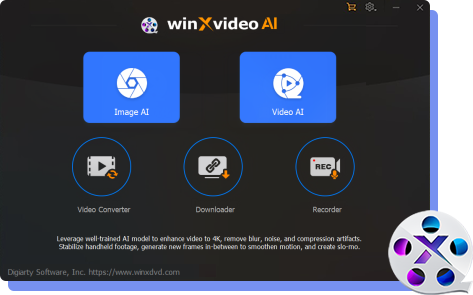
If your TiVo recordings are trapped in .tivo files and won’t play anywhere else, there’s an easier way than wrestling with KMTTG or Python scripts. With Winxvideo AI, you can convert TiVo to MP4 in one go — keeping full HD quality, 5.1 audio, and no syncing issues, ready for your PC, phone, Plex, TV, or NAS.
- Convert .tivo files to MP4 quickly on Windows or Mac.
- Keep the original picture quality and multi-channel audio intact.
- Simple, beginner-friendly interface — no Java, Python, or complicated setup required.
- Supports batch conversion, so entire seasons are ready in minutes.
- Compatible with phones, tablets, Plex, Smart TVs, and media servers.
 Free Download
 Free Download
Winxvideo AI runs on Windows, while Mac users can use Macxvideo AI from our MacXDVD brand.
How to Convert TiVo Files to MP4 Without Losing Quality
TiVo recordings are convenient, but .tivo files won’t play on phones, Plex, or smart TVs. Converting them to MP4 solves this, letting you watch anywhere, without breaking video or audio. The trick is choosing a tool that handles DRM, preserves HD and 5.1 audio, and works on both Windows and macOS.
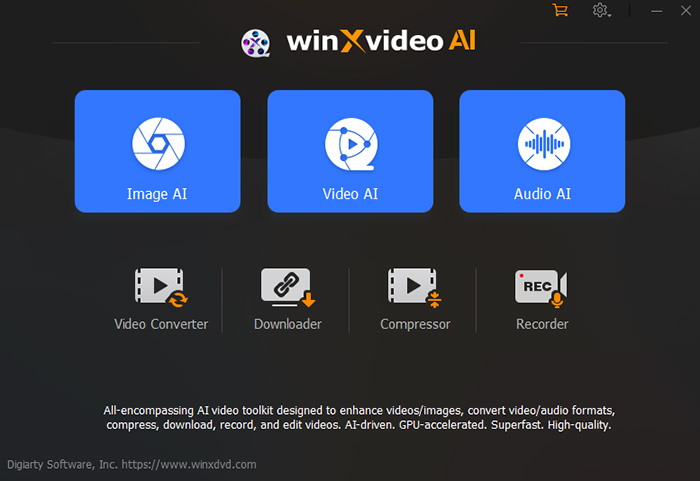
Step 1. Install and launch the TiVo converter
Download and open the software on your computer. It detects your hardware and accelerates conversions automatically, so you don’t need to tweak anything.
Step 2. Add your TiVo recordings
Click Video Converter > + Video and select your .tivo files. You can import multiple recordings to convert entire seasons at once.
Step 3. Choose MP4 as the output format
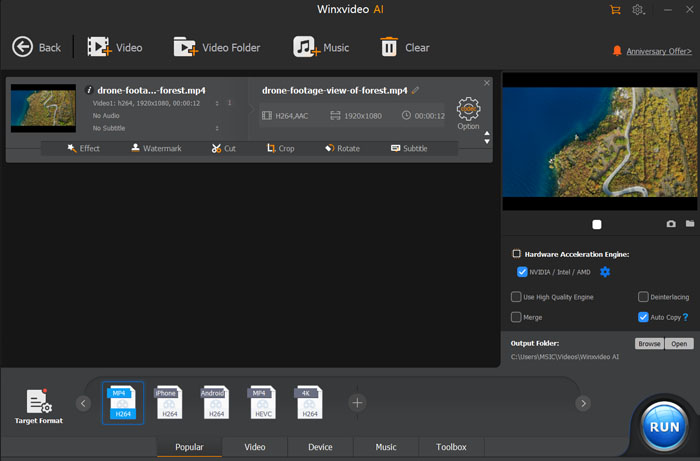
Select MP4 H.264 for universal compatibility, or MP4 4K for high-resolution playback. This ensures your converted files play smoothly on Plex, phones, or NAS drives.
Step 4. Start converting
Hit RUN and let the software process your files. With GPU and multi-core support, conversion is fast. Once done, your MP4 files are ready to watch anywhere — no Java, no KMTTG headaches, no format errors.
Convert TiVo Recordings to MP4 with TiVo Decoder
TiVo Decoder/tivodecode is one of the easiest ways to get your .tivo files off the DVR without wrestling with KMTTG or pyTiVo. Many users on Reddit and TiVo forums report it works reliably on both Windows and macOS, keeping the original video quality and 5.1 audio intact.
The catch? You need the Media Access Key (MAK) for every recording, and the output is MPG, not MP4. That means if you want to watch on Plex, your phone, or NAS, you'll need an extra conversion step. Still, for folks with a pile of TiVo recordings who just want to start watching them on other devices, it’s a quick, no-frills solution that actually works.
Step 1. Prepare your TiVo recording
Find your .tivo file and get your Media Access Key (MAK) from your TiVo account. This key is required to decrypt the file.
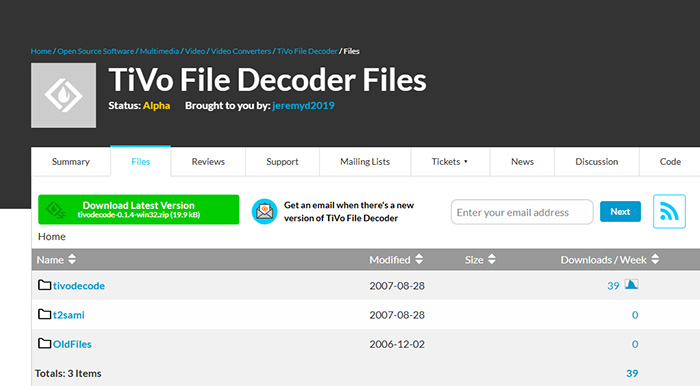
Step 2. Install TiVo Decoder / tivodecode
Download the version for your OS and run the installer — no Java or Python needed.
Step 3. Convert .tivo to MPG
Open the program, select your .tivo file, enter your MAK, and choose a destination folder. Click Convert — the tool outputs an MPG with original resolution and 5.1 audio intact.
Step 4. Optional: Convert MPG to MP4
Use a converter like HandBrake, FFmpeg, or Winxvideo AI to turn MPG into MP4. Choose MP4 H.264 for universal playback and to keep quality untouched.
Step 5. Watch anywhere
Your new MP4 or MPG files play on Windows, Mac, iPhone, Android, Smart TVs, and Plex. No DRM issues, no complicated setup.
Tip: Ideal if you just want to watch shows quickly or have a backlog of old .tivo files. Simple, reliable, and beginner-friendly.
How to Convert TiVo Recordings to MP4 Using kmttg
Many TiVo users turn to kmttg because it’s one of the few tools that can decrypt .tivo files. It outputs .ts or .mpg files. You still need the Media Access Key (MAK) for each recording, and most users have to convert the output to MP4 afterward to watch on Plex, phones, or NAS. Still, for people who don’t mind a two-step process, kmttg is widely used and supported.
Step 1. Install kmttg
Download the latest version of kmttg for Windows or macOS. Most users on Reddit suggest using the precompiled package to avoid manually setting up Java and Python.
Step 2. Add your TiVo recordings
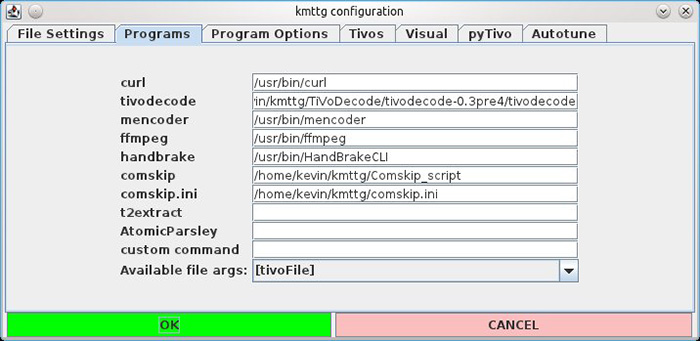
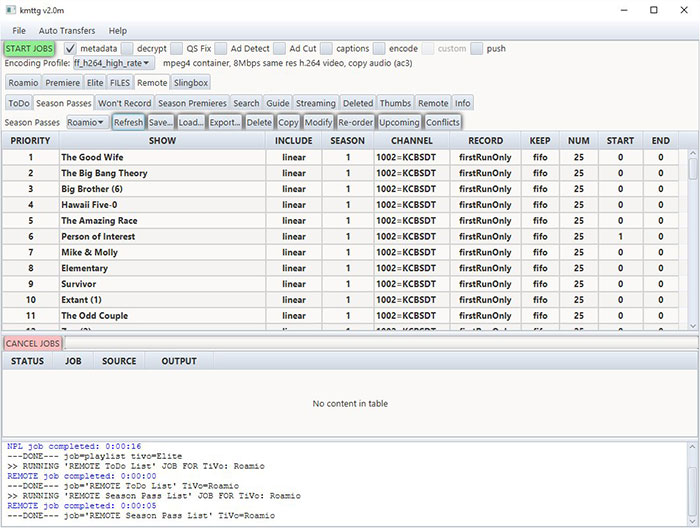
Launch kmttg and go to Add Shows. Enter your TiVo's MAK, then select the recordings you want to process. Without the MAK, kmttg cannot decrypt the files, so make sure you have it handy.
Step 3. Decrypt to .ts or .mpg
Choose the output folder and format (.ts or .mpg). Most users on forums stick with MPG because it’s easier to handle in the next conversion step. Hit Process and kmttg will decrypt and save the files. Depending on your hardware and file size, this can take a few minutes per episode.
Step 4. Convert to MP4 for playback
Once kmttg finishes, you’ll have .ts or .mpg files. To play them on Plex, your phone, or NAS, convert these to MP4 using your favorite video converter (HandBrake, WinxVideo AI, or similar). Make sure to keep the same resolution and audio settings to avoid quality loss or audio sync issues.
Tip: Reddit users often mention that while kmttg can seem intimidating at first, following the MAK entry carefully and sticking to the default settings usually avoids headaches. Once you have the hang of it, you can batch-process multiple episodes or entire seasons.
What Is a TiVo File and Why Can’t You Play It?
If you’ve ever tried opening a .tivo file on your computer and got audio with a black screen — or nothing at all — you’re not doing anything wrong. This question shows up over and over on Reddit and TiVo forums, usually from people who just want to watch their own recordings on a PC, phone, Plex, or NAS.
So what is a TiVo file? At its core, a .tivo file is simply an MPEG video wrapped in TiVo’s own encryption layer. The video itself is standard MPEG, but the wrapper is not. That extra layer is what stops VLC, QuickTime, Plex, and most media players from opening it.
Can a TiVo file be converted? Sometimes — and this is where most of the confusion starts. Whether you can convert a .tivo file depends on two things: whether the recording is protected by TiVo DRM, and whether you still have the Media Access Key (MAK) tied to the original TiVo account. Without the MAK, even recordings you made yourself are effectively locked.
A key detail many users miss: a recording that isn’t marked “copy-protected” still won’t play like a normal video. “Not copy-protected” usually only means the file can be transferred off the TiVo box — not that it can be opened anywhere else. That’s why people end up with folders full of .tivo files that refuse to play until they’re properly decrypted.
Common TiVo File Myths (Repeatedly Debunked)
-
Myth 1: “If I copy the file to my computer, I should be able to play it.”
❌ Not true. A .tivo file is not a standard video file. Copying it off the DVR doesn’t remove the encryption. -
Myth 2: “pyTiVo can play or unlock my recordings.”
❌ pyTiVo is mainly a transfer tool. It helps move recordings between devices, but it doesn’t decrypt or decode .tivo files for playback. -
Myth 3: “I just need a better media player.”
❌ This isn’t a player issue. The problem is DRM. No media player can bypass TiVo’s encryption without first decrypting the file.
Once you understand these limits, the conversion process finally makes sense: decrypt the .tivo file using the correct tools and MAK, then convert it into MP4 for smooth playback on Plex, phones, tablets, or a NAS.
FAQs About Converting TiVo to MP4
It depends. Yes, if the recording is marked Copy Freely and you have the correct Media Access Key. No, if it’s Copy Once or Copy Never — those are locked down by TiVo DRM and generally can’t be converted.
In most forum cases, it comes down to DRM. If the show is Copy Once or your MAK doesn’t match the original TiVo account, tools will fail silently or stop halfway, even though the file looks normal.
Not necessarily. If you decode the .tivo file correctly and convert using the original bitrate, quality stays intact. Most complaints about blur or sync issues come from bad settings or re-encoding twice.
Yes — once converted to MP4 with H.264 or H.265, TiVo recordings work smoothly with Plex, Jellyfin, NAS devices, smart TVs, and mobile apps. This is the most common reason users convert in the first place.
Generally, converting recordings you made yourself for personal use is treated differently from redistribution. Laws vary by region, so sharing or uploading converted files is risky. Keep conversions private and local.
Sometimes. If the new TiVo is still linked to the same TiVo account, you may recover the same Media Access Key. If the MAK matches, older .tivo recordings can often be decrypted — this is the main “second chance” users report.


