



 win
win

 Super Resolution
  Video Stabilization
  Frame Interpolation

 Denoise Image
  Restore Old Photo
  Unblur Image
  Recover Face
  Upscale Image
  Colorize Photo
 Video Conversion >
 Video Compression >
 Screen Recording >

4K Video Downloader Slow Parsing: Causes, Symptoms, and What Users Can Do
 Kaley Torres
Updated on
The 4K Video Downloader slowdown doesn’t seem random. It’s often tied to newer versions or internal limitations. Even paid users can encounter severe slowdowns or stalled downloads with 4K Video Downloader, and common troubleshooting steps may not resolve the issue. Below are all the guaranteed quick fix shared in the community.
4K Video Downloader Slow: Symptoms Observed
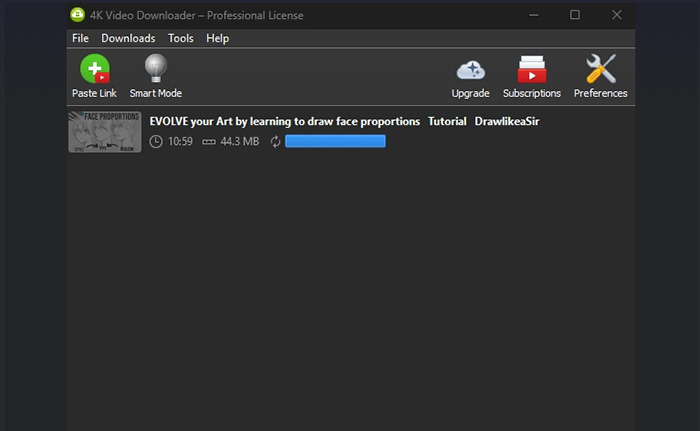
Forum feedback shows the slowdown was consistent and hard to ignore. Users reported similar 4K Video Downloader slow failures across different systems, accounts, and video sources, even after basic troubleshooting. In many cases, the same videos downloaded at normal speed using other tools, indicating the issue was app-related rather than caused by network or user settings.
- Parsing takes much longer than the actual video length.
- Format options appear slowly, followed by download or conversion failure.
- Downloads stall near completion (around 90–98%) or fail after reaching 100%.
- Output quality is incorrect, such as 360p downloads despite higher settings.
- Download speeds are far below normal bandwidth, sometimes several minutes for short clips..
- Playlist downloads barely progress, even after running for hours.
- Issues affect both Windows 10, Windows 11, and macOS, across free and paid users.
Why 4K Video Downloader Becomes Slow
Based on forum reports and moderator feedback, the 4K Video Downloader slowdown wasn’t random. Most 4K Video Downloader slow, 4K Video Downloader Can’t Parse This Link cases pointed to platform changes, delayed updates, and internal app limits rather than user mistakes or poor internet connections.
- YouTube-side changes: Backend updates often break parsing logic, causing long analysis times and failed downloads until a fix is released.
- Delayed updates for non-Plus versions: Fixes usually arrive first for 4K Video Downloader+, leaving classic and lifetime-license users waiting.
- Parsing failures: Videos take minutes to parse, then fail before or after download starts.
- Playlist strain: Large playlists trigger throttling, stalls, or overnight downloads that barely progress.
- Internal speed caps or bugs: Some versions limit speed or mishandle quality and conversion stages.
- IP or account throttling: Heavy usage can lead to temporary slowdowns imposed by the source platform.
Together, these factors explain why restarts, FAQs, and basic checks often make no difference—the bottleneck sits outside the user’s control.
How to Fix 4K Video Downloader Slow or Stalled Downloads
If 4K Video Downloader is running extremely slow, stalling during parsing, or failing to complete downloads, there are several practical steps that can help you restore normal performance and improve reliability without 4K Video Downloader not working errors while waiting for official updates.
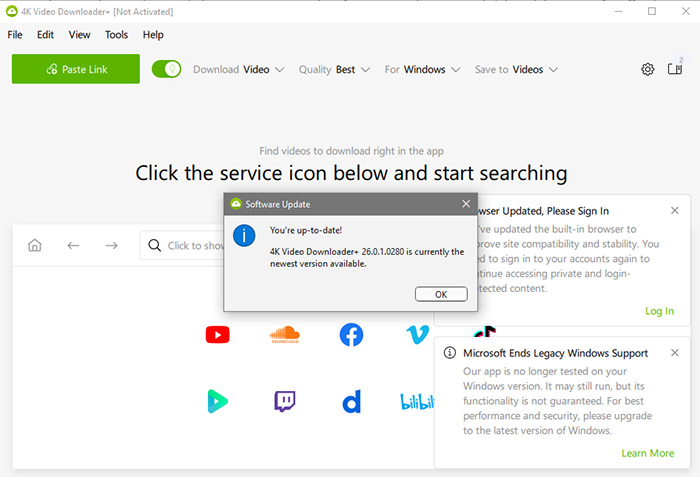
1. Update Your App
Running an outdated version often causes parsing delays and failed downloads because YouTube regularly updates its backend. Updating ensures the app communicates properly with YouTube servers and handles new video protections efficiently.
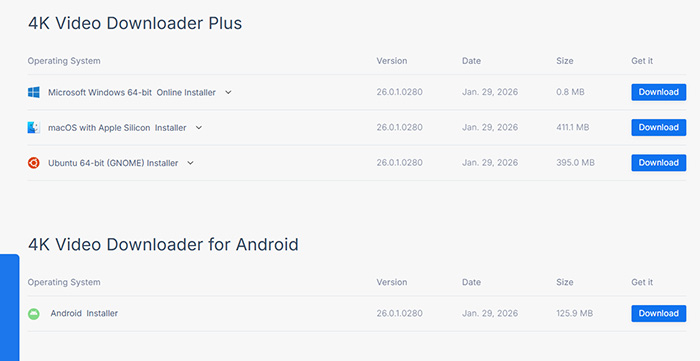
- Download the latest version from the official site to fix parsing and speed issues.
- 4K Video Downloader+ handles age-restricted and protected content more reliably than older versions.
👉 ClipGrab Not Working? Why & How to Fix the Issue
2. Reduce Simultaneous Downloads
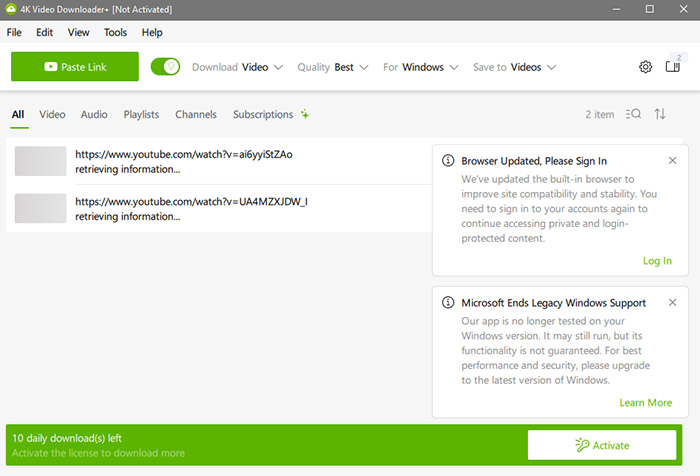
Downloading multiple videos at the same time can overload the app and slow or freeze processing. Limiting concurrent downloads allows each video to be handled smoothly without unnecessary resource conflicts or speed throttling.
- Limit simultaneous downloads to 1–3 videos to prevent 4K Video Downloader slow issue.
- Pause other queued downloads until current ones finish to maintain stable performance.
3. Check for Conflicting Programs
Background apps, antivirus, or firewall software may interfere with download traffic, causing 4K Video Downloader slow, speed drops or failures. Whitelisting 4K Video Downloader or temporarily disabling conflicting software can restore proper bandwidth and parsing capability.
- Temporarily disable antivirus/firewall and test download speed to identify interference.
- If downloads improve, whitelist 4K Video Downloader instead of leaving security off.
4. Use the In-App Browser (Plus Version)
Videos with age restrictions, content warnings, or regional blocks may fail in the main interface. Using 4K Video Downloader+’s built-in browser lets you navigate these restrictions manually, ensuring the video can be parsed and downloaded successfully.
- Open the in-app browser, log into your YouTube account, and bypass warnings.
- Click the Download button after the page fully loads to fix 4K Video Downloader slow parsing.

5. Refresh Network Connection
Even with a fast internet plan, unstable connections, VPNs, or ISP throttling can reduce download speed. Restarting your router or testing a different network helps determine whether connectivity is the cause of 4K Video Downloader slow parsing.
- Restart your router or switch networks to restore stable connection.
- Disable VPNs or switch to a faster server to avoid slowdowns caused by encryption.
6. Retry After Some Time
Some videos may fail to parse or download temporarily due to server-side limitations or YouTube-side restrictions. Waiting a few hours before retrying often resolves issues without any changes to the app.
- Try the same link again later, as temporary throttling can prevent immediate downloads.
- Short failures do not mean the video is permanently blocked.
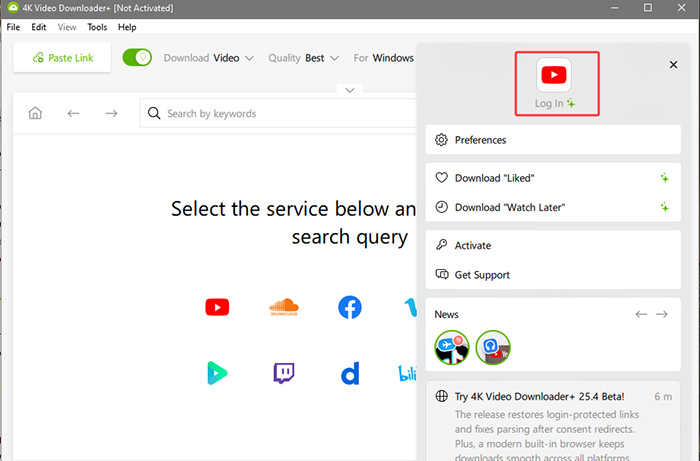
7. Log Out and Re-Login to YouTube
Parsing errors and download failures can occur if account sessions expire or IP addresses are temporarily restricted. Logging out and back in refreshes credentials and permissions, which often resolves restricted video issues.
- Go to
Tools → Preferences → Authorization → Log out / Sign into refresh your session. - Switching accounts can bypass temporary IP restrictions or account-specific throttling.
8. Avoid Large Playlists or Certain Link Types
Very large playlists or special link types (short links, private videos) can cause long parsing times or 4K Video Downloader slow parsing failures. Breaking large lists into smaller batches improves reliability and reduces the chance of stalling.
- Split large playlists into smaller groups before downloading.
- Try downloading short links individually to prevent batch parsing errors.
9. Adjust App Preferences (Connection / Speed)
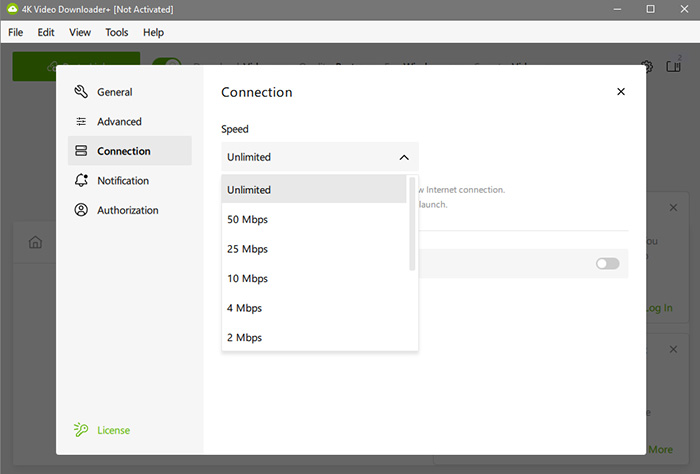
4K Video Downloader may limit speed automatically or allow too many simultaneous downloads. Adjusting connection and speed settings ensures the app utilizes your network efficiently and avoids self-throttling.
- Go to
Tools → Preferences → Connection → Speedand confirm no limits are set. - Reduce simultaneous downloads to balance speed and stability.
10. Use an Alternative Downloader Temporarily
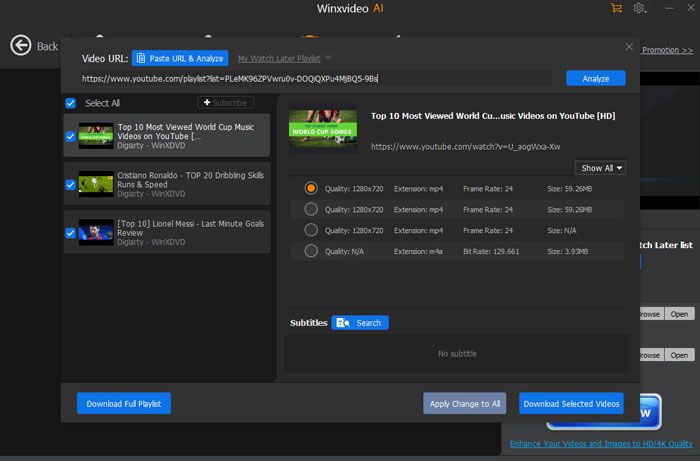
While waiting for official updates, some users opt for alternative tools like Winxvideo AI or GitHub-based downloaders. These tools can successfully download videos when 4K Video Downloader stalls or fails.
- Temporary use of alternatives ensures uninterrupted downloads during YouTube updates.
- After downloading, videos can still be managed or converted using 4K Video Downloader.
11. Wait for Official Updates if Needed
Sometimes YouTube changes break parsing temporarily, affecting multiple users. Developers usually release fixes for 4K Video Downloader+ first, followed by non-Plus versions. Keeping your app updated ensures compatibility with the latest platform changes.
 FAQs — 4K Video Downloader Slow & Stalled Downloads
Slow downloads can be caused by outdated app versions, too many simultaneous downloads, background programs using bandwidth, VPN interference, or temporary YouTube-side restrictions. Even with a fast internet connection, the app may throttle speed internally or struggle with protected content.
Parsing delays or download failures often occur due to platform changes (YouTube updates), large playlists, restricted videos, or expired sessions. The app may appear stuck while verifying content or converting formats before completion.
Try updating the app, limiting simultaneous downloads to 1–3, temporarily disabling antivirus or firewalls, restarting your router, or logging out and back into your YouTube account. Using 4K Video Downloader+ in-app browser can help bypass age or region restrictions.
Yes. ISP throttling, VPN routing, unstable Wi-Fi, or temporary IP restrictions from video platforms can slow downloads. Testing a different network, disabling VPNs, or using a hotspot can help determine if the bottleneck is local or platform-related.
Failures often happen with age-restricted, region-blocked, or private videos. Temporary YouTube changes or playlist size can also impact parsing. Using 4K Video Downloader+’s in-app browser or retrying later usually resolves these selective failures.
If multiple users experience slow parsing or failed downloads simultaneously, it’s likely due to YouTube-side changes. In these cases, fixes are released in new app versions. Waiting for updates or switching to a temporary alternative ensures downloads resume reliably.
Yes. Open-source tools like yt-dlp or Winxvideo AI and VideoProc can temporarily download videos while 4K Video Downloader experiences issues. These options avoid risks of cracked builds and provide faster access during downtime.


