



 win
win

 Super Resolution
  Video Stabilization
  Frame Interpolation

 Denoise Image
  Restore Old Photo
  Unblur Image
  Recover Face
  Upscale Image
  Colorize Photo
 Video Conversion >
 Video Compression >
 Screen Recording >


Top 15 Best 4K Video Converters for Windows/Mac (2026 Tested)
"What's the best method to convert 1080p to 4K, 4K to 8K? Just wondering what is the best 4K video converter for upscaling footage."
"Best software for quickly converting 4K large video files? I’m usually working with 1080p footage but sometimes 4K sneaks in and I’m not always sure which codec or bitrate to go with."
4K video has become mainstream thanks to devices like GoPro, DJI drones, iPhone, and Canon cameras capturing 4K 10-bit HDR at up to 60/120fps. However, not every computer or 4K TV can handle 4K playback smoothly, or upscale 480p–1080p content without losing quality. Therefore, a reliable 4K video converter is essential to fix playback issues or upscale videos to true 4K quality.
Looking for the best 4K video converter to convert 4K videos among different formats or upscale 1080p to 4K? This guide handpicks 15 top converters for Windows and Mac, free and paid options, all capable of enhancing video quality, formats conversions, and ensuring smooth playback across your devices.
Best 4K Video Converter Free Download to Convert/Upscale 4K Videos Instantly
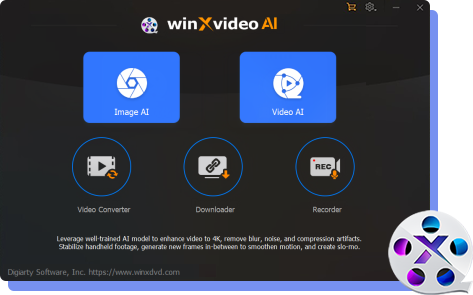
Tired of blurry or incompatible 4K videos? Winxvideo AI handles everything from upscaling 1080p to 4K to converting between MKV, HEVC, MP4, MOV, AV1, and 370+ formats with ease.
- Convert low resolutions to 4k with AI for enjoyment on 4K screen with natural video details.
- Convert 4K videos among MKV, HEVC, MP4, MOV, WebM, AV1, VP9, ProRes, and any other formats.
- Downscale 4k to 1080p/720p without quality loss to save space or play on more devices.
- 5X faster speed than most other tools with GPU accelration. No file size limit, ads, watermark, or software crash.
Why do You Need a 4K Video Converter?
Despite the prevalence of 4K TVs, the majority of video content remains in HD or Full HD. Unfortunately, many 4K TVs struggle to effectively upscale lower-quality videosupscale lower-resolution videos properly, often resulting in blurry or unnatural visuals. To fully appreciate 4K resolution[1], a dedicated 4K video converter is essential for transforming your content.
At the same time, down-converting a 4K video to lower is often necessary due to the format’s demanding technical requirements.
- 4k videos are commonly encoded with AV1 or HEVC codec, and 10bit color, requiring powerful hardware and compatible software.
- Bitrates can range from 100–600 Mbps, resulting in extremely large file sizes (often several GBs).
- High frame rates, e.g., 4K 60fps or 120fps (VFR) place heavy strain on systems and may cause audio-video sync issues during editing.
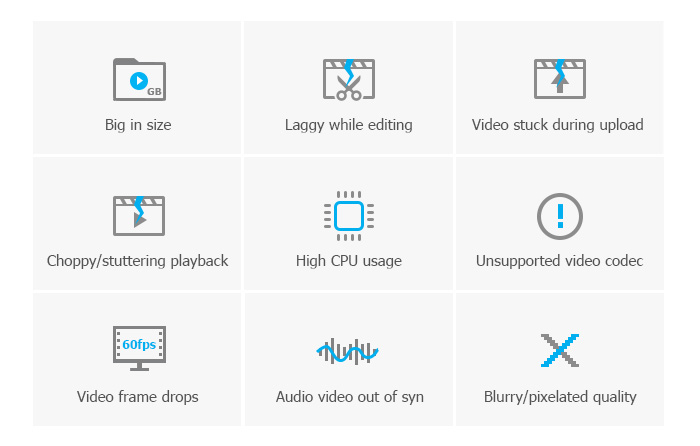
Transferring, editing, and sharing 4K videos often presents challenges. Error messages such as "unsupported video codec", "codec missing" pop up when importing 4k footage. Common 4K video errors include choppy playback, lengthy 4K rendering times, and codec-related errors when using older systems or software. Uploading 4K video content to platforms can also be time-consuming due to file size limitations.
Best 4K Video Converters 2026 [How We Choose]
We handpick 15 top paid and free 4k video convertes for Windows and Mac to fit your 4k video upconverting and downconverting needs. When choosing a 4K video converter, we focus on the factors that truly matter for real-world use:
- Quality: The best 4K video converters should preserve HDR, sharpness, and color fidelity during conversion. It's better if it contains AI upscaling for low-resolution videos to 4K, not just stretching pixels.
- Speed: 4K files are large, so 4K video converting software should support GPU acceleration and batch processing.
- Usability: Beginners benefit from an intuitive GUI with device presets, while advanced users may prefer command-line tools like FFmpeg for full control.
- Compatibility: The 4K video converter should support common 4K formats, such as MP4, MOV, MKV, HEVC, AV1, ProRes, and VP9, and enabling both upscaling 1080p to 4K and downscaling 4K to 1080p/720p.
Based on the above factors, here are the best free 4K video converters:
- Winxvideo AI- Convert and upscale 4K videos with AI-enhanced quality and GPU acceleration for ultra-fast processing.
- HandBrake – Free and open-source 4K video converter with advanced encoding options.
- FreeConvert- Online 4K video converter supporting multiple formats with simple cloud-based conversion.
- Topaz 4K Video Converter- Convert videos to 4K resolution with restored detail and texture.
- HDconvert.com- Fast, browser-based 4K video converter.
- Wondershare UniConverter – All-in-one 4K video converter with batch processing, compression, editing, and format conversion.
- VideoProc Converter – Reliable 4K video converter with support for HDR, HEVC, GoPro footage, and advanced video edits.
- VLC - Free media player that also supports basic 4K video conversion between popular formats.
- FFmpeg - A command-line tool to convert 4K videos with unmatched flexibility and speed.
- AnyMP4 Video Converter - Converts and edits 4K videos with GPU acceleration.
#1. Winxvideo AI
Best for: Fast and high-quality 4K video conversion, especially for upscaling 1080p to 4K with AI, compressing large 4K files without visible quality loss, and fixing common 4K playback or compatibility issues on PC, TV, or mobile devices.
- OS: Windows (11/10/8/7), macOS (Sequoia or earlier)
- Windowsreport rating: 4.8

Winxvideo AI is one of the top 4K video converters. It takes advantages of AI Video Super Reoslution to upscale SD/HD 1080P to 4K UHD to perfectly fit with bigger 4K screen. The AI does more than enlarge—it reconstructs missing pixels, sharpens outlines, and remove blur/noise/pixelated artifacts from videos, delivering HD/4K video that feels authentic.

Not only can it convert 4K, 5K, 8K, and HD 1080p videos freely among 370+ formats—including MOV, MKV, MP4, H.264, HEVC, VP9, and AV1—but it also helps manage large video files with ease.
Modern devices like iPhones, DSLRs, mirrorless cameras, GoPro, and DJI drones can capture 4K footage. But with that quality comes enormous file sizes that quickly fill up your storage and make online sharing a challenge. This 4K video converter compresses and resizes 4K files from GB to MB without noticeable quality loss. It also comes with built-in tools to cut, crop, and merge 4K videos with ease.
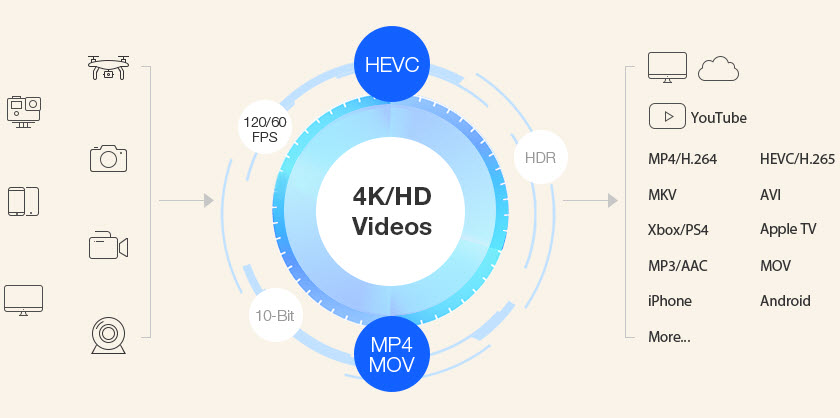
Winxvideo AI supports GPU acceleration of NVIDA CUDA/NVENC, AMD, Intel QSV, and M1/2 chip for fast 4k video encoding, decoding and processing. Combined with its High Quality Engine and De-interlacing Engine, the software ensures ultra-high-quality 4K output with lightning-fast conversion speeds. You can achieve a much higher compression ratio while maintaining crisp, pixel-level visual integrity.
What We Like
- Leverage GPU acceleration to convert 4K videos at 47X real-time faster speed.
- AI Super Resolution [2] to convert videos to 4K with crisp details and no artifacts.
- Convert 4K videos for PC, TV, mobile phone, tablet, game system, etc.
- Reduce large 4K video file size to be 90% smaller with lossless quality.
What We Don't Like
- The 4K video conversion speed can be slow if you rely on CPU only.
#2. Handbrake
Best for: Advanced users who prefer a free, open-source 4K video transcoder and are comfortable tweaking codecs, presets, and encoding parameters for batch converting 4K HEVC or H.264 videos.
- OS: Windows, Linux, macOS
- G2 rating: 4.1
Handbrake is an open source video transcoder that can free convert 4K (4096x2160 and 3840x2160) or 2K footage to popular formats like MP4 and MKV. It also works as a free 4k upscaling software that includes 4k presets so that you can export 2160p content for 4k capable device like Roku, Apple TV 4k, Chromecast, etc.
Handbrake started 4K support in version 1.1.0 in 2018. Now you can upgrade to the latest Handbrake v1.5.1, a rebuild of Handbrake 1.5, for more fluid hardware accelerated 4k video converting. But please make sure to install Microsoft.NET desktop runtime version 6.0.0 or later on Windows PC.
The good thing we experienced with the free 4k video converter is the support for batch processing in the queuing feature. This is especially helpful to encode a folder full of 4k x265 files freely in one fell swoop. Bsides, the updated Intel Quick Sync to use the Intel OneAPI Video Processing Library helps 4k video transcoding even faster in our test.
Handbrake is not very approachable look. Although it is packed with a handful of options available to customize precise encoding settings, tweak frame rate, and more, it means something of a learn curve to some extent, especially if you are just a beginner.
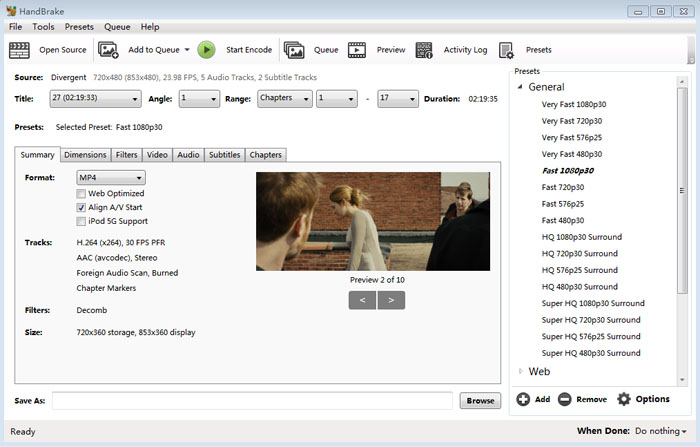
Therefore, converting 4k video with Handbrake is a little bit complicated since there are a lot of tweaks. But you can do the job quickly if you don't adjust the advanced settings. Here we go. Open Handbrake, load the 2160p video file. Choose a format from a preset, where you can export video in 4K HEVC MKV or select the output format like MP4, WebM or MKV. Additionally, resolution can be enhanced up to 8k 4320p from the Dimensions section. If you'd like to downscale a 4k file to 1080p or lower-resolution video, you can also choose the 1080p or 720p ready-made profile from the list. Leave the settings unchanged, and click Start Encode button to begin transcoding 4K video file.
Hot search: 20 Best Video Converters That You Can't Miss in 2026
What We Like
- Free and open-source.
- Lot of advanced settings options.
- Direct DVD converter.
- Support a large library of codecs like HEVC, H.264, VP8, DivX, etc.
What We Don't Like
- Limited output file format supported.
- Not so user-friendly for beginners.
#3. FreeConvert
Best for: Beginners who need to convert small 4K video files online and don’t want to deal with codec, bitrate, or resolution settings.
- OS: web-based
- Trustpilot rating: 4.5
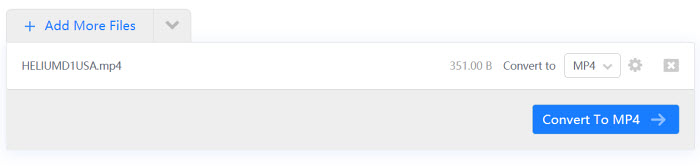
FreeConvert is an easy online file converter that helps you free converting large 4K/HD video files up to 1GB, whether they are saved on your device, Dropbox, Google Drive, or URL. It converts more than 60 video formats to popular video format such as MOV, FLV, MP4, MKV, AVI, WMV, 3GP, OGV, WebM, and audio format like OGG, WAV, MP3, FLAC, AAC, M4A, etc. It's even available for you to convert to video device such as Xbox, iPad, iPhone, Android, Kindle and PSP.
You are given full control over the video parameters before conversion, be it video codec, screen size, aspect ratio, frame rate, audio codec, bitrate, channel, or volume. Basic editing features are available for you to cut, rotate, and flip video, add subtitles and make audio fade in and out.
In our test, it took a long time to upload and convert a 4k video, compared with the desktop 4k video converter. The free version is limited to 25 video conversions each day and the online tool is packed full of ads unless you upgrade to its premium edition.
If you have smaller 4K files less than 1GB, follow the FreeConvert guide and convert 4K video for free. Click the Choose Files button to upload your 4K content (no more than 1GB), select a target video format, and choose a desired resolution from the advanced settings > Video Screen Size, then tap the Convert button to initiate 4k video conversion online.
What We Like
- Support over 2000 file conversion.
- Add videos from Google Drive, Dropbox, and URL for the conversion.
What We Don't Like
- Ads contained.
- Advanced features are available in Premium version.
- No option to set resolution for the exported video.
#4. Topaz 4K Video Converter
Best for: Creators who want maximum visual quality when upscaling SD or 1080p footage to 4K, especially for old, noisy, compressed, or low-detail videos, and are willing to trade speed and file size for quality.
- OS: Windows, macOS
- Talkhelper rating: 4.1

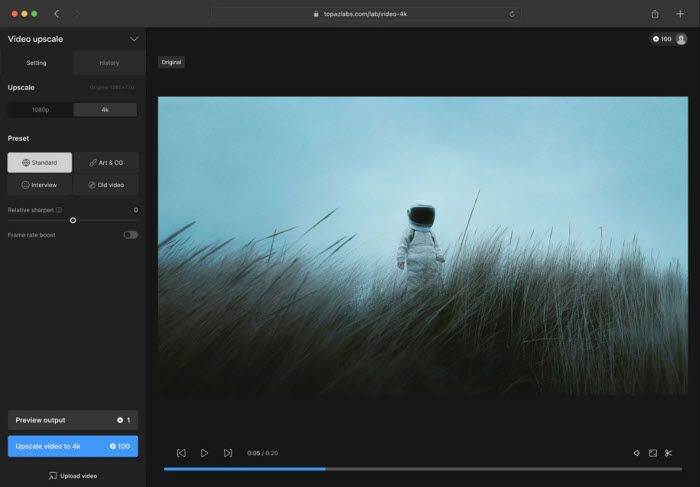
Topaz 4K Video Converter, part of the Topaz Video AI suite, is a powerful AI-driven tool designed to upscale, enhance, and convert video footage to 4K with stunning clarity. It can convert videos from SD/HD to 4K while restoring fine details, textures, and sharpness. During the conversion, it will also clean up grainy, noisy, and interlaced footage with precision. There are different AI models tailored for different content—standard video, animation, old VHS footage, and more.
Unlike traditional 4K video converters that rely on basic resampling methods, Topaz employs machine learning models trained on thousands of video clips, enabling it to recover lost details, remove artifacts, and produce natural-looking 4K footage—even from low-resolution or degraded sources.
What We Like
- Convert videos to 4K quality using AI.
- Recovers lost textures and detail from old or compressed footage.
- Tailored AI models for different content types (anime, VHS, cinematic).
- Supports high frame rate conversion (30fps to 60fps+).
What We Don't Like
- Requires a powerful GPU for smooth performance.
- Expensive compared to traditional 4K video converters.
- Output 4K files can be very large in size.
#5. HDconvert.com
Best for: Users who need to quickly downscale or re-encode 4K videos online and don't mind upgrading to remove watermarks or unlock true 4K output.
- OS: web-based
- Trustpilot rating: 2.3

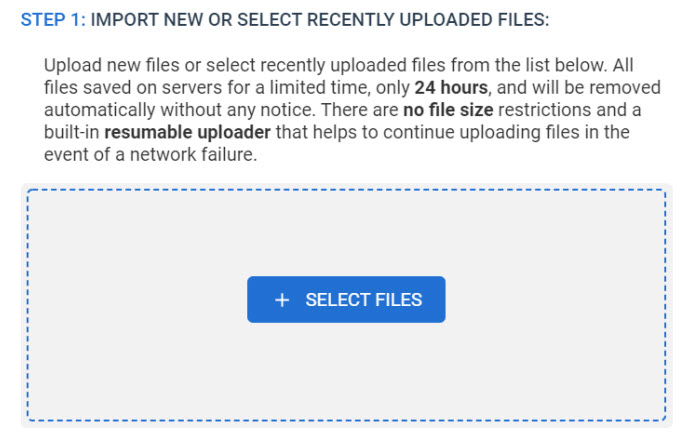
HDconvert.com is a clean and safe online video converter that has been existed for some years. It is able to free convert 4K/HD video to MP4, MOV, AVI, MKV, FLV, 3GP, and other audio formats. Furthermore, you can take advantages of its advanced options to adjust the video quality to full HD, UHD 4K, change the video codec to HEVC, tweak the audio bitrate to 40MB/s, remove audio track, cut the video and more.
One of the main advantages of HDconvert over other online 4k video converters is that there is no file size limit or video length limit. This means you can upload file larger than 1GB with ease. And it is extremely fast with speeds up to 900 frames/second.
Despite HDconvert.com boasts of fast conversion up to 900 frames/sec, the upload time is extremely slow in our test. In the meantime, watermark is accompanied with your final video using its free version, the output quality is limited to 720p or lower. If you want to upconvert video to 4K, you need to upgrade to its Premium option starting at $4.99/month to enjoy up to 3 times faster conversion speed, and save the video in higher-quality at up to 4K without watermark.
To quickly convert your 4K video to MP4 or other format with HDconvert.com, you can follow the steps below. Upload the source video to the 4k video converter online, click Next and then select a video format like MP4 from the video formats list, click Next and select the video quality 720p (You can also upgrade to its basic subscription to convert video to 1080p or 4k quality), adjust the video settings like codec and bitrate, enable notification, then click Convert 1 File to start the conversion.
What We Like
- No need of third-party software installation.
- There is no file size limit.
What We Don't Like
- Exported video will be watermarked and no video to 4k upscaling unless you upgrade to its Premium edition.
- Converting speed is unstable.
#6. Wondershare Uniconverter
Best for: full-featured all-in-one 4K video toolbox that combines conversion, compression, editing, recording, etc. in a single interface.
- OS: Windows, macOS
- Caoterra rating: 4.6
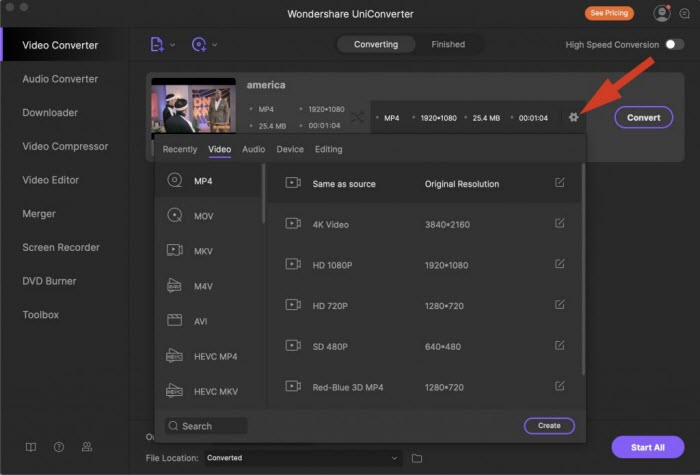
Uniconverter is the go-to tool for your 4k video conversion needs. It features a modern interface that holds all the essential features, from video/audio converting, recording, compressing, downloading, to editing. It is able to convert 4k video to nearly 1000+ formats together with preset profiles for the mainstream devices. Besides, video transfer, batch processing, and DVD burning for more advanced users' needs.
This 4K video converter is praised for its one-stop shop for 4K video processing. There are significant perks if you pay for a subscription. It assists with more video editing such as video background removal, video merging, etc in addition to video conversion.
It is somewhat expensive, and the 4K HEVC conversions are relatively slow in our test. In the meantime, users on the trial version will have to make their peace with advertisements inducing you to upgrade to its premium edition.
What We Like
- Convert 4K videos, edit, merge, crop, and more.
- Combines 4K video conversion, compression, editing, DVD burning, screen recording, and more into one.
- Support converting VR and making GIF.
What We Don't Like
- Confusing interface.
- Not the cheapest option.
#7. VideoProc Converter
Best for: Action-camera users who need to convert, stabilize, denoise, and fix shaky 4K footage shot in HEVC, HDR, or 10-bit formats.
- OS: Windows, macOS
- Capterra rating: 4.3
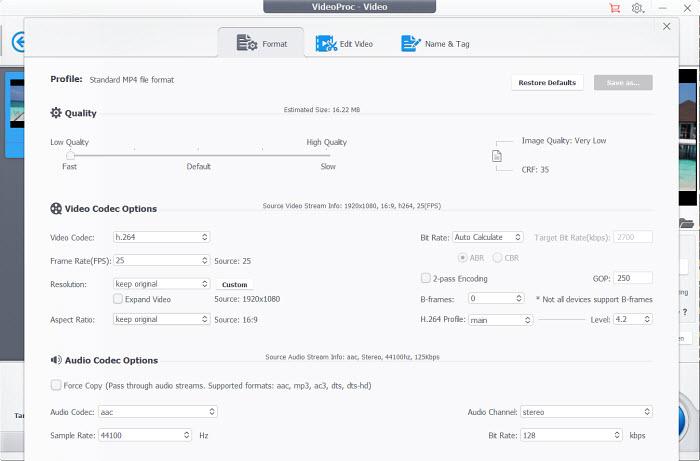
Despite VideoProc Converter made its first debut 4 years ago, it does impresses us a lot. As a one-size-fits-all video converter, you can not only convert 4K/HD/SD video to any format, resolution, or codec, but also do some advanced edits, even video record and adjustment. According to our test, VideoProc Converter can well handle 4k video, whether it is in HDR, HEVC, or 10 bits, and finish the conversion task within one fellow swoop, thanks to its intuitive interface.
VideoProc Converter is especially designed for GoPro users. It supports any 4K video from even the latest GoPro Hero 11. If you have any problem with playing 4K recordings, you can take advantages of the video converter to deshake, denoise, color-correct, and even remove fisheye from the original footage.
VideoProc Converter is 49 MB in size, that is relatively huge compared with other desktop software. We are unfortunate to find the Blu-ray convert feature is excluded from the software.
What We Like
- Support video codecs like HEVC, H.264, VP8, DivX, etc.
- Especially designed for GoPro.
What We Don't Like
- The tool does not work on Linux.
- Free trial only allows a 5-min media file.
#8. VLC Media Player
Best for: Users who want a completely free solution to occasionally convert or downscale 4K videos and already use VLC for playback.
- OS: Windows, Linux, macOS
- CNET rating: 4.2
VLC is known as a free impressive media player to play 4K, 8K and other video/audio files without downloading additional codecs. It can also convert videos from one storage standard to another, including MP4, MKV, WMV, AVI, MOV, RAW and more. Starting from version 3.0, VLC is also used as a free 4k to 1080p video converter if playing 4K is somehow stuttering.
In spite of the fact that VLC is mainly used for playing media files, it has many editing features. You can cut or crop your 4K video, reverse your file, and so on.
VLC is a media player by default. Converting 4K videos can be a little bit confusing as there is no Export or Convert button in the interface. Meanwhile, hardware acceleration is mainly applied to HD/4K video decoding rather than encoding. This means transcoding 4k video can be a little bit slower than professional video converter software.
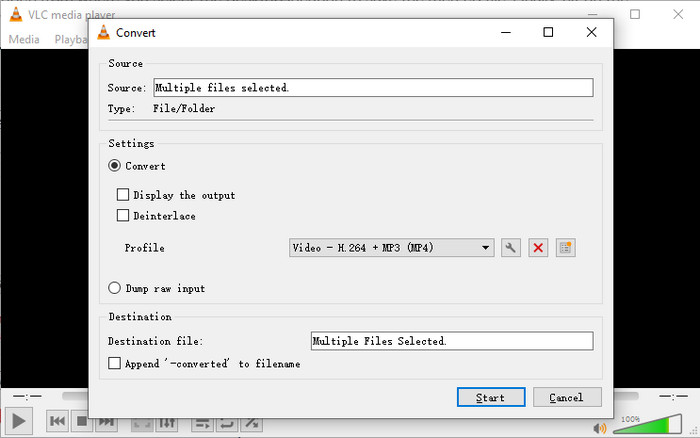
If you are not planning to download any third-party 4K video converter, VLC is still a good choice. You can follow the step-by-step tutorial to convert 4k videos with VLC. Open the program, click on Media button > Convert/Save button, click +Add… and choose a 4k video source you want to convert, hit the Convert/Save button, choose the file name of your video and select the desired format from the Profile drop-down list, click Start to begin the conversion.
What We Like
- It's free and open-source.
- Work on all platforms.
- Support the largest library of video and audio codecs. No external codecs required.
- Offer video and audio download options.
What We Don't Like
- 4k video converting takes a lot of times.
- No editing tools.
#9. FFMPEG
Best for: Professionals and developers who need maximum control and automation for 4K video conversion via command line and scripting.
- OS: Windows, Linux, macOS
- G2 rating: 4.5
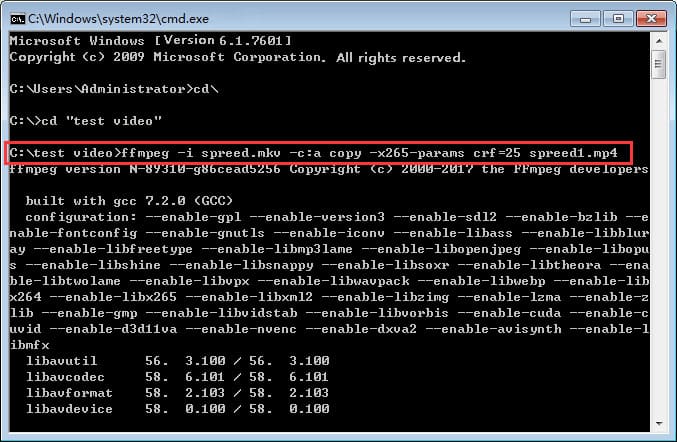
FFmpeg is a free and open source software project containing libavformat, libavcodec, libavutil, libavdevice, and more, which can be used by applications. It is skilled in every task related to media file, be it media compression, file type conversion, or video recording. It is able to convert and compress 4k with huge data size to a compact file (something like 800 to 20MB) after rendering.
In addition to having great flexibility over demuxing, decoding, processing, encoding, and settings, FFmpeg can crop, stream, merge audio and video from different sources and perform many other tasks, with superb speed.
FFmpeg is inferior to other 4k video converters as it has a little bit of a steep learning curve. Almost 99% of users are scared from using the tool since they won't have a clue how to use it or know what a command line is.
What We Like
- Support an extensive list of formats including HEVC, H.264, MPEG-4, ProRes, SWF, etc.
- Offer video streaming and web hosting capabilities.
- Work on Linux, OS X and Windows.
What We Don't Like
- It is intimidating and not easy for beginners to use.
- Confusing documentation.
#10. Shutter Encoder
Best for users who needs a free 4K video converter with precise control over codecs, bitrates, and color settings, without using the FFmpeg command line directly.
- OS: Windows, macOS, Linux
- Trustpilot rating: 5.0

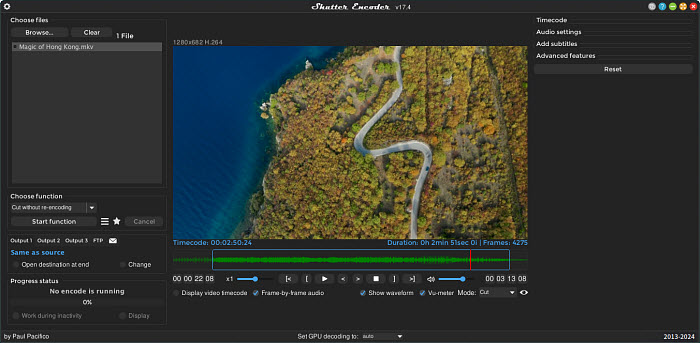
Shutter Encoder is a free, cross-platform video converter built on FFmpeg, designed for users who want maximum control over video conversion rather than one-click simplicity. As a free 4K video converter, it handles large 4K files reliably and supports a wide range of professional and consumer codecs.
When converting 4K video, Shutter Encoder allows you to manually choose codecs, bitrates, color space, and audio settings—making it ideal for workflows that require consistency and precision. It performs well for tasks like converting 4K HEVC to MP4, transcoding 4K footage for editing, or preparing videos for different playback environments.
However, Shutter Encoder does not provide video to 4K AI upscaling. While it can resize videos to 4K or downscale 4K to 1080p, the quality depends heavily on manual settings and source footage. Users looking to upscale 1080p to true 4K with enhanced details may find it less effective compared to AI-powered 4K video converters.
What We Like
- Free and open-source 4K video converter.
- Supports advanced 4K video codecs like HEVC, ProRes, DNxHR, H.264, VP9, etc.
- Excellent control over bitrate, color space, and encoding parameters.
- Stable when converting large 4K video files.
What We Don't Like
- Steep learning curve for beginners.
- No AI-based 4K upscaling or quality enhancement.
- Interface can feel technical and overwhelming.
- Conversion speed depends heavily on manual settings and hardware.
#11. Movavi Video Converter
Best for: users needing a user-friendly 4K video converter that handles format conversion, basic editing, and device optimization without a steep learning curve.
- OS: Windows
- G2 rating: 4.8
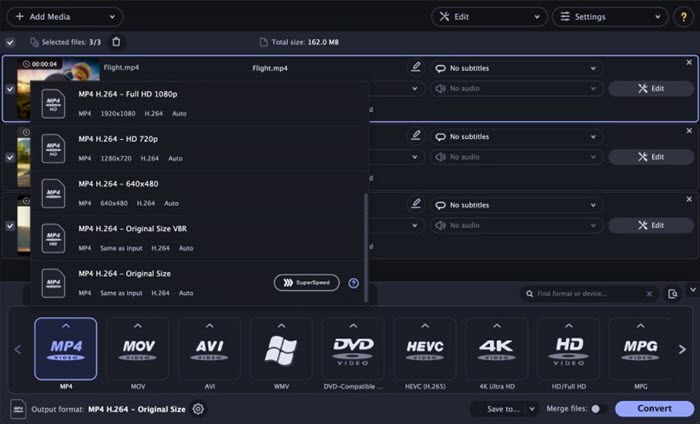
Movavi Video Converter offers a clean, intuitive interface that makes it easy to convert 4K video into widely supported formats like MP4, MOV, and MKV. It supports modern codecs including HEVC (H.265), AV1, VP9.
For users looking to convert 1080p to 4K, Movavi provides simple upscaling options, though the output quality is more about resizing for compatibility than true AI-enhanced detail recovery. When converting between 4K formats or downscaling 4K to 1080p/720p to save space or improve playback smoothness on older devices, Movavi does a dependable job with fast processing and minimal fuss.
While Movavi is not positioned as a professional grading or AI-upscaling powerhouse, it balances ease of use, format support, and speed in a way that’s appealing to beginners and intermediate users.
What We Like
- Clean, beginner-friendly 4K converter for non-technical users.
- Convert 4K videos to MP4, MOV, MKV, AVI, and more with HEVC support.
- Efficient processing that handles large 4K files without frequent crashes.
- Basic trimming, rotation, and batch conversion.
What We Don't Like
- Not as strong as AI-powered 4K upscalers.
- Limited options for bitrate, color space, and professional encoding tweaks.
- Free trial limits output; full features require a license.
- Slight softness or artifacts may appear depending on source and settings.
#12. Any Video Converter
Best for: Beginners who need basic 4K video format conversion and don't mind lower output quality or bundled extras in exchange for versatility.
- OS: Windows,macOS
- Trustpilot rating: 3.4
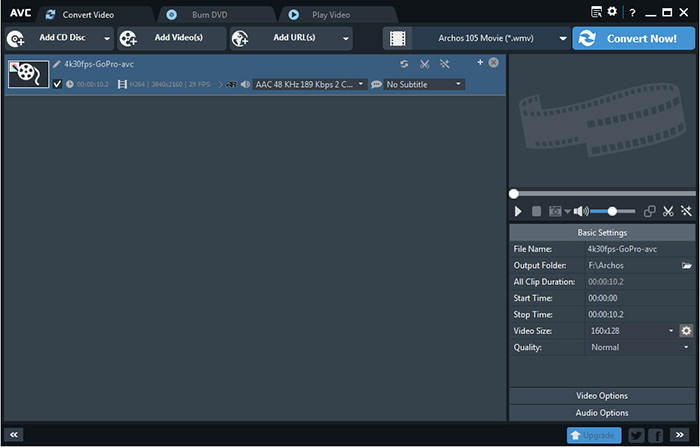
Any Video Converter is introduced with the ability to convert any video file, including 4K UHD video. It boasts a fairly wider compatibility with a long list of options, incl. 100+ inputs and 160+ outputs. This means you can get to video conversion quickly without the need to tinker with the complicated parameters. You are also guaranteed to convert 4K 60fps HEVC video to H.264 or downscale the resolution from 4K to 1080P or 720P for playback on underpowered devices smoothly.
Nvidia NVENC, AMD and Intel QSV Hardware acceleration is enabled for conversion acceleration. Additional features like DVD burning, video editing and playing can be enjoyed.
Personal 4k video converting experience tells that the quality it outputs is far from good as the original 4K. Typically, there are mosaics, and you would notice buggy playing with a blank screen in the window. What's worse, AVC will include bundled extra software that you won't need and constantly nag you to purchase the pro version.
But if you value its functionality, follow the steps and learn how to export 4K in any video converter. Launch the tool, click Add Video(s) to load the source file from the local drive, choose a format from the profile list, unfold the Video Options and Audio Options to adjust the file if necessary, unfold the Basic settings and adjust the video size to 3840x2160p, then click Convert New to start encoding video to 4k resolution.
What We Like
- Support DVD video extraction.
- Bonus filters and effects.
- Frequent updates.
What We Don't Like
- Unnecessary software is installed during setup.
- It takes a long time to convert 4K videos.
- Converted video is pixelated to some degree.
#13. AnyMP4 Video Converter
Best for: Users who want easy 4K export with light video enhancement without diving into advanced settings.
- OS: Windows, macOS
- CNET rating: 4.5
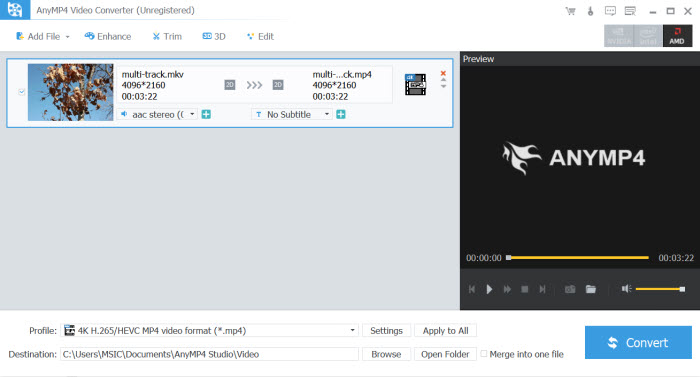
AnyMP4 video Converter is a wonderful video converting program that helps you convert 4K ultraHD, 1080p, HD, and general videos to a range of formats like MP4, MOV, MKV, AVI, WMV, and even 3D videos. It also includes the latest profiles for 4K HEVC video, 4K H.264 video, 4K WebM video, etc. That means you can even convert video to 4k file so as to enjoy it on 4k-capable screen.
One of the major reasons we add AnyMP4 to the ranking list of the best 4K video converters is its intuitive option to improve the video quality of low-resolution video. Specifically, you can get superb quality by upscaling low-resolution 720p or 1080p video to higher 4k resolution video, optimize the brightness and contrast, remove the dirt-like video noise, and reduce shaking motion at the click of a button. This makes it good enough to compete with the other video converting software.
Besides, you can also rotate and flip video, trim the video length, merge video clips and export them to a single file, enable 3D settings, apply video effect, add text/image watermark to the source video.
What We Like
- Offer 2D to 3D conversion.
- One-click video quality enhancing.
- Over 200 video formats supported.
What We Don't Like
- Free version has limited features.
- Intel Acceleration cannot be enabled unless you upgrade to paid version.
- Occasional software crash during conversion.
#14. Acrok Video Converter Ultimate
Best for: Convert 4K camera footage into editing-friendly formats (ProRes-style workflows) for software like Premiere Pro, DaVinci Resolve, or Vegas Pro.
- OS: Windows, macOS
- Talkhelper rating: 3.7
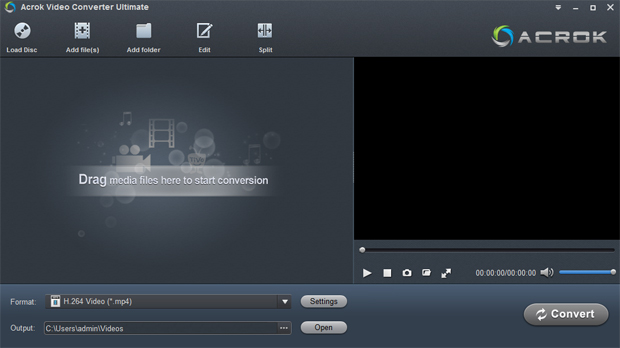
Acrok Video Converter Ultimate is included in the list of top 4K video converters for its ability to convert 4K/1080p videos, particularly output from Blackmagic camera, to video formats compatible with editing software like Premimere pro CC, Vegas Pro 17, Davinci resolve and more.
Acrok Video Converter Ultimate supports 4K videos output from almost all cameras or camcorders, such as Canon, Nikon, Sony, Panasonic, JVC, Blackmagicdesign, etc. It also supports NVIDIA CUDA and ATI Stream acceleration technologies for streaming 4K videos fast.
It seems Acrok needs to change the visual appearance since the interface looks outdated. Plus, the custom options are limited, and the quality of output files is not so good as that of other 4k video converter tools.
What We Like
- Solid conversion speed.
- Process multiple video files at a time.
What We Don't Like
- Free version watermarks the exported video.
- Somewhat more expensive than other similar tools.
#15. DivX Software
Best for: Compress large 4K videos into smaller files for storage or streaming, with added support for cloud integration and legacy formats.
- OS: Windows, macOS
- CNET rating: 3.6
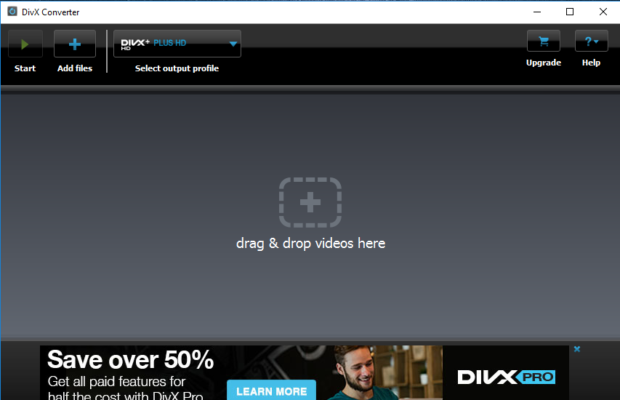
DivX Software is an award-winning video software for Windows and Mac that features three components including high-quality video player, media server, and DivX converter. With the DivX Converter you can convert high quality HEVC, DivX, AVI, and MKV up to 4K. This software also help you convert large 4K video to small sizes without noticeable loss in quality.
DivX Converter features many other advanced options such as non-encrypted DVD backup, basic video editing, cloud connect, Wavefront parallel processing, Target Quantizer, and more.
The program sometimes freezes. Most of the time, fast conversion speed is only limited to paying subscribers. In addition, You may be bombarded with ads unless you pay for DivX. But you can import video from Google Drive and Dropbox, get audio enhancement, more profiles, more custom settings options, and a faster converting speed in Pro version.
What We Like
- Offer a higher degree of large video compression.
- Support Cloud connect and DVD backup.
What We Don't Like
- You may install additional software unwittingly.
- Free version contains ads and upsells.
Top 15 Best Free 4K Video Converters in 2026 [Updated list] |
|||||
Name |
Platform |
Supported 4K Tasks |
Hardware Acceleration |
Speed |
Output Quality |
Win/macOS |
Upscale, Downscale, Re-encode, Download, Editing, Batch |
NVIDIA/AMD/Intel |
Very Fast |
AI upscaling, high detail |
|
Win/macOS/Linux |
Downscale, Re-encode, Batch |
Intel QSV / CPU |
Fast |
|
|
Web |
Upscale, Downscale, Re-encode, Online |
None |
Medium |
|
|
Web |
4K upscaling |
None |
Medium |
|
|
Web |
Downscale, Re-encode, Online |
None |
Medium |
|
|
Win/macOS |
Upscale, Downscale, Re-encode, Editing, Batch |
NVIDIA/Intel/AMD |
Fast |
|
|
Win/macOS |
Upscale, Downscale, Re-encode, Editing, Batch |
NVIDIA/Intel/AMD |
Fast |
|
Win/macOS/Linux |
Downscale, Re-encode |
GPU Decode (limited) |
Slow |
|
Win/macOS/Linux |
Upscale, Downscale, Re-encode, Batch |
GPU (NVIDIA/Intel) |
Fast |
|
|
Win/macOS/Linux |
Downscale, Re-encode, Batch, Editing |
CPU |
Medium |
|
|
Win/macOS |
Upscale, Downscale, Re-encode, Editing, Batch |
NVIDIA/Intel/AMD |
Fast |
|
|
Win/macOS |
Downscale, Re-encode, Editing, Batch |
NVIDIA/Intel |
Medium |
|
|
Win/macOS |
Upscale, Downscale, Re-encode, Editing, Batch |
NVIDIA/Intel/AMD |
Fast |
|
|
Win/macOS |
Downscale, Re-encode, Batch |
NVIDIA/Intel |
Medium |
|
|
Win/macOS |
Downscale, Re-encode, Batch |
CPU |
Medium |
|
|
How to Convert 4k Large Video Fast and Losslessly on Windows 10/11 and Mac
The above list of 4k video converters are a great helper to convert 4k videos. But do you know how to decode and encode 4k videos for diversified occasions? The following section will cover the guides of how to convert 4K video codec from HEVC to H.264 for better compatibility, compress 4K to 1080p HD to downsize video, and upscale 720p/1080p HD to 4K for better quality with the aid of Winxvideo AI.
Guide 1. How to Convert 4K HEVC to H.264 MP4?
What problems does it solve? If you've ever run into the problem of "codec not supported" error, it could be possibly because of HEVC used for encoding 4K video. Windows 10 or 11 doesn't support decoding HEVC unless you install HEVC codec extension beforehand. In this way, you can try the steps below and use the most compatible codec H.264.
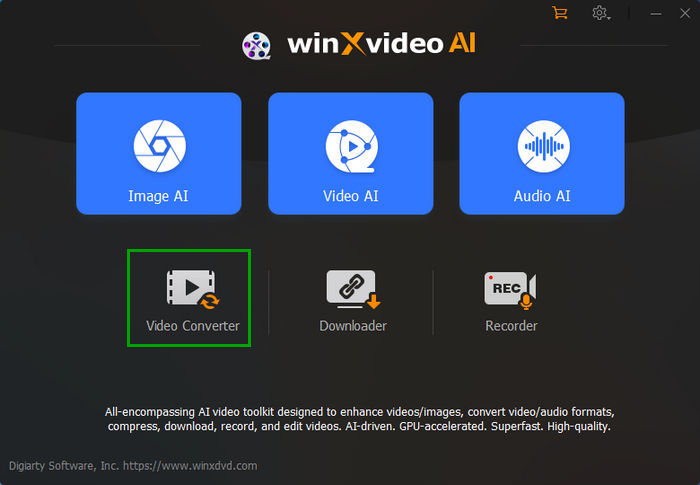
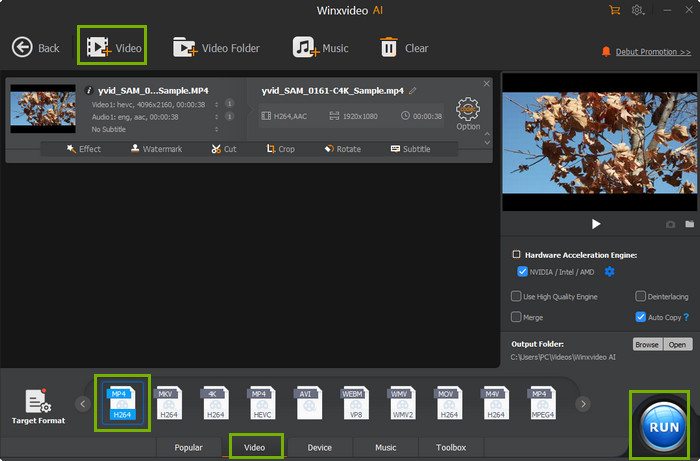
Step 1. Free download and install Winxvideo AI on your for Win 11 or earlier. Launch the program, select Video Converter, and click + Video button to load your to-be-converted 4K (HEVC) video on computer. The free 4k video converter supports any 4k video sources, be it is saved in XAVC S-I, XAVC HS, MOV, MP4, MKV, Cineform, Prores, or so. Besides, you're allowed to insert multiple video clips for batch conversion.
Step 2. Go to Target Format > Video and select MP4 (h264) to transcode 4K HEVC to H.264.
Step 3. Click Browse button to specify the output folder path if necessary. Then tap RUN button to transcode HEVC encoded 4K videos to H.264 MP4. Then you can feel free to import the final video to your editing program and play it on Windows PC/Mac, iPhone iPad, Android, XboX One, PS4, HDTV, and more fluidly.
Guide 2. How Do I Convert 4K to Normal 1080P?
What problems does it solve? It's reported only 2.4% of displays support resolutions of up to 3840x2160p. There are still a great many devices cannot handle 4k resolution videos. In addition, 4K is too heavy of a workload for most laptops and is way bigger than 108p or other HD videos. So if you want to save more space of your hard drive, and your computer display, or GPU is not up for 4K, it's a must to downscale 4k video to 1080p or below. Here is the detailed guide.
Step 1. Go the same steps to import large-sized 4K UHD videos to this 4K video converting software.
Step 2. Choose output format. You can continue with your source 4K video format, or choose MP4 as output format for better compatibility.
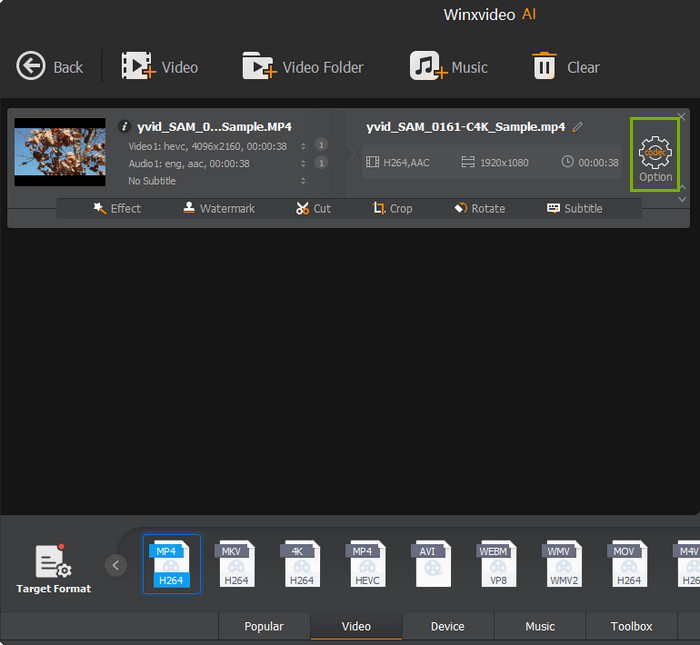
Step 3. Click the gear-shaped Setting button to enter the parameter setting window.
Then click on Resolution to open the drop-down menu, where a wide range of resolutions are available for your choice. Then you can choose to lower the resolution from 3840x2160p to 1920x1080p, which is always recommended for great image quality on mobiles, game consoles, desktops and so on. Here are the detailed steps to downconvert 4k to 1080p >>
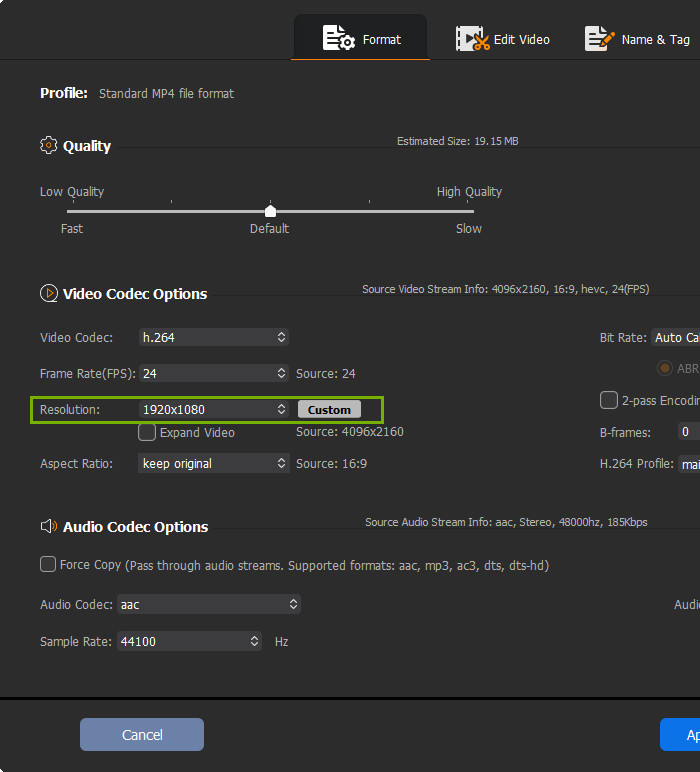
Optionally, you can also downscale the video bit rate, lower 4K 60fps frame rate to 30fps, change aspect ratio for widescreen display, or alter audio settings in this parameter setting window. Winxvideo AI is able to shrink 4k video size by over 90% with just pixel-level difference. You can click for detailed tutorial to reduce video file size >>
Step 4. Hit RUN button to start converting and compressing 4K videos. Then you can store more video in your storage device, smartphone, cloud service etc and upload the video faster.
Guide 3. How Do I Convert 720P/1080P to 4K?
There are occasion that the video looks blurry on 4k TV or other monitor when you are trying to watch 1080p HD or SD content. This is because the low-quality content is not providing enough information to fill out the 4k display, thus the bigger and sharper screen makes low-quality content looks poor. You can follow the steps to upscale the blurry SD/HD quality source to 4K with best quality, so you can enjoy the immersive "upconverted" 2160p video on fabulous 4K TV/consoles.
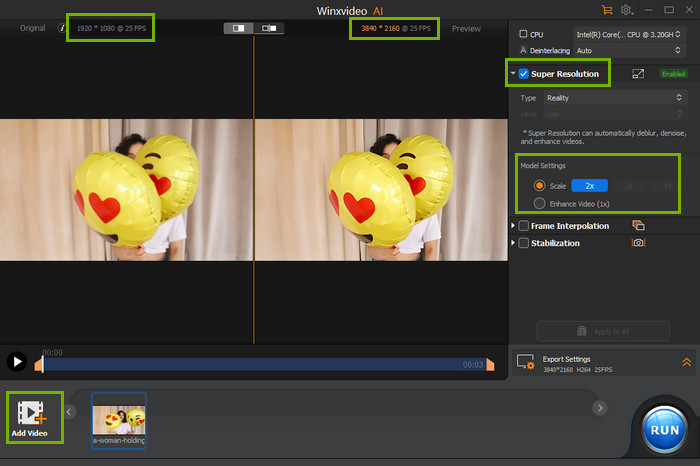
Step 1. After you free download and install the 1080p to 4k converter, open it, select Video AI, and then click Add Video button to import the 720p or 1080p video for 4k upscaling.
Step 2. Enable Super Resolution, specify Type and Model settings. If you want to convert a 720P video to 4K, select 3X. If you want to convert a 1080P video to 4K, select 2X.
Step 3. Specify Export Settings, including video codec, audio codec, quality level, GOP, and save path.
Step 4. Hit RUN button to accomplish HD to 4K upscaling at 47x real-time faster speed.
Additional Guide: The 4K video converter also helps to change video frame rate from VFR to BFR and convert video to Prores codec, both of which are much great for video editing. If you run into the error of 4k video/audio out of sync or laggy editing problem with your 4K video, you can try the tool to convert 4k video and tweak the setting before importing to editing program.
Related: Click to see how to change video resolution freely?
How We Test the Free 4K Video Converters?
Since 2006, WinXDVD Software has tested and rated thousands of video converter tools to help you make better decision. Regardless of the brands of 4k video converters we review, they're all subjected to a similar testing regimen: we use them under the same test environment, including the CPU, GPU, RAM, etc. Below we explain how we test and rank these tools.
1. Product testing. To start with, we look at the software's interface, overall features, and check their usability and easiness. When it comes to performance, we try these 4k UHD converters one by one to check video conversion speed and CPU usage, the final video quality and file size. We also test the 4k videos in both HEVC and H.264 codec and with video file size up to GB, to see whether these tools can handle the video codec well or if there is some crashing or file size limit while transcoding.
2. User and editor reviews. Reviews from both first-hand users and prestigious media such as G2, Techradar, CNET, etc are collected as one of the most important factors in ranking these 4k converters.
We then take everything we've learned about the 4K video converters, before reaching our final conclusion.
FAQ about 4K Video Conversion
Q1. Can you convert a video to 4K?
Yes. Many programs do 4k upscaling. But there is no guarantee the upconverted footage gets better looking. At this point, the original video source, viewing distance and the screen play an important role if the quality matters a lot.
To be exact, pixels will be stretched bigger than they are made to be stretched, but the image quality is not truly 4k quality. If you watch the upconverted video on a large 4k screen, it will look pretty bad. This is especially true with your SD quality video such as 360p or 480p video. Only when the screen is small or the viewing distance is great, will there be less jarring between 4k and the upconverted video. So it's not advised to convert SD video to 4k, instead you can convert 720p or 1080p video to 4k with Winxvideo AI.
Q2. How do I convert 1080p to 4K?
Converting 1080p video to 4k means you can play it on a larger screen without pixelated problem. For the recent 4K TVs, they are equipped with upscaling tech that can upscale your lower-resolution content to fill the entire 4K TV screen. But if you want to upconvert 1080p to 4K on PC, you need to rely on a 4k video converter software. Winxvideo AI is one such tool built in unique motion-adaptive 4k scaling algorithm, meant to fill new interpolated pixels into the source 1080p video intelligently.
To do the job, just feel free to download the 4k converter on your PC, load the source 1080p video in whatever format, choose the output format 4K MP4 video, click RUN, and leave the program doing the rest.
Q3. Can converting affect 4K quality?
It depends. Any video compression will result in quality degradation, let alone 4k video transcoding. But if you just want to convert 4k video from one video format to another, without tweaking the video codec, bitrate, frame rate or so, there is no quality loss at all.
Q4. What's the best 4K video converter?
We've already listed the top video converters designed for 4K UHD video, with Winxvideo AI and Handbrake leading the pack. Generally, it will have a large range of format options, available to change video file into a different format or a compact file, either to play on a particular media player, or allow for a more efficient video editing process, fast sharing, and less consumption of space on your device. You can choose the one based on your specific needs. But there are key factors to be considered.
- Fast 4k converting speed: Speed is a key factor. Incapable tool will take a long time to convert 4K to 1080p video, and worse still crash when handling large 4k HEVC file. Resorting to a 4k video converter with hardware acceleration enabled is a cut-through way, as it utilizes GPU to decode, process and encode the massive data of 4k and spares CPU for other tasks, and thereby saving you a lot of time.
- Good 4k compression ratio: The good news is that almost all video converters can downsize 4k easily while the bad news is that you will lose video quality inevitably. So balancing the quality and file size is known as a crucial factor for the best 4k video converter.
- Customizable 4k video settings: Statistically, the current 1920x1080 display resolution accounts for 67%, which means playing 4k on the screen cannot be satisfied. Meanwhile, most video editors cannot handle variable frame rate and HEVC codec well and will result in A/V sync or codec error when processing 4k file. To the end, it will be the icing on the cake if the 4K video transcoder is available for you to tweak the video resolution, codec, frame rate and other parameters.
 Free download Winxvideo AI to solve all 4K video errors >>
Q5. Is online 4K video converter better than desktop software?
No. Despite online 4k video converting tool is easy to use and finish the 4k conversion process without any installation of third-party software, it is inferior to desktop program in terms of security.
On the one hand, online tool can be a privacy threat. This is because the 4k video conversion has to be done by upload your source file to third-party servers. This means your private file is expose to the website administrator, your IP addresses and personal information are deliberately collected, and therefore at risk of being leaked. While desktop 4k video converter can be safer for protecting your privacy compared with online tool. On the other hand, online video converters have intrusive ads, which you may click by mistake and therefore lead to some virus or malware.
Q6. How long does it take to convert a 4k video on PC/Mac?
It depends on both your hardware and software you have. Newer computers are equipped with faster GPUs that deliver hardware-accelerated 4K video processing functions. Capable video converter also may feature professional kernel and take advantage of the hardware acceleration to decode and re-encode 4K video at a dramatically accelerated speed. In reviewing the best 4K video converters, all the above tools are tested and Winxvideo AI get a good account of itself, with a conversion frequency reaching up to 197fps on Intel i7-12700K 5.0GHz.
Q7. What is the minimum system requirement for 4k video?
To smoothly handle 4K video files, make sure that a qualified computer is in use. Here goes the minimum system requirements for 4K playback.
Minimum System Requirements |
4K HEVC video Playback |
CPU |
7th generation Intel Core i7 (Kaby Lake) processor equivalent or better, 3.5GHz or better |
GPU |
Intel® Iris™ Pro Graphics 5200 |
RAM |
8GB or more |
Hard Drive |
1TB with at least 400M/S transmission speed for 4k video editing |
Operation System |
Windows 11/10/macOS High Sierra or later |
Ports |
HDMI 2.0 or DisplayPort 1.2 for 4k 60fps |
Display |
Make sure your 4k display is set to run at 3840x2160 |
Codec |
HEVC video extension |
Internet bandwidth |
At least 25 Mbps |
If you are not planning to upgrade your computer system and handling the computer-intensive 4K video is a little bit troublesome, such as freezing and laggy playback, you can resort to a 4K video converter to transcode 4K video to a more compatible format for later playback smoothly.
External Source Links:
1. What is 4k video? [wiki]: 4K resolution has already won a wide hardware and software support, which is on the way to insurgently overtaking other video resolutions like 1080p High Definition format.4K Ultra HD (4K UHD) video itself refers to the video of a pixel resolution of 4096x2160 (4,000 pixels, 8.8 megapixels, 17:9 aspect ratio) mainly for digital cinema, or of a resolution of 3840× 2160 (8.3 megapixels, 16:9 aspect ratio) mainly for Ultra HD television.
By far, AV1, HEVC/H265 codec and VP9 codec are driving the developement of 4K Ultra-high definition videos. 4K is four times of the resolution of 2K projector and 1080p HDTV. At 4K resolution, every single details and Close-ups on the image can be seen. If adopting the amazing 4096x2160 UHD resolution in cinema, a film can deliver an indescribable and unprecedented enjoyment for audiences at any angle for the crystal clear picture, sparkly bright color and Hyper-reality sound (if any).
2. Video Super Resolution[wiki]: Short for VSR, refers to the process of upscaling a video from the given low-resolution frames to high-resolution frames. It aims to not only restore more fine details, save coarse ones, but also preserve motion consistency. Traditional methods include iterative back-projection methods, non-parametric algorithms, etc optimize the video super-resolution task, while deep learning based methods such as VSRnet, RVSR, EDVR, 3D convolutions, etc spectacularly improve the video quality during upscaling.