









How to Backup Your DVD Collection: Best Formats, Methods & Tools
DVD collections carry years of memories, but physical discs are not a permanent storage solution. Scratches, disc aging, outdated DVD players, and limited playback compatibility can make your favorite movies, family videos, and rare DVD titles harder to access over time.
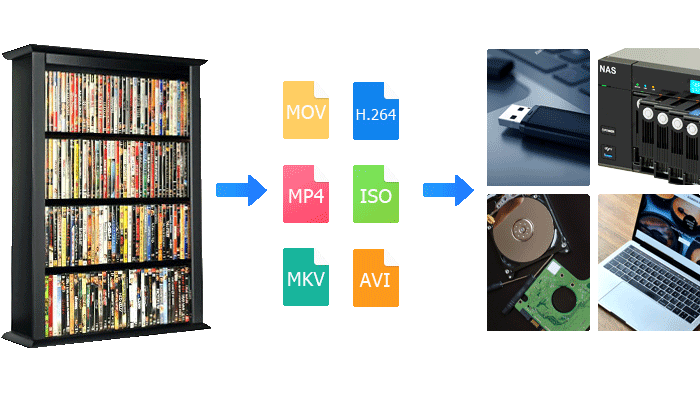
The best way to protect your DVD collection is to backup DVD collection and create a digital copy. Depending on your needs, you can preserve DVDs as a complete 1:1 archive (ISO or VIDEO_TS), convert them into widely compatible formats like MP4, or build a personal media library on a NAS, Plex, or other home streaming system.
Quick Answer: What Is the Best Way to backup a DVD Collection
The best DVD backup method depends on how you plan to use your digital library:
- For collectors who want a perfect archive, backup DVD to ISO or VIDEO_TS folders to keep menus, subtitles, audio tracks & extras.
- For playback everywhere, you can rip DVD to MP4/H.264 file which is easier for playback on PCs, phones, tablets, and smart TVs.
- For home media servers, please convert DVDs to NAS-friendly format compatible with Plex, Jellyfin, Emby, or Synology systems.
- For long-term storage, you can create digital copies on hard drive or cloud storage to reduce the risk of losing your physical discs.
A reliable DVD backup workflow requires more than simply copying files. Many commercial DVDs contain copy protection, multiple titles, regional restrictions, or complex disc structures that can cause failed backups or missing content. Choosing the right backup format and DVD copy software helps ensure your collection is preserved with the quality and features you want.
In this guide, we will explain the best DVD backup formats, how to digitize different types of DVDs, and how to create a long-lasting digital library from your physical collection.
Why Should You Backup Your DVD Collection?
DVDs were designed for physical playback, but modern viewing habits have changed. Many computers no longer include optical drives, and finding compatible DVD players or maintaining hundreds of discs can become increasingly difficult.
Creating a digital backup allows you to preserve your collection, organize your movies, and enjoy your DVDs on modern devices such as computers, smartphones, smart TVs, NAS systems, and media servers.
- Protect against scratches, disc aging, and physical damage.
- Access your DVD collection without searching through shelves of discs.
- Create a searchable digital movie library.
- Play DVDs on devices without optical drives.
- Preserve rare, discontinued, or personal DVD collections.
Choose the Right DVD Backup Format for Your Needs
Not every DVD backup method serves the same purpose. The best format depends on how you plan to use your digital collection: whether you want a perfect archive of your original discs, a convenient movie library for everyday playback, or a space-saving solution for storing hundreds of DVDs.
Before backing up your DVD collection, consider what matters most to you: preserving the original DVD experience, saving storage space, or making your movies playable on modern devices.
DVD Backup Format Comparison: ISO, VIDEO_TS, MKV and MP4
| Backup Format | Best For | What It Keeps | Advantages | Limitations |
| ISO Image | Collectors who want a complete DVD archive | Menus, subtitles, audio tracks, bonus features, original disc structure | Preserves the closest copy of the original DVD | Requires large storage space and compatible playback software |
| VIDEO_TS Folder | Traditional DVD backup and preservation | Original DVD files and folder structure | Keeps full DVD content without creating an image file | Less convenient than modern video formats |
| MKV | Home media servers and advanced users | High-quality video, multiple audio tracks, subtitles | Flexible format for Plex, Jellyfin, and media libraries | Not supported by every device by default |
| MP4 (H.264/H.265) | Everyday playback on modern devices | Main movie content with optimized compression | Small file size and excellent compatibility with computers, TVs, phones, and tablets | Does not preserve DVD menus and interactive features |
1. Full DVD Backup: ISO or VIDEO_TS
For collectors who want to preserve the original DVD experience, a full disc backup is the best choice. Copying DVD to ISO or VIDEO_TS folder keeps the original DVD structure, including menus, subtitles, multiple audio tracks, and bonus content.
This method is ideal for rare DVDs, movie collections, TV series, and discs where preserving every detail matters. A complete backup allows you to keep the DVD exactly as it was released while protecting it from scratches, aging, or physical damage.
- Keep original DVD menus and navigation
- Preserve multiple language tracks and subtitles
- Save bonus features and extra content
- Create a long-term digital archive of your collection
2. Main Movie Backup: Preserve Quality While Improving Compatibility
Some collectors want to keep the original DVD quality but do not need every menu or extra feature. In this case, backing up the main movie content can be a practical solution.
By saving the main title as a digital video file, you can keep the original MPEG-2 quality while making the movie easier to organize and play on computers or media players.
3. Rip DVDs to MP4/MKV for Easy Playback and Storage
If you have a large DVD collection and want to save storage space while enjoying your movies on modern devices, converting DVDs to MP4 or MKV is usually the most convenient option.
A compressed digital format allows you to store hundreds of movies on hard drives, NAS devices, or cloud storage while maintaining good video quality.
MP4 is especially useful for everyday playback because it works with most computers, smartphones, tablets, smart TVs, and media players.
How to Backup Different Types of DVDs Step-by-Step
The best way to backup your DVD collection depends on how you plan to preserve and enjoy your movies. Some collectors want a complete digital copy of their original discs, while others prefer smaller files that can be played on modern devices or streamed through a home media server. Below are three common DVD backup workflows: creating a complete DVD archive, converting DVDs for everyday playback, and building a personal streaming library with NAS.
Before you start backing up your DVD collection, here are what you will need:
- A DVD Drive
- DVD backup software
- Enough storage
- Hard drive or NAS
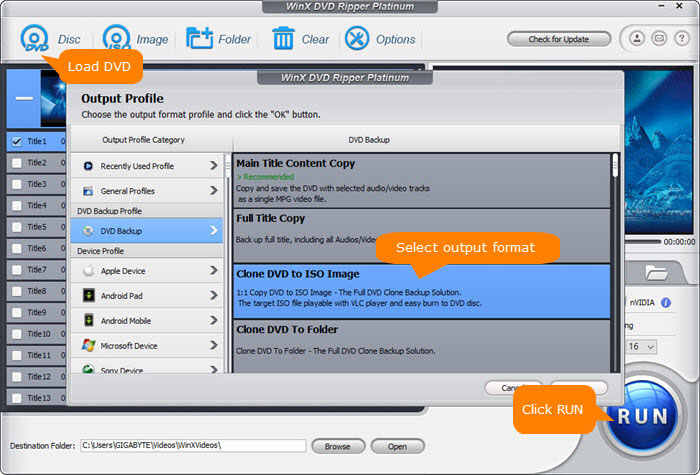
Method 1. Create a Complete DVD Archive as ISO/VIDEO_TS
For DVD collectors who want to preserve the original disc experience, creating a full backup as an ISO image or VIDEO_TS folder is the best choice. This method keeps the original DVD structure, including menus, subtitles, multiple audio tracks, and bonus features.
A complete DVD archive is especially useful for rare movies, collector editions, TV series, and discs with special features that you do not want to lose. Instead of relying on aging physical discs, you can save and copy DVD to computer hard drive or NAS for long-term preservation.
Steps to create a full DVD archive:
- Insert your DVD and let the software analyze the disc structure.
- Select the full disc backup mode.
- Choose ISO image or VIDEO_TS folder as the output format.
- Start the backup process and verify the saved files.
Keep in mind: ISO and VIDEO_TS files require more storage space and may need compatible playback software. If you plan to watch your movies on smart TVs, phones, or tablets, converting DVDs to MP4 may provide better compatibility.
Method 2. Rip DVDs to MP4/MKV for Everyday Playback
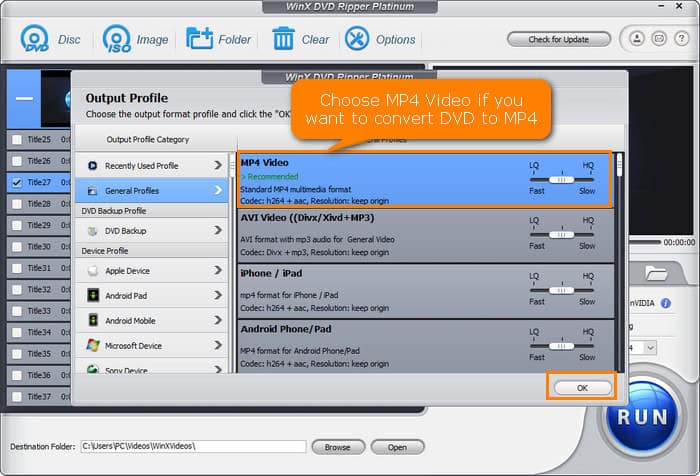
If you want to watch your DVD collection without inserting discs, converting DVDs to MP4 or MKV is usually the most convenient solution. A digital video format allows you to enjoy movies on computers, smartphones, tablets, smart TVs, and media players.
Compared with full DVD backups, MP4 and MKV files require much less storage space, making them suitable for large collections. MP4 is widely supported by most devices, while MKV is often preferred by users who want to keep multiple audio tracks and subtitles.
Steps to rip DVDs to MP4/MKV:
- Load your DVD and scan the available titles.
- Select the main movie title or desired content.
- Choose MP4 or MKV as the output format.
- Select video quality and audio/subtitle options.
- Start converting and save the digital copy.
This method is also useful when you want to store DVD backups on external hard drives or cloud storage because smaller file sizes reduce storage requirements and upload time.
Method 3. Build a DVD Library on NAS for Plex/Jellyfin Home Media Server
For collectors with hundreds of DVDs, a NAS-based media library provides a convenient way to organize and stream movies throughout your home. Instead of searching through physical discs, you can access your DVD collection from TVs, computers, tablets, and mobile devices.
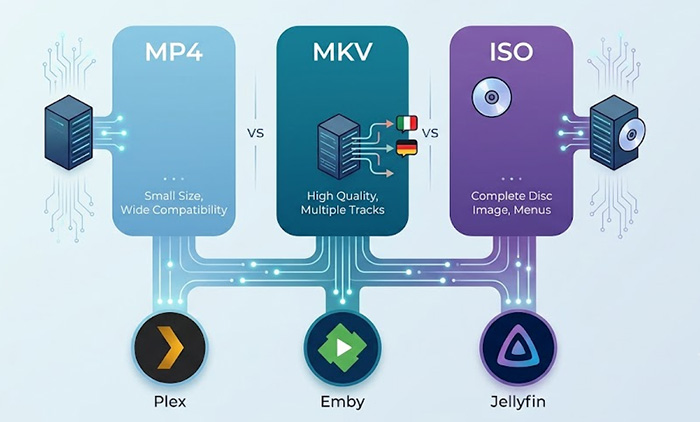
However, NAS systems and media servers usually work best with specific video formats and codecs. Formats such as MP4 or MKV with H.264/H.265 encoding provide better compatibility with platforms like Plex, Jellyfin, Emby, Synology Video Station, and QNAP systems.
Steps to build a DVD media library:
- Convert DVD into NAS friendly format like MP4/MKV.
- Choose compatible video codec such as H.264 or H.265.
- Transfer the file to your NAS storage.
- Add the folder to Plex, Jellyfin, or another media management system.
- Organize metadata and start streaming your collection.
Choosing the right format before storing DVDs on NAS can prevent playback issues caused by unsupported codecs or unnecessary transcoding.
Best DVD Backup Software and Tools
Choosing the right DVD backup software depends on what you want to do with your collection. Some tools focus on creating lossless backups, while others are better for converting DVDs into smaller files for playback on modern devices.
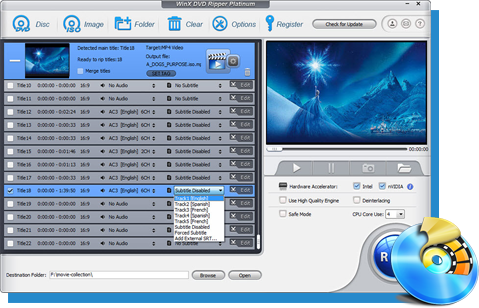
For example, MakeMKV is popular among users who want high-quality MKV backups, HandBrake is a good free option for video conversion, and professional DVD backup software such as WinX DVD Ripper Platinum provides a more complete solution for handling full DVD backups, format conversion, and complex discs. If you're still deciding which software to use, check out the best DVD rippers for a detailed comparison of features, performance, compatibility, and real-world testing results.
|
|
WinX DVD Ripper Platinum |
DVDFab DVD ripper |
MakeMKV |
Handbrake |
|
Best for |
Best overall DVD backup solution. |
Feature-rich commercial ripper. |
Best for lossless MKV backup. |
Best free DVD converter. |
|
Operating System |
Windows, macOS |
Windows, macOS |
Windows, macOS |
Windows |
|
Input source |
Physical DVD disc, ISO image, Video_TS folder |
Physical DVD disc, ISO image, Video_TS folder |
Physical DVD disc, Blu-ray |
Physical DVD disc, ISO image, Video_TS folder, video |
|
Output formats |
350+ device profiles (incl. MP4, MOV, AVI, ISO, MPEG, etc) |
260 profiles |
MKV |
MP4, MKV, WebM |
|
Full DVD backup support |
4 copy modes, incl. DVD to ISO image, main title backup, full title copy, DVD to Video_TS folder |
Not support |
DVD to MKV |
Not support |
|
Hardware acceleration |
Yes |
Yes |
Not support |
Yes |
|
DVD compatibility |
CSS, APS, AACS, UOPs, RegionCode, RCE, SonyArccOS, DisneyX-project DRM |
CSS APS, UOPs, RegionCode, RCE, SonyArccOS |
CSS, APS, UOPs, Region Code |
Not support |
|
Pricing Model |
Commercial $59.95 |
Commercial $84.99 |
Free |
Free and Open-source |
Why Choose WinX DVD Ripper Platinum for DVD Backup?
Backing up a DVD collection is more than simply converting a video file. Many DVDs contain complex structures, including menus, multiple titles, subtitles, audio tracks, and copy protection. A basic video converter may extract the movie, but it may fail to preserve the complete DVD content or handle difficult discs correctly.
Advantage 1: Complete DVD Backup Without Losing Original Content
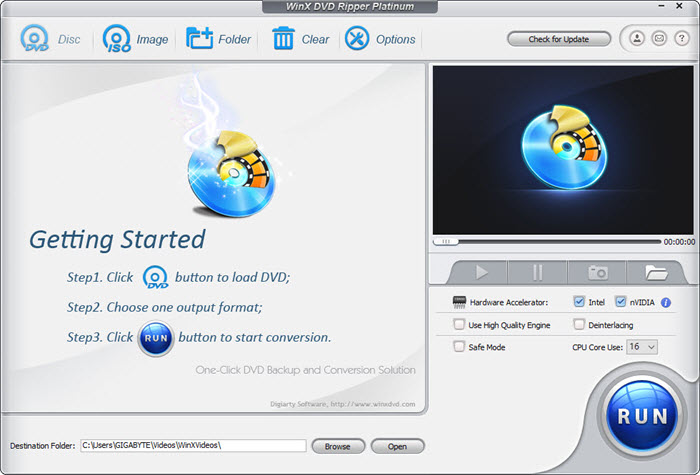
WinX DVD Ripper Platinum is designed for users who want a complete DVD backup workflow. It supports full disc backup, ISO image creation, VIDEO_TS folder backup, main title extraction, and DVD digitization to popular formats such as MP4 and MKV. This allows you to choose between preserving the original DVD experience or creating a more convenient digital library for everyday playback. You can keep:
- DVD menus and navigation
- Multiple audio tracks
- Subtitles
- Bonus features
- Original DVD structure
Advantage 2: Handle Old, Encrypted and Complex DVDs
Many commercial DVDs include copy protection, regional restrictions, or complicated disc structures that can cause backup failures. This is especially common with older DVDs, TV series, and multi-title discs.
WinX DVD Ripper Platinum provides enhanced DVD compatibility to help users rip protected DVDs and backup different types of DVDs, including:
- Commercial DVDs
- Region-coded DVDs
- Old DVDs
- Multi-title DVDs
- Scratched or damaged discs
Advantage 3: Faster DVD Backup with Hardware Acceleration
Backing up a large DVD collection can take hours without acceleration. WinX DVD Ripper Platinum uses hardware acceleration technologies including NVIDIA CUDA and Intel Quick Sync Video to speed up DVD reading and video processing. With GPU acceleration, users can convert DVDs faster while reducing CPU workload, making it easier to digitize large collections efficiently.
Free Download WinX DVD Ripper Platinum to Backup Your DVD Collection
With solid WinX DVD Ripper Platinum, 70 million users worldwide, you can 1:1 back up thousands of DVDs, including commercial DVDs, to hard drive, Cloud, computer, etc. to avoid DVD rot, damage, deletion, fire, flood and theft. Grab the tool to start backing up your DVDs.
Video Tutorial: How to Make a Full Backup of Your DVDs
FAQ
1. Is it legal to back up commercial DVDs?
The legality of backing up commercial DVDs depends on the copyright laws in your country or region. In some places, creating a personal backup of a DVD you legally own may be permitted under certain circumstances, while in others it may be restricted, especially if copy protection must be circumvented. Before backing up commercial DVDs, always check your local copyright regulations and use any backup only for personal use.
2. Will I lose quality when backing up a DVD?
It depends on the backup method you choose. ISO image and VIDEO_TS folder backups preserve the original DVD without re-encoding, so there is no quality loss. MKV backup can also preserve the original video and audio if it is created without re-encoding. MP4 or H.264/H.265 conversion compresses the video to reduce file size, so some quality loss is technically unavoidable. However, with high-quality encoding settings, the difference is usually difficult to notice during normal playback.
3. How Much Storage Space Do I Need to Back Up a DVD Collection?
The storage space required depends on the backup format you choose. Generally, ISO image and Video_TS Folder take up 4.7GB for single-layer DVD and 8.5GB for dual-layer DVD, MKV eats 3-8 GB, while MP4 just consumes 1-2GB. If you are backing up hundreds of DVDs, compressed MP4 files can significantly reduce storage requirements while maintaining excellent visual quality. For collectors who want to preserve every menu, subtitle, and bonus feature, ISO images or VIDEO_TS folders remain the best long-term archival choice.
5. Can I Back Up Copy-Protected DVDs?
Many commercial DVDs include copy protection technologies such as CSS, region codes, Sony ARccOS, Disney X-Project DRM, or other structural protections designed to prevent unauthorized copying. Whether you can successfully back up these discs depends on the DVD backup software you use. Some free tools like Handbrake only work with unprotected DVDs, while more advanced software such as WinX DVD Ripper can handle a wider range of commercial discs, damaged DVDs, regional DVDs, and complex multi-title DVDs. Before backing up commercial DVDs, always ensure that your use complies with the copyright laws and regulations in your country or region. This guide is intended for creating personal backups of DVDs that you legally own.
6. Can I back up DVDs directly to an external hard drive?
Yes. An external hard drive is one of the most popular places to store a DVD collection because it provides large storage capacity, easy portability, and fast access to your movies. You can either back up DVDs to an external hard drive in ISO image or VIDEO_TS folder, or save DVD in MP4 or MKV for further backup in external drive. Before starting the backup, make sure your external hard drive has enough free space. A full DVD backup typically requires 4.7 GB to 8.5 GB per disc, while a compressed MP4 file usually occupies 1–2 GB, depending on the video quality and compression settings. If you're backing up a large DVD collection, organizing your files by movie title, genre, or TV series can make your digital library much easier to browse and manage. You can see the full tutorial to backup DVD to hard drive >>
In general
Backing up your DVD collection is one of the best ways to preserve movies, TV series, and personal recordings for years to come. Whether you choose a full ISO archive, a space-saving MP4 library, or a NAS-based media server, selecting the right backup format and software will help protect your collection from disc aging and hardware obsolescence.
If you need a complete solution that supports full DVD backup, format conversion, hardware acceleration, and compatibility with complex DVDs, WinX DVD Ripper Platinum provides an efficient way to digitize and manage your DVD library.