




 win
win

 Super Resolution
  Video Stabilization
  Frame Interpolation

 Denoise Image
  Restore Old Photo
  Unblur Image
  Recover Face
  Upscale Image
  Colorize Photo
 Video Conversion >
 Video Compression >
 Screen Recording >

How to Download Audio Only Using youtube-dl (MP3, M4A & Best Quality)
 Kaley Torres
Updated on
If you only need the audio from a YouTube video, such as music tracks, podcasts, interviews, or lectures, youtube-dl gives you a fast and reliable way to extract it without downloading the full video file. With just a simple command, you can choose formats like MP3, M4A, or best available audio quality depending on your needs. This guide focuses on practical youtube-dl usage, clean youtube-dl audio only download commands, and the most common real-world scenarios so you can get usable audio files quickly without unnecessary setup or confusion.
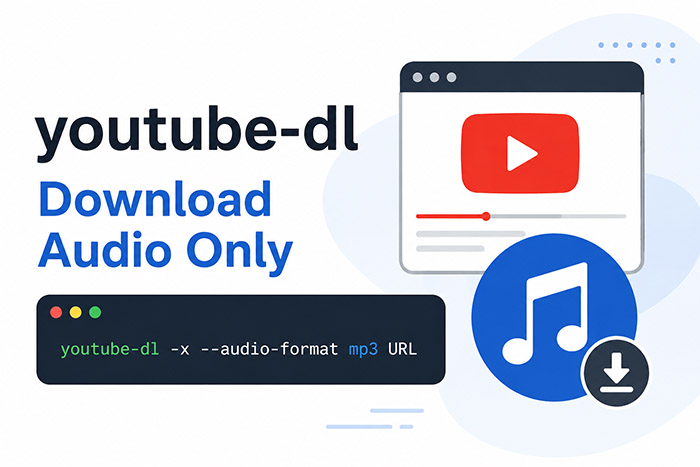
Quick Command to Download Audio Only with youtube-dl
If you only need the audio track from a YouTube video, the fastest method is to use youtube-dl’s built-in audio extraction mode. This avoids downloading unnecessary video data and is ideal for saving music, podcasts, interviews, lectures, or long-form discussions in a smaller file size.
The simplest working command is:
youtube-dl -x --audio-format mp3 URLReplace URL with the YouTube video link you want to process.
This command tells youtube-dl to:
-x→ extract audio from the video stream--audio-format mp3→ convert the output into MP3 format
Unlike downloading the full video and converting it manually later, youtube-dl handles the extraction automatically through ffmpeg, making the process much faster and cleaner for audio-focused downloads.
Example:
youtube-dl -x --audio-format mp3 https://www.youtube.com/watch?v=VIDEO_ID
After the download finishes, the MP3 file will usually appear in the same folder where the command was executed.
Why many users still prefer youtube-dl for audio downloads
Even though newer forks like yt-dlp have become popular, youtube-dl remains attractive for lightweight audio extraction because the syntax is simple, automation-friendly, and easy to integrate into scripts or batch workflows. Many users rely on it for archiving music, saving educational content offline, or extracting background audio without needing a full media downloader interface.
MP3 is not always the highest-quality option
One common misunderstanding is that MP3 automatically gives the best audio quality. In reality, YouTube often delivers audio in formats like M4A or Opus. Converting everything to MP3 may slightly reduce quality because the audio is re-encoded during conversion.
If preserving the original stream matters more than compatibility, many advanced users instead prefer:
youtube-dl -f bestaudio URLThis downloads the best available audio stream directly without forcing MP3 conversion.
Common issue: ffmpeg not found
If the command fails with messages related to ffmpeg or post-processing, the problem is usually not youtube-dl itself. Audio extraction requires ffmpeg to merge or convert media streams correctly. Without it, youtube-dl may download the file but fail during the final conversion step.
On Windows, this often happens because ffmpeg is not added to the system PATH. On Linux or macOS, it may simply not be installed yet.
👉 youtube-dl Not Working? Common Errors and Fixes Explained
Keep original audio files with the -k option
By default, youtube-dl removes temporary source files after conversion finishes. If you want to keep the original audio stream alongside the converted MP3 version, add:
youtube-dl -x --audio-format mp3 -k URLThis is useful for users comparing formats or preserving untouched source audio for archival purposes.
Download playlist audio instead of single videos
youtube-dl can also process full YouTube playlists automatically. Instead of downloading videos one by one, simply replace the video URL with a playlist link.
youtube-dl --extract-audio --audio-format mp3 -o "%(title)s.%(ext)s" PLAYLIST_URL
The custom output template ensures each audio file is saved using the original video title, making large music or podcast collections easier to organize.
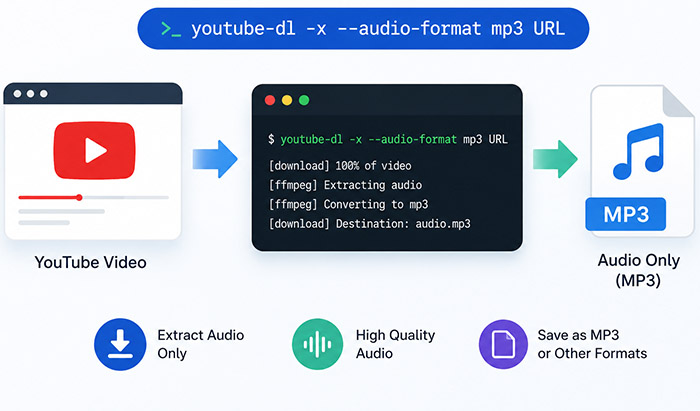
How to Download Audio Only Using youtube-dl (Step-by-Step)
If you are new to youtube-dl, the process is fairly simple once everything is installed correctly. The steps below cover the fastest setup for downloading audio-only files from YouTube without unnecessary configuration.
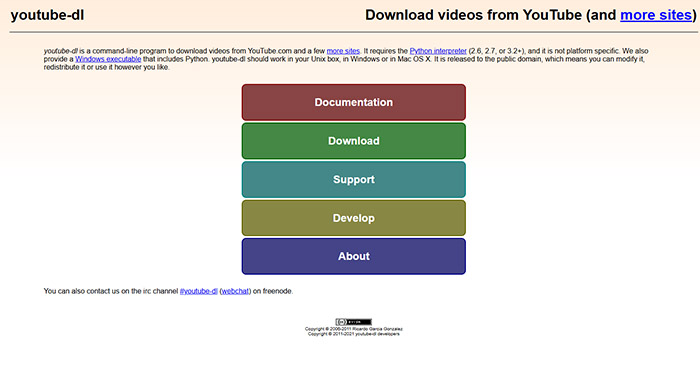
Step 1: Install youtube-dl
First, download and install youtube-dl on your system. Most users install it through Python, package managers, or the official executable release depending on their operating system.
To confirm youtube-dl is installed properly, run:
youtube-dl --version
If a version number appears, the installation is working correctly.
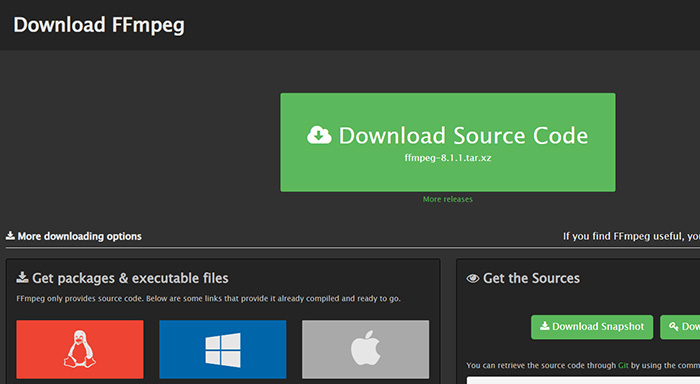
Step 2: Install ffmpeg (Recommended)
While youtube-dl can download media files on its own, audio extraction and format conversion usually require ffmpeg. Without it, commands using -x or --audio-format may fail during post-processing.
This is especially important when converting YouTube audio into MP3 format.
After installation, verify ffmpeg is available:
ffmpeg -version
If the command is recognized, youtube-dl should be able to process audio conversion normally.
Step 3: Run the Audio Download Command
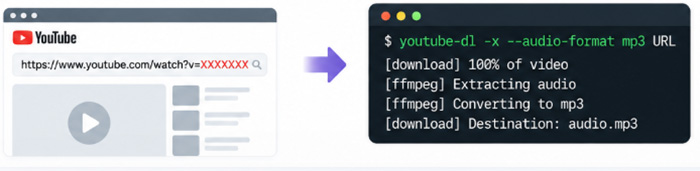
Once both tools are ready, use the following command to extract audio only from a YouTube video:
youtube-dl -x --audio-format mp3 URL
Replace URL with the actual YouTube video link.
The downloaded audio file will usually be saved in the same folder where the command was executed.
 FAQs — Downloading Audio Only with youtube-dl
This usually happens when the -x or --extract-audio option is missing. youtube-dl downloads full video files by default unless audio extraction is explicitly enabled. Using commands like "youtube-dl -x --audio-format mp3 URL" ensures only the audio track is processed and saved.
youtube-dl relies on ffmpeg for audio extraction, merging, and format conversion. Without ffmpeg installed, youtube-dl may download the source file but fail to convert it into MP3, M4A, or other audio formats. Installing ffmpeg and adding it to your system PATH resolves this issue in most cases.
Yes. youtube-dl supports full playlist downloads using the playlist URL instead of a single video link. Users commonly combine --extract-audio with custom output templates to automatically save playlist tracks using their original titles for easier music or podcast organization.
This problem is often caused by incomplete conversion, missing ffmpeg support, corrupted downloads, or unsupported media players. In some cases, youtube-dl downloads the original audio stream correctly, but the conversion to MP3 fails silently. Using the latest version of ffmpeg, avoiding interrupted downloads, and testing formats like M4A or Opus instead of MP3 usually fixes playback issues.


