



 win


 Super Resolution
 Video Stabilization
 Frame Interpolation


 Denoise Image
 Restore Old Photo
 Unblur Image
 Recover Face
 Upscale Image
 Colorize Photo

 Video Conversion >
 Video Compression >
 Screen Recording >


VLC Download Videos: How to Save Online Videos on Windows & Mac
 Mike Rule
Updated on
Summary: VLC can save some online videos, but it cannot download videos from every website. On Windows and Mac, it can process direct media URLs and record supported network streams. VLC does not provide a reliable way to download videos.
You open a video in VLC, watch it without a problem, and then try to save it to your computer. But where is the download button? The VLC download videos process is not as straightforward as it may seem. VLC can play local files, network streams, and some online media, but these sources do not all offer the same saving options.
The key is to identify what kind of link you have. A direct MP4 file URL may be downloadable, while a YouTube watch-page URL usually cannot be saved through the same steps. This article explains which VLC download methods actually work, how to save supported streams, and what to check when VLC plays a video but fails to create a file.
 What VLC Can and Cannot Download
- Direct video file URLs: VLC can open supported media links, and some can be saved locally.
- Network streams: VLC can record or output supported streams to a file, depending on the source and format.
- YouTube and similar websites: Pasting a webpage URL into VLC does not guarantee playback or downloading.
- Local video files: VLC can convert or save them in another format, but this is not an online download.
- iPhone and iPad: VLC supports direct downloads when you enter a media file URL in Network > Downloads.
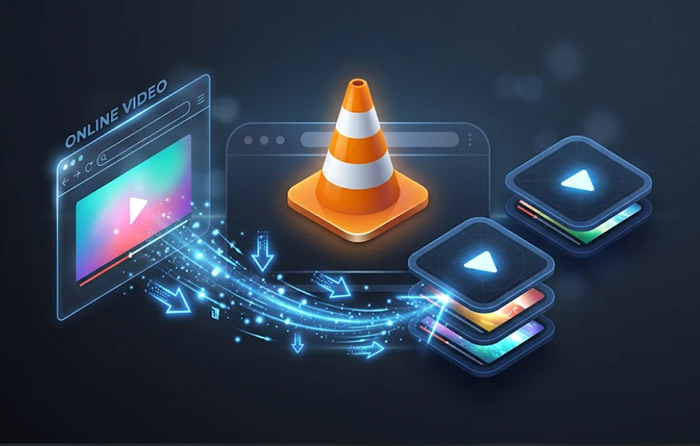
Can VLC Download Videos from the Internet?
Yes, but only under certain conditions. VLC can open supported network media and save some of that content as a local file. It is not a universal video downloader that can extract videos from any webpage.
The distinction between a media URL and a webpage URL is particularly important. A direct media URL points to a video or audio resource, such as an MP4 file. A webpage URL points to a page containing a video player, scripts, advertisements, and other elements. VLC may not be able to identify or retrieve the actual video from that page.
| Video Source | Can VLC Save It | What to Expect |
|---|---|---|
| Direct MP4 or supported media URL | Often possible | Open the media URL and use an available saving or conversion method. |
| HTTP network stream | Possible in supported cases | Use VLC's stream output or recording features. |
| HLS or M3U8 stream | Depends on the stream | Playback and saving depend on the playlist, server, and stream protection. |
| YouTube watch-page URL | Not reliably | VLC may fail to open the link or may stop working after YouTube changes. |
| Netflix or other protected streaming pages | No general download support | VLC cannot be treated as a tool for extracting protected streaming content. |
| Video already stored on your computer | Yes, for conversion or recording tasks | Use Convert / Save or another suitable local-media function. |
Downloading, Streaming, and Recording Are Different
These three terms are often mixed up in VLC tutorials, but they describe different actions:
- Downloading copies a media resource from a server to your device. You can open the saved file later without an internet connection.
- Streaming plays media while receiving data over a network. The content is not necessarily saved as a complete local file.
- Recording captures a stream or playback output and writes it to a file. The process may take as long as the video itself and can affect the output quality.
For example, clicking Play after entering a network URL only confirms that VLC can access and play the stream. It does not mean VLC has downloaded the entire video. If you need a permanent copy, you must use a supported saving or recording method.
How to Download Videos with VLC on Windows 11/10
On Windows, the most straightforward VLC download scenario is a direct link to a media file. If you have a URL ending in a supported media format, such as MP4, you can try opening it through VLC's network media dialog.
Method 1. Save a Video from a Direct URL
This method applies to direct media URLs, not ordinary video webpage links. You need a valid URL that points to the actual video resource and permits access.
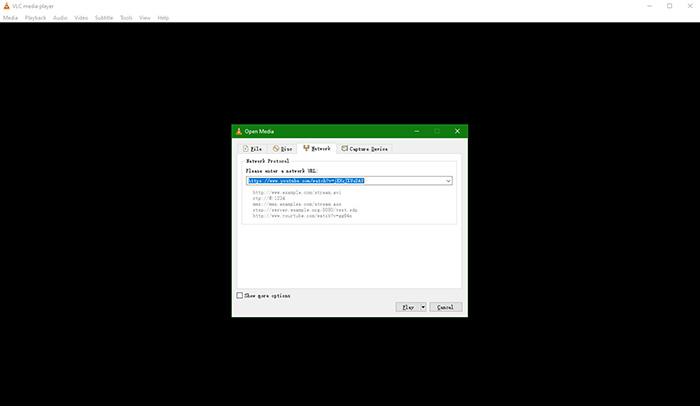
- Copy the direct video URL. Obtain the actual media file address from a source that allows you to access and save the video. A link to a webpage containing a video player is not sufficient.
- Open VLC Media Player. Launch VLC on your Windows PC.
- Open the network media dialog. Select Media > Open Network Stream, or press
Ctrl + N. - Enter the video address. Paste the direct media URL into the network URL field.
- Check whether VLC can access it. Click Play. If the video cannot play, check the address, access permissions, and supported media format before trying to save it.
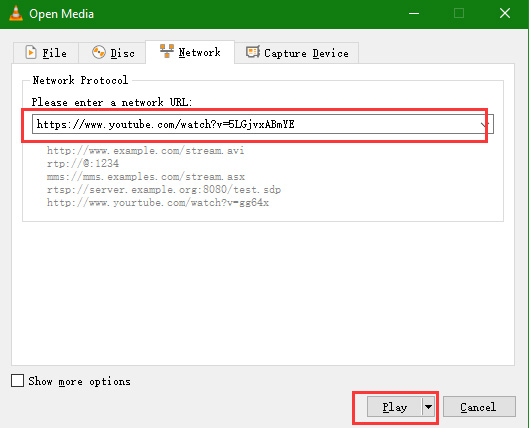
Important: The steps above open a network video for playback. They do not automatically create a downloaded file. To save supported content, use the stream output or recording options described below.
Method 2. Use VLC's Record Button
For certain videos that VLC is already playing, the Record button offers another way to capture playback. This is useful for supported sources when a direct file download is unavailable, but it is not a substitute for downloading the original media file.
- In VLC, open Media > Open Capture Device.
- Set Capture mode to Desktop to record your entire screen.
- In Desired frame rate, enter 30 fps for standard screen recordings. Use 60 fps if you need smoother motion and your computer can handle it.
- At the bottom of the window, click the arrow beside Play and select Convert.
- Under Profile, choose Video – H.264 + MP3 (MP4).
- Click Browse to select an output folder and name the file, such as
recording.mp4. - Click Start to begin capturing your screen. The timer indicates that the recording is in progress.
- Click the square Stop button in VLC's main controls to finish. The MP4 recording will be saved to the location selected in Step 6.
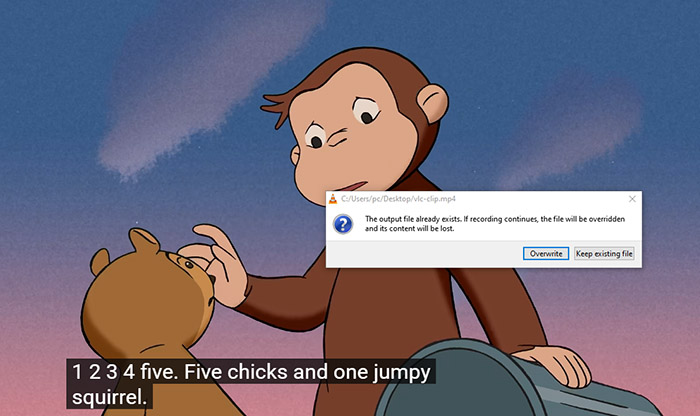
Recording captures the portion played while the feature is active. It does not retrieve the original file directly, and the result may differ in quality, duration, or audio configuration.
How to Download Videos with VLC on Mac
VLC for macOS supports network media playback and conversion features similar to the Windows version. The same source limitation applies: a direct media file URL is different from a webpage URL.
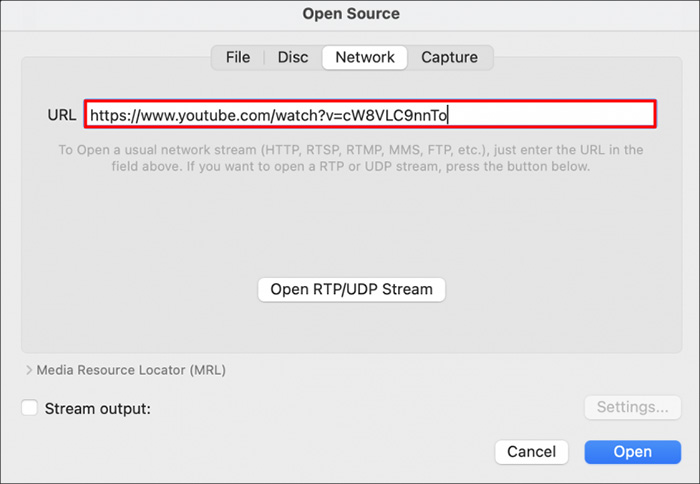
- Copy the URL of the online video you want to save.
- Open VLC on your Mac and select File > Open Network.
- Paste the video URL into the network address field and click Open to start playback.
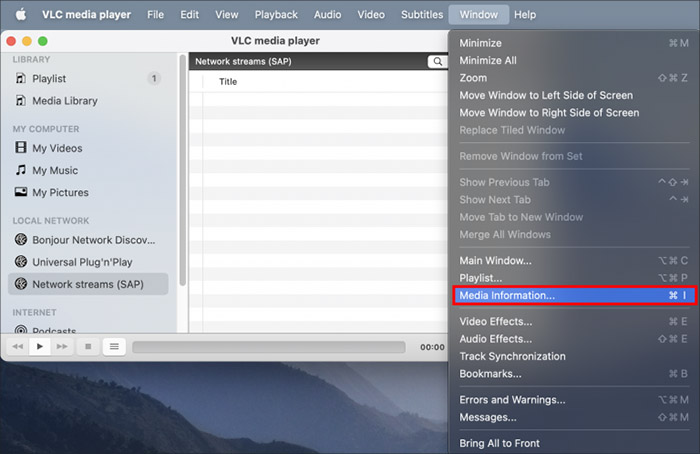
- While the video plays, select Window > Media Information.
- Find the address under Location at the bottom of the window and copy it.
- Paste the copied address into a browser's address bar and press Enter.
- If the video opens directly, right-click it and choose Download Video As.
- Choose a folder and save the video.
Menu names and dialog layouts may vary between VLC releases. If you cannot find the same option, check the current menu under File or Media rather than following instructions written for a different version.
As on Windows, VLC cannot turn every YouTube, Vimeo, or streaming-site webpage into a downloadable video. A direct media address and a supported stream are still required.
Why VLC Won't Download Videos: Common Problems and Fixes
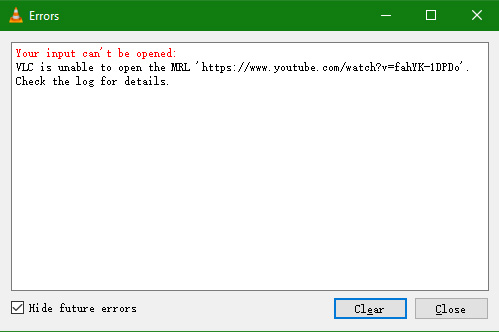
VLC fail to save YouTube videos or other online videos, or it may show an error before playback even begins. The right fix depends on where the process stops. Check the source URL and the output file before reinstalling the player.
VLC Plays the Video but Does Not Save It
This is often a misunderstanding of VLC's network playback feature. When you select Media > Open Network Stream and click Play, VLC starts streaming the content. It does not automatically create a local copy.
To keep the video, you need a supported output or recording method. Reopening the same URL or changing the playback settings will not turn a streaming session into a downloaded file by itself.
VLC Cannot Open the Network URL
An address copied from a browser's address bar may point to a webpage rather than a video file. VLC cannot necessarily interpret the page and locate the media embedded in it.
- Check whether the URL points to a direct media file or a webpage.
- Make sure the address has not expired or been copied incompletely.
- Check whether the source requires a login or additional authorization.
- Try opening another supported media URL to determine whether the problem is source-specific.
The Downloaded Video Has No Audio
Some online video services deliver audio and video separately. A saving method that captures only the video stream may produce a silent file. An incompatible output profile can also cause audio to be omitted during conversion.
Before recording again, check the source's available audio tracks and the selected output profile. If the source uses separate streams, the method must be able to handle both tracks. Simply changing the output filename to .mp4 will not combine them.
VLC Creates a 0KB or Incomplete File
A file that remains at 0KB or stops growing may indicate that VLC never received usable stream data. A network interruption, invalid URL, server restriction, or unsupported stream can cause this.
- Confirm that the source still opens and plays.
- Check whether the destination folder is writable and has enough free space.
- Try a different local destination to rule out folder permission problems.
- For live streams, check whether the source is still broadcasting.
- Do not treat an unfinished output file as a successful download.
The Saved MP4 Has Video but Will Not Play Correctly
An MP4 extension alone does not guarantee compatibility. The file may contain an unsupported codec, an incomplete audio track, or a container that was not finalized properly.
Use a suitable VLC output profile, stop the recording through VLC rather than abruptly closing the application, and test the finished file after the process ends. If the source uses an unusual format, a different container or codec combination may be necessary.

 Frequently Asked Questions
No. VLC can open and save certain direct media URLs and supported network streams, but it cannot download videos from every website. A webpage URL is not the same as a direct video file address, and some streaming services use formats or access restrictions that VLC cannot handle.
Playing a network stream and saving it are separate operations. Clicking Play starts streaming but does not automatically create a local file. You need a supported stream output, conversion, or recording method to save the content.
VLC does not provide a reliable, universal method for downloading YouTube videos in 1080p or 4K. YouTube delivery changes can break VLC's ability to open video URLs, and high-resolution video and audio may be delivered through separate streams.
The destination depends on the method you use. For Convert / Save or stream output, VLC writes the file to the destination path you select. Record-button captures are generally stored in the default Videos folder on Windows unless the recording directory has been changed. VLC for iOS stores direct downloads in its media library.
Yes. VLC for iOS supports direct media downloads. Open Network > Downloads, enter the URL of a video file, and tap Download. This feature does not support downloading videos directly from popular playback sites such as YouTube or Vimeo.
Replacing youtube.lua may restore YouTube playback in some VLC versions when the built-in script becomes outdated. However, it is not a guaranteed fix and does not turn VLC into a dependable YouTube downloader. Use current instructions from a trusted source and avoid unknown script downloads.
VLC is a free, open-source media player. Download it from the official VideoLAN website and avoid unofficial installers or modified script files. Also check the source of any video URL before opening it, and respect the content owner's download restrictions.


