




 win
win

 Super Resolution
  Video Stabilization
  Frame Interpolation

 Denoise Image
  Restore Old Photo
  Unblur Image
  Recover Face
  Upscale Image
  Colorize Photo
 Video Conversion >
 Video Compression >
 Screen Recording >
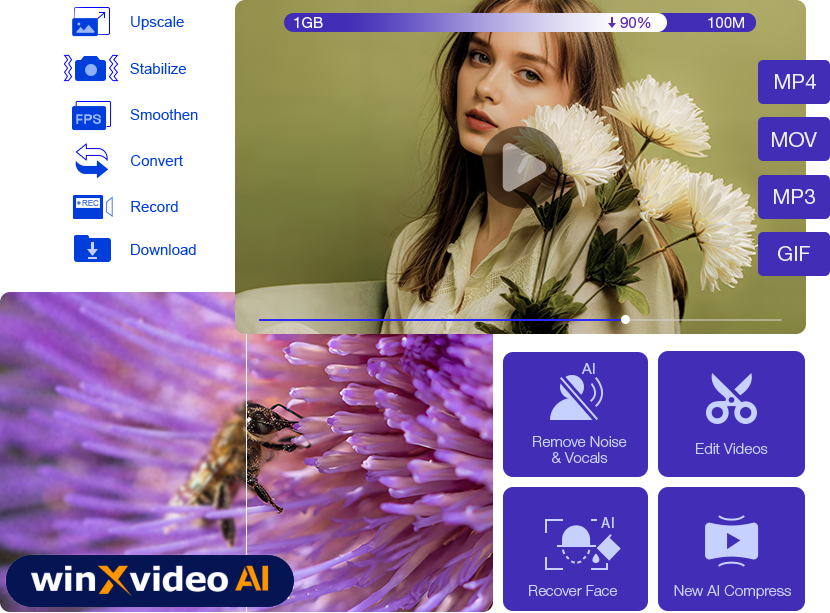


Winxvideo AI Review 2026: Tested Performance, Pros, Cons, and Lab Results
 Mike Rule
Updated on
AI video enhancement has become increasingly accessible, but actual results still vary widely by source footage, AI model, and hardware. Winxvideo AI combines video upscaling, frame interpolation, stabilization, image restoration, audio processing, and conventional video tools in a single desktop application.
This Winxvideo AI review focuses on how those features perform in real-world testing. We tested its AI enhancement models, processing speed, GPU performance, image and audio tools, and common video utilities, while also documenting limitations and comparing it with competing AI video enhancers. The goal is to determine where Winxvideo AI performs well, where it falls short, and who it makes sense for in 2026.
Key Takeyaways: Winxvideo AI Review 2026
- The Verdict: Winxvideo AI is a versatile 3-in-1 AI toolkit that excels in upscaling and enhancing video, audio, and image. Unlike resource-heavy competitors, it delivers solid 4K AI upscaling while maintaining good performance on PCs.
- Best For: Content creators, hobbyists, and archivists who need professional AI enhancement and fast batch video processing without the steep learning curve or high subscription costs.
- All-in-One Power: Seamlessly integrates AI enhancing, 4K converting, and screen recording in one workflow.
What Is Winxvideo AI?
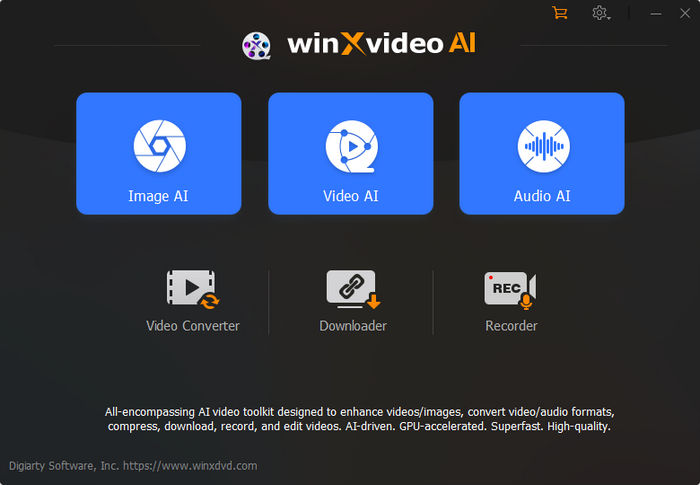
Winxvideo AI is an AI-enhanced media processing software developed by Digiarty Software. It combines AI video/image/audio enhancement, video conversion, compression, downloading, screen recording, and basic editing tools into a single desktop application for Windows and macOS. Instead of focusing on only one AI function (such as upscaling), Winxvideo AI aims to replace multiple everyday media tools with one unified interface powered by full GPU acceleration.
 Free Download
  Free Download
Winxvideo AI is for PC, while Macxvideo AI (from our MacXDVD brand) is for macOS.
Before diving into individual features and performance, it’s helpful to look at the technical foundation of Winxvideo AI.
Specs, Compatibility and Pricing
| Category | Details |
|---|---|
| Developer | Digiarty Software, Inc. |
| Supported OS | Windows 11/10/8.1/7 (64-bit); macOS 10.15 or later |
| Languages | English, Japanese, German, French, Korean, Italian, Chinese, etc. |
| Min. Requirements | [Standard Tools] 1GHz CPU, 1GB RAM, NVIDIA GT 630 / Intel HD 2000 / AMD HD 7700 or newer. [AI Features] 2GB+ RAM, compatible GPU with Vulkan 1.2.x or OpenCL 1.0 support. |
| Supported Formats | 370+ Inputs (HEVC, AV1, ProRes, MKV) / 420+ Outputs |
| Price | Free trial available; $34.95/annual; $54.95 (1 PC)/lifetime; $79.95 (3-5 PCs)/family license |
Latest Winxvideo AI Updates
Winxvideo AI has received several updates relevant to this review, particularly to its AI enhancement models and hardware support. The current release includes:
- Gen Detail V3 and Real Smooth V3: Updated AI models for video and image enhancement, replacing earlier model versions used by previous releases. It delivers 40-80% faster upscaling with better texture preservation and noise reduction.
- Newer GPU support: Optimization for NVIDIA RTX 50-series (5060-5090) GPUs and Apple Silicon M4 for faster AI inference speeds.
- Additional formats: Support for formats such as AV1, Prores and MKV output options for high fidelity AI video processing.
- Audio enhancement: introduced new dedicated modules for noise suppression and vocal isolation.
- Color preservation: A new Keep Original Colors option that helps users restore color closer to the source footage after AI video upscaling.
- Other updates: improvements to screen recording with smooth 4K 60fps recording capabilities, new custom DPI settings (up to 1000) for professional-grade photo printing, UI optimization for batch video compression.
How We Tested Winxvideo AI?
We tested Winxvideo AI by running its main AI enhancement and video-processing features on real-world video, image, and audio files. The tests focused on three areas: output quality, processing performance, and practical usability.
For AI enhancement, we evaluated different source resolutions and footage types where possible, then compared the original and processed results for detail retention, sharpness, noise handling, motion quality, and visible AI artifacts. For processing tasks such as conversion and compression, we recorded processing time, output size, and other relevant performance metrics.
All tests were performed on the same test system unless otherwise noted.
Test Environment
- Operating System: Windows 11 (64-bit)
- Processor (CPU): AMD Ryzen 7 7700X 8-Core Processor
- Graphics Card (GPU): NVIDIA GeForce RTX 3060 Ti
- Memory (RAM): 32GB DDR5
- Storage: HDD 500G
- Version tested: Winxvideo AI v4.10
- Testing date: September 14, 2026
The performance results below reflect this version and its current AI models.
How We Evaluated the Results
Visual quality was assessed by comparing the original and processed files at the same playback position and inspecting areas such as fine textures, edges, faces, hair, text, and motion. We also looked for common AI processing artifacts, including:
- - Oversharpening
- - Invented or distorted textures
- - Halos around high-contrast edges
- - Flickering or temporal inconsistencies
- - Ghosting during frame interpolation
- - Excessive smoothing or loss of natural detail
For performance tests, we recorded processing time and, where applicable, average processing FPS, GPU utilization, output file size, and compression ratio.
How Does Winxvideo AI Perform? Real-world Performance Tests
Winxvideo AI’s most distinctive layer lies in its suite of AI-powered video enhancement modules. Unlike traditional filters that rely on interpolation or sharpening, these modules use dedicated neural network models such as Gen Detail, Anime, and Real Smooth to reconstruct visual information based on learned structural patterns. Below is a data-driven breakdown of how these super-resolution engines perform across various workloads based on our physical test environment.
AI Super Resolution – Upscale and Restore Old or Low-Res Videos
Winxvideo AI’s AI Super-Resolution model leverages deep-learning models to intelligently reconstruct resolution rather than simply expanding pixel matrices. Across various scaling profiles (1x enhancement, 2x-4x upscaling, and various models), the software executes texture synthesis, artifact suppression, and edge refinement simultaneously.
- Reconstruction over Interpolation: Generates sub-pixel details and sharp edge vectors predicted from high-resolution training datasets rather than applying spatial blurring or basic sharpening filters.
- Built-in Denoise and Deblur: Concurrently reduces compression artifacts and temporal noise while maintaining structural integrity.
- Target Applications: Archival restoration for low-res VHS/DVD sources, legacy camcorder footage, compressed web clips, and anime or cell-animated content.
Model Performances & Visual Analyses
All benchmarks were recorded on WinXVideo AI Version 4.10 with full GPU acceleration enabled. Visual quality was evaluated using the NIQE (Natural Image Quality Evaluator) score, where lower numeric values indicate better perceptual naturalness and higher visual fidelity.
- Source1: A blurry anime clip (5 seconds, 854x480p, 30fps)
- Output: MP4 H.264
- AI Model Used: Anime, 2x upscaling
- Test highlights of Winxvideo AI: The specialized Anime model achieves the fast throughput in 2x scaling (3.08 FPS) with max VRAM consumption (907 MB). In our test, the dedicated model sharpens vector strokes while maintaining smooth, continuous line work. Outlines along characters and background art become crisp without introducing staircase/aliasing artifacts or ringing halos.

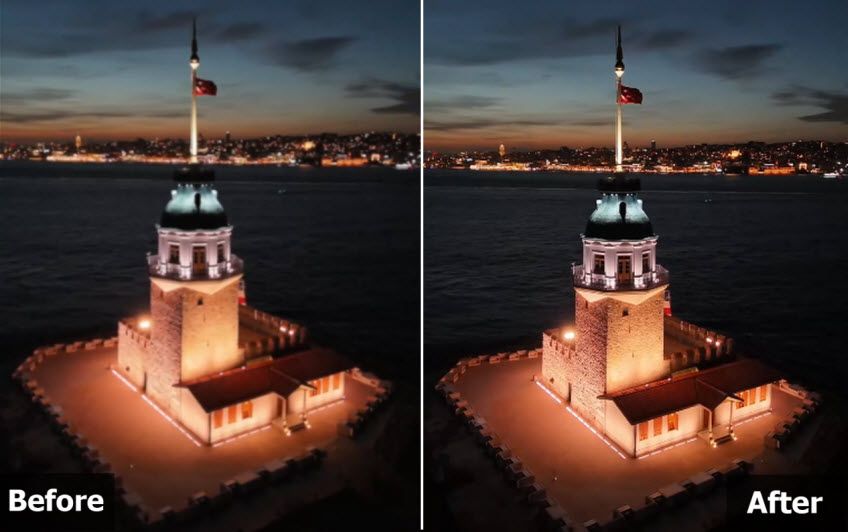
- Source2: A noisy night view, 7 seconds, 810x1440p, 30fps
- Output: MP4 H.264
- AI Model Used: Gendetail, 2x upscaling
- Test highlights of Winxvideo AI: In our real-world testing, the source footage initially exhibited severe dancing ISO noise across dark shadow areas, along with a loss of edge clarity on illuminated buildings. After processing with Winxvideo AI, the video achieved the high visual fidelity in our entire testing suite, recording an impressive NIQE score of 6.813. The dark background regions were thoroughly cleaned of color noise, while pin-point light sources remained sharp and well-defined without smudging or color bleeding.
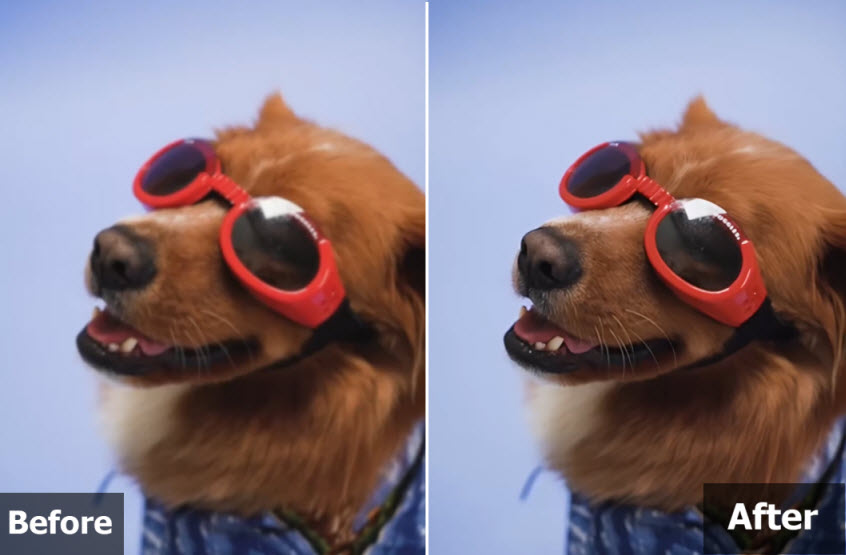
- Source3: A blurry animal, 7 seconds, 810x1440p, 30fps
- Output: MP4 H.264
- AI Model Used: Gendetail, 2x upscaling
- Test highlights of Winxvideo AI: The original footage initially suffered from out-of-focus blur, leaving the dog's fur muddy, its whiskers virtually unrecognizable, and the edges of its sunglasses soft and poorly defined. Using the gendetail model for a 2x upscale, Winxvideo AI processed the 225 frames in just 85 seconds at an average speed of 2.49 FPS, utilizing 99% of the GPU with a peak VRAM footprint of 5,203 MB. The output successfully reconstructed the fine details—rendering individual fur strands and facial whiskers crisp and distinct while making the sunglasses' contours sharp and cleanly defined. This visual transformation was reflected in a strong perceptual quality score, achieving a low NIQE score of 7.464.
Speed & Hardware Resource Analysis
- GPU Utilization & VRAM Allocation: Benchmark data shows that Winxvideo AI engages GPU acceleration continuously, keeping GPU utilization at 99% throughout the AI Super Resolution process. Memory consumption scales according to the selected AI model: the Anime model runs at under 1 GB VRAM, while 2x upscaling using Gen Detail requires a peak of 5.2 GB VRAM. Based on these measured resource requirements, a discrete graphics card with at least 6 GB VRAM is recommended for continuous 2K/4K upscaling task.
- Processing Throughput & Workflow Implications: Across standard H.264 MP4 exports, processing speeds remained a great consistent throughput bracket of 2.45 FPS to 3.08 FPS. While this speed outperforms most competitor AI upscalers on identical hardware, it highlights that neural video enhancement remains an offline processing task. Consequently, high-resolution or long-form video exports are best handled via background batch processing rather than real-time playback rendering.
- CPU-GPU Load Distribution: CPU utilization stabilized between 46% and 56% across all test passes. This load pattern reflects an effective distribution of tasks: the CPU handles video decoding, stream encoding, and data transfer, allowing the GPU compute units to focus on neural network inference.
Which model should I choose?
There isn’t a single "best" model for all situations—each is optimized for different types of footage. The ideal choice depends on the content you’re working with. Experiment with multiple models to see which one produces the best results for your specific video.
Which scaling option should I use?
For most clips, higher scaling settings like x4 or 4K give an instant improvement in quality. In some cases, gradually upscaling in steps (for example, x2 followed by another x2) can yield cleaner results than jumping straight to x4 or 4K. If your footage is already high resolution and you mainly want to remove noise or correct blur, x1 is sufficient for enhancement without changing the resolution. You can also set a custom output size manually to match your desired final quality. Choose the option that aligns best with your footage and your quality goals.
AI Frame Interpolation – Smooth out Choppy Motion for Sports & Action
Videos with low frame rates can appear stutter or uneven, especially in fast-paced scenes. This AI Frame Interpolation increases frame rate by analyzing motion vectors between existing frames and inserting intermediate frames, resulting in smoother playback that feels more fluid and cinematic.
- Ultra-high frame rates: Boost 24/30fps footage to 60fps, 120fps, and up to 480fps for smooth playback or slow-motion creation.
- Artifact suppression: Unlike simple motion blur effects, the AI attempts to maintain motion coherence without introducing obvious ghosting or smearing.
- Best for: Enhancing sports clips, high-octane action scenes, and animations where motion clarity is essential for the viewing experience.
Model Performances & Visual Analyses
By doubling or quintupling the frame count, the software transforms the "feel" of the motion from amateur to cinematic:
- Source: Original 30fps
- Output:120fps
- AI Model Used:AI Frame Interpolation, 4X
- Quality & Side-by-Side Analysis: In our testing of a dancing shot, converting 30fps to 120fps (4X) effectively removed the "choppiness" associated with traditional software. The motion became fluid and professional, ideal for a high-end cinematic slow-mo look.
Tips: Enable Skip Scene Changes if adjacent frames differ significantly to avoid artifacts; disable it if the scene is consistent for smoother interpolation. Then adjust Sensitivity Setting from 0–100; a higher value detects and skips more scene changes (recommended: 85). Too low may cause unwanted interpolation; too high may skip frames excessively.
AI Video Stabilization– Stabilize Shaky Clip from Handheld Camera/Drone
Shaky footage—shot on smartphones, action cams, or drones—is a common challenge. Winxvideo AI uses motion analysis and intelligent cropping to reduce jitter and unsteady panning, avoiding displacement or excessive cropping.
- Smart cropping: Adjusts frames in a way that preserves natural camera motion without excessive zoom or distortion.
- Edge preservation: Maintain frame boundaries better than basic warp stabilizers, reducing the “rubber band” effect during fast movement.
- Customizable precision: Offer 2 modes, 4 presets, and 3 cropping types, allowing users to fine-tune the balance between stability and frame size.
- Best for: Rescuing walk and talk shots, GoPro action adventures, shaky drone footage, Vlogs, or travel footage where physical gimbals weren’t used.
Model Performances and Visual Comparisons
Our tests focused on high-vibration scenarios to see how the AI handles erratic movement:
- Source: Original shaky footage
- Output: Stabilized Result.
- AI Model Used: AI Video Stabilization
- Quality & Side-by-Side Analysis: We tested a skiing video. Winxvideo AI successfully ironed out high-frequency vibrations and erratic jolts. The result looked as if it were shot with a professional gimbal, while the horizon remained level and natural.
Tips: The ideal stabilization settings depend on the footage. For high-intensity action (like biking or running), use the Best Stability preset to achieve maximum stabilization. For everyday walking or casual vlogs, the Balanced preset reduces cropping while keeping the video smooth. Experiment with different presets and modes to find the combination that works best for your specific video.
Upscaler / Denoise / Deblur - Upscale Photos for Prints or Archival
Winxvideo AI's Image AI module is especially helpful for enlarging photos for print, cropping for detail, reducing noise for a low-light image, sharpening a heavily compressed download, and more. It scales images up to 10K resolution (4× upscaling) while actively suppressing noise and reducing blur.
- 10K resolution & precise DPI: Supports upscaling images by x4 (up to 4K/8K/10K resolution) with flexible DPI settings up to 1000, making small crops or web images suitable for large-format displays and prints.
- Texture awareness: Preserves and reconstructs intricate patterns ike fabric patterns, foliage, and skin pores rather than applying a flat “plastic” blur.
- Grain management: Separates true detail from noise and handles high-ISO shots from smartphones or old cameras, delivering cleaner enlargements without losing sharpness.
- Best for: Marketing materials, professional portfolios, social media posts, and high-resolution printing where every pixel counts.
Model Performances and Visual Comparisons
We tested the AI Image Enhancer across two critical scenarios: upscaling for resolution and reducing noise in challenging low-light conditions.
- Source: A low-res 1200x800p image
- Output: 4800x3200p jpg
- AI Model Used: Gen Detail V3, 4x upscaling
- Quality & Side-by-Side Analysis: Winxvideo AI didn’t just stretch the pixels here; it genuinely reconstructed the micro-details. In the 4K output, the bee’s antennae and the delicate veins of the flower petals are incredibly sharp—details that were just a blurry mess in the original 1200x800p shot. What I love most is that it avoids that "flat, artificial" look. Instead of looking like a digital painting, the textures feel organic and crisp, giving the whole scene a much-needed depth that traditional upscaling just can't touch.

- Source: Processing a photo taken in low-light conditions, exhibiting significant digital noise (grain).
- Output: Resolution the same as original
- Model Used: Real Smooth, Enhance image 1x
- Quality & Side-by-Side Analysis: It scrubbed away that ugly, color-shifted grain on the building's surface and shadows without turning the whole thing into a blurry mess. The edges of the archetecture stay nice and sharp, proving it’s actually "managing" the grain rather than just smudging everything.

AI Face Recovery and Colorization: Reviving Vintage Memories
The Face Recovery engine goes beyond simple sharpening; it uses a generative neural network to reconstruct anatomical details like the iris, eyelashes, and skin pores, effectively rescuing portraits that were previously lost to heavy blur or pixelation. This tool is a standout for family archives, making old portraits, group photos, and social snapshots look remarkably lifelike.
Complementing this is the AI Colorization module, which automatically infuses black-and-white images with context-aware tonal mapping. By predicting clothing and environmental colors with reference to natural palettes, it produces results far more believable than generic color-fill tools—perfect for historical restoration or breathing new life into family albums.
Model Performances and Visual Comparisons
Our tests focused on the surgical precision of the face restoration module in a challenging archival scenario:
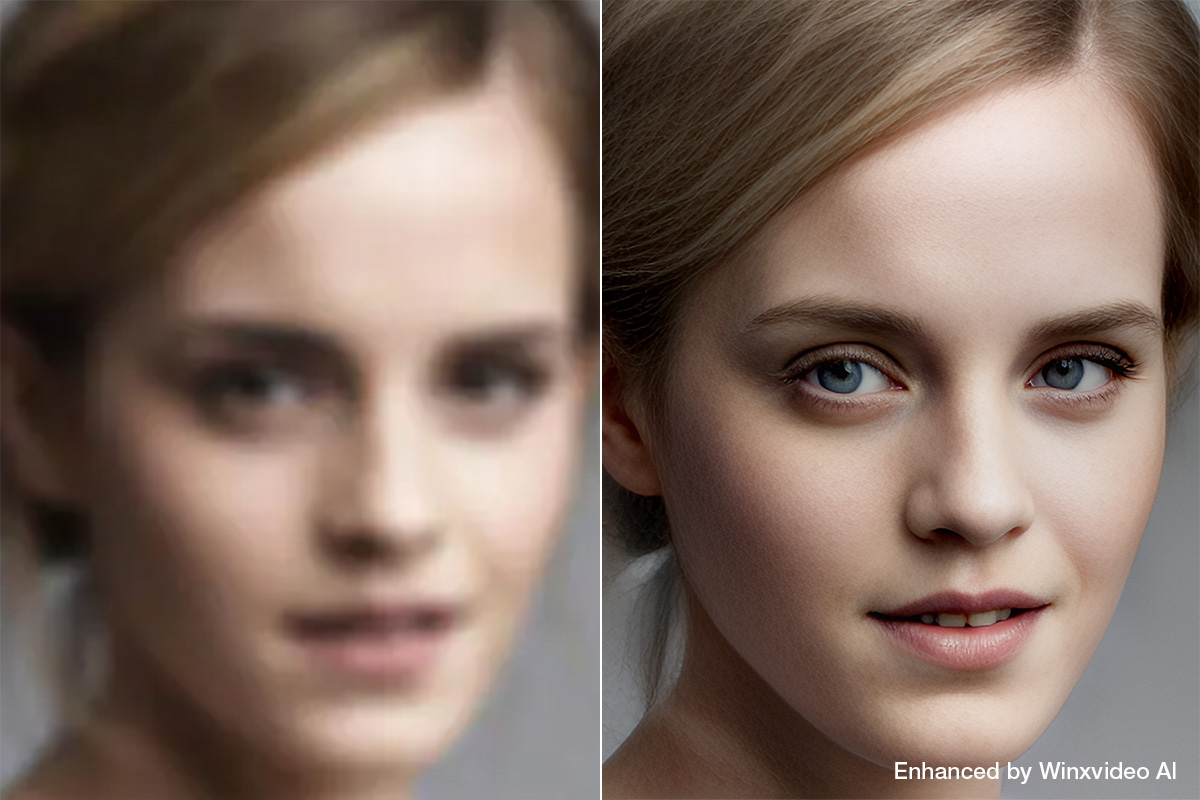
- Source: Restoring a blurred 524x604p portrait from a 1950s family archive
- Output: 1048x1208p
- Model Used: Gen Detail V3 | Center Face | 2x upscaling
- Quality & Side-by-Side Analysis: The Face Recovery model performed a "surgical" reconstruction. It successfully turned a pixelated, unrecognizable eye into a sharp iris and pupil, complete with reconstructed eyelashes. Beyond just sharpening, the photo gained natural-looking skin depth and texture, bringing the vintage image to life with an authentic vibrancy that honors the original subject.
More Image features:In addition, users can take snapshot, extract and resize images in jpg/png, and choose a proper DPI option from 72DPI, 300DPI to 1000DPI for quality prints.
AI Audio Enhancer for Tutorials, Vlogs, and Presentations
Audio quality often undermines video impact, especially in dialogue-heavy recordings where background noise or music can distract the audience. Winxvideo AI’s audio suite provides a neural-driven solution to these sonic challenges, ensuring your message is heard with professional clarity.
AI Audio Suppression: Background hums, wind noise, and other continuous ambient sounds are identified and reduced without degrading dialogue clarity. This is especially useful in outdoor interviews, vlogs, and event footage.
AI Vocal Remover: For creators who need isolated instrumental tracks or clean voiceovers, this feature separates vocals from music with reasonable precision, simplifying tasks like karaoke generation or soundtrack editing.
Audio Conversion: Batch download and convert audio files to formats like AAC, AC3, WMA, FLAC, etc. Users are have full control over the audio quality, codec, sample rate, bitrate, and channel. Just audio volume, sync audio with video.
Other Video Tools
After exploring the AI modules, it’s worth stepping back to look at Winxvideo AI’s foundation: a fully featured video processing engine built for real-world, everyday workflows. In practical use, video creators often spend more time converting formats, shrinking files, capturing screens, and doing basic edits than they do applying AI effects. Winxvideo AI recognizes this reality and treats these core tasks with first-class support, backed by full GPU acceleration for speed and efficiency.
Convert Video with 47X Real-Time Faster Speed
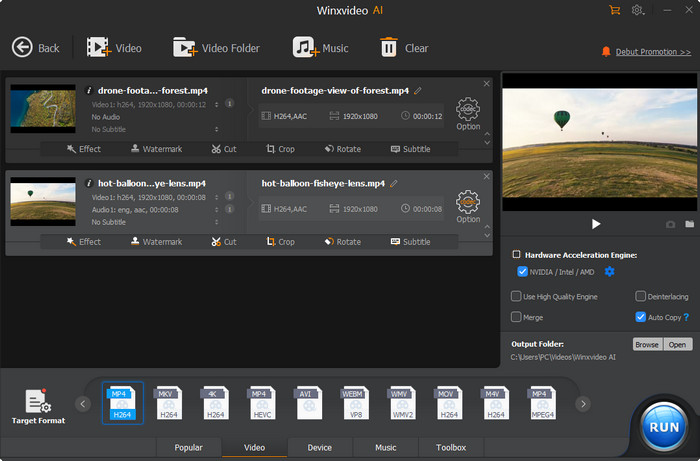
At its core, Winxvideo AI acts as a powerful media transcoder. It supports 370+ input formats and 420+ output profiles, covering everything from legacy containers like AVI or VOB to modern codecs like HEVC and AV1. This wide compatibility makes it easier to prepare footage for different platforms without worrying about unsupported formats. Whether you are making video playable for an iPhone or a Sony TV, the profiles are pre-optimized.
How Winxvideo AI’s conversion performs in real-world tests?
By leveraging NVIDIA (CUDA/NVENC), AMD, and Intel QuickSync, Winxvideo AI processes 4K video conversions up to 47x faster than real-time and shows a dramatic speed advantage over CPU-only tools. This speed advantage is more visible when handling batch tasks that would otherwise choke a CPU.
| Source File | Target Format | Processing Time | Speed Gain |
|---|---|---|---|
| 1GB 4K MKV (H.264) | MP4 (HEVC) | ~35 Seconds | 47x Real-time |
| 500MB 1080p AVI | MP4 (H.264) | ~12 Seconds | 30x Real-time |
Verdict: Exceptional performance for heavy batch processing and large 4K/8K files.
Compression Video: Reduce Size by 90% without Compromising Quality
The built-in compressor allows you to shrink large 4K or 8K videos down by up to 90% while retaining visual fidelity, a practical feature for saving storage space or preparing files for social media and cloud sharing. Users can use a simple slider or fine-tune parameters such as bitrate, frame rate, and GOP settings to balance quality and size for specific use cases. For users handling multiple files, Winxvideo AI supports batch compressing files with full GPU utilization. This dramatically reduces processing time while maintaining consistent output quality, making it suitable for both professional projects and personal media libraries.
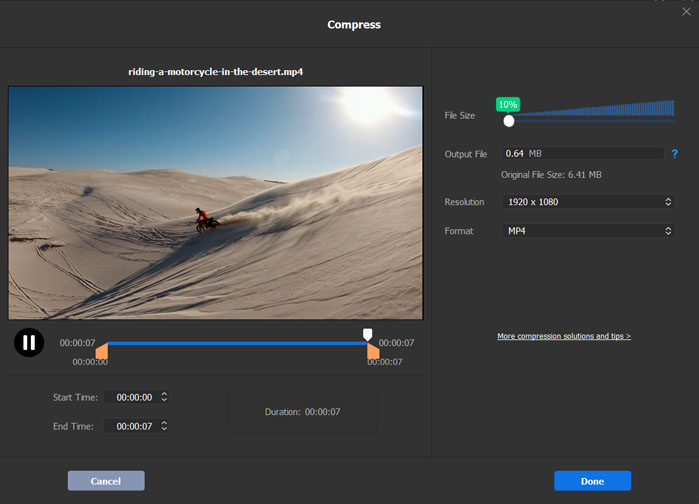
How Winxvideo AI’s compressor performs in real-world tests??
We tested a high-bitrate 1GB 4K MOV file. By converting to HEVC and applying the compression slider, we reduced the file to 110MB that looked nearly identical to the original on a standard 4K monitor.
| Metric | Original File | Compressed File | Change |
|---|---|---|---|
| Size | 1,024 MB | 110 MB | -89.2% |
| Format | MOV (ProRes) | MP4 (HEVC) | More Compatible |
| Quality | 4K High Bitrate | 4K Optimized | No Visual Loss |
Screen Recorder:Record 4K 60FPS Video with Audio
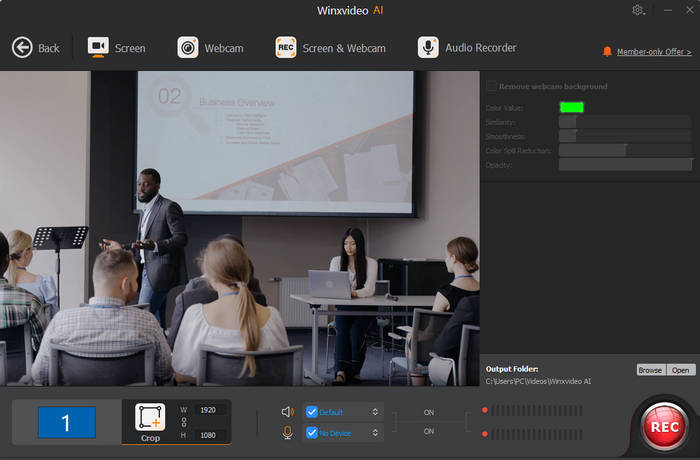
Winxvideo AI includes multiple recording modes—full screen, custom region, webcam, and picture-in-picture (PIP). It captures up to 4K 60fps, making it a versatile tool for gamers, educators, streamers, and anyone producing tutorials, presentations, gameplays, or webinars. In addition, it can produce both system and microphone audio. This is suitable for voice-overs and commentary. On top of that, the built-in highlighting tools help draw attention to specific areas on screen during recording.
Video Downloader: Save Online Content from 1000+ Sites
A built-in downloader enables saving high-quality video and audio from 1000+ popular streaming platforms, providing a quick way to archive or edit content without switching apps. Users can even enter multiple URLs to download video and audio streams in batch for rapid archiving.
Editing Essentials: Cut/Trim/Crop/Merge Videos
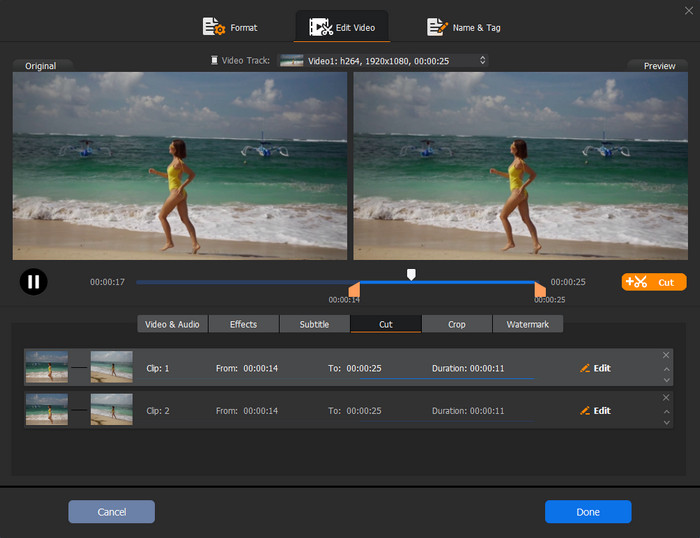
The software also offers basic but comprehensive editing features that cover everyday needs. Users can trim, cut, and merge clips without re-encoding, so you can quickly assemble sequences or remove unwanted sections. You can also crop and rotate video to adjust framing or change aspect ratios for different platform requirements or manage subtitle tracks like enabling, disabling, or importing external subs. In addition, you have the option to add watermark, apply effects, change video playback speed, make GIF from video and more. These tools streamline workflow by removing the need for third-party editing software for simple adjustments.
Winxvideo AI Pros and Cons
- All-in-one Functionality: A versatile toolkit with video/audio converter, compressor, downloader, recorder, editor, and AI enhancer.
- Solid AI performance: Leverage advanced AI models to improve video/audio/image quality with realistic details and textures.
- Fast speed and efficient: Leve-3 hardware acceleration ensures video processing and AI enhancements up to 47x real-time faster, making it accessible even on mid-range hardware.
- User-Friendly: The UI is clean, modern, and intuitive, which doesn't overwhelm beginners.
- Long-term Value: One of the most affordable lifetime licenses.
- Limited platform support:currently available for Windows and macOS only, with no web-based or mobile application options.
- Like most AI video tools, processing high-resolution footage with advanced models requires a capable discrete GPU (6 GB VRAM or higher recommended); older or low-spec systems with integrated graphics may struggle or experience slow rendering.
Winxvideo AI vs. Topaz Video AI vs. AVCLabs Video Enhancer
The table below provides a concise comparison of video software options that support general processing and video quality enhancing: Winxvideo AI, Topaz Video AI, and AVCLabs Video Enhancer AI. It outlines their supported features, formats, output quality, processing speed, pricing, etc.

Winxvideo AI |

Topaz Video AI |

AVCLabs Video Enhancer AI |
|
|---|---|---|---|
| Price |
1 year: $34.95 Lifetime: $54.95 |
$25/mo for personal Approx. $299/year no more perpetual licenses |
1 month: $39.95 1 year: $95.96 Perpetual: $199.90 |
| AI Features | |||
| AI Super Resolution | YES | YES | YES |
| AI Video Stabilization | YES | YES | YES |
| AI Frame Interpolation | YES | YES | YES |
| AI Image Enhancer | YES | NO | NO |
| AI Audio Suppression | YES | NO | NO |
| AI Vocal Remover | YES | NO | NO |
| Convert/Compress | |||
| Convert Video | YES | Limited |
Limited |
| Convert Audio | YES | NO | NO |
| Compress | YES | NO | NO |
| Download | |||
|
Download Video |
YES | NO | NO |
| Download Audio | YES | NO | NO |
| Download Playlists | YES | NO | NO |
| Record | |||
| Screen & Webcam | YES | NO | NO |
| PIP & Green Screen | YES | NO | NO |
| Toolbox | |||
| Edit: Cut, Merge, Split... | YES | NO | NO |
|
Deinterlace |
YES | YES | YES |
|
Remove Fisheye |
YES | NO | NO |
|
A/V Sync |
YES | NO | NO |
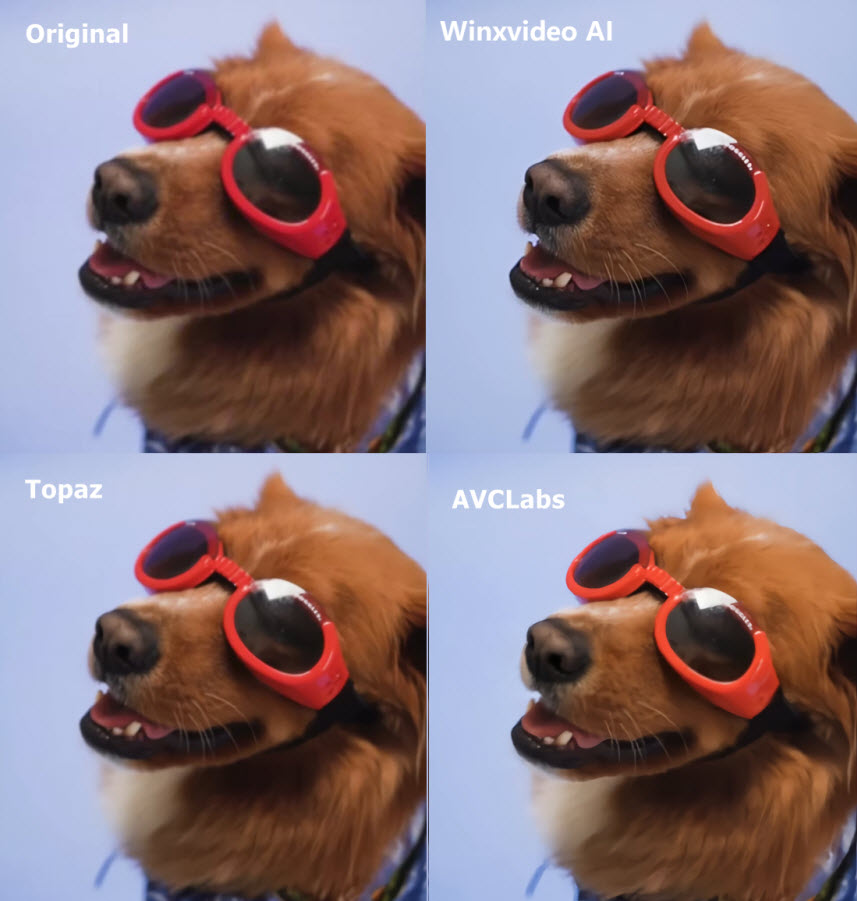
While Topaz and AVCLabs focus narrowly on enhancement, Winxvideo AI provides a comprehensive workflow—allowing you to download, convert, edit, enhance, and compress in one single pipeline. To evaluate real-world performance, we conducted a direct side-by-side test on a blurry 7.5-second clip of a dog wearing sunglasses (810x1440p, 30fps) upscaled 2x to 1620x2880p. All tests were performed on the same system mentioned above.
Side-by-Side Quality & Visual Analysis
Winxvideo AI delivered the fastest processing time (85 seconds at 2.49 FPS) while achieving the lowest NIQE score of 7.464. Visually, the dog’s fur texture and individual whiskers were rendered sharp, distinct, and natural. The contours of the red sunglasses remained crisp and accurately colored without shifting tones.
Topaz Video AI also produced a visually comparable level of detail, making the dog's fur and whiskers clearly defined. However, processing was significantly slower (308 seconds at 0.73 FPS) and required higher memory overhead (6,715 MB VRAM). Minor over-sharpening artifacts along high-contrast edges contributed to a higher NIQE score of 9.958.
AVCLabs Video Enhancer AI improved overall clarity and fur definition over the blurry source, but introduced a noticeable color accuracy issue—turning the original red sunglasses slightly yellowish. Additionally, due to poor GPU acceleration on this test rig (29% max utilization), rendering required over 37 minutes (0.10 FPS).
The comparison image below highlights the visual differences across all three tools:
Final Verdict: Is Winxvideo AI Worth Your Money in 2026?
To answer the question directly: Yes. For most everyday users, Winxvideo AI is a practical option for video enhancement and general media processing. Our tests suggest that good results can be achieved on a mainstream desktop with a capable GPU.
What sets Winxvideo AI apart in 2026 is its practical efficiency. While specialized tools such as Topaz Video AI can require substantially more GPU memory and take considerably longer to process the same footage, Winxvideo AI delivers a refined balance—offering high visual fidelity (NIQE 6.81–7.85) at a fraction of the processing time, all while maintaining low hardware overhead. Combined with its built-in converter, compressor, and screen recorder, it serves as a versatile, all-in-one desktop toolbox rather than just a single-purpose AI plugin.
Our Recommendation:
- Buy it if: You want an easy-to-use, cost-effective solution to restore low-res media, upscale videos for modern displays, or process media files in bulk without slowing down your system.
- Consider alternatives if: You are a high-end VFX professional who requires frame-by-frame manual parameter tuning or real-time studio rendering.
The Bottom Line: Winxvideo AI successfully delivers high-performance AI video processing without the steep hardware barriers or recurring subscription fees. For anyone seeking a practical, reliable, and budget-friendly media suite in 2026, it easily earns our recommendation.
 FAQ about Winxvideo AI
Yes. Winxvideo AI is clean, reputable software developed by Digiarty. Unlike online cloud-based enhancers, it processes all AI and video data locally on your computer. This ensures your privacy is 100% protected, as your files are never uploaded to a third-party server.
Yes. Winxvideo AI is designed for efficiency, supporting batch processing for both video, audio and image tasks. You can queue multiple files at once, allowing the AI to enhance your entire library in one session.
Yes. By utilizing advanced AI Super-Resolution models and Level-3 GPU acceleration, the software intelligently reconstructs missing pixels to upscale footage to 4K and even 8K. The result is significantly sharper and more detailed than traditional software interpolation.
Yes. Beyond AI enhancement, it includes a professional 4K screen recorder and a professional video converter and basic editor. You can capture tutorials, remove background noise with AI, and convert, trim/merge clips all in one seamless workflow.
Winxvideo AI is the superior choice for users seeking a balance of speed and affordability. It offers faster rendering on mid-range PCs, while Topaz is more suited for professional-level granular control on high-end workstations.


