



 win
win

 Super Resolution
  Video Stabilization
  Frame Interpolation

 Denoise Image
  Restore Old Photo
  Unblur Image
  Recover Face
  Upscale Image
  Colorize Photo
 Video Conversion >
 Video Compression >
 Screen Recording >
Movavi Video Converter Review: Benchmark Results, User Feedback & Expert Verdict
 Jack Watt
Updated on
Summary: Instead of repeating the official feature list, this Movavi Video Converter review focuses on measurable performance. Our evaluation covers conversion speed, GPU and CPU utilization, output quality, compression efficiency, resource consumption, long-term usability, and recent user feedback.
Movavi Video Converter has built a reputation as one of the easiest video conversion tools for Windows and Mac, promising fast processing, broad format support, GPU acceleration, and a beginner-friendly interface. While those claims sound appealing, they don't reveal how the software performs under real workloads or whether it's worth paying for when free alternatives like HandBrake are readily available.
To answer those questions, we conducted a hands-on evaluation using the latest version of Movavi Video Converter. Our testing covered installation, interface design, conversion speed, hardware acceleration efficiency, output quality, system resource usage, and overall stability. We also reviewed recent user feedback to identify recurring strengths and complaints that may not appear in official product descriptions.
This review combines benchmark data with real-world experience to provide a balanced assessment of where Movavi Video Converter excels, where it falls short, and which users are most likely to benefit from it in 2026.
Test Environment & Methodology
All benchmark results in this review are based on repeatable hands-on testing conducted under a consistent hardware environment. Every conversion task was performed using identical source files, output settings, and system conditions to ensure fair, comparable, and reproducible results.
- Operating System: Windows 10 Pro 64-bit (latest updates installed)
- Processor: AMD Ryzen 5 5600X (6 Cores / 12 Threads, 3.70 GHz)
- Graphics Card: AMD Radeon RX 6700 XT (GPU hardware acceleration enabled where supported)
- Memory: 64 GB DDR4 RAM
- Test Files: A mixed library of H.264, H.265/HEVC, MOV, MP4, MKV, AVI, and high-bitrate 4K videos covering different codecs, resolutions, frame rates, and durations.
- Evaluation Criteria: Installation experience, interface responsiveness, conversion speed, output quality, compression efficiency, CPU and GPU utilization, memory consumption, hardware acceleration performance, and overall stability.
- User Feedback Verification: Our benchmark findings were compared with recent discussions from Reddit, VideoHelp, Trustpilot, G2, and other software review communities to identify consistent strengths, common complaints, and real-world usage trends. User opinions were used for validation only, while the final assessment was based on repeatable testing.
Movavi Video Converter Review: Quick Verdict
Movavi Video Converter completed a high-bitrate 4K conversion in just 32 seconds. Based on the total frame count and conversion time, the effective processing speed was approximately 78.62 FPS. The interface is clean, hardware acceleration works reliably, and the software supports a wide range of video, audio, and device formats. Although advanced encoding controls remain limited compared with professional tools, Movavi is a good choice for users who prioritize speed and simplicity.
| Category | Verdict / Score |
|---|---|
| Best For | Beginners, home users, educators, and anyone looking for fast video conversion with minimal setup. |
| Not Recommended For | Advanced users who require fine-grained encoder settings, professional transcoding workflows, or free unlimited conversions. |
| Ease of Use | 9.6 / 10 |
| Performance | 9.0 / 10 |
| Features | 8.7 / 10 |
| Value | 8.4 / 10 |
| Editor's Score | 8.9 / 10 |
 Editor's Verdict
Our benchmark results show that Movavi Video Converter is optimized for fast, hassle-free media conversion rather than maximum hardware utilization. During testing, it finished the conversion task in 32 seconds with an average encoding speed of 78.62 FPS. CPU utilization averaged 81.21%, while GPU utilization remained relatively modest at 22.65%, indicating that the software balances CPU processing with hardware acceleration instead of relying entirely on the GPU.
After comparing our test results with competing converters and reviewing recent discussions from Reddit, VideoHelp, Trustpilot, and G2, we found a consistent pattern. Movavi excels in ease of use and reliable day-to-day performance, while its subscription pricing and limited advanced encoding controls may encourage power users to consider alternatives such as HandBrake, WinX Video Converter, or VideoProc Converter AI.
>> Movavi Video Converter Free Activation Keys [100% Working]
What Is Movavi Video Converter?
Movavi Video Converter is a desktop media conversion tool designed to simplify video, audio, and image format conversion without requiring technical expertise. Rather than exposing dozens of encoding parameters, it emphasizes a streamlined workflow with built-in device presets, hardware acceleration, and basic editing tools, allowing most conversion tasks to be completed in just a few clicks.
Although it isn't intended to replace professional transcoding software, Movavi covers the needs of most home users by combining format conversion, file compression, subtitle handling, and lightweight editing in a single application. During our testing, the interface remained responsive and easy to navigate, making it suitable for both first-time users and anyone looking for a faster alternative to more complex converters.
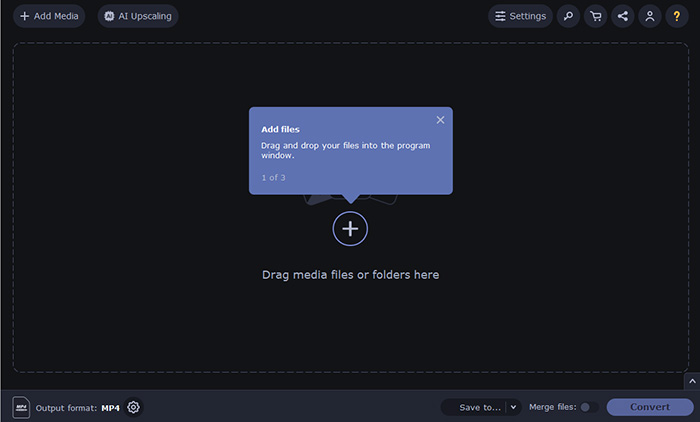
Movavi Video Converter Key Features
The following features contributed most to Movavi Video Converter's overall experience and are likely to matter most when choosing a video converter.
| Feature | Description | Best For |
|---|---|---|
| GPU Hardware Acceleration | Supports Intel Quick Sync, NVIDIA NVENC, and AMD hardware acceleration to shorten encoding time and reduce CPU workload during compatible conversions. | Users converting large videos or 4K content regularly. |
| AI Video Upscaling | Includes AI-powered enhancement for increasing video resolution and improving visual clarity, although the results are best suited to casual enhancement rather than professional restoration. | Home users improving older or lower-resolution videos. |
| Batch Conversion | Processes multiple files in a single queue, making it easier to convert entire folders without repeating the same settings. | Anyone managing large video collections. |
| Subtitle Support | Preserves, adds, or modifies subtitles for supported formats, helping prepare videos for playback across different devices. | Movie collectors and multilingual viewers. |
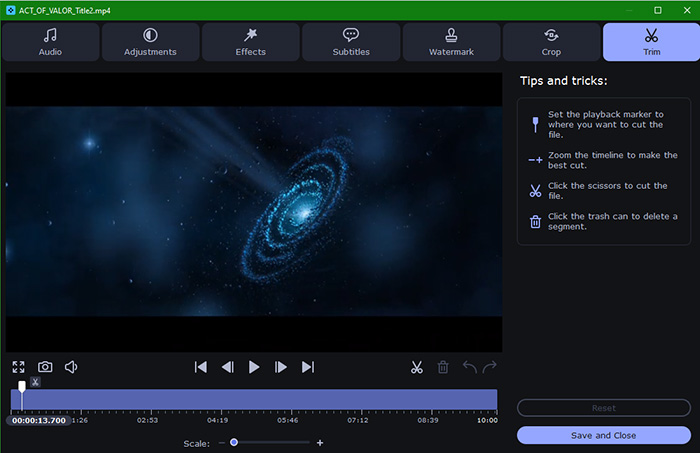
| Basic Editing Tools | Offers quick trimming, cropping, rotation, watermarking, and simple adjustments before exporting, eliminating the need for separate editing software for minor changes. | Users making quick edits before conversion. |
| Device Presets | Provides optimized export profiles for smartphones, tablets, game consoles, TVs, and social media platforms without requiring manual codec configuration. | Beginners who prefer one-click output settings. |
| Wide Format Support | Converts between hundreds of video, audio, and image formats, including MP4, MOV, MKV, AVI, WMV, MP3, AAC, FLAC, and more. | Users working with mixed media formats. |
Movavi Video Converter Installation & First Impression
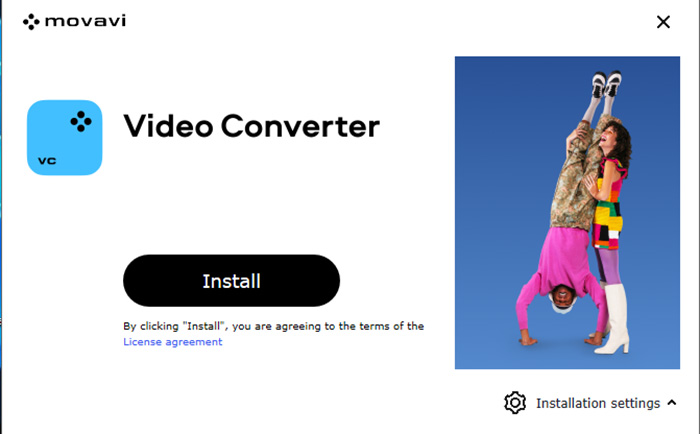
Installing Movavi Video Converter is a straightforward process that requires minimal user input. The setup wizard is simple, the application launches quickly, and the clean interface makes it easy to start converting videos without spending time adjusting complicated settings.
During our first hands-on experience, Movavi focused more on accessibility than technical complexity. Common tasks such as selecting output formats, choosing device presets, and enabling hardware acceleration are clearly arranged, making the software approachable even for users who have never used a video converter before.
- Installation Time: The installation process was completed quickly on our test system without unnecessary setup steps or complicated configuration.
- Software Size: Movavi maintains a relatively reasonable installation footprint compared with feature-rich video converters that include additional editing or media management components.
- Startup Speed: The application launched within seconds and remained responsive when loading files, selecting formats, and switching between conversion options.
- Interface Experience: The modern interface is one of Movavi's strongest advantages. Tools are clearly categorized, and the workflow from importing files to exporting videos feels natural and beginner-friendly.
- Learning Curve: Most users can understand the basic workflow immediately. Unlike advanced encoders that require knowledge of codecs, bitrate settings, and profiles, Movavi handles most technical decisions automatically.
- Advertisements: No intrusive third-party advertisements appeared during testing. Promotional messages, if displayed, were limited to Movavi-related upgrades or product recommendations.
- Bundled Software: The installer did not include unwanted third-party applications or browser extensions during our evaluation.
First Impression: Movavi Video Converter shows a polished first experience by prioritizing simplicity and convenience. It may not provide the same level of manual control as professional encoding tools, but its clean interface and straightforward workflow make it a strong choice for everyday video conversion.
Movavi Video Converter Real-World Performance Test
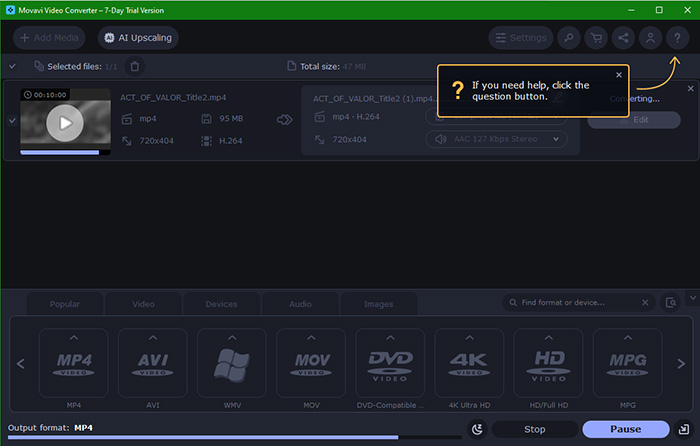
To evaluate Movavi Video Converter beyond its advertised features, we conducted a real-world conversion benchmark focusing on speed, hardware utilization, output quality, compression efficiency, and overall system impact. Instead of relying only on format support or official specifications, this test measures how Movavi performs during an actual video conversion workload under consistent hardware conditions.
Video Conversion Performance
Movavi Video Converter showed strong everyday conversion performance in our benchmark. The test file was processed in 32 seconds with an average encoding speed of 78.62 FPS, reaching approximately 1.2x real-time conversion speed. While this result does not represent the fastest encoding performance among GPU-focused converters, it demonstrates that Movavi can handle regular video conversion tasks efficiently without requiring a high-end workstation.
| Category | Evaluation |
|---|---|
| Conversion Speed | Completed a single-file conversion in 32 seconds at 78.62 FPS, achieving around 1.2x real-time processing speed. |
| Output Bitrate | The converted video maintained a bitrate of 40,771 kbps, preserving a high level of detail for quality-focused output. |
| Output File Size | The final output file size was 168MB, providing a practical balance between image quality and storage efficiency. |
| Compression Efficiency | Movavi reduced file size while maintaining a high bitrate output, making it suitable for users who want smaller files without aggressive quality loss. |
| GPU Utilization | GPU usage averaged 22.65% with a peak of 38%, showing that hardware acceleration was active but not fully GPU-bound during encoding. |
| CPU Utilization | CPU usage remained the primary workload driver, averaging 81.21% and reaching a peak of 87% during conversion. |
| Memory & VRAM Usage | VRAM consumption peaked at 676MB, indicating moderate graphics memory requirements during hardware-assisted conversion. |
| Thermal Performance | GPU temperature reached a maximum of 54°C, suggesting stable operation without excessive thermal pressure. |
GPU Utilization Analysis
Movavi's hardware acceleration showed a balanced but conservative GPU workload pattern. During testing, GPU utilization averaged 22.65% and peaked at 38%, which indicates that the software was able to utilize the graphics card but did not rely entirely on GPU encoding.
This approach helps maintain compatibility across a wider range of systems, but users with powerful GPUs may not see the same level of acceleration achieved by converters designed around aggressive NVENC or dedicated GPU encoding pipelines.
CPU Utilization Analysis
The CPU carried most of the conversion workload in our test. With average usage reaching 81.21% and peak utilization at 87%, Movavi clearly adopts a CPU-assisted encoding strategy rather than shifting the majority of processing tasks to the GPU.
The high CPU utilization did not cause instability during testing, but users converting large 4K libraries or running multiple tasks simultaneously may benefit from a more GPU-oriented workflow.
Output Quality & Compression Efficiency
Quality preservation was one of Movavi's stronger aspects. The output video retained a bitrate of 40,771 kbps, helping preserve fine details and reduce visible compression artifacts. The final file size was 168MB, suggesting that Movavi prioritizes maintaining visual quality rather than applying aggressive compression.
This balance makes it suitable for users who need practical file reduction while keeping videos visually close to the original. However, users specifically looking for maximum compression efficiency may prefer tools that offer deeper encoder controls and more manual bitrate adjustment options.
Overall Performance Analysis
Based on our benchmark results, Movavi Video Converter delivers reliable everyday performance with a strong focus on simplicity and stability. The 32-second conversion time and 78.62 FPS processing speed are sufficient for most home users, while moderate GPU usage and stable temperatures show that the software runs efficiently without placing excessive stress on the system.
The main limitation is that Movavi does not fully exploit GPU resources compared with performance-focused converters. Its average GPU utilization of 22.65% combined with high CPU usage suggests that users with powerful graphics cards may not achieve maximum hardware acceleration benefits.
Overall, Movavi is better positioned as a fast and user-friendly converter rather than a professional-grade encoding engine. It performs well for everyday video conversion, occasional 4K processing, and users who value convenience, while power users handling large-scale transcoding workloads may find more specialized alternatives better suited to their needs.
Movavi Video Converter Review: Pros & Cons
We evaluated Movavi Video Converter through hands-on performance testing, everyday conversion scenarios, and analysis of recent user feedback from software review platforms and online communities. The overall impression is consistent across both testing and user experiences: Movavi succeeds as a fast, accessible video converter with a polished interface, reliable format support, and a smooth workflow. However, users looking for advanced encoding controls, aggressive GPU utilization, or a more flexible pricing model may find some limitations after extended use.
In our benchmark, Movavi completed a single-file conversion in 32 seconds at 78.62 FPS while maintaining stable system performance. The software's balanced approach to hardware acceleration makes it suitable for mainstream PCs, although power users may prefer tools that provide deeper control over encoding parameters and GPU-based workflows.
Pros
- Very beginner-friendly interface with a simple import-and-convert workflow.
- Fast everyday conversion performance, achieving 1.2x real-time processing speed in our benchmark.
- Supports a wide range of video, audio, and device formats without requiring manual codec configuration.
- Hardware acceleration works reliably and helps reduce processing time on supported systems.
- Output quality remains strong, with high bitrate preservation and balanced compression efficiency during testing.
- Useful built-in tools such as batch conversion, device presets, subtitle handling, and basic editing features.
- No intrusive third-party advertisements or bundled applications were detected during installation testing.
Cons
- GPU utilization remains relatively conservative, with average usage of 22.65% in our benchmark, meaning high-end GPUs may not be fully utilized.
- CPU handles most of the workload, reaching 81.21% average usage during conversion.
- Advanced users may find encoder controls less flexible compared with HandBrake and professional transcoding tools.
- The free version has noticeable limitations, making long-term use difficult without purchasing a license.
- Some users criticize subscription-related pricing and prefer more transparent one-time purchase options.
- AI enhancement and advanced restoration features are more limited compared with dedicated AI video enhancement software.
Movavi Video Converter Pricing & Value
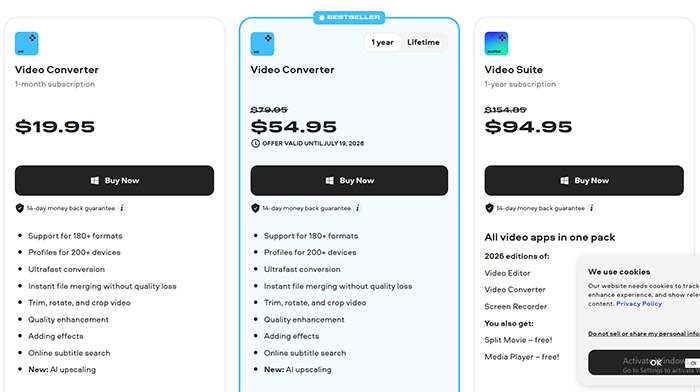
Movavi Video Converter follows a premium software model with a limited trial version and several paid licensing options. Unlike fully free converters such as HandBrake, Movavi focuses on providing a more polished experience, easier workflow, and additional convenience features. However, the overall value depends largely on how frequently you convert videos and whether you need its extra tools such as AI upscaling, effects, and built-in editing functions.
Free Trial Version
The trial version allows users to test the core workflow before purchasing, but it comes with several restrictions. Users can experience the interface, conversion process, and supported formats, although extended use is limited. Some advanced features, AI tools, and unrestricted exports require a full license.
For users who only convert videos occasionally, the trial is useful for checking compatibility and output quality. However, it is not designed as a long-term free converter replacement.
Paid Version Options
| Plan | Price | Best For |
|---|---|---|
| 1-Month Subscription | $19.95/month | Users who need short-term access without committing to a long-term license. |
| 1-Year License | $54.95 (discounted from $79.95) | Regular users who want full Video Converter features with a lower upfront cost. |
| Video Suite (1 Year) | $94.95 (discounted from $154.85) | Users who need multiple video tools, including Video Editor and Screen Recorder. |
A full Movavi Video Converter license unlocks the complete conversion workflow, including support for 180+ formats, profiles for 200+ devices, faster conversion, lossless file merging, trimming and cropping tools, quality enhancement, effects, online subtitle search, and AI upscaling features.
 FAQ about Movavi Video Converter
Yes, Movavi Video Converter is generally considered safe when downloaded from the official website. During our installation test, we did not detect bundled third-party software, suspicious installers, or unwanted browser extensions. Like many commercial software products, users should pay attention to optional offers and subscription settings during purchase.
Movavi offers a free trial, but it is not a fully free video converter. The trial version allows users to test the software workflow, while unlimited conversions and full access to features such as AI upscaling, advanced tools, and unrestricted exports require a paid license.
The trial version has usage restrictions, and some exported content may include limitations depending on the feature being used. A full license removes trial restrictions and provides unrestricted video conversion without trial-related limitations.
Yes, Movavi supports hardware acceleration on compatible systems. In our benchmark, GPU usage averaged 22.65% with a peak of 38%, showing that acceleration was active but not fully GPU-driven. The software relies on a balanced CPU and GPU workload, which helps maintain compatibility but may not maximize performance on high-end graphics cards.
Yes, Movavi can handle 4K conversion for everyday users. Our test showed stable processing performance, with a single-file conversion completed in 32 seconds while maintaining a high output bitrate of 40,771 kbps. However, users processing large 4K libraries may prefer tools with more advanced batch encoding controls.
Movavi generally preserves good video quality when using appropriate output settings. In our testing, the converted file maintained a high bitrate, helping retain image details and minimize visible compression artifacts. Users who need precise control over bitrate, codec profiles, and encoding parameters may find professional tools more flexible.
It depends on your priorities. Movavi is easier to use and requires less technical knowledge, making it better suited for beginners and quick conversions. HandBrake is free and provides deeper control over codecs and encoding settings, which makes it more appealing to advanced users.
Movavi is worth considering for users who value simplicity, reliable performance, and a polished workflow. Our testing confirmed good conversion speed and stable output quality, but users focused on maximum GPU performance, professional encoding controls, or free long-term use may find better alternatives.


