



 win


 Super Resolution
 Video Stabilization
 Frame Interpolation


 Denoise Image
 Restore Old Photo
 Unblur Image
 Recover Face
 Upscale Image
 Colorize Photo

 Video Conversion >
 Video Compression >
 Screen Recording >


How to Make Christmas and Thanksgiving Videos for Kids
Looking for a creative holiday activity for kids? Making Christmas and Thanksgiving videos is a fun way to capture family memories, share festive greetings, and let children express their creativity. You can create personalized greeting videos, Thanksgiving gratitude clips, or family photo slideshows using your own photos and video footage.
With Winxvideo AI, you can record webcam videos, trim and merge clips, crop footage, and add subtitles and effects to create personalized holiday videos on Windows. Mac users can use Macxvideo AI for compatible video recording and editing workflows.
Quick Answer: You can make Christmas and Thanksgiving videos for kids by combining family photos, short video clips, holiday greetings, and festive decorations. Record your footage, arrange and edit the clips, add captions or suitable background music using an audio editor, and export the finished video. Winxvideo AI can help you record, trim, merge, crop, and convert your holiday videos.

Christmas and Thanksgiving Video Ideas for Kids
Not sure what kind of holiday video to make? Here are four simple ideas that kids can create with family photos, short recordings, and festive decorations.
1. Christmas Greeting Videos
Let kids record a short Christmas message for grandparents, relatives, teachers, or friends. They can say "Merry Christmas," share their favorite holiday moments, or deliver personalized wishes. Add Christmas decorations, captions, and family photos to make the greeting more memorable.
2. Thanksgiving Gratitude Videos
Create a short video where children share what they are thankful for. They can record individual messages about family, friends, pets, favorite activities, or special memories. Combine these clips into a gratitude video that the whole family can enjoy.
3. Family Holiday Slideshow
Turn family photos and short video clips into a Christmas or Thanksgiving slideshow. Include pictures of holiday decorations, family gatherings, festive meals, and children's activities. Arrange them chronologically or group them by theme to tell a simple holiday story.
4. Kids' Holiday Activity Videos
Capture children making Christmas crafts, decorating the Christmas tree, preparing Thanksgiving treats with adult supervision, or taking part in family activities. Short clips of these moments can be edited into a fun holiday memory video.
5. AI-Generated Christmas and Thanksgiving Videos
Want to create more imaginative holiday videos? AI video generators can help turn text prompts or images into short Christmas and Thanksgiving clips. For example, you can create animated Christmas scenes featuring snow-covered villages, Santa's sleigh, or festive decorations, as well as Thanksgiving-themed backgrounds with autumn leaves, pumpkins, and family dinner settings.
You can also use AI-generated images as backgrounds or visual elements in a holiday slideshow. Combine these assets with real family photos, children's recordings, and personalized greetings to create a more engaging video.
Some tools to explore include Sora for AI video generation, Canva for holiday designs and video templates, and Adobe Firefly for AI-generated visual assets. Check each tool's current features, free usage limits, and commercial-use terms before creating or sharing videos.
How to Make Holiday Videos with Kids by Using Winxvideo AI
Once you have chosen a video idea and gathered your photos or footage, you can use Winxvideo AI to record and edit your holiday video. Follow these three steps to put everything together.
Step 1. Record Your Holiday Videos
Start by recording short holiday messages, family activities, or festive moments.
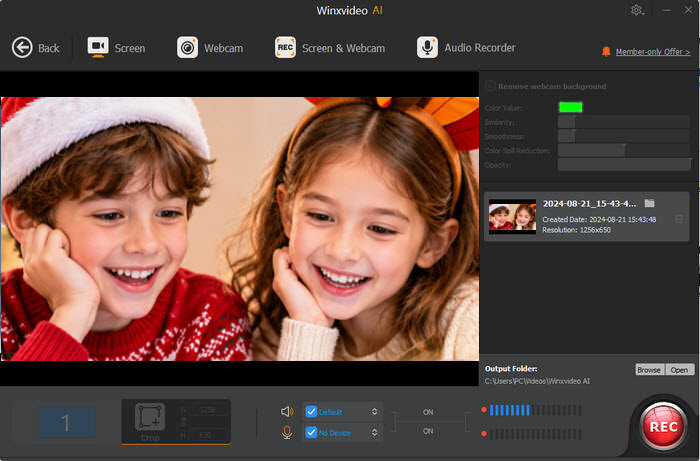
Launch Winxvideo AI and open the Recorder feature. Choose Webcam to record yourself or your children delivering Christmas greetings or Thanksgiving messages. If you want to demonstrate a craft project or show a holiday presentation on your computer, use Screen Recorder instead.
You can record with a built-in camera or an external webcam. Keep each clip short and record several takes if needed. This makes it easier to select the best moments during editing.
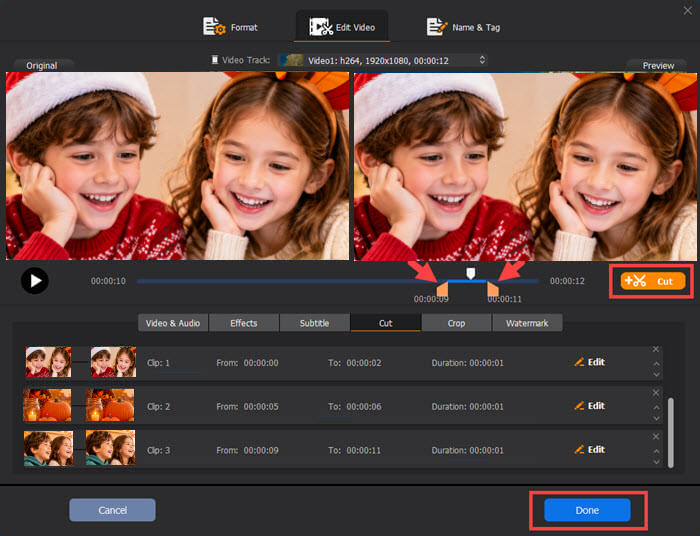
Step 2. Edit Clips, Add Subtitles and Effects
After recording, open the video editing tools to prepare your holiday footage.
- Trim: Remove unwanted sections at the beginning or end of each clip.
- Merge: Combine multiple recordings into one continuous Christmas or Thanksgiving video.
- Crop: Adjust the frame to focus on the children or important details.
- Add Subtitles: Import an SRT, ASS, or SSA subtitle file to display greetings, names, or captions.
- Add Effects: Adjust the visual appearance of your footage with available video effects.
- Add Watermarks: Insert text, images, or logos if you want to personalize the finished video.
You can also combine your edited recordings with family photos or other prepared video clips. If you want background music, prepare a properly licensed audio track and use a suitable audio editing tool to add it.
Step 3. Export and Share Your Holiday Video
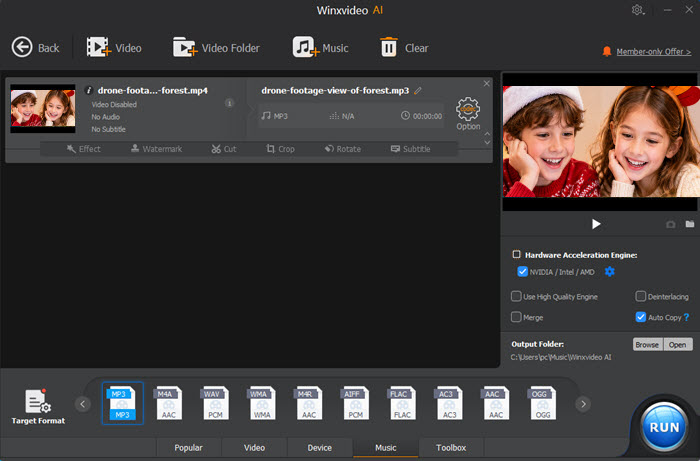
When your video is ready, choose an output format and settings suitable for your intended use. MP4 is a practical format for general playback and online sharing. Winxvideo AI also supports other formats, including MKV, MOV, AVI, and WMV.
Export the finished video and save it on your computer. You can then transfer it to a mobile device or share it privately with family and friends. Before posting publicly, check that you have permission to share the children's footage and that no sensitive personal details are visible.
Tips for Making Kid-Friendly Holiday Videos
A few simple choices can make Christmas and Thanksgiving videos more enjoyable for children and easier for family members to watch.
- Keep videos short: Aim for around 1–3 minutes for a simple greeting or family slideshow. This is a practical suggestion, not a strict rule.
- Use clear captions: Add short, easy-to-read subtitles so viewers can follow children's messages even when the sound is off.
- Choose suitable music: Use royalty-free music or tracks you have permission to include, and keep background audio lower than spoken messages.
- Include children's ideas: Let kids choose photos, share their messages, or help select the order of video clips.
- Protect their privacy: Avoid showing school names, home addresses, or other identifying details. Get appropriate parental or guardian consent before sharing videos publicly.
FAQs About Making Christmas and Thanksgiving Videos for Kids
1. How do you make a Christmas video for kids?
Collect family photos and short video clips, then arrange them into a simple holiday story. Record children sharing Christmas wishes, add festive captions and suitable music, and export the finished video in MP4 format for easy sharing.
2. What are some Thanksgiving video ideas for kids?
Kids can create Thanksgiving gratitude videos, share what they are thankful for, record family messages, make craft tutorials, or create slideshows featuring family gatherings and holiday activities.
3. Can I make Christmas and Thanksgiving videos for free?
Yes. You can use free video editing software or trial versions of desktop tools to create holiday videos. However, some programs limit editing features, video length, or watermark-free exports. Check the current free-plan restrictions before choosing a tool.