



 win
win
 Super Resolution
  Video Stabilization
  Frame Interpolation
 Denoise Image
  Restore Old Photo
  Unblur Image
  Recover Face
  Upscale Image
  Colorize Photo
 Video Conversion >
 Video Compression >
 Screen Recording >


11 Best AI Mosaic Removal Software: Safely Remove Mosaics from Videos & Images
 Mike Rule
Updated on
In this article, we review 11 AI mosaic remover tools for videos and images on PC, comparing their usability, output quality, and suitability for different editing needs.
- Remove mosaics from low-resolution images or videos and make hidden details easier to see
- Get rid of distracting mosaic effects in your images or videos
- Find a safe, beginner-friendly way to remove mosaics without complicated editing steps
If any of these situations sound familiar, keep reading to find the right tool for your needs.
11 Best AI Mosaic Remover Tools for PC
Removing a mosaic from a video or image is not as simple as sharpening the original file. AI tools can analyze surrounding pixels, reduce blocky artifacts, and reconstruct missing details, but the results vary depending on the strength of the mosaic, source quality, and AI model. Below, we review 11 best software to remove mosaic based on output quality, supported media, ease of use, and pricing.
| Tool | Mosaic Removal Quality | Price | Ease of Use | Supported Media |
|---|---|---|---|---|
| Winxvideo AI | High (Natural-looking detail enhancement) |
$34.95/year | Very easy | Video & Image |
| JavPlayer | High (Designed for mosaic reduction) |
$7.99/lifetime | Relatively easy | Video only |
| Aiarty Video Enhancer | High (Strong noise reduction and AI upscaling) |
$79/year | Simple | Video only |
| Aiarty Image Enhancer | High (Strong AI upscaling for images) |
$75/year | Simple | Image only |
| PULSE | High (Good for facial image enhancement) |
Free | Requires more setup | Image only |
Winxvideo AI: Best for Videos and Images
- Supported OS: Windows/Mac
- Price: $34.95 (free trial available)
- Supported Media: Images and videos
- Download: https://www.winxdvd.com/winxvideo-ai/
 Free Download
  Free Download
Winxvideo AI is for PC, while Macxvideo AI (from our MacXDVD brand) is for macOS.
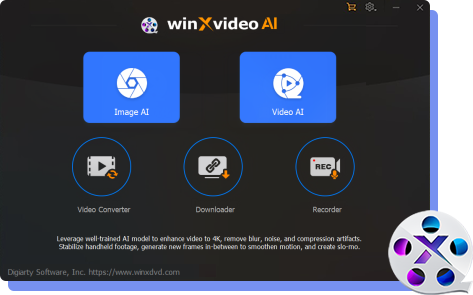
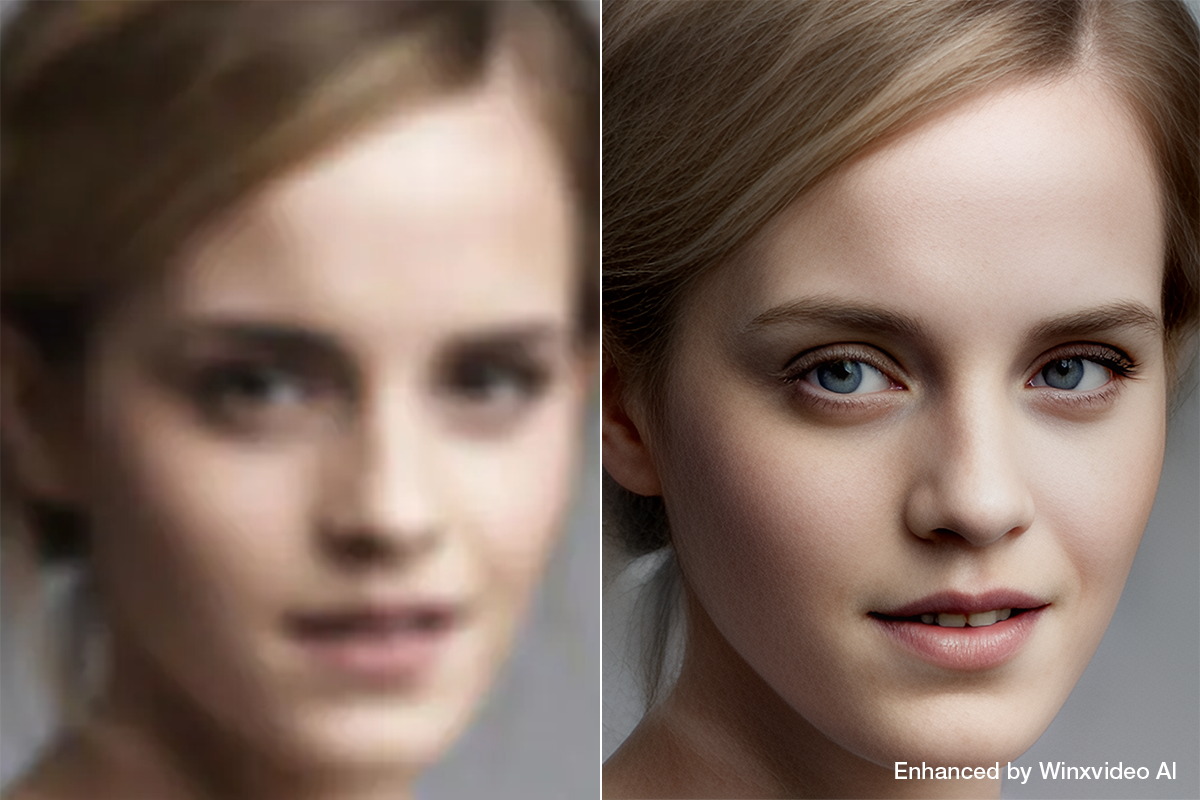
Winxvideo AI is an AI-powered video and image enhancement tool designed to improve the clarity of low-resolution or degraded media. It combines several AI-based features, including noise reduction, mosaic and blur reduction, AI upscaling, frame interpolation, slow motion, video stabilization, and color correction.
Its noise reduction and AI upscaling tools analyze the source and can reduce blocky artifacts, soften distracting noise, and reconstruct some missing visual details based on the surrounding image information.
Winxvideo AI also provides multiple AI models for different enhancement tasks, allowing you to select a model according to the type of footage and the result you want instead of applying the same processing to every file.
For videos and images affected by light mosaic effects, blur, compression artifacts, or noise, Winxvideo AI can be a useful way to improve overall visibility. Keep in mind, however, that AI enhancement cannot truly recover information that has been completely removed by a strong mosaic; it generates an estimate based on the remaining visual data.
JavPlayer: Best best software to remove mosaic in Videos
- Supported OS: Windows
- Price: Free trial available
- Supported Media: Videos only
- Download: https://grizzle-rabbit-w8g7sf.mystrikingly.com/
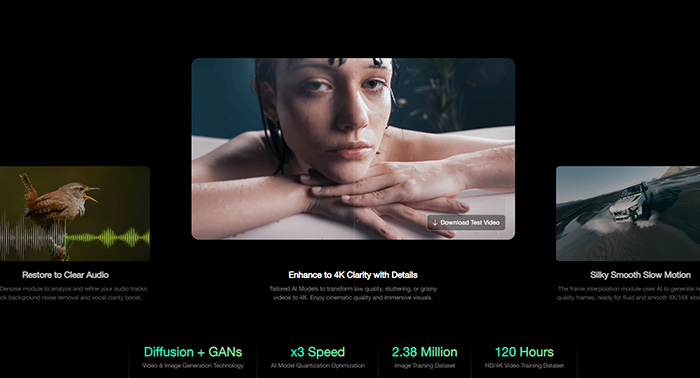
JavPlayer is a feature-rich video player that uses super-resolution technology to enhance video quality. It is particularly known for its advanced mosaic reduction capabilities, making it a popular choice for users looking to improve mosaic-covered video footage.
Its latest version supports AI-based super-resolution models such as TecoGAN, IMDN, BasicVSR++, and TecoGAN8X. These models can detect mosaic-affected areas during playback and attempt to reduce the visible artifacts using information from surrounding frames.
Its biggest advantage is its strong focus on mosaic reduction. Compared with general-purpose video enhancement software, JavPlayer provides more specialized processing options for footage containing mosaic effects, including moving areas where the mosaic changes from frame to frame.
However, the processing can be demanding, especially when using higher-quality AI models or processing longer videos. A relatively powerful PC is recommended if you want to keep processing times under control.

Aiarty Video Enhancer: Best for Overall Video Enhancement
- Supported OS: Windows/Mac
- Price: $79 (free trial available)
- Supported Media: Videos only
- Download: https://aiarty.com/aiarty-video-enhancer/
Aiarty Video Enhancer is an AI-powered video enhancement tool designed to improve the clarity and resolution of low-quality footage.
It is not a dedicated mosaic removal tool. Instead, it focuses on enhancing the entire video to make mosaic-like artifacts, blur, and other quality issues less noticeable.
Its AI models can upscale low-resolution footage while reducing noise and improving fine details and edges. This makes it more suitable when the mosaic is only one of several quality problems affecting the source video.
It can be particularly useful for footage containing faces or people, where AI video upscaler can help reconstruct fine details and improve overall clarity.
The workflow is straightforward: import the video, select an appropriate AI model, and start processing. Because the processing is performed locally on your computer, your source videos do not need to be uploaded to an online service.
If your main goal is to make a mosaic-covered or blurry video easier to see rather than specifically reconstruct every hidden detail, Aiarty Video Enhancer is a practical option that does not require complicated editing skills.
Aiarty Image Enhancer: Best for Improving Mosaic-Affected Images
- Supported OS: Windows/Mac
- Price: $75 (free trial available)
- Supported Media: Images only
- Download: https://aiarty.com/aiarty-image-enhancer/
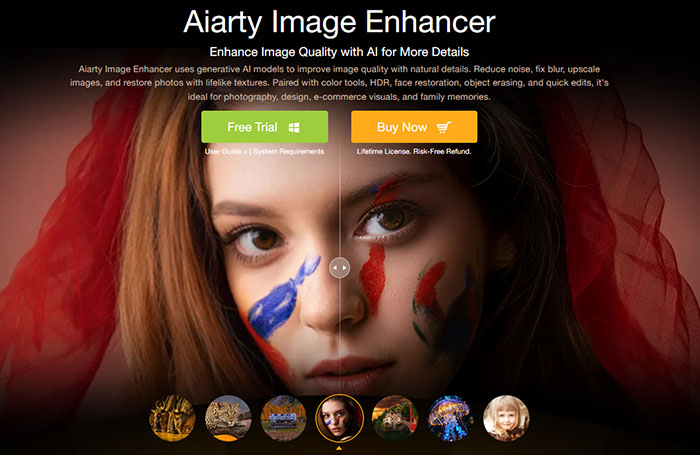
Aiarty Image Enhancer is developed by the same company as Aiarty Video Enhancer, but focuses specifically on improving image quality.
The best software to remove mosaic uses advanced AI models to upscale low-resolution images and enhance fine details automatically. Its ability to improve facial details, sharpen edges, and reduce noise can make images affected by blur or compression artifacts look cleaner and more natural.
You can choose an AI model according to the type of image, such as portraits, landscapes, or illustrations, allowing the processing to better match the source material.
After importing an image, simply select an AI model and set the desired output resolution or enlargement scale. The software then handles the enhancement process automatically.
With no complicated editing workflow, it is relatively easy for beginners to use, especially if you mainly want to improve an old photo, screenshot, compressed image, or other low-quality picture.
For mosaic- or blur-affected images, Aiarty Image Enhancer can help make the overall image cleaner and improve visible details. As with other AI enhancement tools, however, it estimates missing information rather than recovering the original pixels hidden by a strong mosaic.
PULSE: Free AI Tool for Facial Image Super-Resolution
- Supported OS: Windows/Linux
- Price: Free
- Supported Media: Images only
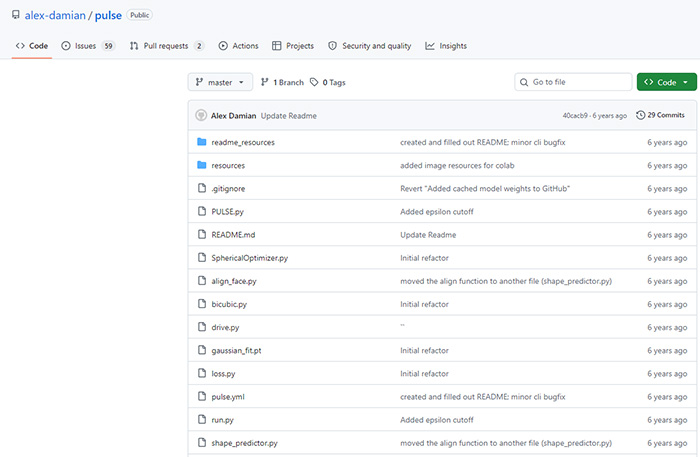
- Download: https://github.com/alex-damian/pulse
PULSE is an AI-based facial image super-resolution project that often appears in discussions about enhancing low-resolution or mosaic-affected images.
It uses a GAN-based approach to generate higher-resolution facial images from low-resolution input. Rather than simply sharpening pixels, the model attempts to generate plausible facial details based on the information available in the source image.
Facial image enhancement is where PULSE stands out. It can identify faces within an image and process them without necessarily requiring you to crop the face manually. Results can be more noticeable when the source shows a relatively clear, front-facing face with enough remaining visual information.
However, PULSE is not designed as a beginner-friendly desktop application. Since the project is available through GitHub, setting it up and running it may require some technical knowledge, depending on your system and configuration.
For that reason, PULSE is better suited to users interested in experimenting with AI-based facial super-resolution than those looking for a simple point-and-click mosaic reduction tool.
| Tool | Mosaic Reduction Quality | Price | Ease of Use | Supported Media |
|---|---|---|---|---|
| Jihosoft Photo Eraser | Medium (Best for light mosaic effects) |
$19 | Easy | Images only |
| Inpaint | Medium (Best for light mosaic effects) |
$19.99 | Easy | Images only |
| DeepCreamPy | Medium (Better suited to illustrated images) |
Free | Requires more setup | Images only |
| DeepMosaic | Medium (Supports automatic mosaic detection) |
Free | Requires more setup | Video & Image |
| CodeFormer | Medium (Strong facial restoration) |
Free | Requires more setup | Video & Image |
| Adobe Photoshop | High (Extensive manual adjustments) |
$32.80/month | Requires editing experience | Images only |
Jihosoft Photo Eraser: Simple Tool for Removing Light Mosaic Effects
- Supported OS: Windows
- Price: From $19 (free trial available)
- Supported Media: Images only
- Download: https://www.jihosoft.com/photo/photo-eraser.html
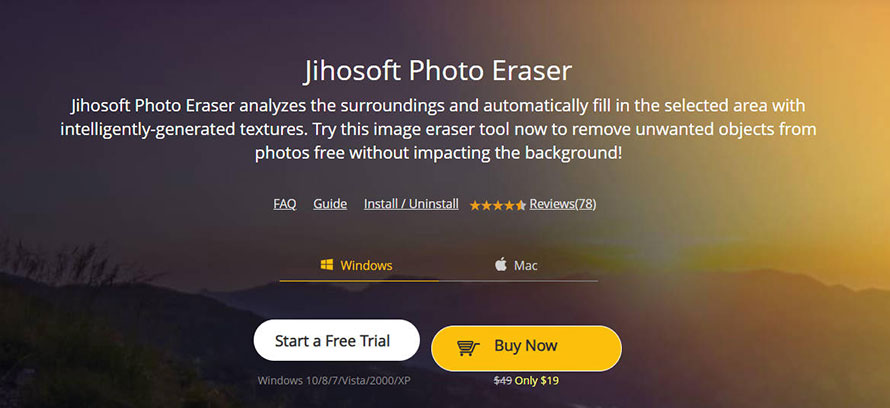
Jihosoft Photo Eraser is an image editing tool with AI-assisted features for removing unwanted objects, retouching photos, and improving selected areas. It can also be used to reduce the appearance of light mosaic effects and blur.
To process a mosaic-covered area, simply brush over the part you want to remove. The straightforward workflow makes it easy to get started without advanced image-editing skills.
The best software to remove mosaic can use surrounding image information to fill in the selected area, producing a smoother result when the mosaic is relatively small or simple.
Results depend heavily on the original image and the size of the affected area. For small mosaic blocks, light blur, and uncomplicated backgrounds, the output can look reasonably natural. Strong mosaics or areas containing complex details are more difficult to reconstruct accurately.
If you simply want to clean up a small mosaic-affected area in an image without dealing with complicated editing tools, Jihosoft Photo Eraser is worth considering.
Inpaint: Easy Image Retouching for Light Mosaic Effects
- Supported OS: Windows/Mac/Linux (web and online versions available)
- Price: From $19.99
- Supported Media: Images only
- Download: https://theinpaint.com/
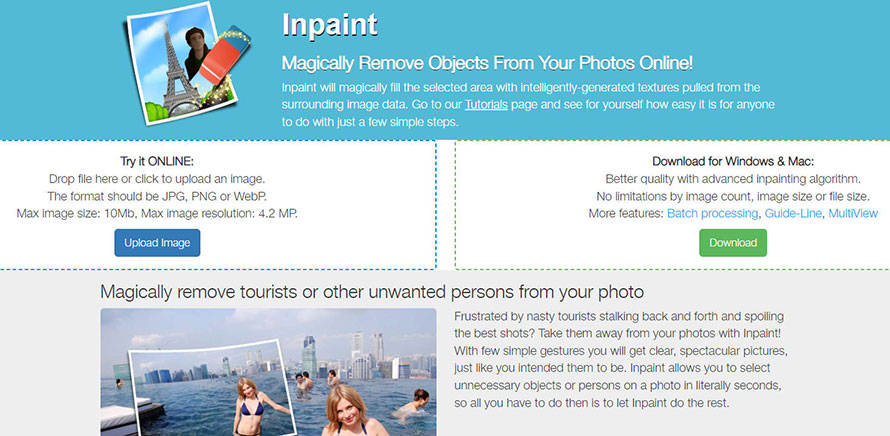
Inpaint is an image retouching tool designed primarily to remove unwanted objects and repair selected areas. Its content-aware processing can also be useful for reducing the appearance of light mosaic effects.
After selecting the affected area, Inpaint analyzes the surrounding pixels and fills the selection with generated content to create a more continuous-looking image.
The interface is simple and easy to use without extensive photo-editing experience. You mainly need to mark the area you want to process and let the software handle the reconstruction.
There are limitations, especially when dealing with large mosaic-covered areas or images containing intricate details. It works better for light mosaic effects, minor blur, and relatively simple backgroundswhere enough surrounding information remains available.
For users who want a straightforward image retouching tool rather than a specialized AI mosaic remover, Inpaint is a practical option to try.
DeepCreamPy: Free AI Tool for Illustrated Images
- Supported OS: Windows/Mac/Linux
- Price: Free
- Supported Media: Images only
- Download: https://github.com/deeppomf/DeepCreamPy
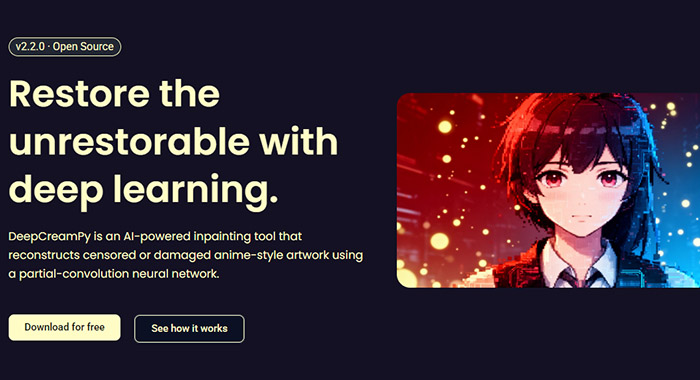
DeepCreamPy is an open-source AI project designed to reconstruct areas of images covered by mosaic patterns. The mosaic removal software uses a deep neural network to analyze the masked area and generate plausible replacement content.
One of its main strengths is its focus on 2D illustrations and anime-style images, where the model can sometimes produce more convincing results than general-purpose photo enhancement tools.
However, DeepCreamPy does not automatically identify every mosaic area. In the typical workflow, you need to prepare the affected area manually before processing, such as marking it with a specific color in an image editor.
This makes the setup and workflow more complicated than commercial one-click tools. Still, users interested in experimenting with AI-based reconstruction for illustrated images may find DeepCreamPy an interesting free option.
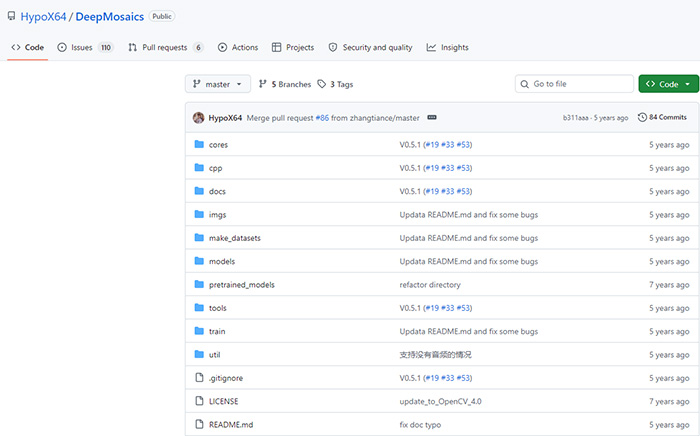
DeepMosaic: Free Open-Source Tool for Images and Videos
- Supported OS: Windows/Mac/Linux
- Price: Free
- Supported Media: Images and videos
- Download: https://github.com/HypoX64/DeepMosaics
DeepMosaics is an open-source AI project that supports both adding and reducing mosaic effects in images and videos.
One of its notable features is its ability to detect mosaic-affected areas and use AI-based processing to generate replacement details. This makes it more versatile than image-only tools when you need to work with video footage.
DeepMosaics can process both still images and video frames, making it a useful option for users who want a free solution across different types of media.
The main drawback is the setup. Because it is an open-source project rather than a polished commercial application, you may need to configure the software environment and dependencies yourself.
It is therefore better suited to users who are comfortable with PC software and open-source projects than beginners looking for a simple point-and-click solution.
CodeFormer: AI Facial Restoration for Images and Videos
- Supported OS: Windows/Mac/Linux
- Price: Free
- Supported Media: Images and videos
- Download: https://github.com/sczhou/CodeFormer
CodeFormer is an open-source AI restoration model designed primarily for improving degraded faces. It can be used for tasks such as face restoration, image enhancement, and video restoration, making it relevant when mosaic or blur affects facial details.
Its strongest area is facial restoration and detail reconstruction. The model analyzes facial structures and attempts to generate more coherent details in areas where the original image has become unclear or degraded.
Rather than simply sharpening the existing pixels, CodeFormer can reconstruct blurred facial features such as the eyes, nose, and mouth based on learned visual patterns.
It cannot recover the exact original information hidden by a strong mosaic. Instead, the AI generates a plausible reconstruction, so the result should be treated as an enhancement rather than an authentic recovery of the source.
The main limitation is usability. Running CodeFormer may require a Python environment and additional configuration, making it better suited to technically experienced users than beginners.

Adobe Photoshop: Best for Manual Control and AI-Assisted Retouching
- Supported OS: Windows/Mac
- Price: From ¥3,280/month (free trial available)
- Supported Media: Images only
- Download: https://www.adobe.com/jp/products/photoshop.html
Adobe Photoshop is one of the most established image editing applications, and its newer AI-powered features provide additional options for repairing and reconstructing damaged or unwanted areas.
Photoshop is not a dedicated mosaic removal tool. Instead, you can select a mosaic-affected area and use AI-assisted generation or other retouching tools to create a more natural-looking replacement.
Fine-grained control is Photoshop's biggest advantage. Unlike one-click enhancement tools, you can combine AI generation with masking, cloning, healing, sharpening, and manual adjustments to refine the final image.
The trade-off is the learning curve. Getting consistent results can require some image-editing knowledge and hands-on adjustment, particularly when the mosaic covers a large or detailed area.
So, rather than being a one-click mosaic remover, Photoshop is better viewed as a flexible image restoration tool that combines AI assistance with manual editing.
If you want precise control over the final result and are willing to spend more time refining the image, Photoshop is one of the most versatile options in this list.
Is It Illegal to Use AI Mosaic Removal Software?
Are you worried that using mosaic removal software could get you into legal trouble?
In general,
using mosaic removal software itself is not automatically illegal.
However, the legal risks depend on what content you process, why you remove the mosaic, and how you use or share the resulting file.
In particular, be careful in situations such as:
- Editing or publicly sharing copyrighted videos or images without permission
- Removing mosaics added to protect someone's privacy and then distributing the revealed content
- Using the processed content in a way that violates someone's portrait rights, privacy rights, or other personal rights
In other words, before using AI mosaic removal software, make sure you have the necessary rights to the content and understand the laws that apply to your intended use. You are responsible for ensuring that your use of the software and the resulting content is lawful.
 FAQs About Mosaic Removal Software
AI can reduce mosaic, pixelation, and blur and reconstruct plausible details, but it cannot guarantee the original image. If the mosaic permanently replaced the underlying pixels, the lost information cannot be recovered exactly. Results depend heavily on the source quality, mosaic strength, motion, and the area being covered.
The best choice depends on whether you need to process videos, images, or both. Winxvideo AI is a practical option for general video and image enhancement, while JavPlayer is more specialized for video mosaic reduction. Open-source tools such as DeepMosaics offer a free alternative but require more technical setup.
Yes. Free and open-source options such as DeepMosaics, PULSE, and CodeFormer are available, although they are generally less convenient for beginners. Many require manual installation, model files, or additional configuration. Free tools can be useful for testing, but paid software often provides a simpler workflow and broader enhancement features.
Yes, some browser-based AI tools can reduce mosaic and blur without installing desktop software. They are convenient for short clips and quick tests, but upload limits, processing speed, privacy policies, and output quality vary. For private footage or longer videos, local desktop software may be a better choice.
Not necessarily. AI restoration generates a visually plausible result based on surrounding pixels, learned patterns, and information from nearby frames. It can make an image or video look clearer, but generated details should not be treated as a faithful recovery of information that was permanently removed by strong mosaic or censorship.
Video enhancement improves overall image quality through upscaling, sharpening, denoising, or color correction. Mosaic removal focuses on reducing blocky or obscured areas and reconstructing their appearance. A general AI enhancer may improve mosaic-like artifacts, while specialized tools can provide more targeted processing for heavily pixelated regions.
AI can improve the appearance of pixelated or blurred faces by reconstructing edges and facial features, especially when some original detail remains visible. However, heavily censored faces are much harder to restore accurately. AI-generated facial details are estimates, so the result should not be considered an exact reconstruction.
Safety depends on where you get the software and how your files are processed. Download desktop programs from their official websites or trusted repositories, and check whether online tools upload your media to a server. For sensitive videos or images, local processing can reduce privacy concerns.
AI has to estimate information that may no longer exist in the source. Large mosaic areas, fast movement, low resolution, compression damage, and complex backgrounds make reconstruction harder. The result can therefore contain artificial textures, incorrect edges, or inconsistent facial features instead of a faithful recovery.
Using mosaic removal software is not automatically illegal, but how you use the processed content matters. Copyright, privacy, and image rights may apply when editing or sharing someone else's media. Only process content you own or have permission to edit, and check the laws that apply to your situation.


