



 win
win

 Super Resolution
  Video Stabilization
  Frame Interpolation

 Denoise Image
  Restore Old Photo
  Unblur Image
  Recover Face
  Upscale Image
  Colorize Photo
 Video Conversion >
 Video Compression >
 Screen Recording >




[Fixed] Topaz Video Enhance AI Crashing, Freezing, or Closing
 Mike Rule
Updated on
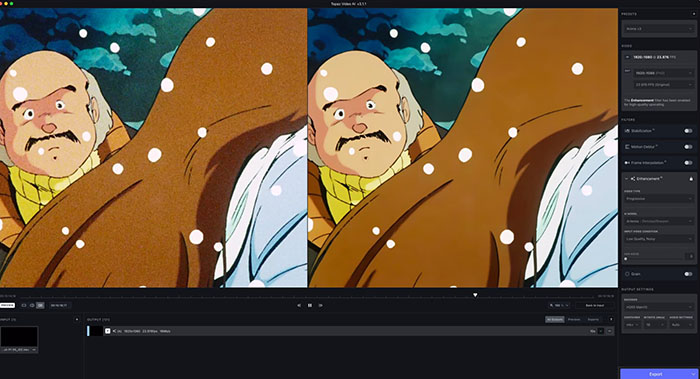
Topaz Video AI crashing has become one of the most discussed problems across Reddit and the official Topaz forums. Users frequently report startup crashes, export freezes, GPU overload errors, black preview screens, and endless "downloading model" loops, especially after newer updates.
In many cases, the issue is linked to NVIDIA driver conflicts, excessive VRAM usage, corrupted AI models, or unstable software builds. After digging through real user feedback, troubleshooting threads, and real tests, we found several fixes that repeatedly helped, including rolling back versions, lowering memory allocation, and reinstalling GPU drivers.
Most Common Topaz Video AI Crash Problems Users Report
While the software can produce impressive enhancement results, stability has become one of the biggest frustrations surrounding recent versions. These are the issues mentioned most often across Reddit threads and the official Topaz community forum.
1. Topaz Video AI Crashes on Startup
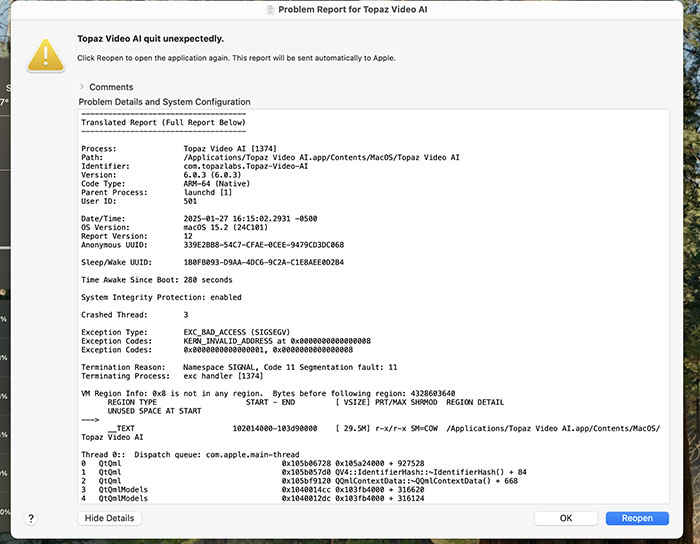
This is probably the single most discussed issue. Users describe the app briefly showing the splash screen before instantly disappearing without an error message. Others report the interface opening for a second and then closing itself.
The issue appears frequently after updating Windows, upgrading NVIDIA drivers, or installing newer Topaz builds such as v6 or v7.
- Splash screen appears then closes
- No error logs displayed
- App works once, then never launches again
- Some users only experience it in offline mode
2. Export Freezes or GPU Crashes
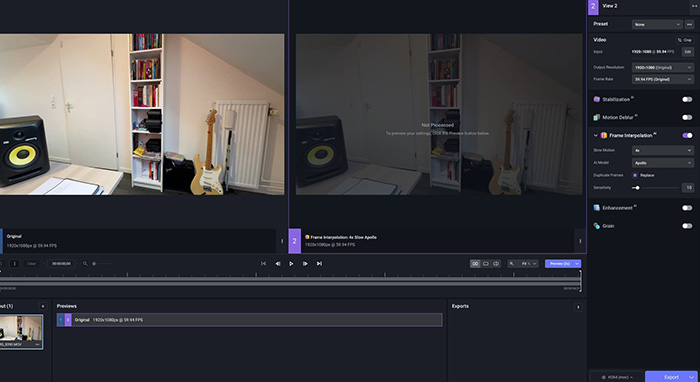
Another major complaint involves rendering suddenly stopping during export. Sometimes the preview window freezes entirely. In heavier workflows, users report GPU driver resets, system lockups, or even forced reboots.
These crashes happen more often with demanding AI models such as Nyx, Chronos, Proteus, or stabilization tasks combined with 4K footage.
- Export stuck at random percentages
- GPU usage spikes to 100%
- System becomes unresponsive
- Preview playback turns black
3. Infinite Model Download Loops
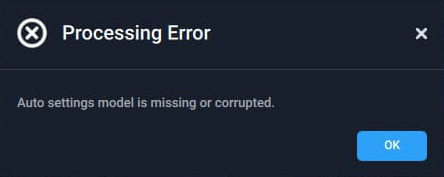
Many users discovered that Topaz Video AI sometimes fails to properly download AI models. The software repeatedly attempts to install the same files, gets stuck on “Downloading Model,” or launches with missing enhancement tabs.
This issue became especially common after certain updates where existing model folders became corrupted or incompatible.
What Actually Causes Topaz Video AI to Crash?
Across Reddit discussions and Topaz forum threads, crash reports rarely come from a single source. Instead, users repeatedly run into a handful of technical bottlenecks that stack up under heavy AI workloads, especially when newer updates meet demanding GPU setups.
GPU Driver Compatibility Problems
One of the most consistent triggers is a mismatch between Topaz Video AI and recent NVIDIA driver updates. After installing newer Game Ready drivers, users with RTX 40-series and above often report sudden startup failures or unstable exports.
Interestingly, many community posts point out that rolling back to an older Studio Driver version often restores stability, suggesting the issue is closely tied to driver optimization rather than hardware failure.
- Crashes after updating NVIDIA drivers
- Startup failure on RTX 4090 / newer GPUs
- Export instability under latest driver builds
- Better stability reported with older Studio Drivers
VRAM and Memory Overload
Topaz Video AI is heavily dependent on GPU memory, and this becomes a major limitation during high-resolution processing. Long clips, multi-pass enhancement, or stacking AI models can quickly push VRAM beyond its safe threshold.
Once memory saturation occurs, the system often reacts unpredictably rather than failing gracefully.
- GPU timeout or driver reset errors
- Sudden freeze during rendering
- Windows watchdog termination
- Full application crash without warning
Corrupted AI Models
Another common cause comes from incomplete or damaged model files. These issues often appear after interrupted downloads, failed updates, or switching between versions.
Instead of clearly flagging the problem, the software may loop endlessly on model loading or crash during preview rendering, which makes troubleshooting harder for users.
Broken or Unstable Updates
Version updates are frequently mentioned in community complaints. Some releases introduce performance improvements but unintentionally break stability for certain hardware combinations or workflows.
As a result, many experienced users choose to stay on older versions that feel more predictable in production environments.
“It works fine until the next update—then something else breaks.”
Windows System-Level Issues
In a smaller but notable number of cases, the crash isn’t caused by Topaz itself. Corrupted system files, broken GPU dependencies, or unstable Windows updates can interfere with how the application initializes hardware acceleration.
These cases are harder to identify because the symptoms often mimic software-level instability.
Most Recommended Fixes from Reddit & Topaz Forum Users
Not every workaround delivers the same result, but community discussions consistently circle around a core set of fixes that help bring Topaz Video AI back to a usable state.
1. Roll Back to an Older Version
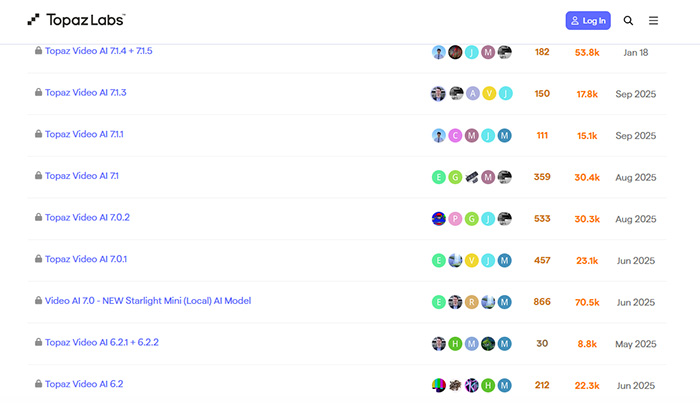
Downgrading remains the first move for many users when stability suddenly drops after an update. Several threads mention that older releases behave more predictably, especially under heavy rendering tasks.
Commonly mentioned stable builds include:
- Topaz Video AI 6.2.0
- Topaz Video AI 5.5.1
- Legacy VEAI 2.6.4
Users working on VHS restoration, old DVDs, or long archival footage often prefer these versions because they avoid sudden export interruptions.
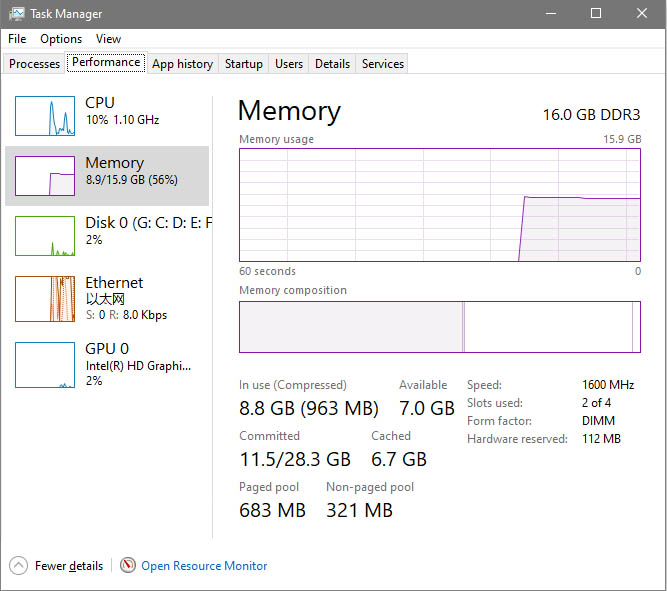
2. Reduce Memory Usage Settings
Another widely shared fix focuses on lowering GPU and system load inside the app settings. This helps prevent VRAM spikes during long processing sessions.
Adjustments frequently suggested by users:
- Maximum Memory Usage → around 70–80%
- Max Processes → set to 1 for stability
- Disable background previews during export
These tweaks reduce pressure on the GPU and can significantly lower the chance of mid-export freezes.
3. Reinstall GPU Drivers Cleanly
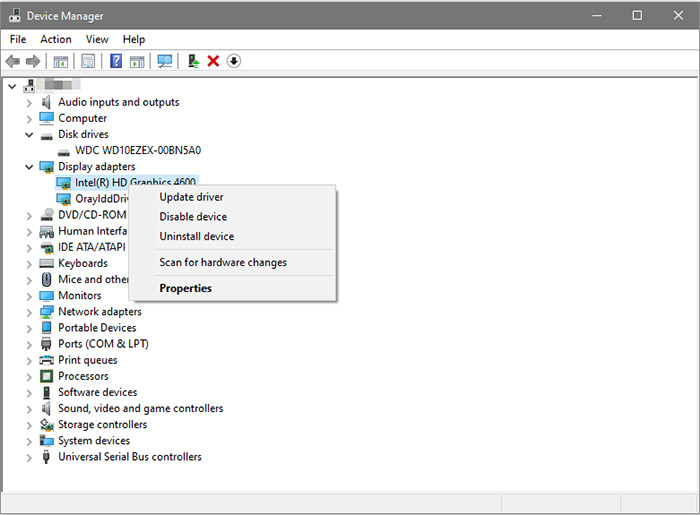
Driver conflicts are another major culprit behind unpredictable crashes. Many users report success after doing a clean reinstall using DDU (Display Driver Uninstaller), followed by installing NVIDIA Studio Drivers instead of Game Ready versions.
Studio drivers are repeatedly described as more stable for long AI rendering sessions, even if they are slightly behind in game optimizations.
4. Delete Corrupted AI Model Files
When models fail to load or keep re-downloading, clearing the model cache often resolves the issue. This forces the software to rebuild clean files on the next launch.
Typical steps include removing:
- Downloaded AI model folders
- Partially installed update files
- Temporary preview model caches
After cleanup, users usually notice smoother startup behavior and fewer loading loops.
5. Remove Cache and Old Configuration Data
Some crashes are linked to leftover settings from previous versions. Even after updating, old configuration files can conflict with new builds.
Advanced users often reset the environment by clearing:
- AppData Topaz directories
- Temporary project cache files
- Residual configuration or registry entries
This effectively gives the software a clean slate without reinstalling the entire system.

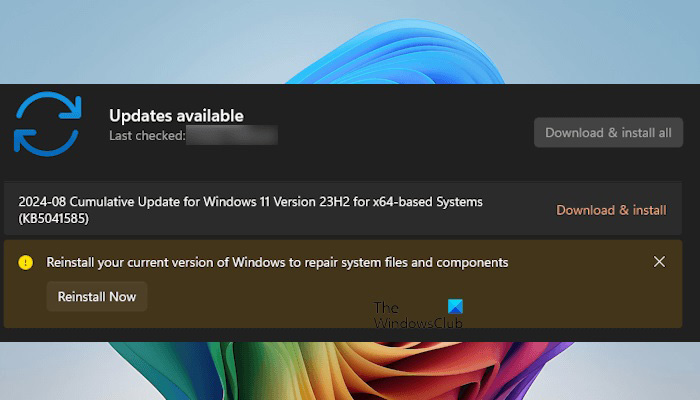
6. Repair Windows System Components
In cases where crashes persist across reinstallations, some users eventually discover system-level corruption as the root cause.
Running built-in repair tools like DISM or System File Checker has helped restore missing dependencies for certain installations.
DISM /Online /Cleanup-Image /RestoreHealth
Several community posts confirm that this step unexpectedly resolved repeated startup failures.
Why So Many Users Stay on Older Versions
A noticeable pattern across forums is that experienced users often avoid upgrading immediately, even when new features are available.
The reasoning is straightforward:
- Older versions sacrifice speed but feel more predictable
- Fewer random crashes during long renders
- More consistent behavior with AI models
- Reliability matters more than experimental features
For long-form projects like VHS restoration, old film digitization, or archive enhancement, stability usually outweighs incremental feature updates. You can also try other Topaz Video Al Alternatives with more solid performance.
Final Thoughts
Topaz Video AI is still one of the most capable AI video enhancement tools available, but stability issues continue to surface across both Reddit and official support channels. Startup crashes, GPU overloads, model download failures, and update-related bugs remain the most reported problems.
Most fixes shared by users point back to the same root causes: GPU driver mismatches, VRAM limitations, corrupted model files, or unstable software updates. While not every issue has a perfect fix, many users manage to restore stability through a combination of version rollback, system cleanup, and driver adjustments.


