
Watch our video guide on YouTube:

Software Tips & Tutorials


Play 4K/8K Videos
Watch our video guide on YouTube:
Play 4K/8K Videos
- When I was trying to send a video file as an email attachment from the media library on my iPhone X, it says "too long to be sent". Do I need to cut the length or reduce the video size?
- I wanted to copy a large video file (4GB) to my external flash drive that is 8GB that seemed to have enough free space. But when it came to time to copy it I got an error message by Windows "too large for the destination file system", and the transfer filed.
- It becomes a headache when it comes to sending a video file that I recorded with my Android phone via WhatsApp, since WhatsApp has a file size limit of 16MB for videos, music and images as well.
- My video is too big to share to YouTube. What can I do?
If your video file is huge, it will take a very long time to attach to an email or message. Even worse, email provider, WhatsApp, YouTube and the like have set limits on video length or file size, and only allow you to send or share only very short videos.
 Can't email large video files
Can't transfer large video files<
Can't send large video files
Can't share large video files
all you need is an awesome large video file converter or a video size compressor.
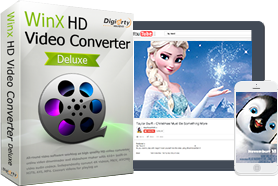
▶ Reduce video file size at high compression ratio – without compromising in video quality.
▶ Diminish any video files regardless of video formats and codecs, support HEVC, MKV, MP4, etc.
▶ Change resolutions, e.g. 4K to 1080p, 1080p to 720p, 1080p to 4K, etc.
▶ Download videos or music from YouTube, etc., edit videos, and make slideshows.


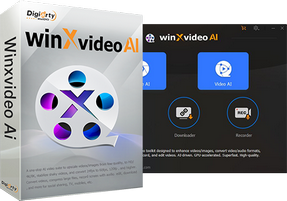
Winxvideo AI is an easy-to-use video compressor and converter for huge video files. No matter you are a new or practiced hand, you can learn it quickly once downloading the exe or dmg file on your PC or Mac.
 Operating System: Windows 2000 – Windows 10 (32 bit & 64 bit); Mac OS X Snow Leopard - macOS High Sierra (10.13)
Step 1. Load the source large video file(s).
After installing and opening the large video file converter, click "+Video" button on the interface to load your source video files.
* Winxvideo AI supports 370+ video and audio codecs and supports batch converting.
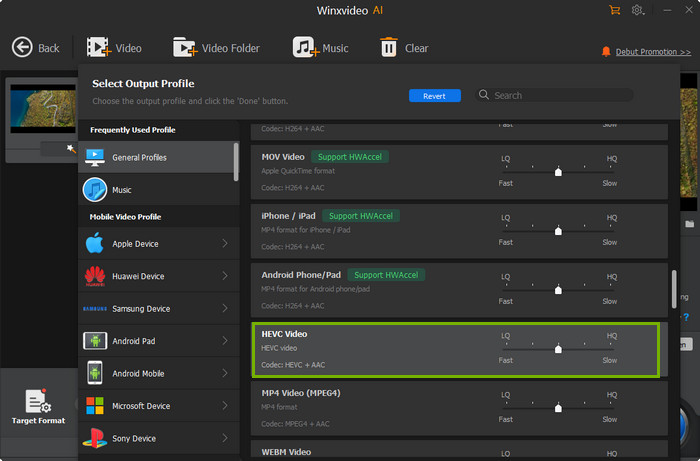
Step 2. (Suggested) Choose HEVC as the output.
Since HEVC promises a 50% file size reduction at a given video quality, we suggest choose it as the codec for output.
Scroll down on the Output Profile window, click General Profiles or PC General Video and select HEVC Video on the right, and click OK.
Step 3. Lower the resolution.
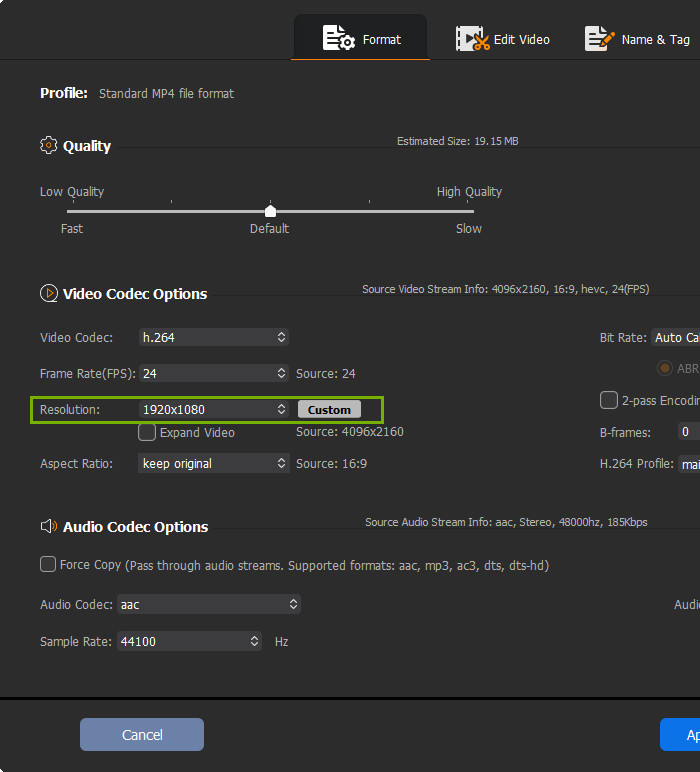
In settings section, click on the drop-down button of Resolution under Video Options, choose a resolution that is lower than your original video file.
Note: Reducing resolution may cause some quality degradation. If you are a quality pursuer, ignore this step.
Step 4. Lower Bit Rate.
The higher the bit rate is, the larger the video size will be. So you can adjust bit rate to a certain range to reduce file size without noticeable quality difference.
Click Settings button and choose a lower bit rate.
Step 5. Trim / Cut the large video file.
If the original video is too lengthy, you can cut down to make it shorter.
Click Edit button -> Trim -> Enable Trim -> Set Start Time and End Time to cut some part -> Done
Step 6. Turn on hardware acceleration.
The playback, editing and sharing a high resolution video may be taxing to your computer hardware. So it is important to enable your hardware for real time playback of larger size video file.
The large video file converter supports unique (Level-3) hardware (GPU) acceleration powered by Intel and NVIDIA.
On the main interface -> Hardware Accelerator -> check Intel and NVIDIA
Step 7. Start reducing the video file size.
Hit RUN button on the bottom right to let the video compression start.
▶ Convert video formats, e.g. MKV to MP4, H.264 to HEVC, MOV to AVI, M2TS to FLV.
▶ 420+ ready-made profiles: convert any videos for playback directly on iPhone, Android, etc.
▶ Download online videos and music from YouTube, DailyMotion, Facebook, Vimeo, etc.


Home | About | Privacy Policy | License Agreement | News | Contact Us | How-tos
 Copyright © 2026 Digiarty Software, Inc. All rights reserved


 YouTube Tips