








How to Convert DVD to iPhone for Playing on the Go
Summary:This guide introduces the best DVD to iPhone converter, shows how to convert DVD (incl. Video_TS folder) quickly while keeping high quality, and explains how to put the ripped files onto your iPhone for convenient playback on the go.
"I have a number of very rare, instructional DVDs and I've been carrying the packs around for like 10 years. I would like to rip them into another format and put them to my iPhone in case I'd ever need in a few years from now. How can I do that?"
Do you want to watch DVDs on iPhone on the go? To put DVD movie onto iPhone for playing on the move whenever and wherever you like, you need to learn how to convert DVD to iPhone compatible formats and then transfer the DVD rip file to your iPhone. Here we have detailed guide on how to convert DVD for iPhone at an ultrafast speed while keeping crisp quality with the best DVD to iPhone converter.
Table of Contents
Part 1. Best DVD to iPhone Converter
DVD to iPhone vs. Video_TS to iPhone: Do you need different methods? No. Whether you are holding a physical DVD disc in your hand or dealing with a Video_TS folder (a digital rip or copy of a DVD structure containing VOB, IFO, and BUP files) stored on your computer, the core requirement for iPhone playback is the same: converting the data into an iPhone-friendly MP4 or MOV format.
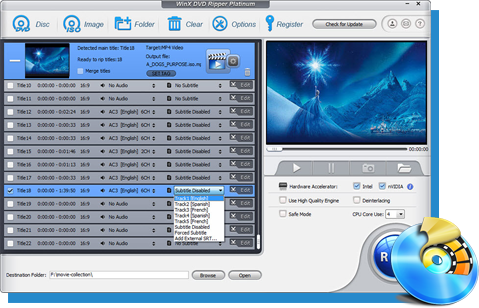
WinX DVD Ripper Platinum is designed to handle both sources and convert DVD/Video_TS folder to iPhone supported format seamlessly. By using the same workflow, you can bypass the need for different software or complex manual file conversions. With high-speed, GPU-accelerated engine, this tool ensures you spend less time converting and more time enjoying your videos on your iPhone. With over 20 years experience in the field of DVD ripping, it is well-received by users all the time.
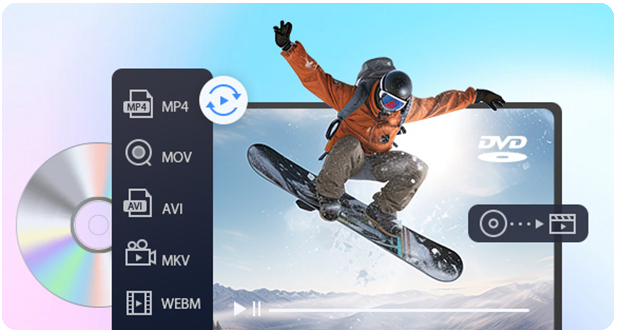
- It can convert a DVD to MP4, MOV, H.264, HEVC, MPEG-4, and more formats for iPhone. If you have no idea about the codec stuff, there are ready profiles for all iPhones, as well as other popular devices like iPad, iPod, Apple-TV, and Android. There are more than 350 output profiles.
- It can remove DVD copy protection like region codes, CSS, RCE, Sony ArccOS, UOPs and Disney X-project DRM without third-party addons. You can convert any DVD whether you know or not without any scruple.
- The High Quality Engine and "Yadif Double Frames" Deinterlacing is to ensure the best possible quality, up to 98% original quality reserved.
- Flexible options offered to clip segment, adjust video resolutions, bit rate, etc. to keep the output video under 1GB for iPhone storage.
- The GPU accelerated rip powered by Intel® QSV and NVIDIA® NVENC/CUDA delivers 47x real-time faster speed.
Part 2. How to Convert DVD to iPhone with WinX DVD Ripper Platinum
First of all, download and install the DVD to iPhone converter - WinX DVD Ripper Platinum - on Windows 11/10/8/7 or Mac computer. Once done, follow the steps below.
 Free Download Windows Version
Step 1 - Load the DVD you want to put on iPhone
Insert your DVD into disc drive and run WinX DVD Ripper. Then, click the +Disc button to load the DVD and it will start to detect the title of the movie. Alternatively, if you have a DVD folder on your computer, click +Folder to import the Video_TS folder directly. Unlike many other tools, you don't need to test with each title, or check the possible title by playing the DVDs one by one, it will identify the correct main title automatically. You can click here and get a reliable external DVD drive for your laptop and then import your DVD thereafter.
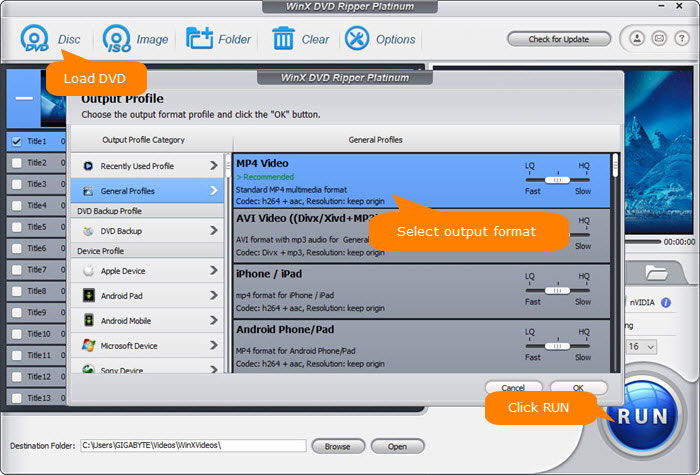
Step 2 - Select an iPhone profile or a format that iPhone supports.
Then a window will automatically pop up asking you to select an output format. You can click General Profiles, find an iPhone supported format like MP4 h.264+aac. The easier way is to click "Apple Device" and choose the model of your device.
 General Media Formats Supported by iPhone:
- H.264 video: up to 4K, 30 frames per second, High Profile level 4.2 with AAC-LC audio up to 160 Kbps, 48kHz, stereo audio or Dolby Audio up to 1008 Kbps, 48kHz, stereo or multichannel audio, in .m4v, .mp4, and .mov file formats.
- MPEG-4 video: up to 2.5 Mbps, 640 by 480 pixels, 30 frames per second, Simple Profile with AAC-LC audio up to 160 Kbps, 48kHz, stereo audio in .m4v, .mp4, and .mov file formats.
- HEVC video: Officially, iPhones are well compatible with HEVC. The support for HEVC is built into iOS 11 and later. Theoretically, iPhones will support the playback of HEVC video. So you can convert a DVD to HEVC for iPhone.
- Motion JPEG (M-JPEG) video: up to 35 Mbps, 1280 by 720 pixels, 30 fps, audio in ulaw, PCM stereo audio in .avi file format.
- Audio formats: AAC‑LC, HE‑AAC, HE‑AAC v2, Protected AAC (MP4 from iTunes Store), MP3, Linear PCM, Apple Lossless, FLAC, Dolby Digital (AC‑3), Dolby Digital Plus (E‑AC‑3), Dolby Atmos, and Audible (formats 2, 3, 4, Audible Enhanced Audio, AAX, and AAX+)
Step 3 (optional) - Set encoding parameters
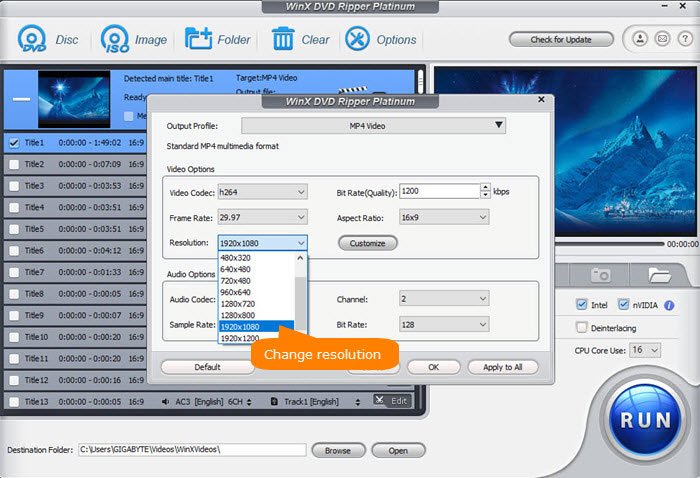
To make the final DVD video smaller for storage-constrained iPhones, there are more steps to go. Back to the main interface, click the gear button next to the selected profile, and there you can adjust the video and audio encoding preferences.
- Bit Rate: Normally, the higher bit rate, the better quality and the larger size. You can lower the bit rate by 200~500kbps to shrink the image slightly without visually quality loss.
- Resolution: DVD is normally 720×480 pixels or 720×540. Click the Customize button next to Reslution, and change the resolution to 640 x 360 or 720 x 405. This way, there will be no black bars on the top and bottom.
Step 4 - Begin ripping DVD to iPhone
Click the Browse button to select a destination folder. After that, check the files needed to convert in the file list, and click the RUN button on the main interface, to start digitizing the DVD for iPhone. You can view the conversion progress from the progress bar at the bottom of the dialogbox.
If you are looking for a more portable storage solution, check our guide on how to copy DVD to USB flash drive to enjoy your movie collection anywhere without a disc drive.
Legal Disclaimer: WinXDVD, developed by Digiarty Software, is designed strictly for personal, non-commercial media backup under fair use. Digiarty Software strictly respects copyright laws and does not condone, facilitate, or support copyright infringement or unauthorized copying. Users are advised to check and comply with their local DVD copyright laws and regulations before use.
Learn How to Convert DVDs to MP4 for iPhones via the Video Tutorial
Part 3. How to Put the Converted DVD Movie onto iPhone
After the DVD is converted into iPhone supported formats, all you need is to sync the video to iPhone. You can do it by using one of the ways below.
Method 1. Open iTunes, drag and drop the converted MP4 to iTunes. Then connect your iPhone and sync the converted movie to your device. Please be cautious as syncing may overwrite existing media on your iPhone.
Method 2. Open Clooud service like iCloud or Dropbox and upload the converted file to it. Then you can play the movies on iPhone or other devices with Dropbox app installed. These services are convenient for smaller clips, though they rely heavily on your internet connection and cloud storage capacity, which might not be ideal for large-sized DVD movie files.
Method 3. Open Finder on Mac, connect your iPhone via USB and use Finder to sync the file from the computer to your iPhone from here.
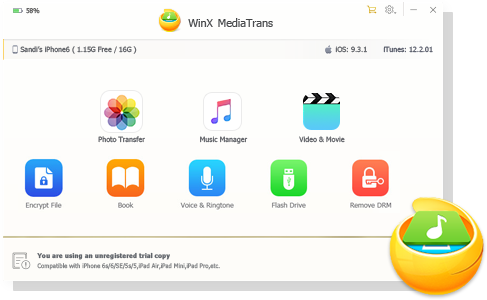
Method 4. Use WinX MediaTrans if the Apple-owned iPhone file syncing tool erases data easily or seems to be too complicated for you. WinX MediaTrans is the best iTunes alternative for Windows and much easier than iTunes. It requires drag and drop only to sync massive videos, photos, music, audio, etc. between iDevices and the computer.
Unlike iTunes which is slow (especially in transferring large video files) and often stuck in Windows computers, WinX MediaTrans can transfer namely a 1GB video to iPhone in about 1 minute, several times faster than similar software. You can use it as the best alternative to iTunes as it is ultrafast, stable, smooth and extremely simple-to-use. 100% clean and secure.
Another big merit of using WinX MediaTrans to transfer DVD movie video to iPhone is that it can auto convert any video to iPhone supported MP4 format. Even if the converted DVD video is in MKV or AVI, you can still use WinX MediaTrans to transfer MKV/AVI to iPhone for playing.
Now let's free download and install WinX MediaTrans, and transfer DVD movie video to iPhone in a flash, just in a few clicks.
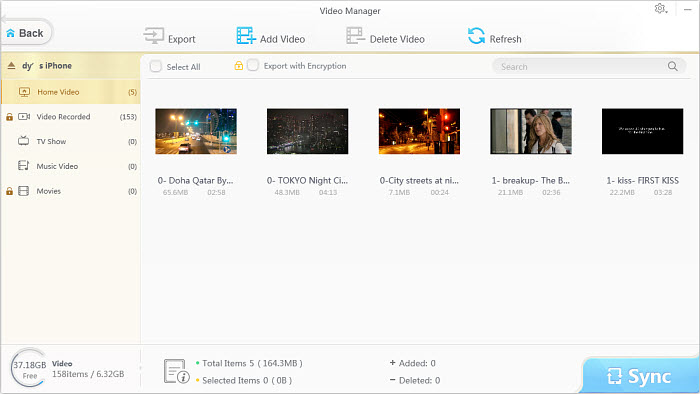
1. Launch WinX MediaTrans and connect your iPhone with computer via USB cable.
2. Click "Video Manager" button. Then click " Add Video" to load the converted DVD video file.
3. Hit "Sync" icon to transfer the DVD movie video to your iPhone at lightning speed.
Related External Source from Wiki:
1. DVD-Video: DVD-Video is a consumer video format used to store digital video on DVD discs. Discs using the DVD-Video specification require a DVD drive and an MPEG-2 decoder (e. g., a DVD player, or a computer DVD drive with a software DVD player)...
2. VOB: VOB (Video Object) is the container format in DVD-Video media. VOB can contain digital video, digital audio, subtitles, DVD menus and navigation contents multiplexed together into a stream form. Files in VOB format may be encrypted...