









How to Rip DVD to USB Flash Drive for TV, Car & Any Device (Free & Easy)
Summary: The best way to transfer a DVD to a USB flash drive is to convert it to MP4 first. Commercial DVDs usually cannot be copied directly due to copy protection schemes, while homemade discs can often be copied without additional software. If you don't have a computer, professional transfer services are another solid choice. In this guide, you will lear how to copy DVD to USB drive for playback on Smart TVs, cars, and mobile devices. Below are the key takeaways:
- For TV, car, or USB playback, convert DVD to MP4 (H.264) using tool like WinX DVD Ripper and store them on an exFAT drive.
- If you want a full-quality backup, save DVD as ISO/MKV instead of MP4 (but this will result in large size).
- Homemade DVDs can often be copied directly, but if most DVDs are commercially protected, try professional ripping software to handle those commercial DVDs.
- If you don't have a computer or drive, try a transfer service.
DVD players are disappearing from modern laptops, TVs, and even cars. Instead of carrying discs, many people now prefer to store their DVD movies on a USB flash drive for easy playback on Smart TVs, Android TV boxes, car infotainment systems, or portable devices.
The problem is that commercial DVDs are usually protected by CSS, region codes, or structural protections, so dragging DVD files onto a USB drive rarely works. In most cases, you'll need to convert the DVD into a digital format such as MP4 first.
Many users ask questions like this. "How do I transfer DVD movies to a USB flash memory stick? I no longer have a DVD player, but I have a few DVD movies I would like to watch on my TV via an Android box that does accept USB drives. My only tool to do the transfer is a Windows 10 notebook. Do I need specific software or does Win10 have it built-in?" - Reddit
This guide covers 3 effective ways to copy DVD to USB and helps you choose the right solution. Depending on whether your DVD is copy-protected, homemade, or you prefer a hands-off solution, the right approach can be very different. The table below helps you choose the best option.
Quick Decision: Which DVD to USB Transfer Method Should You Choose |
||||
If you want to... |
Recommended Method |
Pros |
Cons |
|
Watch DVDs on TV or in the car via USB |
Rip DVD to MP4 with a DVD ripper |
▪ Process unlimited DVDs at home. |
▪ Requires a software download and a brief learning curve. |
|
Copy a homemade DVD without software |
Direct Copy |
▪ Free and no extra apps needed. ▪ Very fast, simple drag-and-drop operation. ▪ 100% original files copied. |
▪ Fails on 99% of movie DVDs becuase this method cannot handle these commercial DVDs. ▪ Copied VOB files are often unplayable on modern TVs and devices. |
|
Keep a full disc backup |
ISO/MKV Backup |
▪ Keep original quality. |
▪ No as flexible as MP4 format when playing on the go. |
|
No computer available |
Transfer Service |
▪ Totally hands-off. ▪ Professional service handles all conversion and technical issues. |
▪ Expensive ($15-30 per disc) and long turnaround time (requires shipping/drop-off). ▪ You lose immediate control over the process. |
|
Can You Copy a DVD Directly to USB?
Yes, you can copy a DVD directly to a USB drive — but only when the disc is unprotected, such as a homemade DVD containing personal videos. For most commercial movie DVDs, simple drag-and-drop copying will not work because they usually contain copy protection and complex DVD structures.
Direct copying simply transfers the original DVD folders (usually VIDEO_TS and AUDIO_TS) to your USB drive without converting the video. This method keeps the original DVD structure, but it does not make the videos more compatible with modern playback devices.
How to Copy a Homemade DVD to USB Directly
Step 1. Insert the homemade DVD into your computer's disk drive and connect your USB stick to an available port.
Step 2. Access and copy the DVD content.
- On Windows: open File Explorer and double-click the DVD drive.
- On Mac: Double-click the DVD icon that appears on yoru Desktop, or find it in the Finder sidebar under Locations. .
Here you can see two main folders: AUDIO_TS and VIDEO_TS. Select both folders (or just VIDEO_TS, which contains teh actual movie data). Right-click and select Copy.
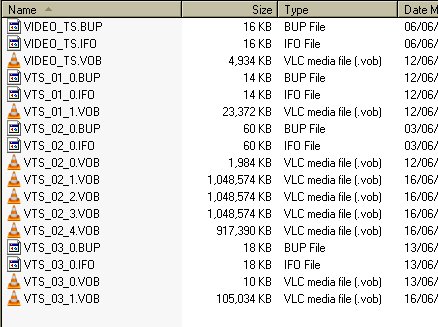
Step 3. Open the USB drive, then copy and paste DVD files to the USB driv (or press Ctrl+V on Win /Command+V on Mac). Wait for the transfer to complete.
 Important Note for Direct Copying:
1. USB format and storage (FAT 32 vs exFAT): A standard single-layer DVD holds up to 4.7GB, while dual-layer discs hold 8.5GB, so make sure your USB drive has sufficient storage capacity. If you are copying a single ISO image file larger than 4GB, a FAT32 formatted USB drive will fail, since it has a 4GB individual file size limit. exFat is usually a better choice for modern USB drives).
2. Video_TS playback compatibility: Although copying a DVD to a USB drive seems easy, the playback may not be. The copied DVD files can typically end up with a structure featuring a Video_TS folder that contains a VTS_01_1.VOB, VTS_01_2.VOB, VTS_01_3.VOB, etc. Each VOB represents part of the movie content on the DVD, which is generally unplayable on most smart TVs, car players, mobile players and devices. For wider compatibility, converting the DVD to MP4 is usually a better option.
3. DVD copyprotection limitation: The manual method is only applicable for non-protected, homemade DVDs. In reality, various encryption measures such as CSS[2], Sony ARccOS are encoded on DVDs to prevent unauthorized copying. If you attempt to transfer a protected DVD directly, the process is likely to end in an "I/O Device Error", or the copied files will appear as 0 bytes, corrupted, or unplayable.
If you want to watch DVDs from a USB drive on TVs, cars, or mobile devices, converting the DVD into a compatible format like MP4 with a third-party DVD ripper is usually the better solution.
Best Way: Rip DVD to MP4 and Transfer to USB
The most reliable way to transfer DVDs to a USB flash drive is to rip the disc into a digital format such as MP4 first, then copy the converted video files to your USB drive.
Unlike direct copying, DVD ripping converts the complex DVD structure into a widely supported video format that works better with Smart TVs, Android TV boxes, car screens, and mobile devices. For most users, MP4 (H.264) offers the best balance between compatibility, file size, and video quality.
Why Convert DVD to MP4 Instead of Copying DVD Files?
|
Direct Copy |
DVD to MP4 |
Output |
VIDEO_TS/VOB | MP4 |
TV Compatibility |
Limited | Excellent |
File Size |
Large | Smaller |
Commercial DVD |
Usually fails |
Works with proper tools |
USB Playback |
Not guaranteed | Recommended |
Step-by-Step Tutorial: How to Rip DVD to USB
What You Need: Before starting, ensure you have the following:
- A DVD Drive: Internal or external DVD drive.
- USB Flash Drive: Plug in a drive with enough space.
- The Software: Download and install a DVD ripper program.
Step 1. Load Your DVD
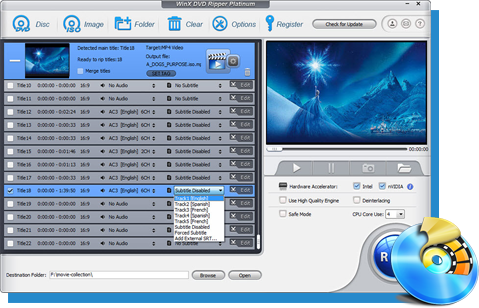
First, insert the DVD into your DVD-ROM drive and open a DVD ripping program. For protected DVDs, professional DVD rippers with built-in DVD decryption support such as WinX DVD Ripper can automatically analyze DVD structures and convert disc to USB-friendly formats like MP4. You can click the "DVD Disc" button to load the DVD. The software will bypass any copy protections and detect the correct DVD title, which may take a few seconds.
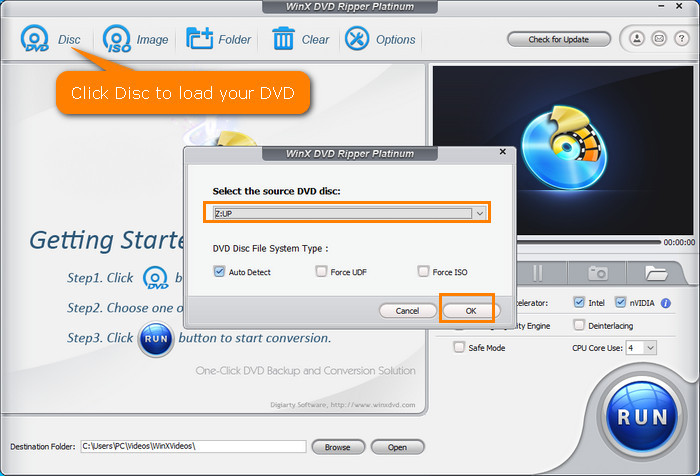
Tips: You can also import a VIDEO_TS folder or ISO image file and convert it to a more manageable format, such as MP4.
Step 2. Choose MP4 as Output Format
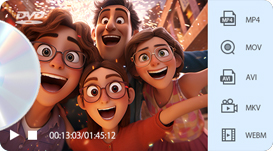
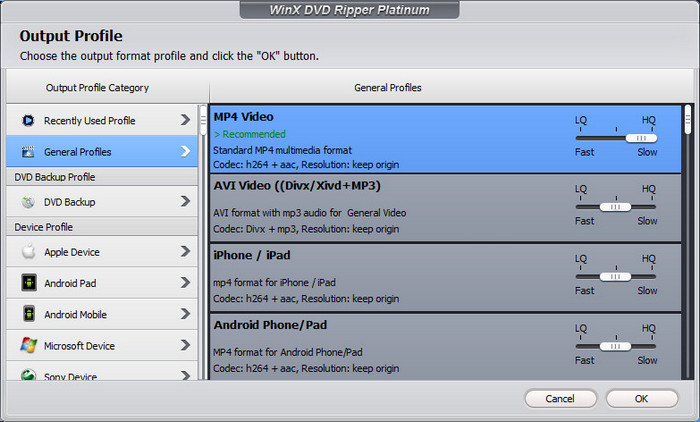
Once the correct title is detected, the software will prompt you with the Output Profile panel. Here, you can choose an output format for the copy. You can save the files in any format compatible with your USB flash drive.
Which Format Should You Choose?
Goal |
Recommended Format |
Why |
Play on TV / Car / Mobile |
MP4 (H.264) |
Best Compatibility: Plays on almost any device with a USB port. |
Keep original DVD quality |
ISO Image |
1:1 Quality: Keeps original menus, tracks, and extras. |
For USB playback, MP4 H.264 is usually the safest choice.
Step 3. Save the Converted Video to USB Drive
When you have selected the output format, click the "Browse" button and select a destination folder on your computer or USB drive. For faster conversion, saving temporarily to your computer's SSD and then transferring the file to USB may provide better performance.
Once you have set everything up, click the "RUN" button to start the DVD to USB conversion process. The software will begin to rip the DVD and convert it to the selected format for your USB drive. The time it takes to complete the process depends on the size of the DVD, the speed of your computer, and your settings. Generally, different DVD rippers delivered various DVD to MP4 ripping performances, you can refer to the complete DVD ripping benchmark for reference[3].

Step 4. Transfer and Play the DVD Video from USB
After the conversion is finished, you can copy the MP4 file to your USB flash drive and connect it to your TV, car system, or media player.
💡 Pro tips for Better DVD Playback from USB
To ensure your DVD movies play perfectly on Samsung/LG TVs or Tesla/Car screens, please choose MP4 (H.264) as the output format. Also, make sure your USB is formatted to exFAT to handle high-quality files larger than 4GB.
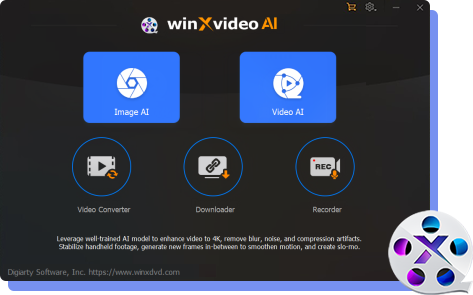
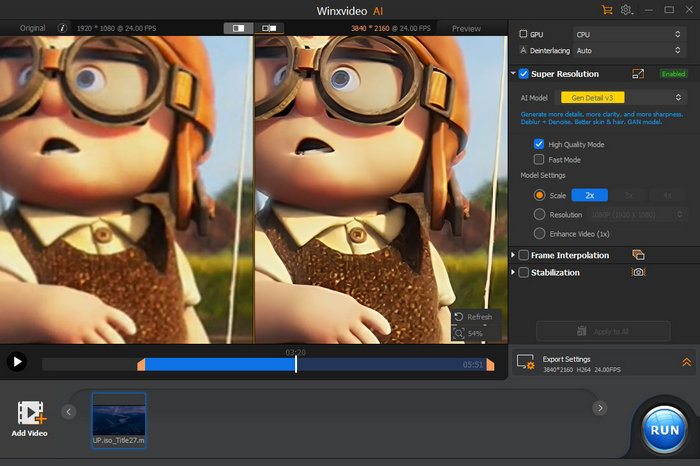
If you want to further enhance your DVD video quality, such as upscaling it to 1080p or even 4K before the original 480p resolution, you can use AI upscaling tools like Winxvideo AI, which can further enhance sharpness and details.
4 Ways to Convert DVD to USB Flash Drive: Which Method Fit You?
The right DVD to USB method depends on the type of disc you have. Professional DVD rippers work best if you need to bypass DVD encryption on commercial movies, while free tools like HandBrake and VLC are better suited for unprotected DVDs.
Option 1. WinX DVD Ripper
- Best for copying protected, old, and multi-title DVDs to USB/flash drive
- Supported OS: Windows 11 or earlier, macOS Tahoe or earlier
WinX DVD Ripper is a GPU-accelerated DVD transcoding software that converts copy-protected DVDs to MP4 for USB playback on PCs, Smart TVs, cars, and mobile phones, reducing file size by up to 80% while maintaining original quality. It automatically removes copy protections and chooses the right title, allowing you to convert any DVD to a digital file directly. Unlike Handbrake, WinX DVD Ripper can bypass Disney 99-title protections directly without third-party plugins.
In our benchmark test, WinX DVD Ripper completed DVD analysis in seconds and copied a 4.7GB DVD to MP4 in about 8 minutes with hardware acceleration enabled, and the output file was reduced to 1.2GB while maintaining smooth playback on a Samsung TV via USB.
Why it stands out:
- Strong DVD Decryption: Handles everything from classic CSS to the latest intricate disc protections (e.g. 99-title discs).
- TV/car Compatibility: Rips DVD to MP4, making your movies playable on almost any Smart TV, car screen, iPhone, Android, etc via USB.
- High Speed & Quality: Uses Full GPU acceleration to finish the job quickly without sacrificing image quality
Trusted by 86 million users since 2006. 100% safe & clean.
Option 2. Handbrake (Best Free Open-Source Option)
- Best for tech-savvy users who want a free way to digitize unprotected DVDs to MP4/MKV.
- Supported OS: Windows 10/11 (64-bit), macOS 10.13 or later, Linux.
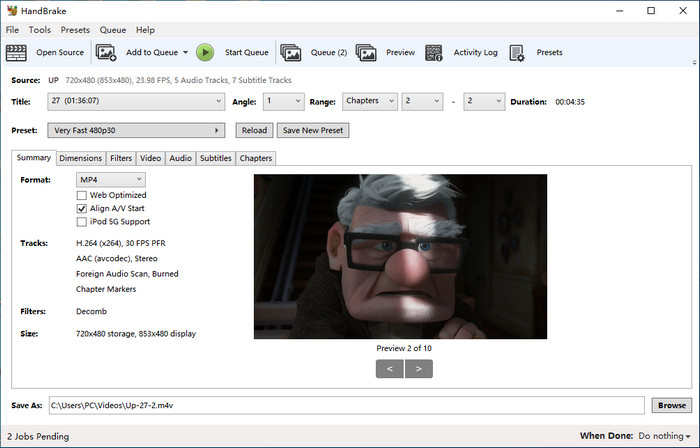
HandBrake is a free, open-source video transcoder that allows users to rip DVDs and convert them into various digital formats. However, by default, HandBrake cannot handle encrypted DVDs due to licensing restrictions. To rip protected DVDs with HandBrake, you will need to install libdvdcss, an external library that enables HandBrake to bypass encryption.
In my real test (i5, 16GB RAM), ripping a 4.7GB DVD to MP4 using the Fast 480p preset took about 18 minutes. While Handbrake supports GPU encoding (like Intel QSV), its DVD decryption and de-interlacing still rely heavily on the CPU. This is why it remains slower than some rippers that feature specialized DVD processing, especially when handling complex copy protections. But if you are a pro user, you will be surprised at Handbrake's strong customization.
Pros:
- Free and open-source.
- Custom encoding.
Cons:
- No built-in DRM removal.
- Requires extra setup.
Option 3. VLC Media Player (Best for Quick One-Off Rips)
- Best for users who already have VLC installed and need to rip a single, unprotected DVD without downloading new software.
- Supported OS: Windows 7/8/10/11, macOS, Linux, Android.
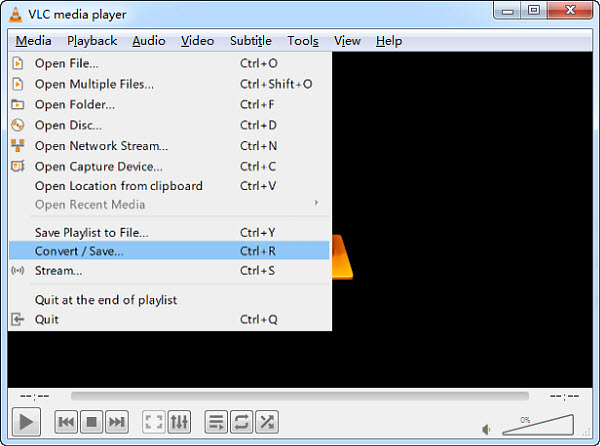
VLC Media Player is more than just a versatile video player; it also includes a hidden "Convert" feature that allows you to convert DVDs into digital formats. Since most users already have VLC installed, it serves as a convenient, no-cost method to transfer DVD content to a USB drive without downloading additional software.
While VLC is reliable for unprotected discs, it often struggles with some copy-protected commercial DVDs and generally offers slower conversion speeds compared to professional rippers because it has no hardware acceleration for ripping.
In my real-world test, VLC ripped a 90-minute DVD movie took nearly 1hour23min to complete. Unlike professional rippers that read the data directly, VLC essentially plays and records the stream into an MP4 file. This makes it the slowest option in our list and not suitable for bulk DVD to USB transfers. But if you prefers no additional software installation, VLC is still a good option for single DVD to USB conversion. Below is the step-by-step guide on how to use VLC to save your DVD movies directly to a USB flash drive.
Pros:
- Already installed.
- No extra cost.
Cons:
- Slow DVD ripping speed.
- Limited DVD compatibility.
- Not suitable for batch conversion.
Option 4. MakeMKV (Best for 1:1 Lossless MKV)
- Best for movie enthusiasts who want to preserve 1:1 original quality, along with audio and subtitle tracks kept.
- Supported OS: Windows 7/8/10/11 (64-bit), macOS 10.7 or later, and Linux.
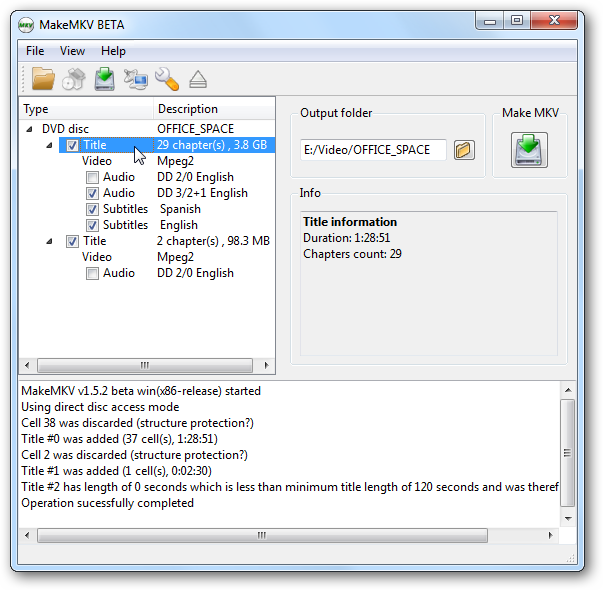
MakeMKV is a straightforward tool for ripping DVDs and Blu-rays into MKV files, a versatile and high-quality video format. Unlike other DVD rippers, MakeMKV focuses on remuxing- preserving the video and audio quality without compressing the files. This means you get the exact same quality as the original disc, but it also produces much large files compared with the compressed MP4.
In my real-world test, ripping the 4.7GB DVD took about 12 minutes. The process is faster than Handbrake because there is no conversion envolved. However, the output MKV file was 4.3 GB-nearly the full size of the disc. While the quality is perfect, many older Smart TVs and car players cannot play MKV files directly from a USB drive. You might require additional tools for converting to more widely supported formats like MP4. Now we will guide you through the steps to use MakeMKV to copy a protected DVD to your USB drive. Registration code is required for DVD ripping.
Pros:
- Support both DVD and Bluray.
- No extra cost.
Cons:
- Just copy DVD to MKV format only.
Note: The DVD ripping tools mentioned above were evaluated through our in-depth DVD ripper benchmark testing, including features, ripping speed, DVD compatibility, and overall performance. See our full DVD ripper comparison here >>
No Computer? Use Professional DVD to USB Transfer Service
If you don't have a DVD drive, don't want to install ripping software, or simply prefer a hands-off solution, professional DVD digitization services can convert your discs into digital files and deliver them on a USB drive. There are many such services on the market. Let me introduce a few services here.
- Best for users who don't have a computer or a DVD drive, or those who have a large collection and prefe a professional service.
- Estimated cost: $15-$30 per disc (varies by provider).
How DVD Transfer Services Work?
Step 1. Place order online: Visit the website of a provider like Walmart Photo or CVS. Be sure to select "USB Flash Drive" as your preferred output format.
Step 2. Send or Drop Off Media: For Walmart or CVS, take your DVDs to a local Photo Center counter. For Forever Studios, pack your discs securely and use their provided shipping label to mail them to the studio. Please label your homemade discs so the digital files can be named correctly.
Step 3. Digitization and delivery: The professional lab will convert your DVDs to MP4. Most services also upload a copy to the MemoryCloud for immediate viewing.
Step 4. Receive Your USB Drive: After 2-4 weeks, the service will ship your original DVDs back to you, along with a new USB stick containing your movies in MP4 format, ready to plug into your Smart TV or computer.
Things to Consider before Using a Service
- Copyright Restrictions: Most retail services (like Walmart or CVS) will not digitize commercial Hollywood movies due to strict copyright laws. They primarily focus on homemade videos, wedding films, and personal recordings. For commercial movie DVDs, many transfer services only accept personal recordings due to copyright restrictions. Users who want to manage their own discs typically need DVD ripping software that supports their disc type..
- Privacy: While professional services are generally secure, you are handing over personal footage to a third party. If your DVDs contain highly sensitive or private content, doing it yourself at home is the most private option.
- The "Hidden" USB Cost: Most services charge for the transfer plus the cost of the USB drive itself (often $10-$15 extra). Be sure to check the final checkout price.
However, it is important to note that pricing and turnaround time can vary by specific store location. It is recommended to contact your local center to confirm the current local service availability.
What USB Format Should You Use for DVD Videos?
When transferring DVD movies to a USB flash drive, choosing the right USB file system is important for both storage capacity and playback compatibility. For most users, exFAT is the recommended format because it supports large video files while working well with modern Windows computers, Macs, Smart TVs, and media players.
- Use exFAT (Recommended): exFAT works on both Windows and Mac, supports file larger than 4GB, and is ideal for storing DVD backups, high-quality MP4 videos, or large movie files without size limitations. This is best for most DVD-to-USB users. But some very old devicees may not support it.
- Avoid FAT32 for large DVD files: FAT32 has a 4GB single-file size limit. Keep in mind a single-layer DVD contains up to 4.7GB of data while a dual-layer DVD can contain up to 8.5GB. While it works with many older TVs and devices, FAT32 cannot store a full DVD ISO image or large high-quality video files. If you must use FAT32, convert DVDs to smaller MP4 files instead.
- Use NTFS mainly for Windows devices[2]: NTFS supports large files and works well with Windows PCs. However, some Smart TVs, car systems, and media players may not recognize NTFS-formatted USB drives, so check your device compatibility before using it.
How Much USB Storage Do You Need for DVD Movies?
The required USB capacity depends on whether you want a full DVD backup or a compressed digital copy.
A standard DVD contains single-layer DVD that is about 4.7GB in size and dual-layer DVD that is about 8.5GB in size. However, after converting a DVD into MP4, the file size is usually much smaller.
Approximate Storage Requirements
DVD Format |
Average Size per Movie |
Recommended USB |
Full DVD ISO backup |
4.7-8.5GB |
128GB+ |
High-quality MP4 (H.264) |
1-3GB |
64GB+ |
Compressed MP4 for mobile playback |
500MB-1.5GB |
32GB+ |
How Many DVDs Can a USB Drive Hold?
USB Capacity |
Approximate DVD Movies (MP4) |
32GB |
10-20 movies |
64GB |
20-50 movies |
128GB |
50-100 movies |
256GB and 1TB |
100+ movies |
The actual number depends on video quality, resolution, and bitrate settings.
Tip: MP4 Saves Much More Space Than DVD Folders
A copied DVD folder (VIDEO_TS) keeps the original disc structure and requires almost the same storage as the DVD itself. By converting DVD to MP4, you can:
- Reduce file size
- Keep good image quality
- Improve USB playback compatibility
For most TV and car playback, MP4 H.264 is the best balance.
Can You Play DVD Videos from USB on TV or Car?
Yes. Most modern Smart TVs, Android TV boxes, and car multimedia systems can play DVD videos from USB — but usually not the original DVD folder structure. To maximize compatibility, convert your DVD into a common digital format such as:
MP4 + H.264 video + AAC audio
Playing DVD Videos on Smart TVs
Most TVs support: MP4, H.264, H.265/HEVC (newer models), and MKV (many modern TVs). For the best compatibility, it is recommended to convert DVD to MP4 H.264, save it to USB exFAT, and then play it on your TV.
Playing DVD Videos on Cars
Many car entertainment systems support USB video playback, but they usually have stricter requirements. Common limitations include:
- Maximum resolution
- Supported codecs
- USB file system
- Maximum file size
For better compatibility:
- Use MP4
- Keep resolution at 720p/1080p unless your system supports higher
- Avoid complex formats like DVD menus or ISO files
Why Doesn't My TV Recognize DVD Files from USB?
If your files are on the UBS but won't play or even show up, here are the common reasons:
- Wrong video format or codec. If you manually copied the VIDEO_TS folder or VOB files, most TVs won't recognize or play them in sequence. To fix this, ensure the file is MP4. In addition, a video file may have the wrong codec, resolution and bitrate, even MP4 files may fails if encoded with unsupported settings. So it's highly recommended to convert to MP4 H.264, a widely compatible codec.
- Unsupported USB Format: Most modern TVs (QLED, OLED, 4K) support exFAT, which is ideal for large video files. NTFS and FAT32 are also supported on many models. Older TVs usually support FAT32, but may have limitations with large files (over 4GB). While VIZIO TVs typically work best with FAT32, though some newer models also support exFAT. If you're using the FAT32 USB drive, make sure the DVD movies ripped for the USB are under 4GB. For larger, high-quality rips, re-format your USB to exFAT or NTSF.
- Folder Depth: Avoid burying your movies in too many subfolders. Keep them in the root directory or one Movies folder. In addition, some TVs like older LV/Sony models fail to index the drive if it contains more than 4000 files or too many nested folders.
- Hardware check: Check the ports on the TV and make sure there is no dusty or faulty USB port.
FAQs about DVD to USB Transfer
1. How to copy DVD to USB on Windows 7/8/10/11?
If you want to copy a non-protected DVD to USB on Windows 7/8/10/11 and don't mind the copy is a DVD folder, simply insert the disc and plug in your USB. Open the File Explorer by pressing the Win + E. Navigate to your DVD drive and right-click on it. Select "Copy" or press Ctrl+C on your keyboard, then Paste the VIDEO_TS folder into yoru USB drive.
For commercial DVDs, this manual copy will fail. You can try the professional tools like WinX DVD Ripper to bypass the encryption and follow the steps mentioned above to copy the DVD to USB in MP4 format on Windows 7/8/10/11.
2. Can VLC rip encrypted DVDs to USB?
By default, VLC can only rip unprotected DVDs. While it supports various formats like MPEG, MP4, AVI, Divx, ASF, WMV, FLV, etc, it lacks the internal decryption needed for most store-bought movies. Additionally, VLC isn't optimized for hardware encoding, meaning it takes long DVD ripping to finish the transfer. Read our guide on how to rip DVDs with VLC.
3. What is the best video format to copy DVD to USB for playing on TV?
MP4 (H.264+AAC) is the most universally compatible format, balanced for small file size and high image quality. Below are some of the general video formats supported by most common TVs.
- Apple TV: H.264/HEVC/MPEG4 video in .m4v, .mp4, and .mov.
- Roku TV: H.264/HEVC in MP4, MOV, M4V, MKV.
- Sony TV: MP4, HEVC, H.264, MPEG, VP8/9, WMV, MJPEG.
- Samsung TV: AVI, MKV, MP4, MOV, 3GP, TS, WebM. (Supports 4K/HEVC on newer models).
- LG TV: MP4, MOV, M4V, MKV, AVI, WMV, TS, etc.
If you are unsure which one to pick, use WinX DVD Ripper, which offers output profile list regarding to the TV Video category. You can scroll down the output list to TV Video and pick your TV model (Samsung, Sony, Apple TV, etc), ensuring the perfect aspect ratio and bitrate for your screen.
4. How can I speed up DVD to USB transferring speed so slow?
It's very annoying if it takes a long time to transfer the DVD movies to a USB flash drive. The speed bottleneck is typically caused by outdated USB interfaces or low CPU power. Here are 3 proven ways to speed it up.
- Upgrade to USB 3.0/3.1 or USB-C: Ensure you are using a USB 3.0/3.1 or a USB-C flash drive. These modern interfaces offer up to 5Gbps bandwidth, which is 10x faster than USB 2.0. For the best performance, plug it into a blue (USB 3.0) or Type-C port.
- Enable hardware acceleration: Many DVD rippers support GPU acceleration (Intel, NVIDIA, AMD), which can significantly reduce conversion time. So make sure the Intel QSV or NVIDIA NVENC is checked to use your GPU for the heavy lifting.
- Rip to local SSD first: It's highly recommended to rip the DVD to computer's desktop first, then drag the finished file to the USB. This is often faster than ripping directly to a slow USB drive.
Tip: The overall speed depends on your DVD drive, computer performance, and the software you use.
5. Can I rip a DVD directly to a USB from a DVD player?
No. Most DVD players are designed only for playing media files (like videos, photos, or music) from a USB drive, not for copying DVDs. It doesn't have the software or hardware to rip the disc to the drive. To rip a DVD to a USB drive, you usually need a computer with a DVD drive or a professional ripping software to perform the task.
6. Can I copy DVD movies to a MicroSD card instead of a USB?
Yes. The process is identical. Use a professional ripper to convert the DVD to MP4, then insert your MicroSD card into a card reader and transfer the file. This is ideal for Android tablets, Nintendo Switch, or smartphones with expandable storage.
Disclaimer: Digiarty Software does not advocate ripping/copying copy-protected DVDs for any commercial purpose and suggests referring to the DVD copyright laws in your countries before doing so.
Sources referenced in this guide
- "18-Tool DVD Ripper Benchmark (2026)" - WinXDVD Labs
- "Library of Congress DVD copyright" - Turnbull Law Firm PLLC
- "Microsoft filesystem documentation" - Microsoft