



How to Free Convert/Burn WMV to DVD with Free WinX DVD Author
Here's a tutorial of how to free convert a WMV video to DVD
WMV, short for Windows Media Video, is a compressed video file format for several proprietary codecs developed by Microsoft. It is the default video format Windows Media Player supports. Users can also edit the WMV video by Windows Movie Maker. So how to backup the WMV videos you edit? To store in DVD is the best way. Since the capacity of DVD is large enough for a couple of WMV videos. Then how to convert WMV to DVD, burn WMV to DVD? Is there any free WMV to DVD Converter can easily convert WMV videos to DVD disc?
Best Video to DVD Burner - WinX DVD Author
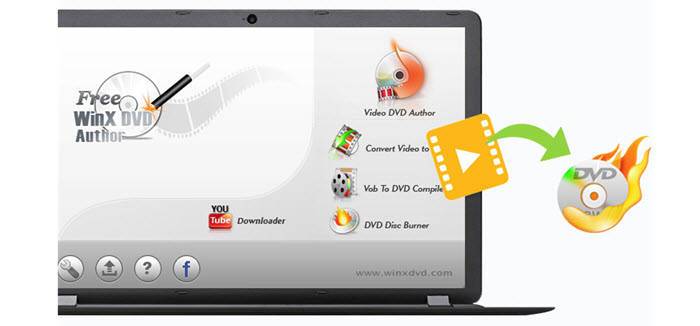
WinX DVD Author is Free yet powerful DVD authoring software. It converts all popular video to DVD, including AVI to DVD, FLV to DVD, MP4 to DVD, as well as WMV to DVD and more. By converting WMV videos to DVD, you can play the collected videos with your DVD player with wide screen and better performance.
Download the free and secure WMV to DVD converter - WinX DVD Author now to convert and burn WMV video files to DVD disc, VOB file and DVD folder easily on Windows 10, 8(.1), 7 etc., be it 32 or 64 bit. You're also empowered to personalize the DVD with chapter menu & subtitle, add music/picture as the background...
How to Free convert WMV to DVD?
To convert WMV to DVD with WinX DVD Author Free is very easy. The basic steps are as following. First thing you should do is to  download free WinX DVD Author. Launch it after installment. Then, insert a blank DVD disc into DVD-ROM. Please click Video DVD Author button on main interface to enter the second step.
Step 1: Setup source video files (clips)
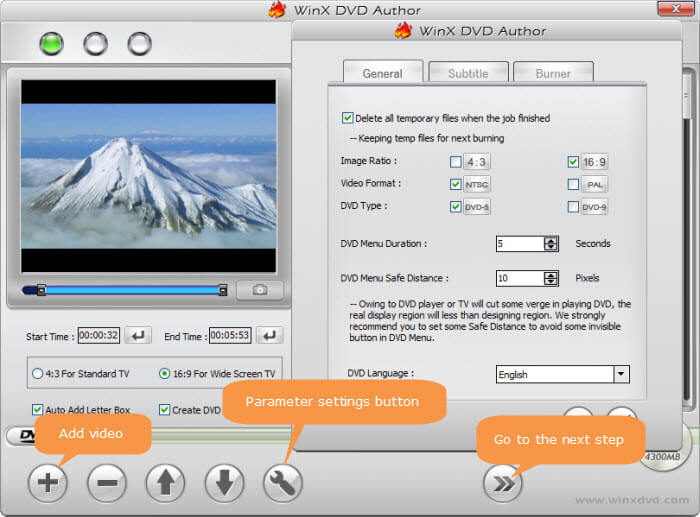
1. Click Add Files (+) button to add WMV videos into source list. You can add more than one video files at one time if you need.
2. Right click the source clip and you can find the options to move up/down, delete source video, add subtitle file, etc in the list.
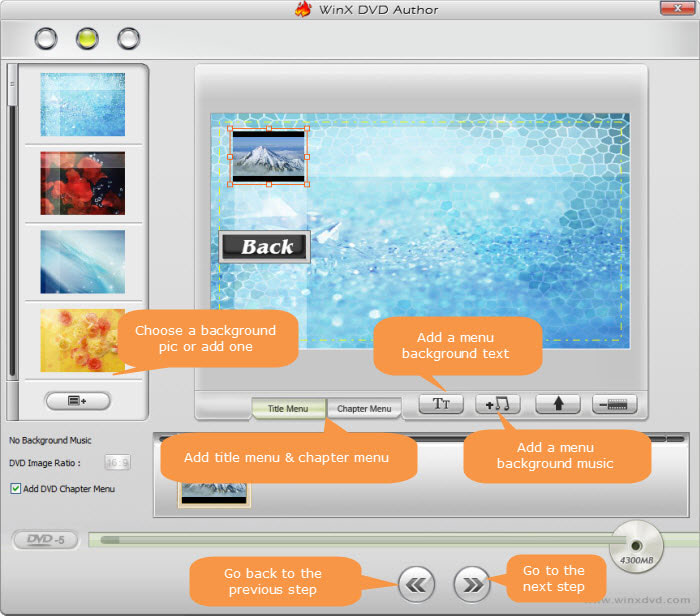
Step 2: Create DVD menu and chapter menu to personalize your DVD
- 1.You can choose background picture in the list or use your own picture to personalize your DVD background by clicking

- 2.Create title menu: Double click "Title Menu" then you can change the picture of title menu. Click
 to add text for title menu then double click to edit.
 - 3.Create chapter menu: Click "Chapter Menu" to create chapter menu for selected clip in preview area. Click to add text for chapter menu then double click text to edit it.
- 4.Add background music by clicking
 .
.
Step 3: Start converting WMV to DVD.
After specifying output folder, select writable DVD driveer and DVD format. At last, click "Start" button to create DVD from WMV videos.
This Free WMV to DVD converter allows you to backup all you WMV videos to DVD easily in a few clicks. Thanks to the straightforward interface, anyone even a novice can learn how to WMV to DVD without guesswork. The output quality works great as the same with the original. You can are allowed to create DVD menu with this WMV to DVD converter to make the converted DVD more stylish.
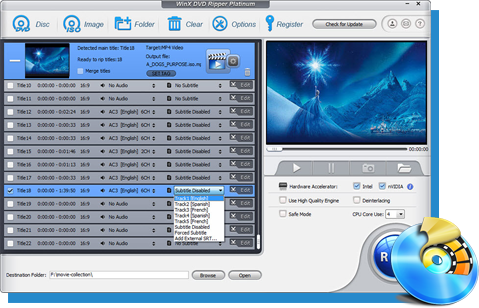
Tip: In turn, if you want to convert your DVD collection to WMV videos for a backup, WinX DVD Ripper Platinum (advanced version of WinX Free DVD Ripper) is the best choice, which is capable of converting DVD to WMV, MP4, AVI, MOV, FLV, iPhone, iPad, iPod, Android, Windows Phone (10/8), Xbox, PS3/4 etc. With prefect support for Microsoft Windows OS and Mac OS. It is voted as the best DVD ripper for Windows 10/8/7/Vista/XP and lower versions.
WinX DVD Author
WinX DVD Author is a free and all-round DVD creation and burn tool. It can convert and burn almost all videos to DVD, such as MKV, M2TS, M4V, AVI, MP4, MPEG, WMV, 3GP, DviX, Xvid, ASF, MOV, FLV, H.264, RM, RMB, OGG, QT, etc with top quality and fast speed.