








How to Copy a DVD to DVD with Original Quality
Whether you want to back up precious homemade home videos or protect your purchased movie collection from physical scratches, rot, or loss, copying a DVD to another DVD is the best insurance policy. The problem is copying DVD to DVD on Windows 11/10/8/7 often brings tricky challenges. For example,
- Copy-Protection Restrictions: Commercial DVD movies are protected by encryption schemes (CSS, Region Codes 1-6, Disney 99-title DRM, Sony ARccOS) that block standard copiers or burn empty files.
- Read & CRC Errors on Damaged Discs: Dirt, fingerprints, surface scratches, or disc deterioration often trigger "Data Error (Cyclic Redundancy Check)", "Read Error", or cause the process to freeze midway.
- Playback Failures on Home Players: Duplicated discs work on PCs but fail to load or play on standalone TV DVD/Blu-ray players due to incorrect disc formats (e.g., burned as a data disc instead of a video disc structure).
- Disc Capacity Limits (DVD-5 vs. DVD-9): A standard blank DVD-5 only holds 4.7 GB, which cannot directly accommodate a full 8.5 GB dual-layer DVD-9 movie without dual-layer discs or smart compression.

So, how can you copy a DVD to another DVD without getting stuck on copy protection, read errors, limited disc capacity, or other common issues? Don’t worry. In this guide, I’ll show you two easy and reliable ways to copy a DVD to another DVD without hassles.
Table of Contents
Preparation: What You Need Before Copying DVD to DVD
✔️Source DVD: The original DVD you want to duplicate.
✔️A DVD drive: A built-in or external USB DVD drive. One drive is enough; two drives allow you to read the source disc and burn the blank disc without swapping discs.
✔️A blank DVD disc:
- DVD-5 (4.7 GB): Best for source DVDs whose content fits within the 4.7 GB capacity.
- DVD-9 / DVD±R DL (8.5 GB): Use a dual-layer disc when the source DVD requires more than 4.7 GB of storage.
✔️Free hard drive space: If you are using a single DVD drive, make sure your computer has enough free storage for temporary disc-image files. Around 9 GB or more is recommended for copying larger DVDs.
✔️DVD copy software: Use reliable DVD copying software that supports DVD copying, disc-image creation, and DVD-5/DVD-9 burning.
Method 1: Copy DVD to DVD with 1:1 Quality (Best for 1 or 2 Drives)
If you need to copy a DVD to another blank disc while preserving the original menus, chapter navigation, subtitle languages, audio tracks, and other disc content, a dedicated 1:1 DVD copy tool such as WinX DVD Copy Pro can help. It supports both single-drive disc swapping and dual-drive DVD-to-DVD copying.
- Clone DVD to DVD: Create a 1:1 copy of the source DVD while keeping its original menus/chapters/video/audio without re-encoding.
- Main title/chapter copy: Copy only selected titles or chapters when you don't need the entire disc. For example, you can copy the main movie from an 8.5 GB DVD-9 to a standard 4.7 GB DVD-5 without sacrificing video quality.
- Clone to ISO/VIDEO_TS folder: Save a DVD as an ISO image or VIDEO_TS folder, then burn it to a blank DVD when needed.
🛡️ Better still? It can automatically bypass DVD copy protections, including CSS, Region Codes (1–6), Disney 99-title encryption, Sony UOPs, and more. For damaged or scratched discs, you can specify unreadable sectors to skip and continue copying.
How to Copy a DVD to another DVD in 1:1 Quality
Step 1. Enable Clone DVD to DVD
Download, install, and open WinX DVD Copy Pro on your PC. In the left-hand navigation panel under Full Disc Backup, select "Clone DVD to DVD".
Step 2. Select the Source DVD and Target DVD Drive
Click the drop-down arrow next to Source DVD and select your source disc. Then, select the blank disc under Target DVD Burner. If you have only one DVD drive, simply leave Target DVD Burner set to its default option.

Step 3. Configure Copy & Protection Settings
Configure the settings below to ensure a smooth DVD-to-DVD copying process.
- Temp Folder: Click Browse to choose a drive path with at least 9 GB of free storage.
- Copy Protections: Keep all protection boxes checked (Region Code, CSS, Disney's fake, etc.) to decrypt commercial discs.
- Bad Sector Engine: If your DVD is scratched or old, check this option to automatically skip bad sectors.

Step 4. Start Copying the DVD to Another DVD
Click the large blue RUN button at the bottom-right corner to initiate the process of copying a DVD to another DVD on Windows 11/10/8/7.
• If you have only one optical drive, it will first save the source DVD as an ISO file. Once the ISO is ready, eject the original disc and insert a blank DVD. Then adjust the writing speed and mode, and click Burn to start copying.
• If you have multiple optical drives, the process is even easier. Insert the source DVD into one drive and a blank DVD into the other. Both discs will be detected automatically. Adjust the writing speed and mode, then click Burn to start copying.

Disclaimer: Digiarty Software does not advocate copying encrypted DVDs for any commercial purpose, you are suggested to refer to the DVD copyright laws in your countries first.
Read More: >> WinX DVD Copy Pro Review.
Method 2: Copy DVD to DVD on Windows 11/10 via DVD Ripper + Built-in Burner
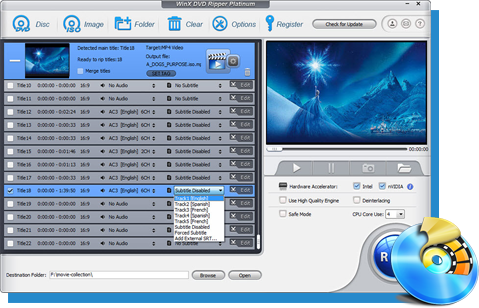
If you don't have dedicated disc-to-disc cloning software, a versatile alternative solution is to rip the DVD into an ISO image first, and then write it to a blank disc using Windows 11/10's native Disc Image Burner. To create an exact ISO image of your DVD, you’ll need a reliable DVD ripper. WinX DVD Ripper Platinum is a good fit for this task.
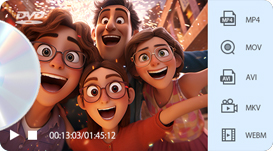
This DVD ripper gives you more flexibility when backing up or reusing your discs. You can copy a DVD to an ISO image or VIDEO_TS folder for a full backup, or convert it to MP4, AVI, MOV, and other popular formats for easier playback on different devices. It can also read slightly damaged or scratched discs, helping you recover content that other tools may fail to process.
Its support for both common and newer DVD encryption schemes also means fewer compatibility issues with difficult discs, including 99-title DVDs, workout discs, commercial movies, TV series box sets, and homemade DVDs. This makes it a practical fallback when standard DVD copying software cannot properly detect, read, or copy a disc.
Step 1. Load the Source DVD
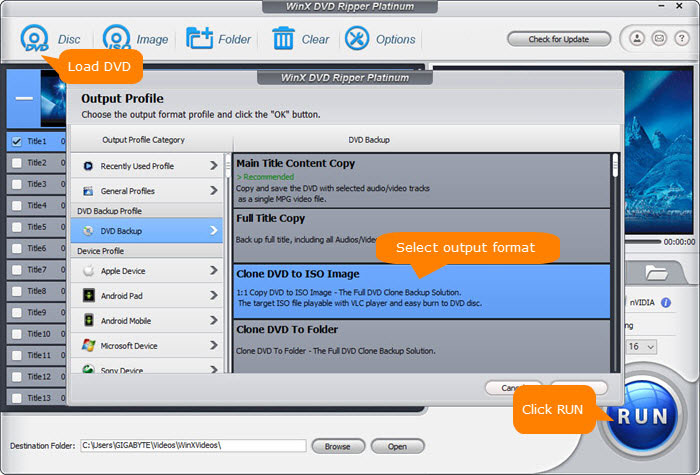
Download and launch WinX DVD Ripper Platinum on your Windows or Mac computer. Insert the source DVD into the DVD drive, then click the DVD button to load the disc.
Step 2. Copy the DVD to an ISO Image or VIDEO_TS Folder
In the Output Profile window, go to DVD Backup Profile and choose Clone DVD to ISO Image or Clone DVD to VIDEO_TS Folder. Click Browse to choose where to save the backup, then click RUN to start copying DVDs to ISO Image files.
Optional: If you only want to save the DVD to your computer instead of burning another disc, you can choose MP4, MOV, AVI, or another video format. In this case, you can stop here.
Step 3. Insert a Blank DVD
Once the DVD has been copied, eject the original disc and insert a blank writable DVD (DVD±R) into the same drive or another DVD burner. Make sure the blank disc has enough capacity for the copied DVD content.
Step 4. Burn the DVD Copy to Another DVD
On Windows 11/10/8/7: Locate the ISO image you created, right-click it, and choose Burn disc image. Select your DVD burner and follow the on-screen instructions to burn the ISO to the blank disc. For more details, see our guide on how to burn a DVD on Windows 11/10.
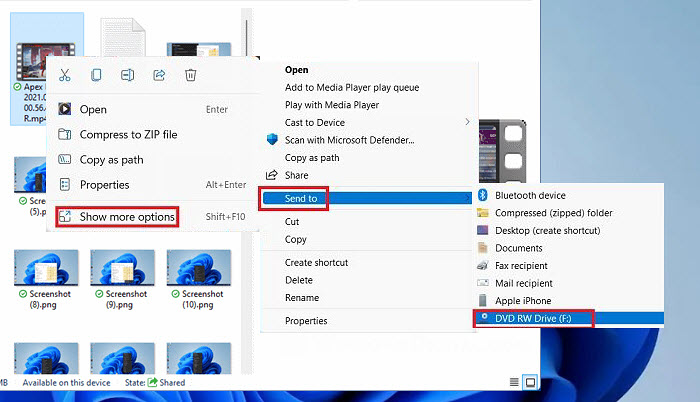
On macOS: Insert a blank DVD into the built-in or external optical drive. Open Finder, locate the copied DVD files or ISO image, and use the available disc-burning option to write them to the blank DVD. Follow the on-screen instructions to complete the process.
Tips for a Successful DVD-to-DVD Copy
1. Match the Disc Capacity
Before choosing a blank DVD, check the capacity of the source disc. A standard DVD-5 holds about 4.7 GB, while a dual-layer DVD-9 holds about 8.5 GB. If the source disc is larger than 4.7 GB, you'll need a DVD-9 blank disc for a full-disc copy, or you can copy only the titles or chapters you need to fit a DVD-5.
2. Choose the Right Blank DVD
DVD-R and DVD+R are the most common choices for permanent DVD copies. DVD-R has traditionally offered broad compatibility with older standalone DVD players, while DVD+R is also well supported by newer players and computer drives. If you're copying a disc that needs to work with an older player, DVD-R is generally a safe choice.
Rewritable discs such as DVD-RW and DVD+RW are useful when you plan to erase and reuse the disc, but they may not be as widely compatible with standalone DVD players as recordable discs.

3. Use a Moderate Writing Speed
If your drive and blank disc support multiple writing speeds, 4x or 8x is a reasonable choice for DVD copying. There's usually little benefit to choosing the maximum supported speed, especially when playback compatibility is a priority.
4. Use Quality Blank Discs and Handle Them Properly
For important backups, choose blank DVDs from a reputable manufacturer rather than the cheapest media available. Store them away from heat, moisture, and direct sunlight, and handle them by the edges to avoid fingerprints or scratches.
When labeling a disc, use a soft, permanent marker designed for optical media. Avoid adhesive labels, which can affect the disc's balance and may cause problems in some DVD drives.
FAQs about Copying DVDs to DVDs
1. How to copy a DVD to another DVD using Windows Media Player?
Windows Media Player can't copy DVD to DVD directly. You can copy the movie files from your DVD on your computer and then burn the movie files to DVD using Windows Media Player.
To copy movies from home-made DVD to computer, you may follow the steps below:
- Insert the DVD into the CD\DVD drive.
- Open computer, click on DVD drive, and select the files you want to copy.
- Copy and paste selected files to the location where you want to save those files.
To copy movies from commercial DVD to computer, follow this:
- Open WinX DVD Ripper and click DVD disc button to load your DVD.
- Choose output format.
- Click RUN to begin copying DVD to computer.
Now, follow the steps below to burn DVD on Windows 11/10/7 using Windows Media Player:
- Open Windows Media Player, click Burn, select Burn Options, and choose Data CD or DVD.
- Insert a blank DVD and select it.
- Find the movie you copy from DVD and drag and drop it to the Burn list of Windows Media Player.
- Click Start burn to begin burning DVD.
2. Can HandBrake copy DVD to DVD?
No. HandBrake can't copy DVD to DVD. It can only convert DVD to MP4, MKV, and WebM.
3. Can Walgreens copy DVDs to DVDs?
Yes. Check more DVD copying services>>
4. How to copy protected DVD to DVD?
WinX DVD Copy Pro can help you copy encrypted DVD to DVD. Just follow the guide above steps to perform this.
5. Can you make a copy of DVD you own?
It depends on the laws in your country. In some countries, it may be legal to make a backup copy of a DVD that you own for personal use. In other countries, it may be illegal to make any copies of DVDs, regardless of whether you own them or not. Additionally, some DVDs may be protected by Digital Rights Management (DRM) technology, which makes it difficult or impossible to make copies. In practice, it's safe to copy DVD to DVD as it's carried out on your local Windows/Mac machines.
6. Does Walmart make DVD copies?
Yes, Walmart offers DVD and Blu-ray duplication services at some of its stores and online through its website. However, the availability of this service may vary depending on your location and the specific Walmart store you visit.