WinX DVD Ripper Platinum
Rip a full DVD to MP4 (H.264/HEVC) in 5 mins. Backup DVD collection to hard drive, USB, etc with original quality. GPU Accelerated.
- DVD to MP4
- Support old/new/99-title DVD
- 1:1 copy DVD
- Full GPU acceleration
Learn More


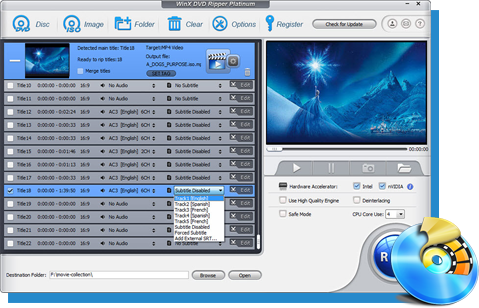
Rip a full DVD to MP4 (H.264/HEVC) in 5 mins. Backup DVD collection to hard drive, USB, etc with original quality. GPU Accelerated.
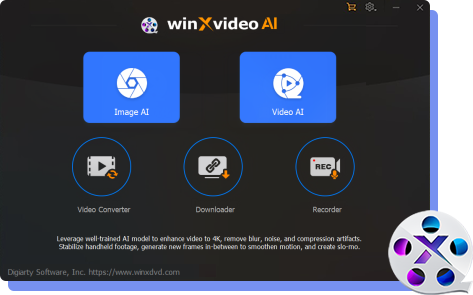
AI-powered video/image enhancer. Complete toolkit to upscale, stabilize, convert, compress, record, & edit 4K/8K/HDR videos. Cinema-grade quality. Full GPU accelerated.
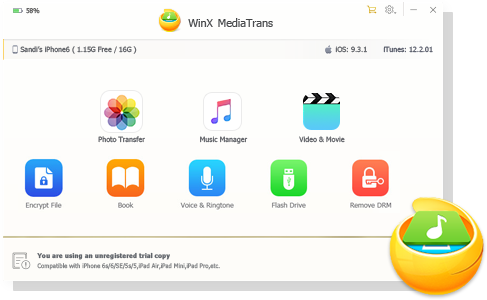
Manage, backup & transfer videos, music, photos between iPhone iPad and computer in an easier way. Free up space and fast two-way sync.

Find the answers to purchase benefits, license code, refund, etc.

Get help yourself if you have any questions with Digiarty Software.

Tutorials and step-by-step guides to learn how to use our products.

We've been focused on multimedia software solutions, since 2006.

Contact Support TeamHave any questions on purchase or need technical support, please contact us >>


WinX Free DVD Ripper is a free DVD ripper that can rip DVD to MP4, MPEG, WMV, MOV, FLV, etc., and backup DVD to iPhone, iPod, PSP, Android phone, etc. with easy-to-use functions and excellent video/audio quality at fast ripping speed. Supporting homemade DVDs and commercial DVD with CSS encryption, region code, Sony ARccOS, UOPs, RCE, etc., it provides best free DVD ripping solution.
 1. WinX DVD Ripper User Guide
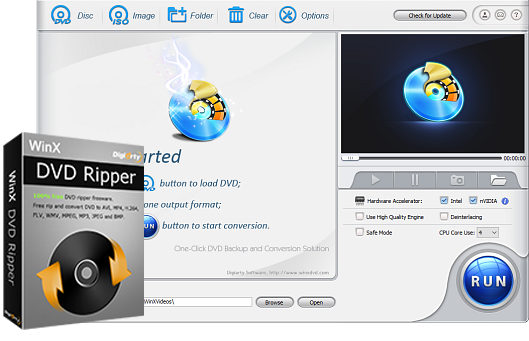
You can rip and convert DVD to MP4, WMV, MPEG, MOV, FLV, iPone, iPod, Apple TV, PSP, Android, etc. With WinX DVD Ripper, you can rip your DVDs by few clicks:
(If you want to backup DVD to iPad, the platinum version can give you satisfying outcome.)
After running WinX DVD Ripper, you can load real DVD by clicking "DVD Disc" button and DVD folder by clicking "Folder" button.
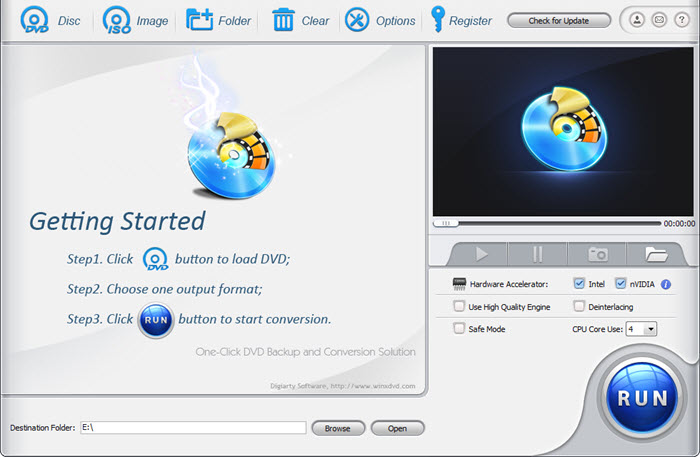
After loading DVD, the DVD's information, such as title, subtitle, start/end time and output will be shown in the file list. Choose the output video format among the popular video formats so as to rip DVD to MP4, MPEG, WMV, FLV or MOV, or choose the target device among the output devices so as to convert DVD to iPod, iPhone, Apple TV, PSP, HTC, Samsung, etc.
Besides, you can extract music out of the movie, saving as MP3 format, and grab picture saving as BMP format.
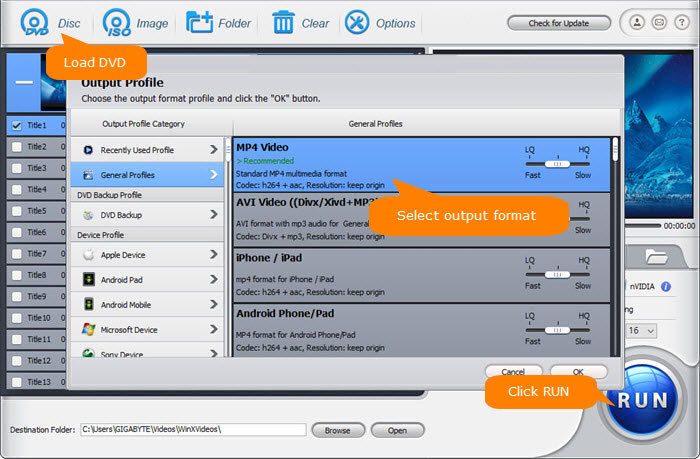
Click "Browse" button in output setting area, select a destination folder in the dialog box that opens, then click OK.

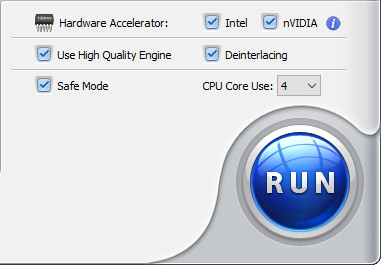
After finishing the above settings, check the files needed to convert in the file list, and click "Start" button on the main interface, to start converting the movie. You can view the conversion progress from the progress bar at the bottom of the dialog box.
 2. Tips
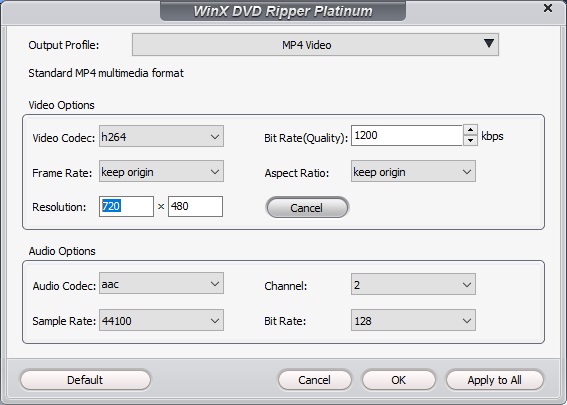
1. You can set the detailed parameters of output format in the parameter setting area.
2. If you find a image you like in the moive, just click "snapshot" button under the preview window to store the image in your folder.
3. If you only want to get a segment of DVD movies, you can trim the movies by setting the "start time" and "end time".
4. You can choose "Open output folder when convesion completed " option to open the converted video folder when conversion finished .
5. If you want to cancel the converting process, you can click "stop" button to do this.
WinX DVD Ripper Plutinum, featuring more advanced technology and DVD-protection removing solution, is more powerful than the original version. It could cater for your higher requirements easily. Backup DVD to popular devices such as Sony PSP, Apple iPhone, iPod, iTouch, Apple TV, iPad, Android, HTC, Samsung, XOOM, Galaxy Tab, Mobile phone, copy DVD to a single MPEG2 file, clone DVD to ISO, and rip DVD to AVI, FLV, WMV, MPEG, MP4 and any other popular video formats.


 1. User Guide
 2. Tips