






WinX iPhone Converter for Mac provides perfect solution to rip and convert any videos to iPhone, iPad, Apple TV, iTunes on Mac OS. This Mac iPhone converter accepts almost any popular video formats including both regular video formats AVI, MPEG, WMV, DivX, MP4, MOV, RM, RMVB, ASF, 3GP, etc and HD video formats MKV, M2TS, AVCHD, MTS, HD H.264/MPEG-4 AVC. Say, WinX iPhone Converter for Mac can convert HD camcorder videos, like JVC, Panasonic, Sony and Cannon without any third-party codec.
WinX iPhone Converter for Mac User Guide
This guide will show you how to use WinX iPhone Converter for Mac to convert videos on Mac. You can also find some FAQ on this converter.
To find the answers quickly, please click the following questions.
- Convert videos to iPhone, iPad, Apple TV, iTunes on Mac OS
- Convert Multi-track HD videos on Mac OS
- Add Subtitle to Video
- Trim Video Segment
- Crop the video size
- Add Watermark to the video
- Merge Video Files
- Make Photo Slideshow
- How to edit video file name for proper display on iPhone, iPad, Apple TV
- How to import and transfter converted videos to iPhone, iPad, Apple TV
- How to extract background music from video file
Convert Videos to iPhone, iPad, Apple TV, iTunes
Here we will take converting video to iPhone 5 for example. Please download, install and run WinX iPhone Converter for Mac on your computer.
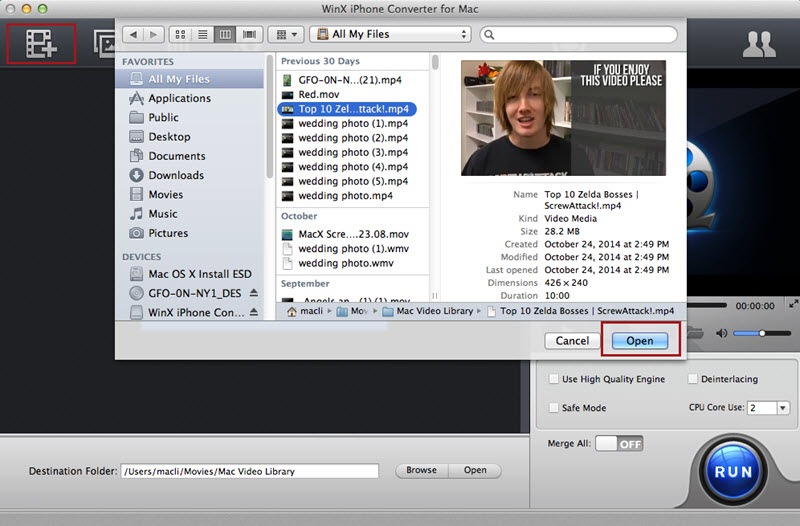
Step 1: Import videos by clicking "+" button. You can load more than two videos at a time.
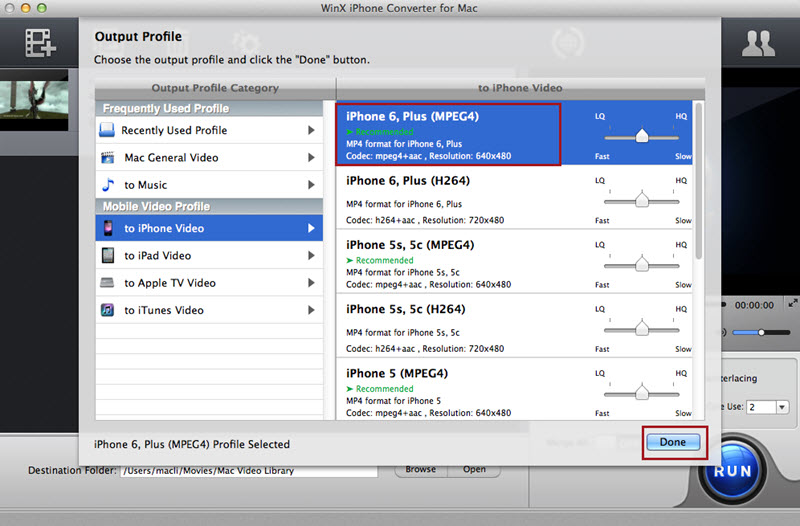
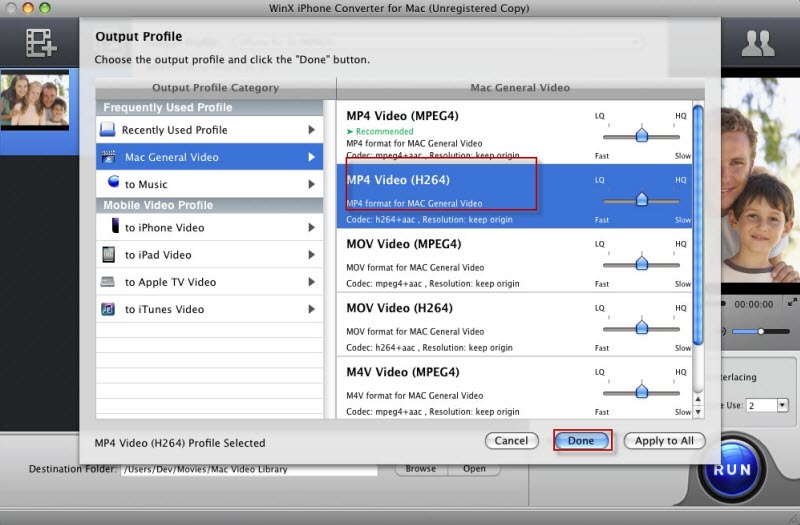
Step 2: Select output format as you wish. Like, to iPhone Video -> iPhone 6, Plus (MPEG4) -> Click "Done" button.
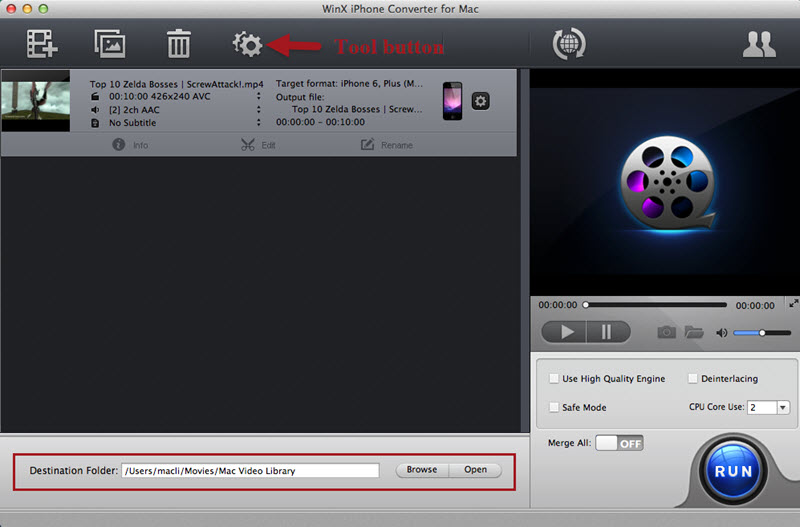
Step 3: Select output folder by clicking "Browse" button to choose the path where you want to save the output file in.
Tips:
1. For advanced users, WinX iPhone Converter for Mac enables you to customize audio and video parameters via clicking "Tool" button, like Video Codec, Bite Rate, Frame Rate, Aspect Ratio, Resolution, Audio Codec, Channel, Sample Rate, etc.
2. To improve the output image effect, you can select "Use High Quality Engine" on the interface. If the original video is interleaving video, please select "Deinterlaceing". And the Advanced De-interlace Accelerator can convert it to progressive scanning video with much better quality.
3. To accelerate the conversion speed, you are suggested to set "CPU Core Use". WinX iPhone Converter for Mac can make full use of up to 8 cores in your computer to maximally increase the processing speed.
Step 4: Click "RUN" button to begin conversion. And you can view the conversion process and stop it anytime.
Convert Multi-track HD Videos on Mac OS
Multi-track HD video refers to a video file that contains multiple audio language track and video track, including BDAV, M2TS, MKV, AVCHD, HDTV and MPEG-TS. WinX iPhone Converter for Mac allows you to convert these videos with ease. And in this tutorial, we will take converting Multi-track MKV video for example.
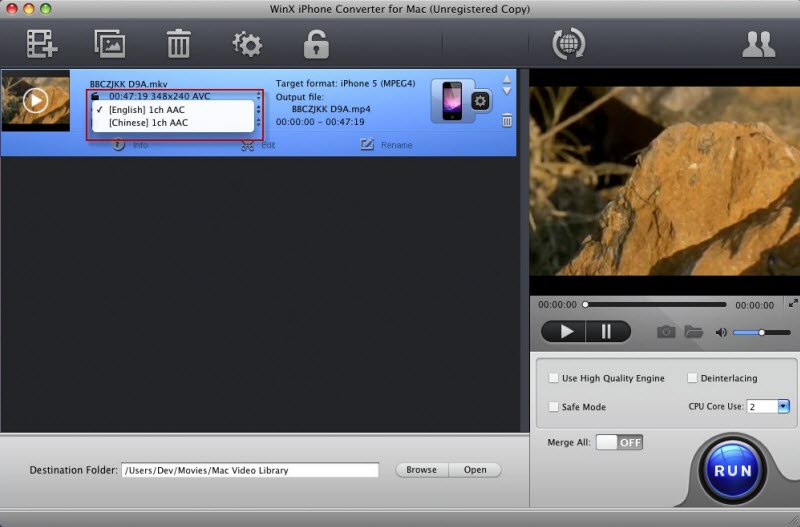
Step 1: After import the Multi-track MKV video and choose the output formats, you can find the detailed information about the source video in the File List window.
Step 2: Click "Audio" button in the File List window and select the audio language track you need. And then start the conversion.
Add Subtitle to Video
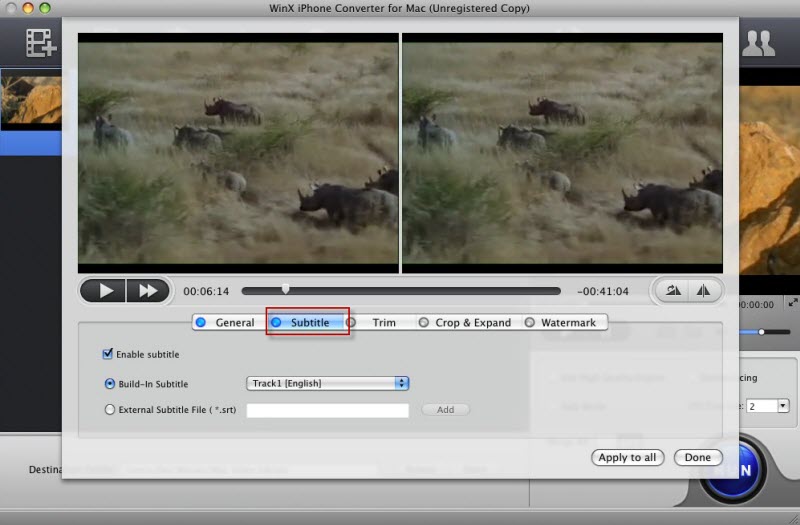
Select "Edit" tab in the File List window after importing source video -> click "Subtitle" and select "Enable subtitle" button -> Add built-in subtitle tracks to the video, or load an external subtitle file (.ssa, .ass, .srt) to the video.
PS: If you don't have a subtitle file yet, go to opensubtitles.org to search and download one for free.
Trim Video Segment
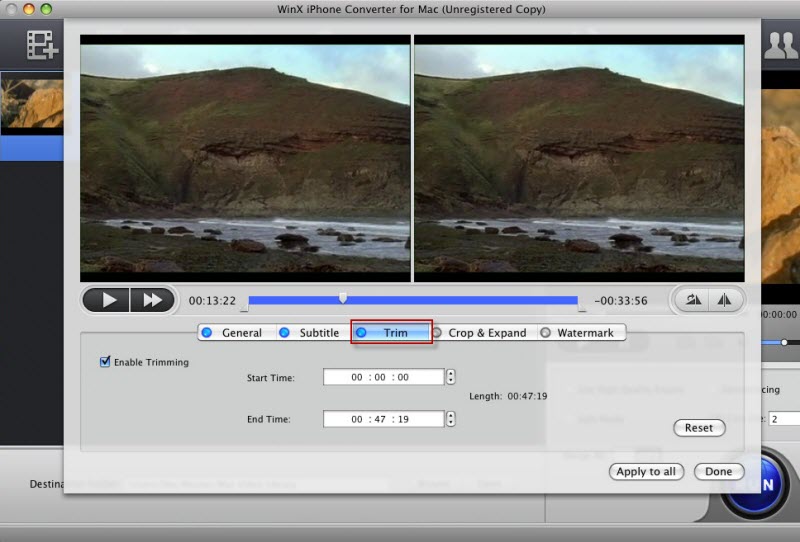
Select "Edit" tab in the File List window after importing source video -> Click "Trim" and select "Enable Trimming" -> Adjust the Start Time and End Time, or drag the left & right bar under the video preview window.
Crop the Video Size
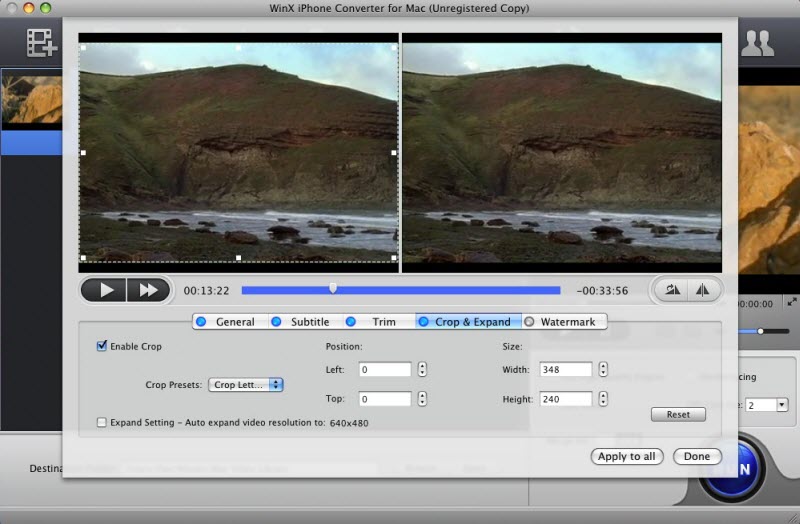
Select “Edit” tab in the File List window after importing source video -> click "Crop & Expand" and select "Enable Crop" button -> Adjust the aspect ratio of the video to Full Screen, 16:9. 4:3, or crop the video by dragging the resizable handle and frame -> Click "Done".
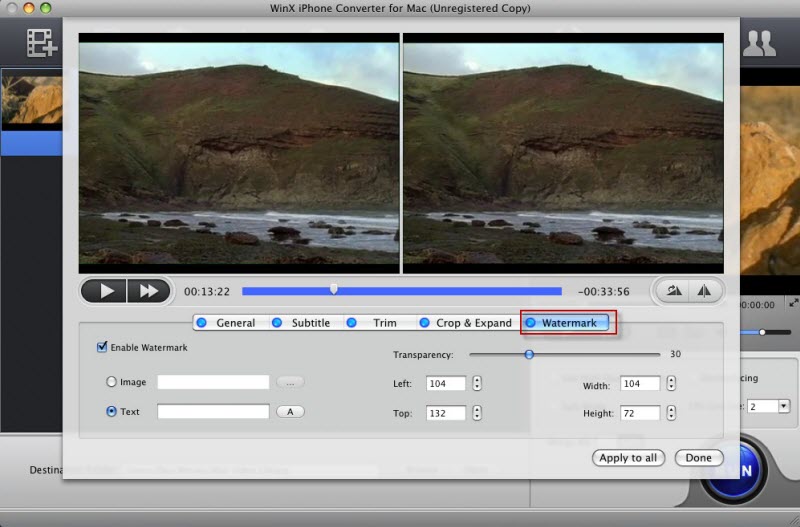
Add Watermark to the Video
Select "Edit" tab in the File List window after importing source video -> Click "Watermark" tab and select "Enable Watermark" -> Press "Image" or "Text" button to import image watermark or create a text watermark according to your demands.
PS: You can also adjust the transparency, vertical and horizontal position of watermark.
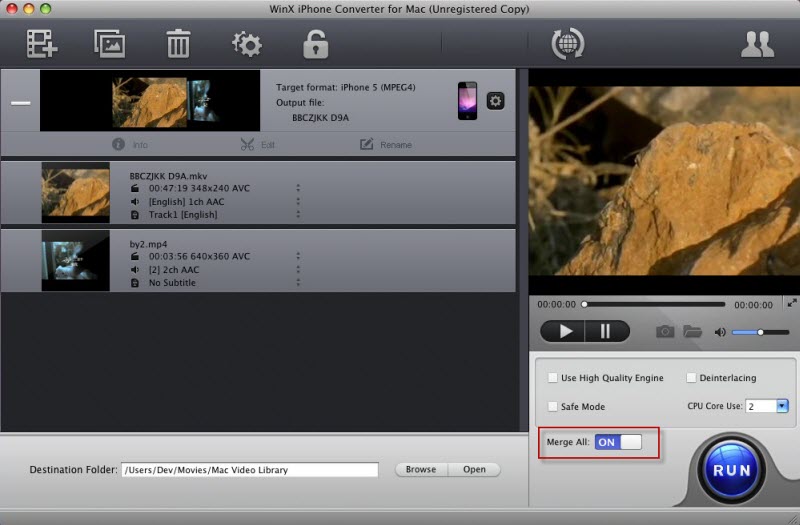
Merge Video Files
Import the video you want to merge -> choose the status of Merge All "On" on the main interface -> Click "RUN" to merge.
Make Photo Slideshow
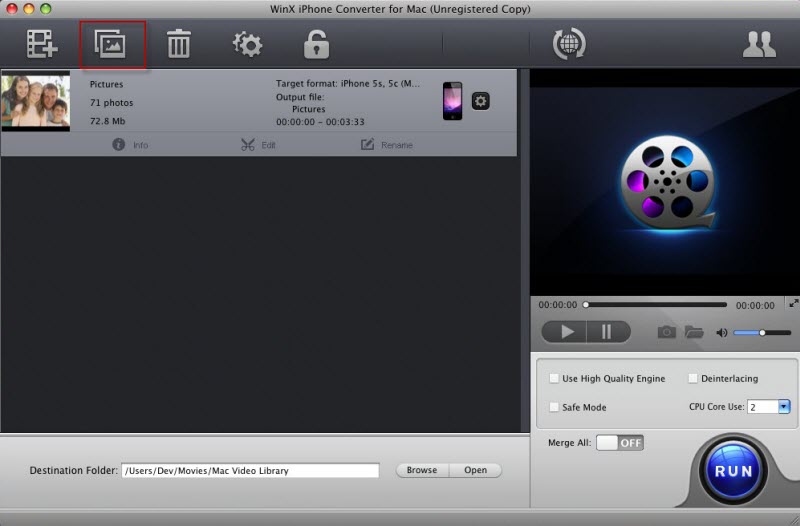
Before making slideshow, please put all the photos or pictures in a folder in desired order. Then, do as the following steps.
Step 1: Import the photos folder by clicking "Add Photos" button.
Step 2: Choose the output format as you wish. For example, MP4, M4V, MOV, iPhone, iPad, Apple TV, etc.
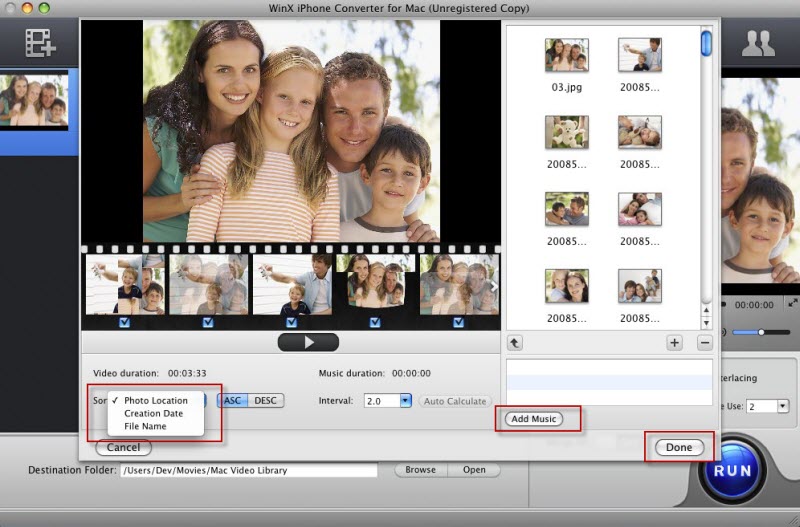
Step 3: Click "Edit" tab in the File List and select "Add Music" button to add background music to the video.
(There are multiple options given in the program, such as, you can rename the output file name as well, add or delete images, set the order of appearance according to photo location, creation date or file name.)
Step 4: Click "RUN" to begin conversion.
Bonus Features
Q. Can I edit video file name for proper display on my iPhone/iPad/Apple TV?
A: To do this, please hit "Rename" tab in the File List window after import videos. Then you can edit Output File Name, Display Name, Artist, etc.
Q: How to import and transfter converted videos to iPhone, iPad, Apple TV?
A: Please do as the following steps: Launch iTunes -> Go to menu File -> Add File to Library and import videos into iTunes; or drag & drop the video into iTunes -> Press the Sync button to load the video to Apple devices.
Q: How to extract background music from video file?
A: Import the video file, and select "to Music" output profile category . You will be able to extract the background music as music file in AAC, AC3, WMA, AIFF, CAF, DTS, OGG, AU, RA, WAV, FLAC, ALAC formats.